

Feature launch with releases, messages and surveys
Combine a release, an in-app message or product tour shown at the right moment, and a survey to the users who tried the feature, to launch it and check it works.
An announcement alone rarely makes a feature stick. Users need to know it exists, try it when it is useful to them, and you need to know whether it works for them. Screeb covers the three steps: a release logs the launch, an in-app message or product tour shows the feature at the right moment, and a survey asks the users who tried it.
When to use this sequence
Section titled “When to use this sequence”Use it for any feature you want users to adopt, not only to notice: a new report, a workflow, a setting that saves time. Each piece does one job:
| Step | Tool | Job | When |
|---|---|---|---|
| 1 | Release | Mark the launch on your charts | The day you ship |
| 2 | Message or product tour | Get the right users to try it | When they reach the context where it helps |
| 3 | Survey | Check it works, and learn why or why not | Right after the tour, or a few days after first use |
1. Log the release
Section titled “1. Log the release”Open Releases and click Add a release, or let your deployment pipeline create it. The release shows as a flag on every chart over time, so you can compare your scores and response rates before and after. See Track your releases.
A release does not show anything to your users. It is your marker, for the analysis of steps 2 and 3.
2. Announce it at the right moment
Section titled “2. Announce it at the right moment”Showing the feature to everyone at their next login gets it closed. Show it when the user is in a position to use it.
- Pick the format. A Modal for a major launch, a Popover or a Beacon on the new button for a smaller one. To walk users through several screens, start from the Product tour format. See Create an in-app message or product tour.
- One goal. Point at one feature and end on one action. A tour that introduces three things at once loses users along the way.
- Trigger on intent. In the targeting, under Specific users, add a rule of the User activity group on the event that shows the user is ready: Performed event (count) for “created at least one project”, for example. Add a page or screen rule to show it where the feature lives. See Choose who sees your message and when and Show a survey based on events and user properties: the rules work the same for messages.
In a mobile app, use a Modal rather than a Popover or a Beacon: these cannot anchor to the elements of an app yet. Check the message with Preview and test a message before you set it live.
3. Survey the users who tried it
Section titled “3. Survey the users who tried it”Ask the users who saw the feature in action, not everyone. Two moments work well, and you can use both.
Right after the tour. The impression is fresh and the response rate is higher. In the survey targeting, under Specific users, add the Completed survey or message rule, set to Is your tour. It matches only users who went through every step: someone who closed the tour on the first step cannot judge the feature yet.
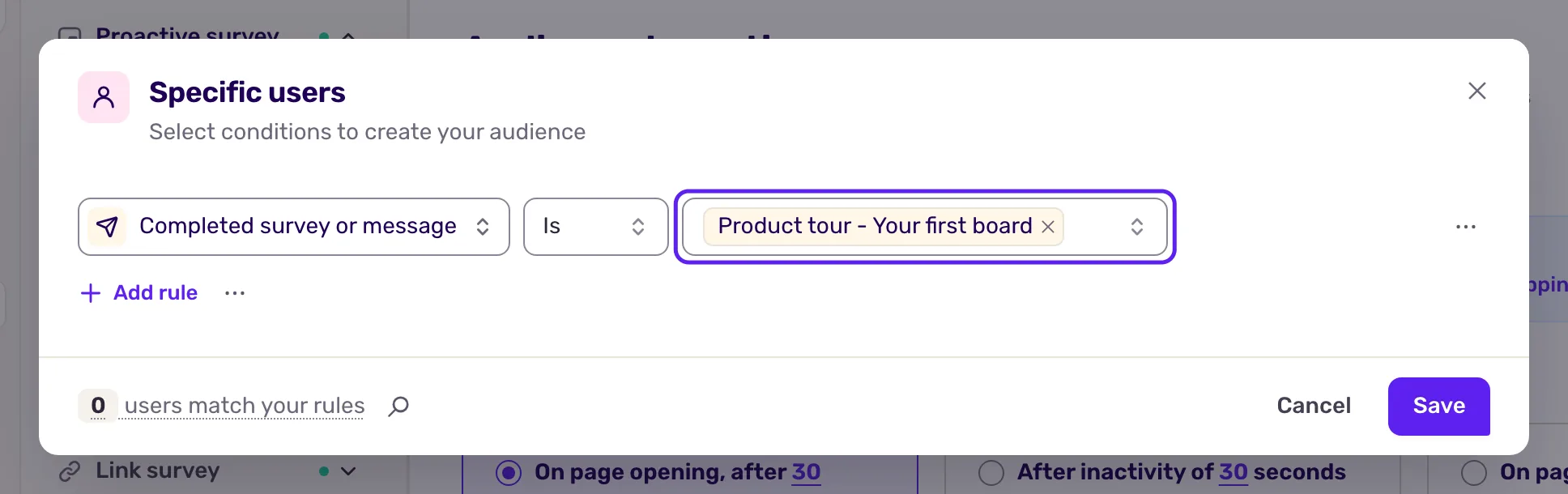
You can also start the survey from the last step of the tour, with the “Start a survey/message” action of its button, see Use contextual actions in messages.
A few days after first use. For a feature that needs real use before anyone can judge it, add a Performed event (time) rule on the feature’s event, with First trigger and More than 3 days ago. The survey then reaches users who adopted the feature, after some time with it.
Keep the survey short: a CSAT or CES question on the feature, and an open question on what is missing. See Choosing between NPS, CSAT, CES and NES and Choose who sees your survey.
Measure the adoption
Section titled “Measure the adoption”- The tour and the feature. Message breakdown shows at which step users leave, but a good completion rate is not adoption: compare the use of the feature between users who completed the tour and users who did not see it. See Measure the results of your messages.
- The answers. Read the open answers first: they hold the improvements a score alone cannot give. A high score right after the tour is a first impression, not proof that the feature is useful over time.
Limits
Section titled “Limits”- A release is a marker in Screeb, not a message: it never shows to your users.
- Event rules need your site or app to send the event, see Track and manage user events.
- The Completed survey or message rule does not match users who closed the tour before its last step.