

Use contextual actions in messages
Make the buttons of your messages open pages, act on elements of your site, start a survey, track events or talk to your own code.
Contextual actions run when a user clicks a button of your message: open a page, scroll to an element, highlight it, fill a field, start a survey, track an event, and more. Use them to guide users through your product.
Before you start
Section titled “Before you start”- The message exists, see Create an in-app message or product tour.
- Screeb is installed on every page where an action runs, including the pages a “Navigate to URL” action opens.
- Actions on page elements need a CSS selector that stays the same between releases. Ask your developers for stable
idattributes on the elements you target. - The editor is in English, like the action names in this article.
Add actions to a button
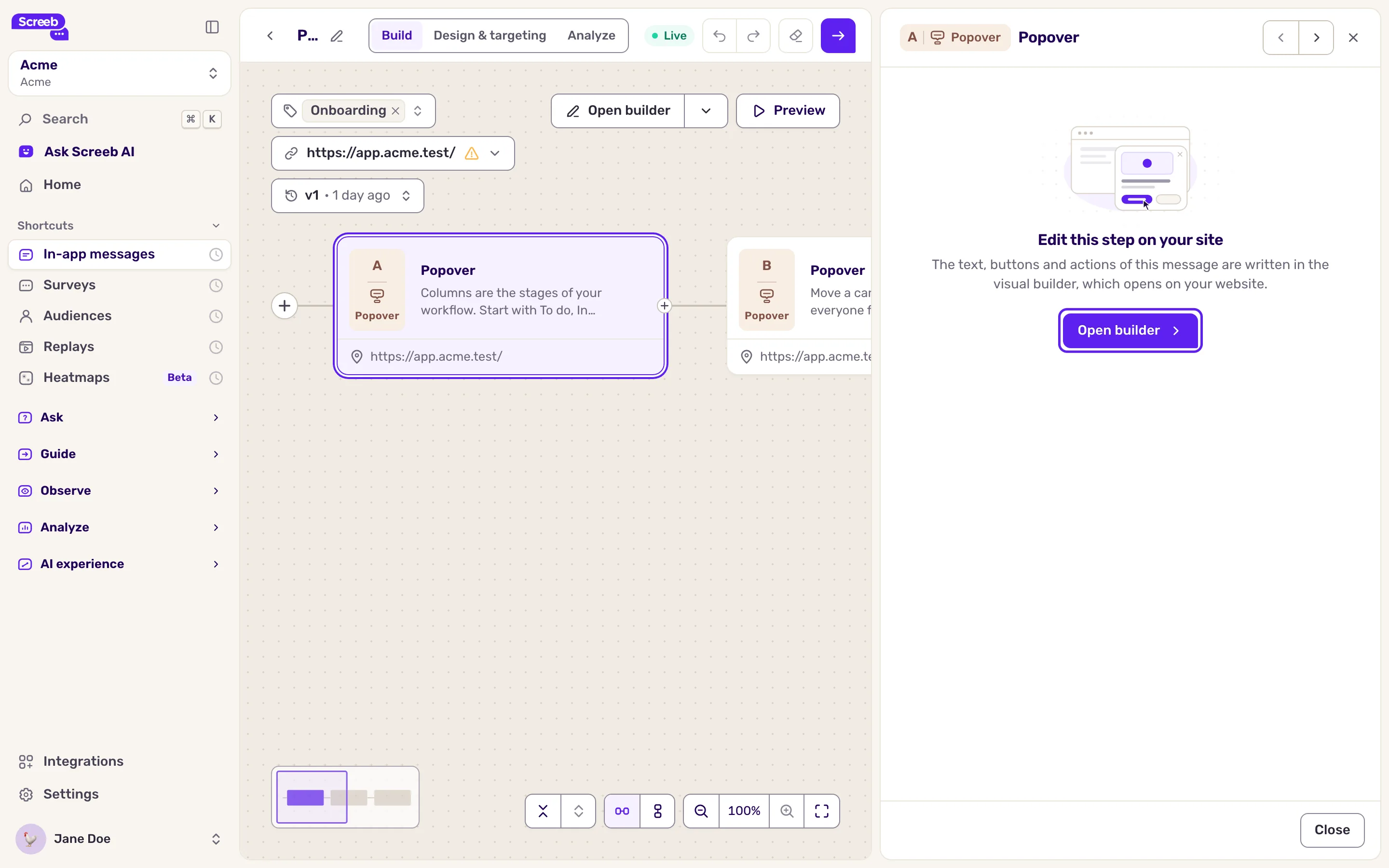
Section titled “Add actions to a button”- Open the message, then Build. Click the step card, then Open builder in its panel. The editor opens on your site, on that step.
- Open the button that should run the actions: the “Go to next step” block, or one button of a “Choices” or “Open a URL” block. For a Beacon without action block, open the step settings: the actions run when the user clicks the beacon.
- Click “Add action”. A new action is “Navigate to URL” by default: pick another type in the list if needed.
- Fill in its fields. Add more actions: they run one after the other, from top to bottom, up to 10 per button.
- Confirm each action, save the block, then click “Save” at the bottom of the editor.
Action types
Section titled “Action types”Actions are grouped as in the editor: Navigation, Element, Flow, Screeb and Other. Many of them act on your page and do nothing in a mobile app. See Contextual action types for what each one does and where it works.
Text fields such as URLs and values accept variables, see Personalize questions with variables and hidden fields.
To guide a user to an element that loads late, chain “Wait for element”, “Scroll to element” and “Highlight element” with the same selector.
What you get
Section titled “What you get”Each click runs the actions in order. The next action starts when the previous one ends, or after about 10 seconds at most, whatever the delay or timeout you set. On a website, after a “Navigate to URL” in the same tab, the remaining actions resume on the new page if it loads within 30 seconds.
In a mobile app, the web only actions are skipped. “Navigate to URL” set to the same tab opens the link in the browser of the phone, and the actions after it do not run.
Troubleshooting
Section titled “Troubleshooting”An action on an element does nothing. The element is not on the page yet, or the selector changed. Add “Wait for element” before it, and check the selector with “Pick” in the action.
“Dispatch custom event” does nothing. Your page needs code that listens to an event of that exact name. Ask your developers to check it.
“Start a survey/message” shows nothing. The other survey or message may have reached its capping or target another platform. Check it with Debug your setup with Screeb Inspector.