

Create a survey from a template or with AI
Start a new survey from a ready-made template, from scratch or from a description written for Screeb AI, then edit it in the builder.
Start a new survey from a template written for a common need (NPS, onboarding, feature feedback), from scratch, or from a description that Screeb AI turns into questions. Whichever you choose, you edit everything in the builder before the survey goes live.
Before you start
Section titled “Before you start”- Your role lets you create surveys, and surveys are part of your plan.
- To show the survey to users, the Screeb tag must be installed, see Install Screeb on your website or web app. You can create and edit surveys before that.
Open the creation menu
Section titled “Open the creation menu”- In the main navigation, under Ask, open Surveys.
- Click New survey at the top right. A menu offers Create from template, Create from scratch and Create with AI.
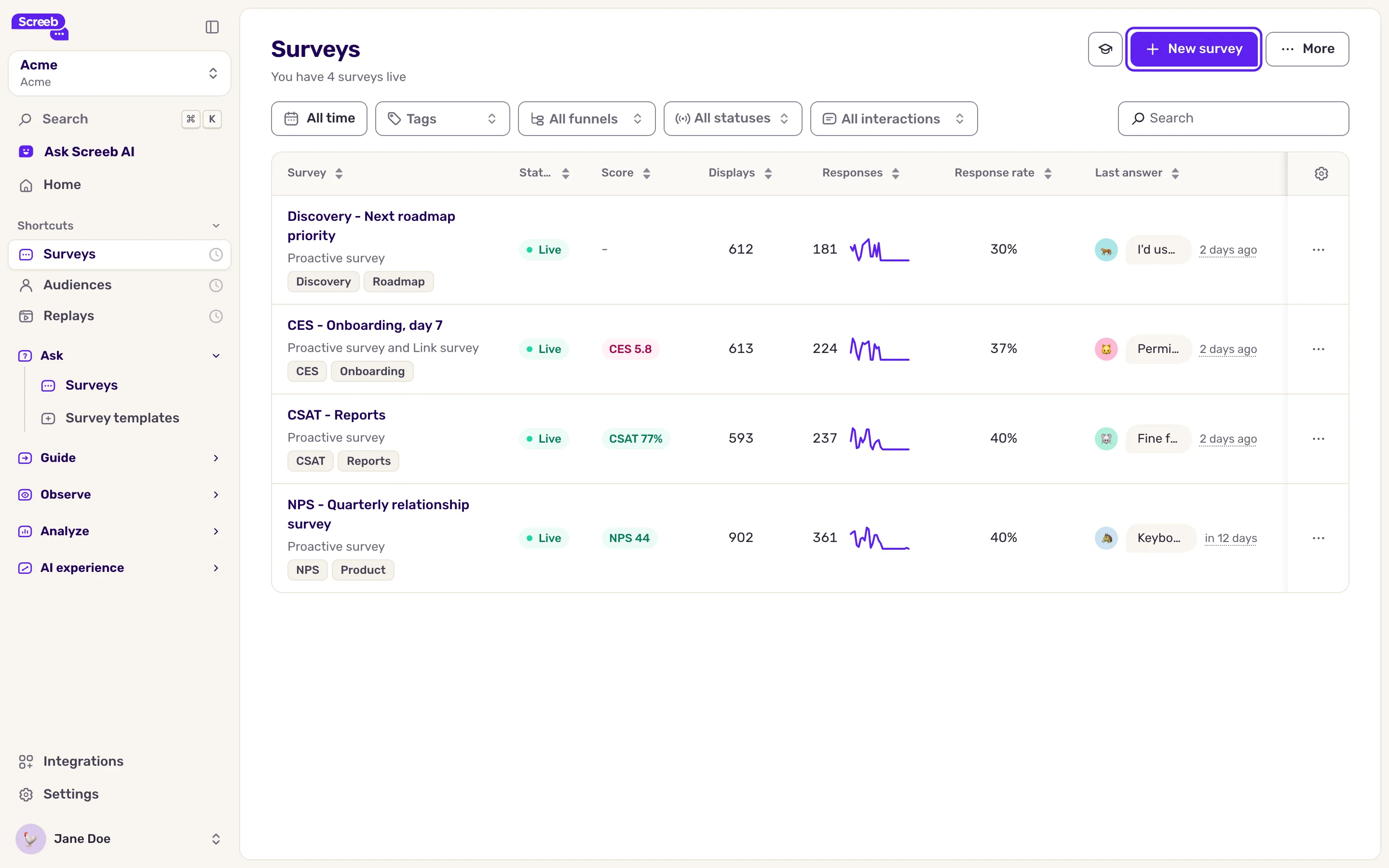
When the workspace has no survey yet, the list shows no New survey button: it offers Create from template, Create from scratch and, when AI is available, Create with AI in the middle of the page.
Start from a template
Section titled “Start from a template”- Click Create from template, or open Survey templates under Ask.
- Browse the Most popular templates at the top, or search the All templates table below by name or topic.
- To see a template as your users would, click Preview. It opens in a new tab.
- Click Use on the template you want. Screeb copies it into a new survey and opens it in the builder, with the template questions ready to edit.
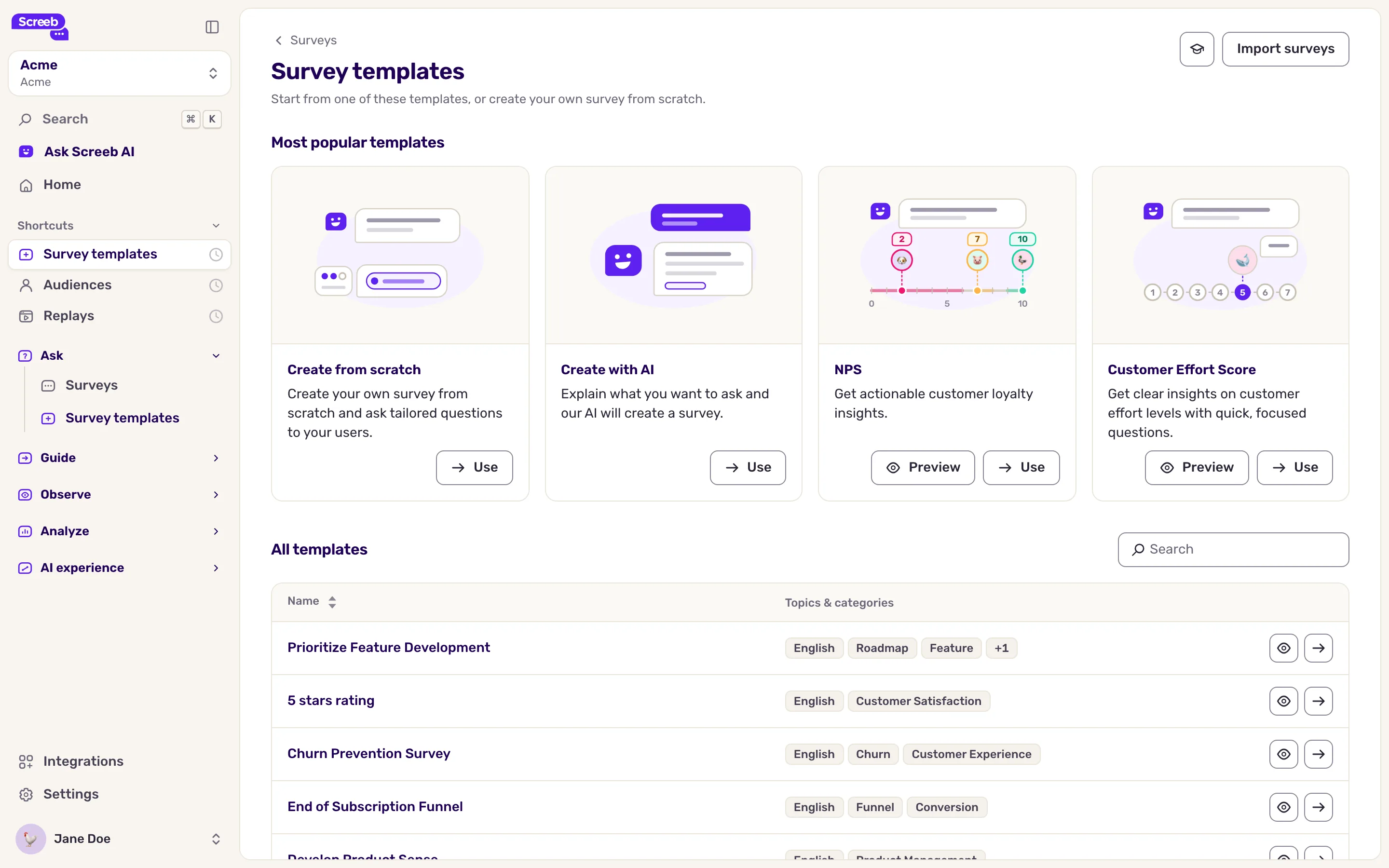
The gallery also has a Create from scratch card and, when AI is available, a Create with AI card.
Start from scratch
Section titled “Start from scratch”Click Create from scratch. An empty survey named “New survey” opens in the builder. Add your questions there.
Create with AI
Section titled “Create with AI”- Click Create with AI. A new survey opens in the builder, with the AI window on top.
- Describe what you want to learn from your users, in your own words. You can also click one of the suggested scenarios below the text box: it generates a survey right away.
- Click Create. Screeb AI writes the questions and loads them in the builder after a few seconds.
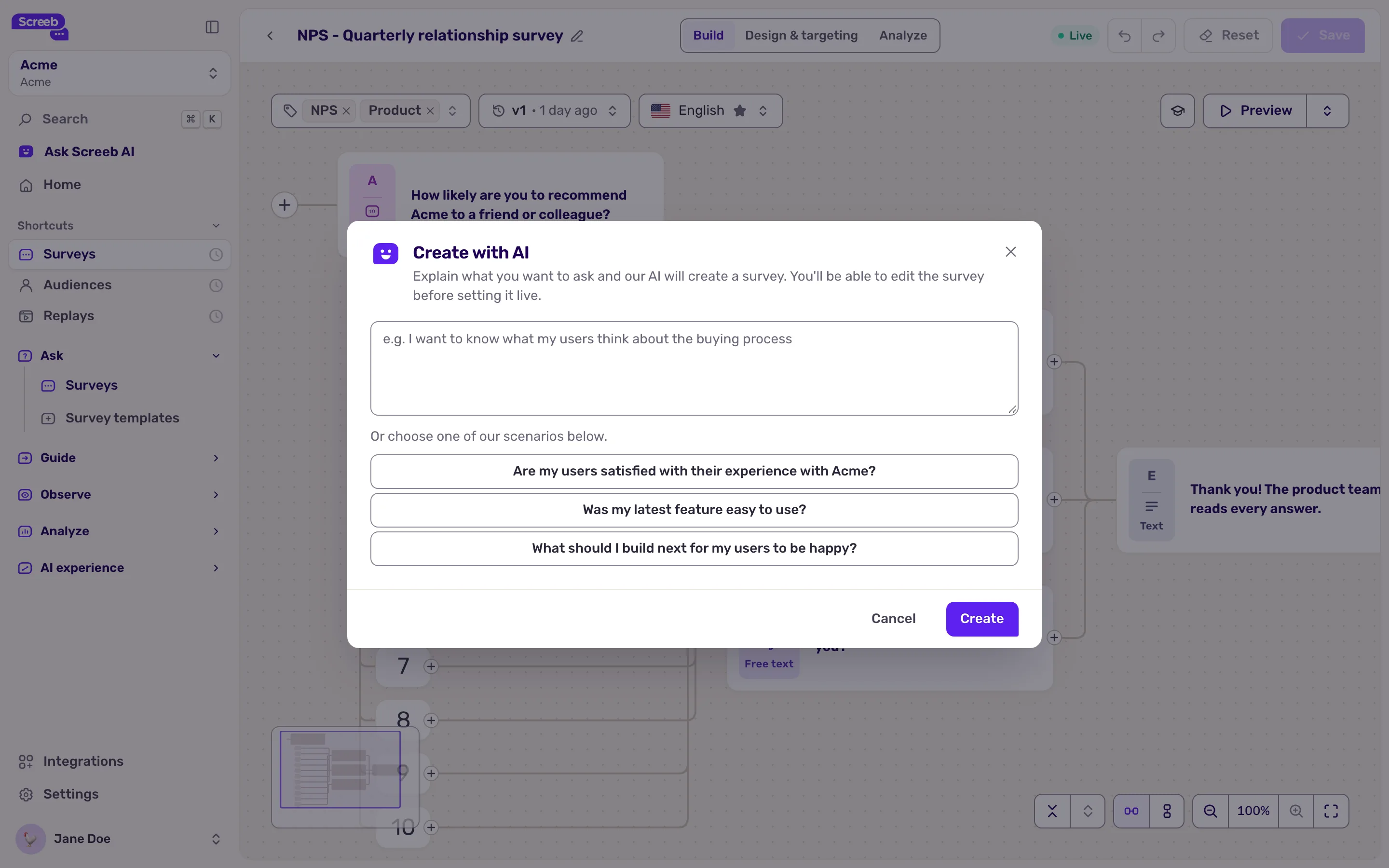
Give context: who the users are, what happened before the survey, what decision the answers will feed. It helps Screeb AI write questions that fit.
What you get
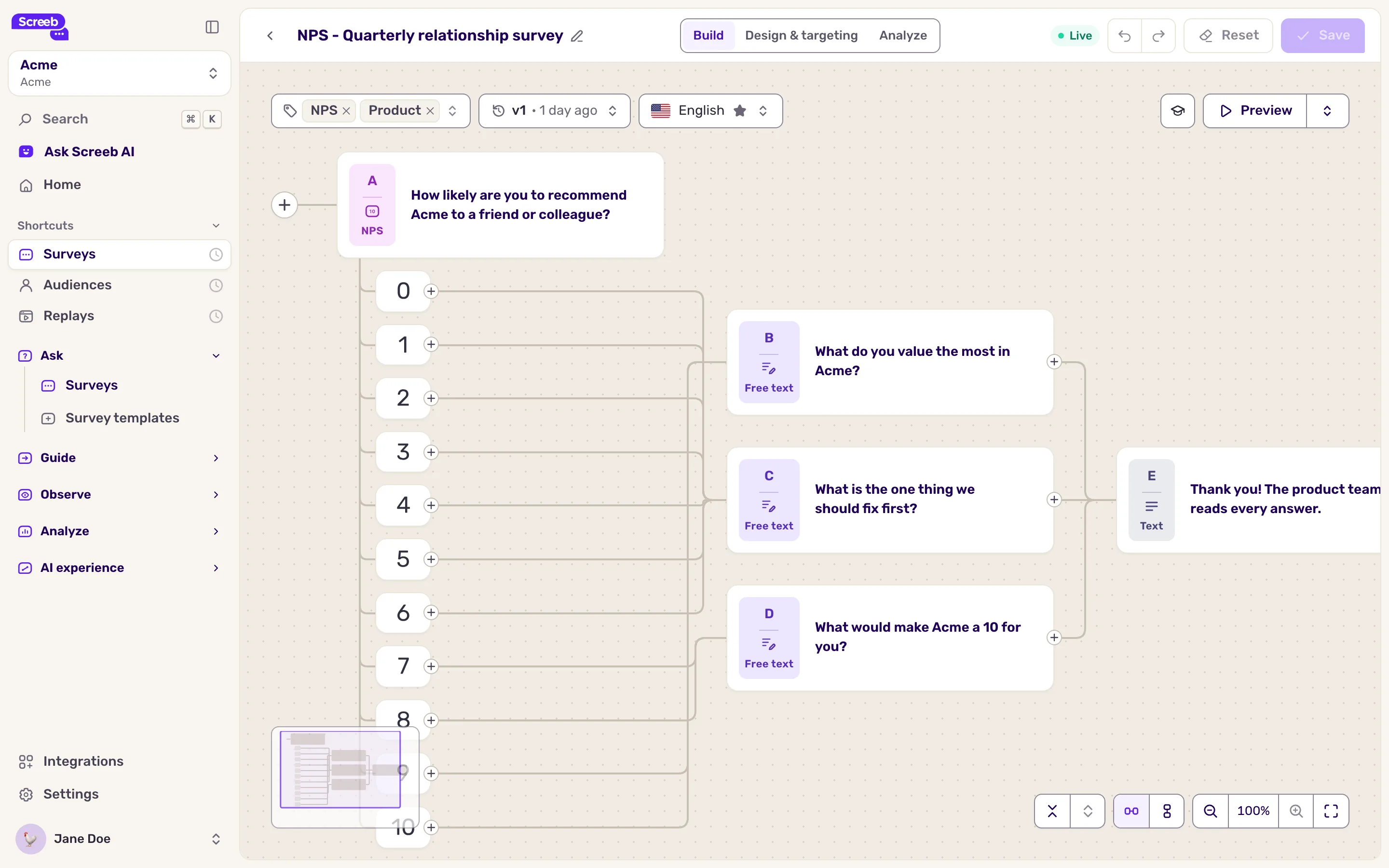
Section titled “What you get”A new survey, saved but not shown to anyone yet: its channels stay stopped until you set it live. It opens on the Build step, where you edit the questions and click the name at the top to rename it.
The questions show as a flow of cards, from left to right; click Vertical flow next to the zoom to lay them out from top to bottom.
Design & targeting and Analyze stay disabled until the survey has a first question. Next, open Design & targeting to choose who sees it, then click the Set live button at the top right, followed by the channel name.
Troubleshooting
Section titled “Troubleshooting”A window asks you to install Screeb. No user has been seen in the workspace yet. Click Show me the templates to keep browsing the templates, and install the tag before setting the survey live.
Create with AI is missing. AI features are not available on every account. Start from a template or from scratch instead.
New survey is missing. The workspace has no survey yet: use the buttons in the middle of the list. If they are missing too, your role does not allow creating surveys. Ask an admin of the workspace.