

My survey or message is not displayed
Find out why a survey or message does not show on your site or app, from a missing tag to a targeting rule, and fix it.
A survey or message that should show on your site or app does not appear. Go through the causes below in order: they start with the most frequent.
The fastest way to check most of them is Screeb Inspector, opened on the page where the survey should show.
The Screeb tag does not run on the page
Section titled “The Screeb tag does not run on the page”If the tag is not loaded, nothing can display.
- Check: open Screeb Inspector on the page and look at the “Installation & Health” checks of the Overview tab. Without the inspector, open the browser console and run
$screeb('debug'): an error saying$screeb is not definedmeans the tag is not on the page. - Fix: install the tag on every page where you want to show surveys, see Install Screeb on your website or web app or Install Screeb in your mobile app. If you use a consent banner, the tag only loads once the visitor accepts it. A firewall or a strict Content Security Policy can also block Screeb, see Use Screeb with a Content Security Policy.
The channel is not live
Section titled “The channel is not live”A survey or message only shows once its channel is set live.
- Check: open the survey or message, click Design & targeting, then Audience targeting under the channel in the side menu. The dot next to the channel name shows its status.
- Fix: click Set live at the top right and confirm. When the channel is live, the button becomes Pause.
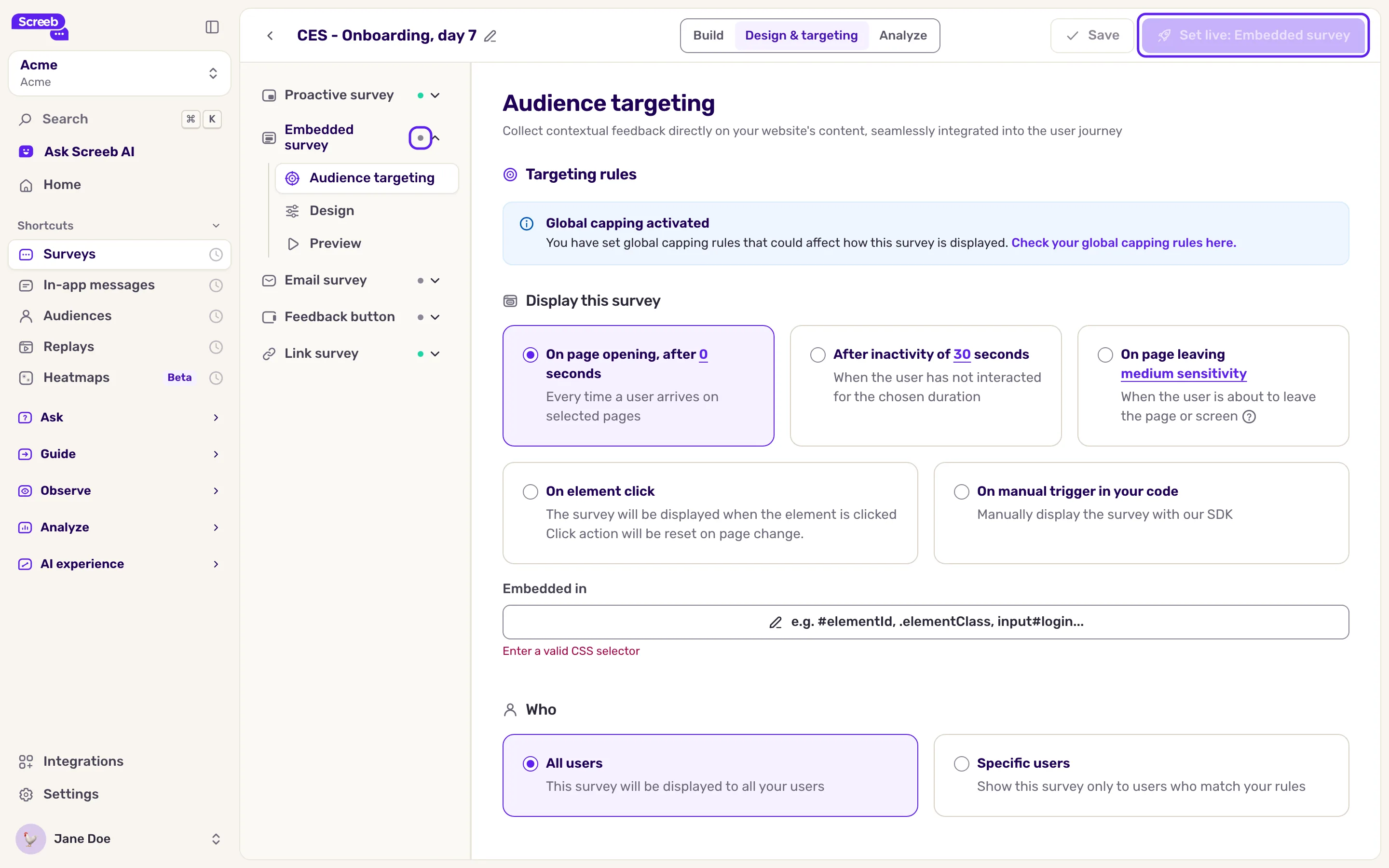
A live channel can still wait for its dates: if you used Define start date, Define end date or Define time window, a banner at the top of the page says the survey is active but outside its date and time range.
A targeting rule does not match
Section titled “A targeting rule does not match”Every rule of the audience targeting must match the user, the page and the moment.
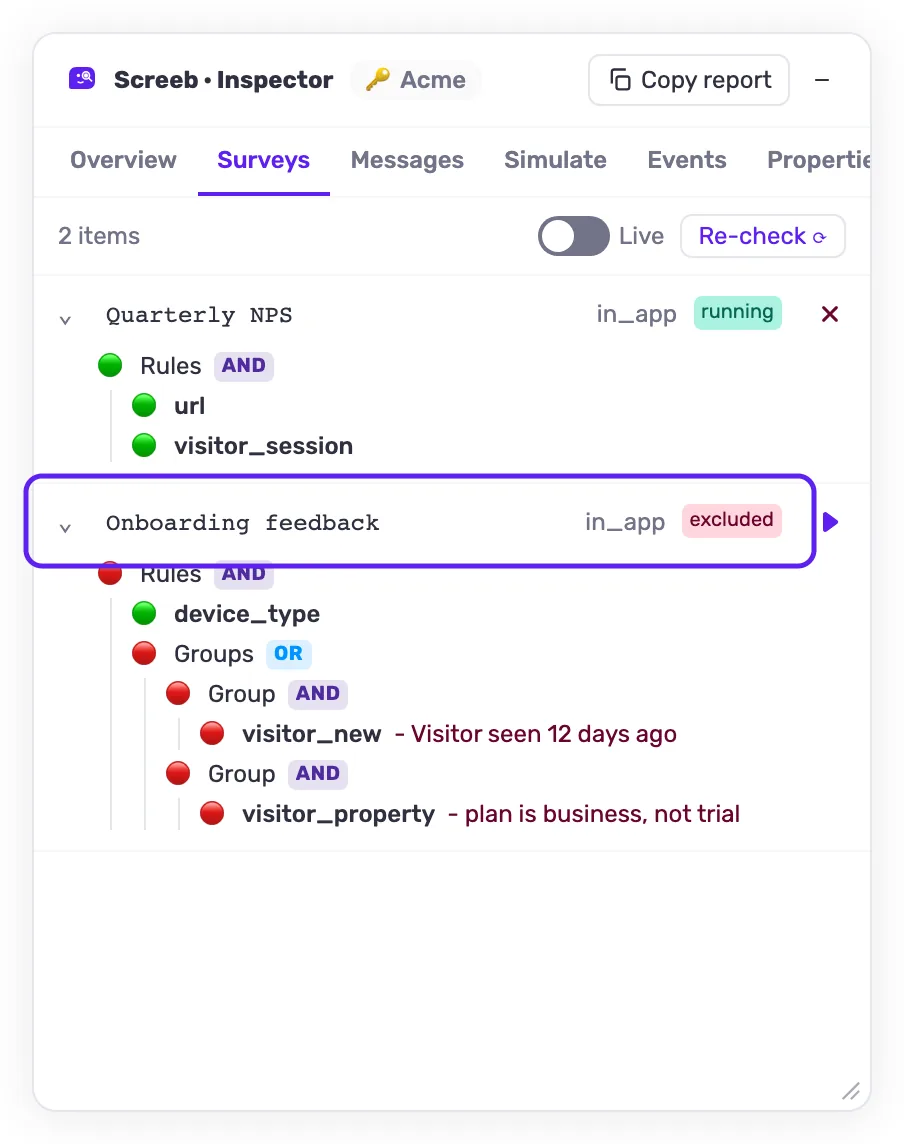
- Check: in Screeb Inspector, open the Surveys or Messages tab. An “excluded” item shows the rule that fails. In the browser console,
$screeb('targeting.debug')for surveys and$screeb('message.debug')for messages list each rule as passing or failing. - Fix: adjust the rule, see Choose who sees your survey. Page rules are the most frequent cause: check the exact address, including the subdomain and a trailing
/.
The user has already seen it
Section titled “The user has already seen it”By default, a user sees a survey only once.
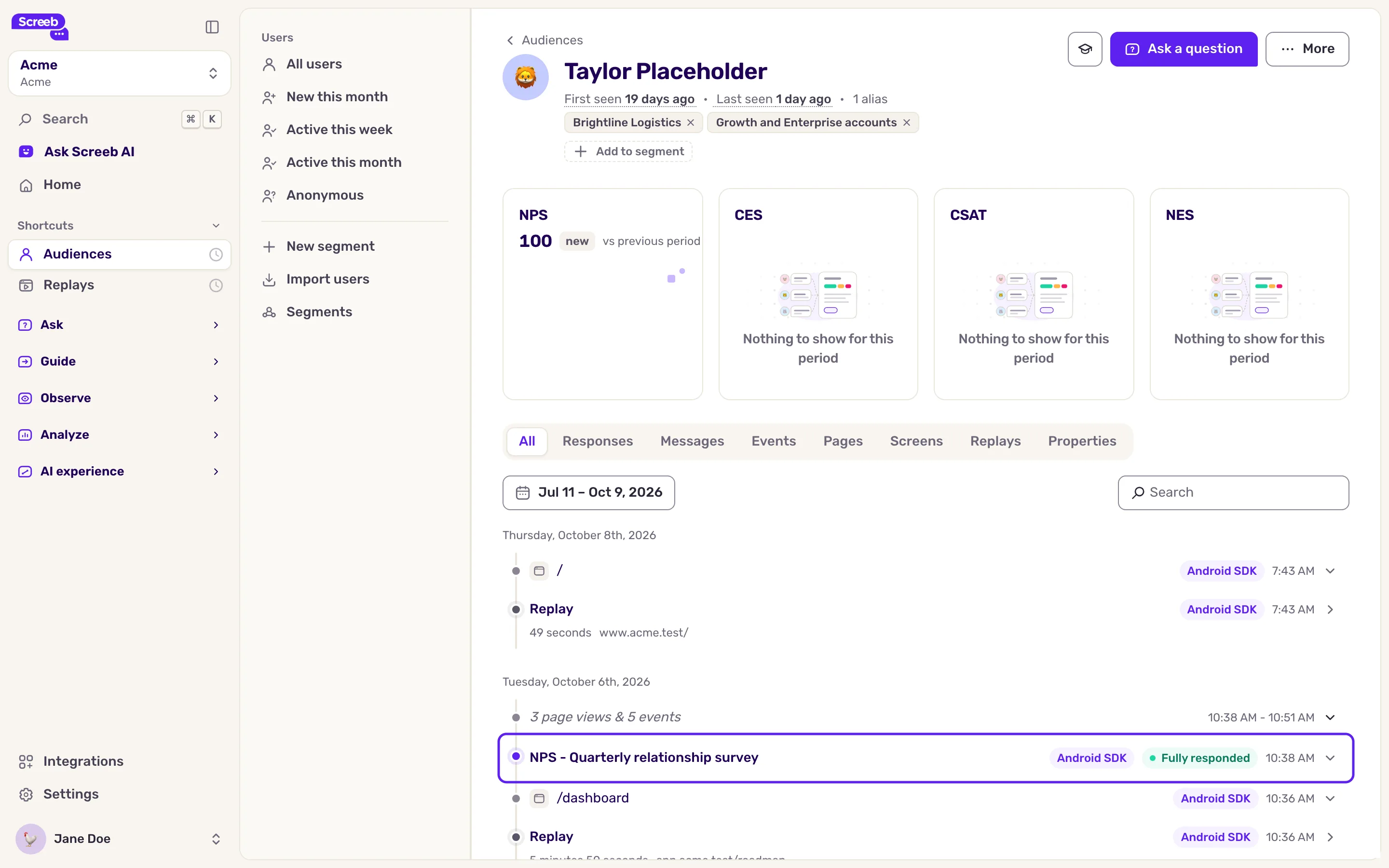
- Check: in Audiences, open the user’s profile. The All tab of the activity lists the survey if it already showed, with its status: Displayed when the user did not answer, Partially responded or Fully responded otherwise. A message shows as Completed or Displayed.
- Fix: to test again and again, click Turn on test mode in the settings of the targeting page, and add a rule so that only you match. To show it again to real users after some time, use Display again.
Capping limits the displays
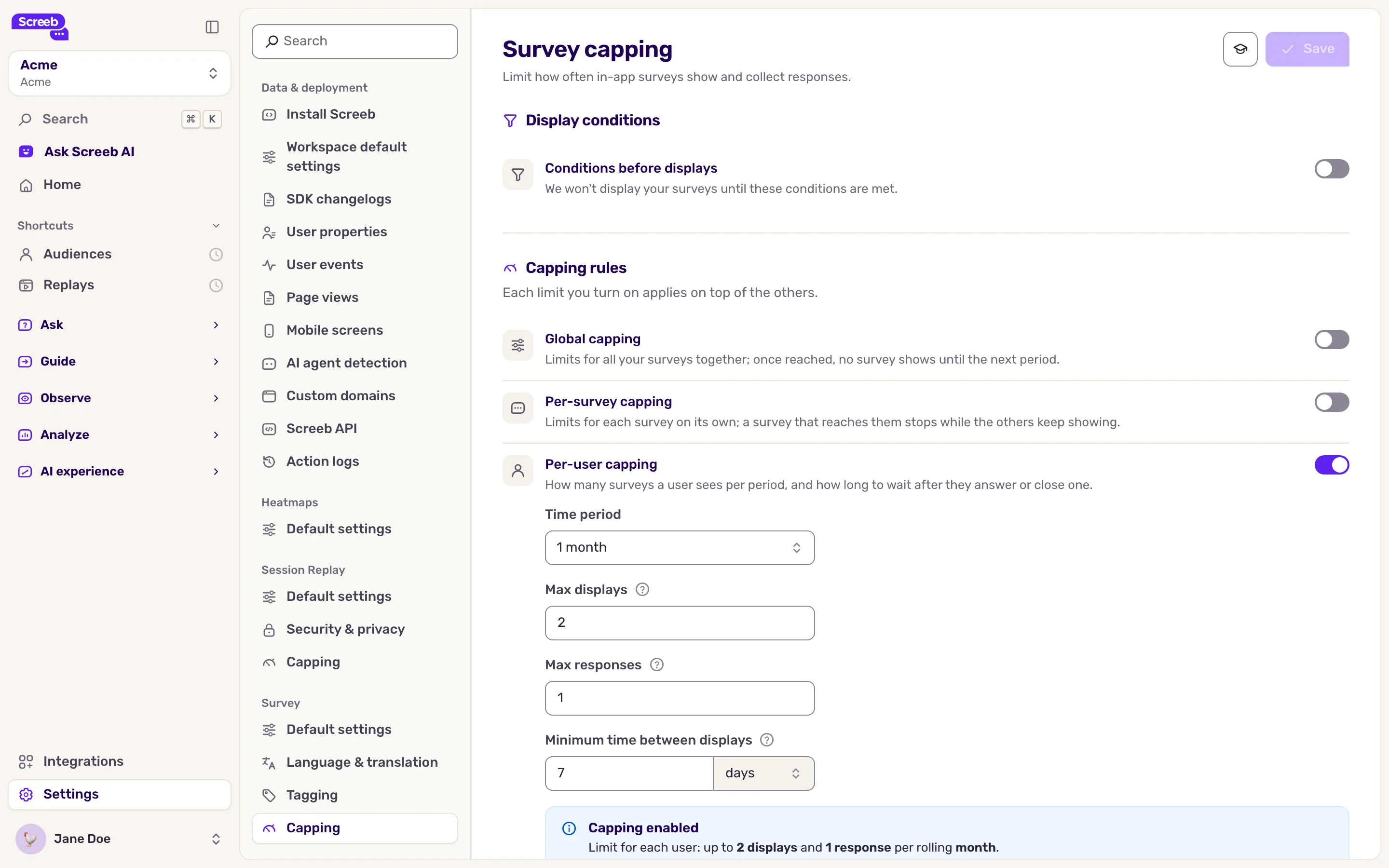
Section titled “Capping limits the displays”Capping caps how many surveys or messages a user sees, or how many displays and responses a survey gets.
- Check: a Global capping activated banner on the targeting page means workspace capping applies. The survey settings can also have their own capping.
- Fix: raise or remove the limit in the survey settings or in the workspace settings: Capping for surveys, Capping for messages. The banner links to the right one.
The wrong device or platform is targeted
Section titled “The wrong device or platform is targeted”- Check: under Where, see which of Desktop, Tablet and Mobile are ticked, and for a survey on mobile which platforms (Web, iOS, Android). A survey shown in a native app needs the mobile SDK in that app, and mobile surveys must be part of your plan.
- Messages in mobile apps: a Some formats have limited support on mobile apps warning means a step of the message uses a format with limited support in mobile apps: Embedded works on websites only, and Popover and Beacon cannot attach to an element of your app yet. Modal, Sidebar and Banner work in iOS, Android, Flutter and React Native apps. A modal embedded in an element of the page also works on websites only.
The user is not tracked
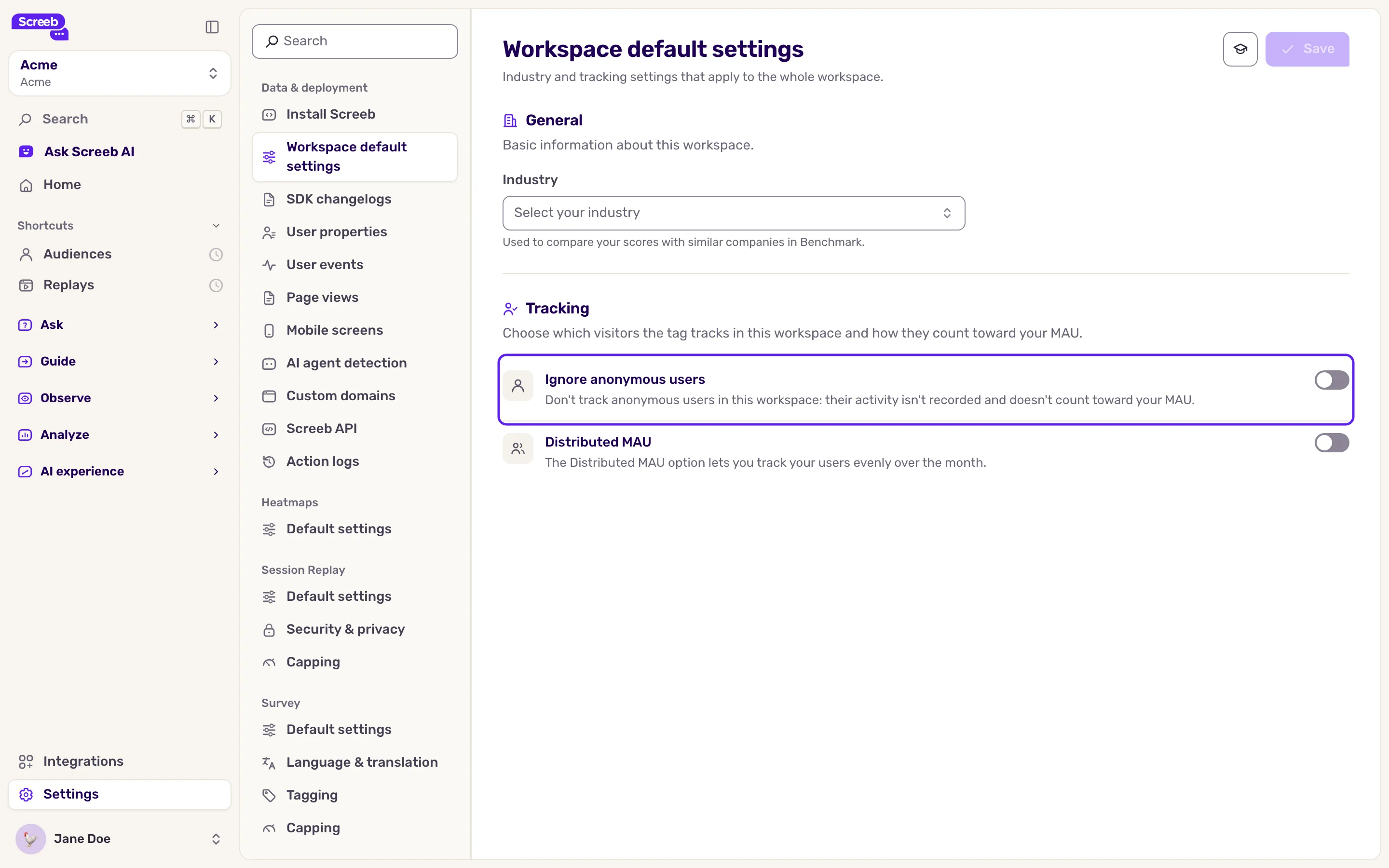
Section titled “The user is not tracked”- Check: in the workspace Workspace default settings, if Ignore anonymous users is on, visitors who are not identified see nothing. The Quota check of Screeb Inspector also fails when your monthly user quota is reached.
Contact support
Section titled “Contact support”Still stuck? Write to support@screeb.app with the exact URL you tested and a capture of the Overview and Surveys tabs of Screeb Inspector, or the output of $screeb('targeting.debug').