

Track and manage user events
Send user events to Screeb from your site, app or backend, then review, favorite, hide or delete them in the settings.
Send the actions of your users to Screeb, then keep the list of events tidy so the right ones come up when you build a survey. To learn what events are, read Understanding user events.
Before you start
Section titled “Before you start”- Screeb is installed on your site or app: see Install Screeb on your website or web app or Install Screeb in your mobile app.
- Favoriting, hiding and deleting events depend on your role. Without the permission, the buttons do not show.
Track events
Section titled “Track events”Pick the way that matches where the action happens. You can combine several.
- From your site or app. Call the SDK event tracking command when the action happens, for example
$screeb('event.track', 'Product added to cart')with the JavaScript tag. In Install Screeb, the Track user events step gives the snippet. The event tracking guide in the developer docs covers every platform. - From your backend. Send
trackevents to the Screeb API, authenticated with the Workspace API key found in Screeb API (organization Admins only). See Get your Screeb API key and the Screeb API reference. - From your tracking tool. In Integrations, connect Segment, RudderStack, Amplitude or Contentsquare as a source.
Review your events
Section titled “Review your events”- Open Settings, then User events. The Summary tab lists each event once per source, the most recently received first.
- To find an event, type its name in Search.
- Read the columns: Name, Source, Created on (first time received), Updated on (last time received) and Count (how many times it was received). Click a column header to sort.
- To see each occurrence, open the All entries tab.
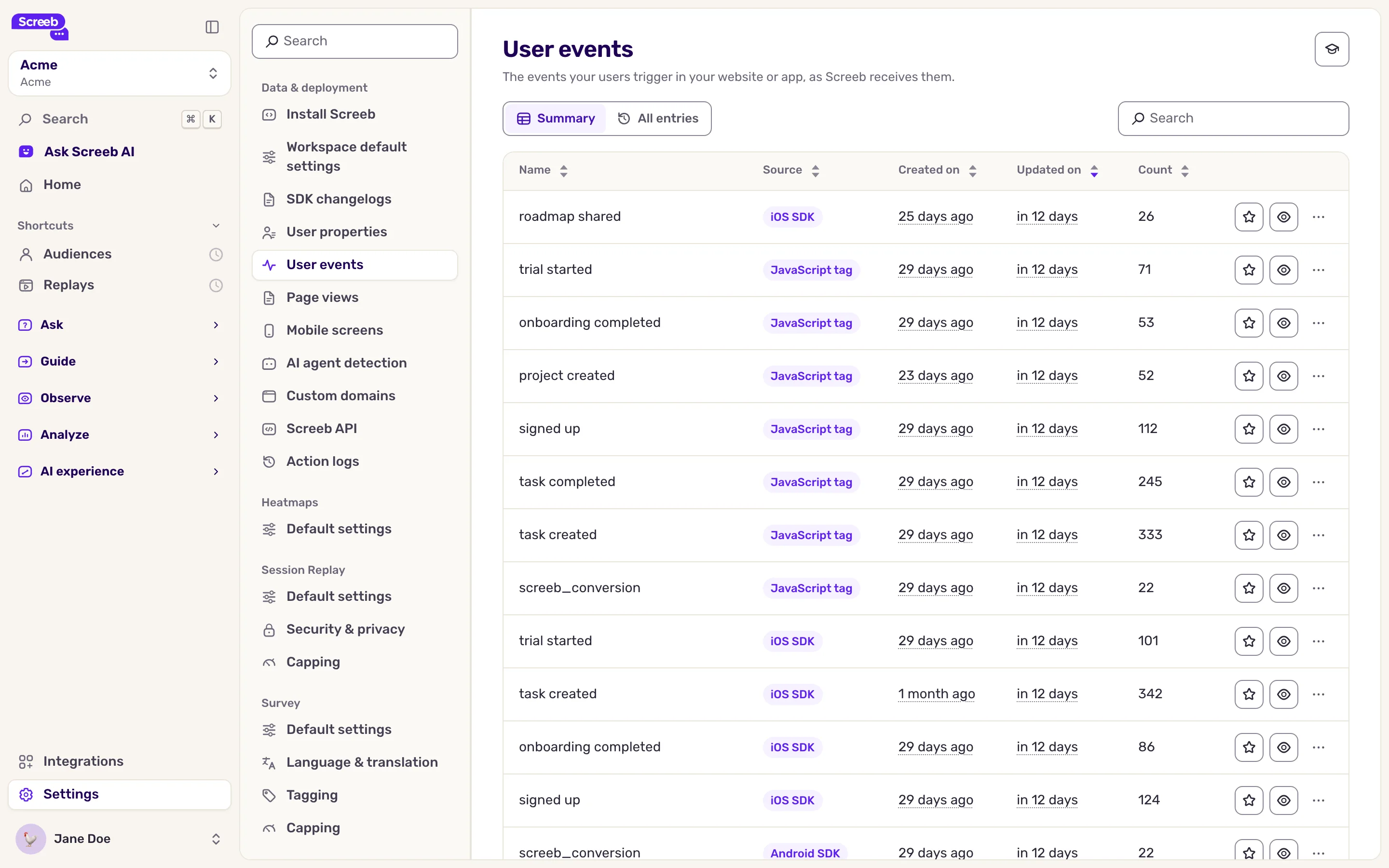
Favorite, hide or delete an event
Section titled “Favorite, hide or delete an event”Each row ends with its actions.
- Click the star (Favorite) to mark an event you use often. It shows with a star when you pick an event in survey targeting.
- Click the eye (Show/Hide) to hide an event you do not want to target, such as a test event. A hidden event is no longer offered when you pick an event. Click the eye again to show it.
- To delete an event, open the menu of the row, click Delete, then Delete event.
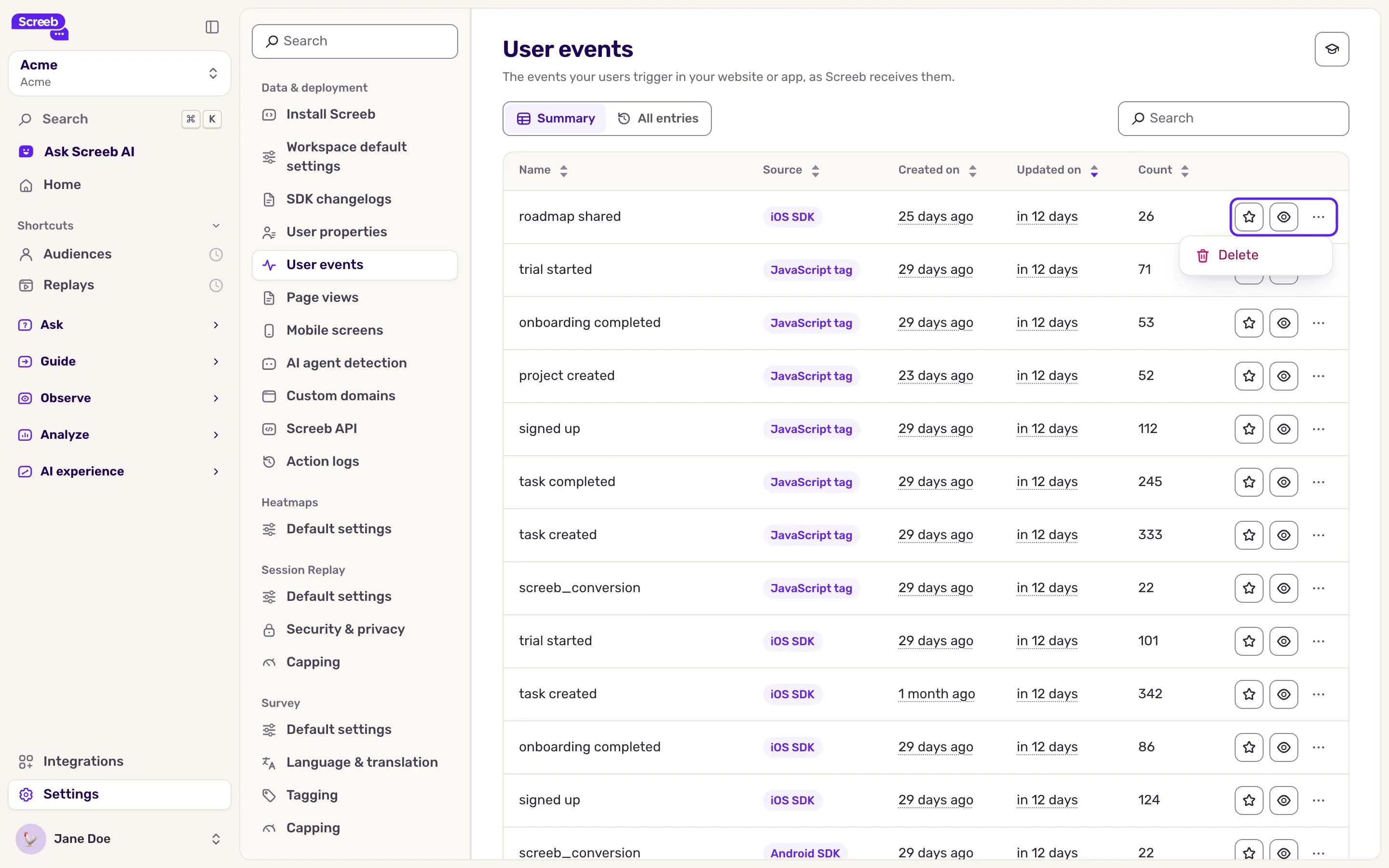
An event is either a favorite or hidden: hiding a favorite removes the star, and adding a hidden event to favorites shows it again.
Deleting an event removes it from the list, but your site, app or source may still send it. In that case it shows up again with the next occurrence: stop sending it first.
What you get
Section titled “What you get”Your events show in the list and on each user profile, and you can use them to trigger and target surveys.
Troubleshooting
Section titled “Troubleshooting”The list says “No events found”. Screeb has not received any event in this workspace yet. Check that your code calls the tracking command after Screeb is initialized.
An event you track is missing. Check its name: 1 to 128 characters, letters, numbers, spaces and - _ . / : only. Events from Contentsquare take about 4 hours to arrive.