

Watch a session replay
Find a user session and replay it to see exactly what the user did on your site or app.
A session replay shows what a user saw and did on your site or app: pages, clicks, scrolls and inputs, in order. On a website it is not a video: Screeb rebuilds the page from its structure, so sensitive content can be masked before it leaves the browser. Use it to understand a low score, reproduce a bug or see where users get stuck.
Before you start
Section titled “Before you start”- Session Replay is part of your plan. Without it, the menu entry does not show.
- Session Replay is turned on for your workspace, see Configure session replay recording. It records the sessions that match a start condition or a recording scope, see Choose what to record with recording scopes.
Find a session
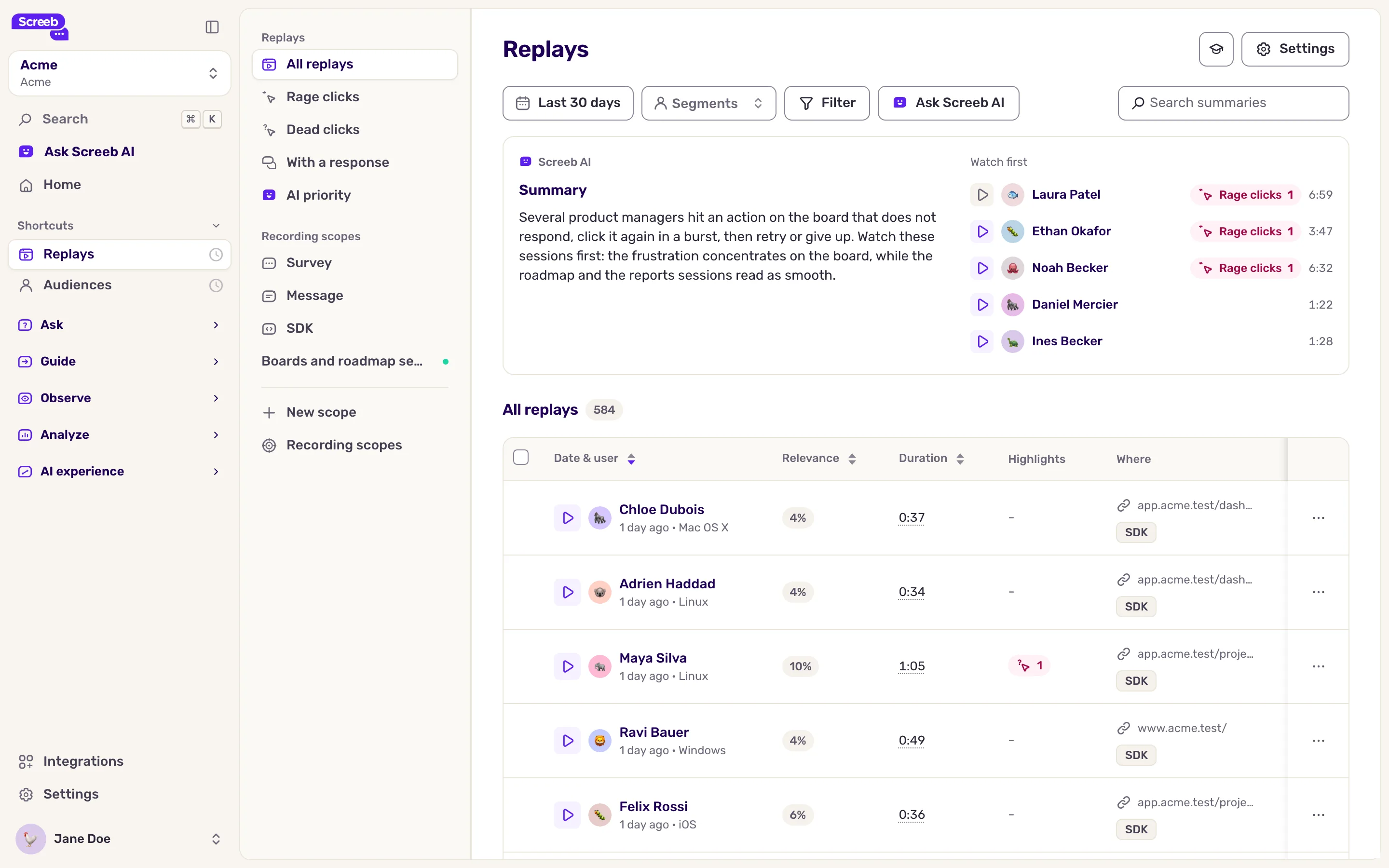
Section titled “Find a session”- In the main navigation, under Observe, open Replays. The list shows the sessions of the selected period, newest first.
- To narrow the list, pick a view in the side menu, such as Rage clicks, Dead clicks, With a response or AI priority.
- Change the period with the date picker, or click Filter to filter on the user, the pages visited, the device or the events performed. Tick Hide viewed sessions at the bottom of the filter panel to skip sessions you watched.
- When AI features are available for your organization, find sessions by what happened in them with Search summaries. To find a given user, use the user filter.
- Sort the list by Date & user, Relevance or Duration. The Rage clicks and Dead clicks views sort the sessions by their number of rage or dead clicks. The Highlights column shows at a glance what happened in each session: a response, a rage click, an error in the console.
- Click the date of a session to open it in the player.
A session marked Live was active in the last minute: the user may still be on your site.
Above the list, Watch first suggests a few sessions to start with, with a summary of them when AI features are available for your organization.
Watch the replay
Section titled “Watch the replay”- Press play, or the Space key. Periods without activity are shaded on the timeline and skipped automatically: the player shows Skipping inactivity... while it jumps ahead.
- Use the Left and Right arrow keys to go back or forward 5 seconds, and the speed menu to play at 2x, 4x or 8x.
- Click a marker above the timeline to jump to a highlight.
- To keep a note for your team, click Add a comment. It is pinned to the current moment.
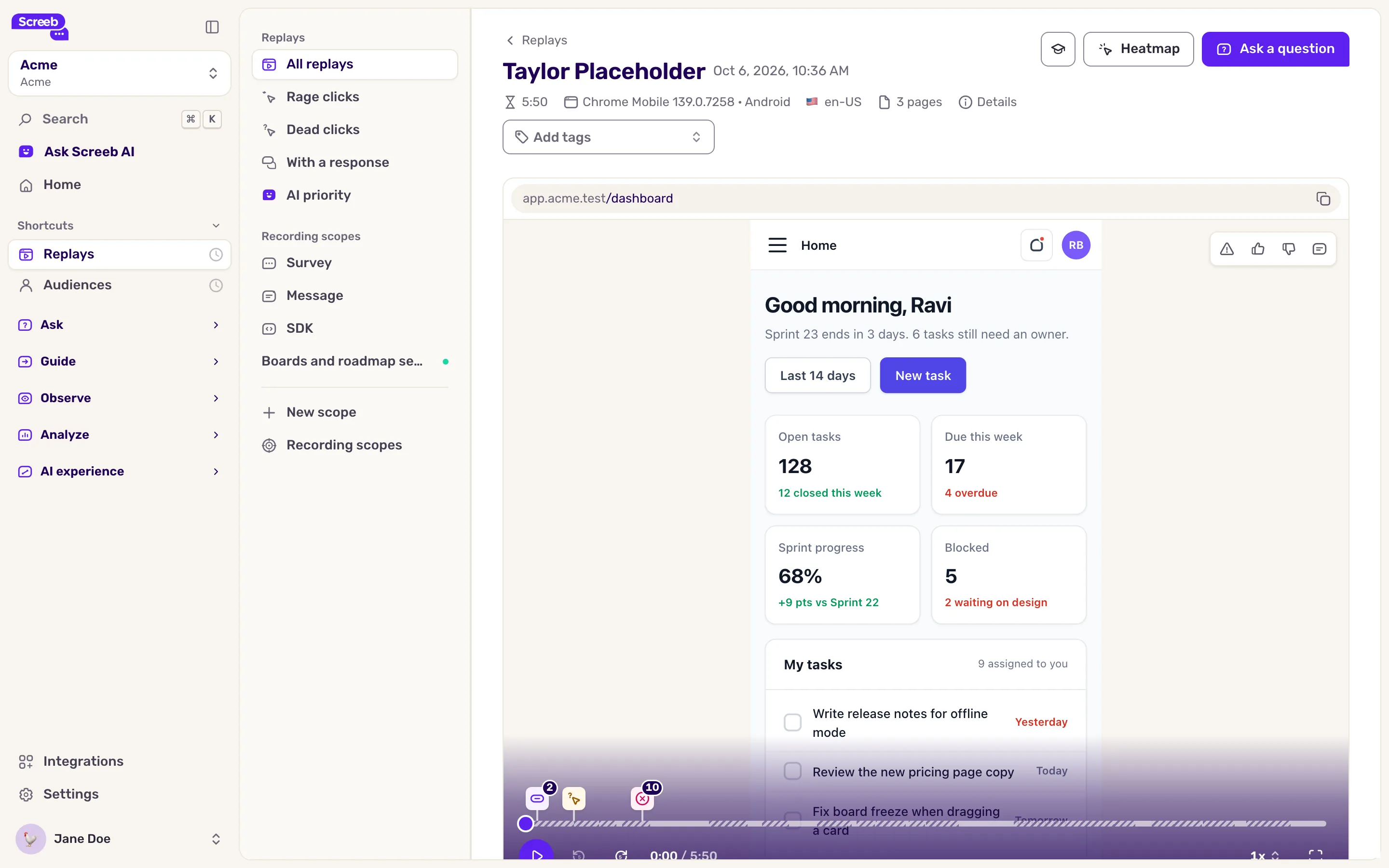
Below the video, the tabs give context:
- Summary: what happened in the session, written by Screeb AI when AI features are available.
- Highlights: every notable moment, with its time.
- Events: the events the user performed.
- Console: the browser console messages, when console recording is on.
On the right, the user card links to the user profile, and Other replays lists the user’s other sessions. Heatmap at the top opens the heatmap of the page being played.
Once you are done, use Mark as read in the menu of a row, or select several rows, to keep track of the sessions you reviewed.
Watch the replay of a survey response
Section titled “Watch the replay of a survey response”- To see the sessions in which a survey was answered, open the survey, click Analyze, then Replays.
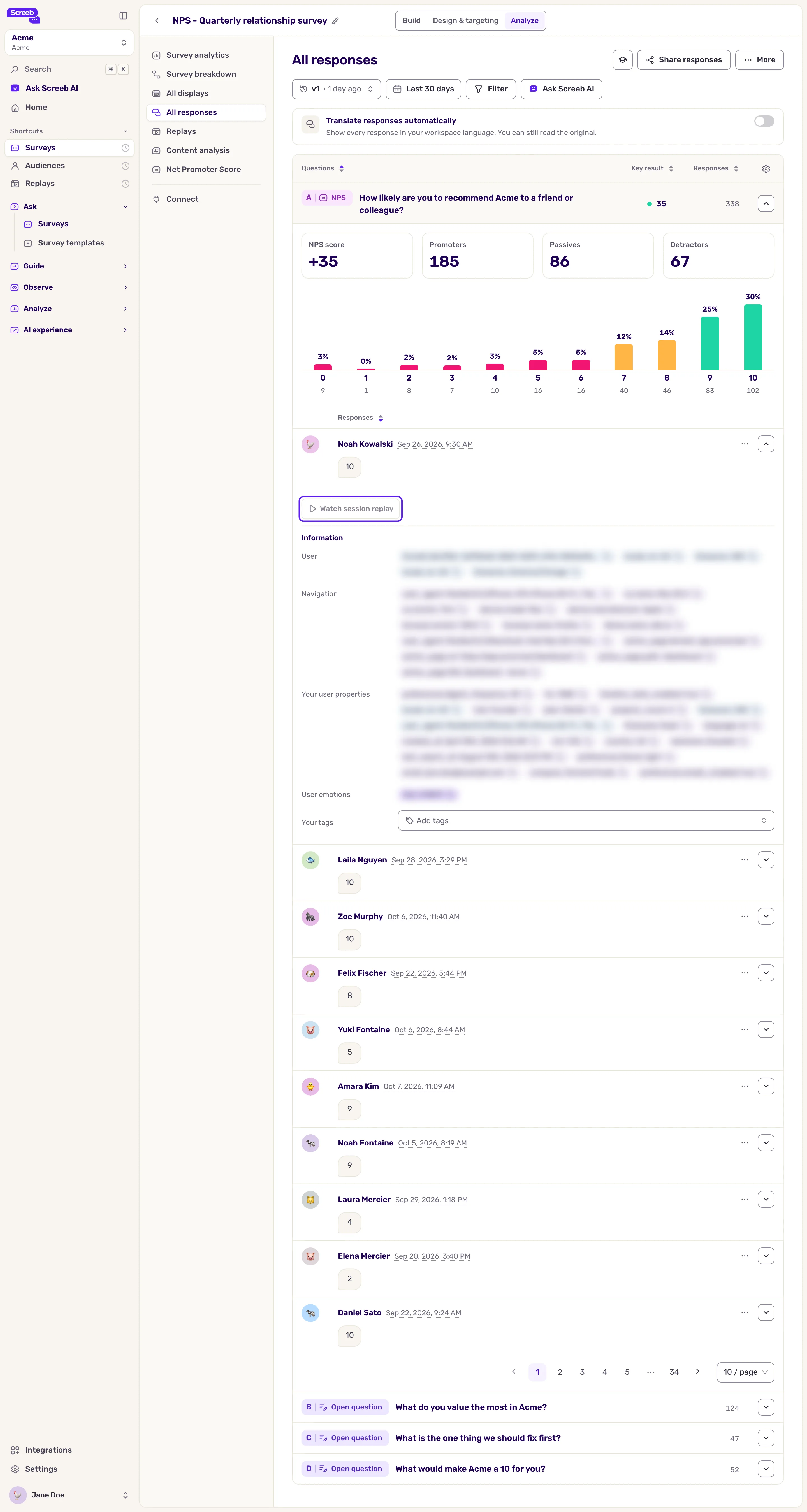
- From one response: in All responses, expand the response and click Watch session replay. It is disabled when no replay was recorded.
Get the most out of your replays
Section titled “Get the most out of your replays”- Start from a question, such as “why do users leave the checkout?”, and record the sessions that answer it with a recording scope.
- Keep recording on when a survey shows, then open the replay from the response to see what led to the answer.
Troubleshooting
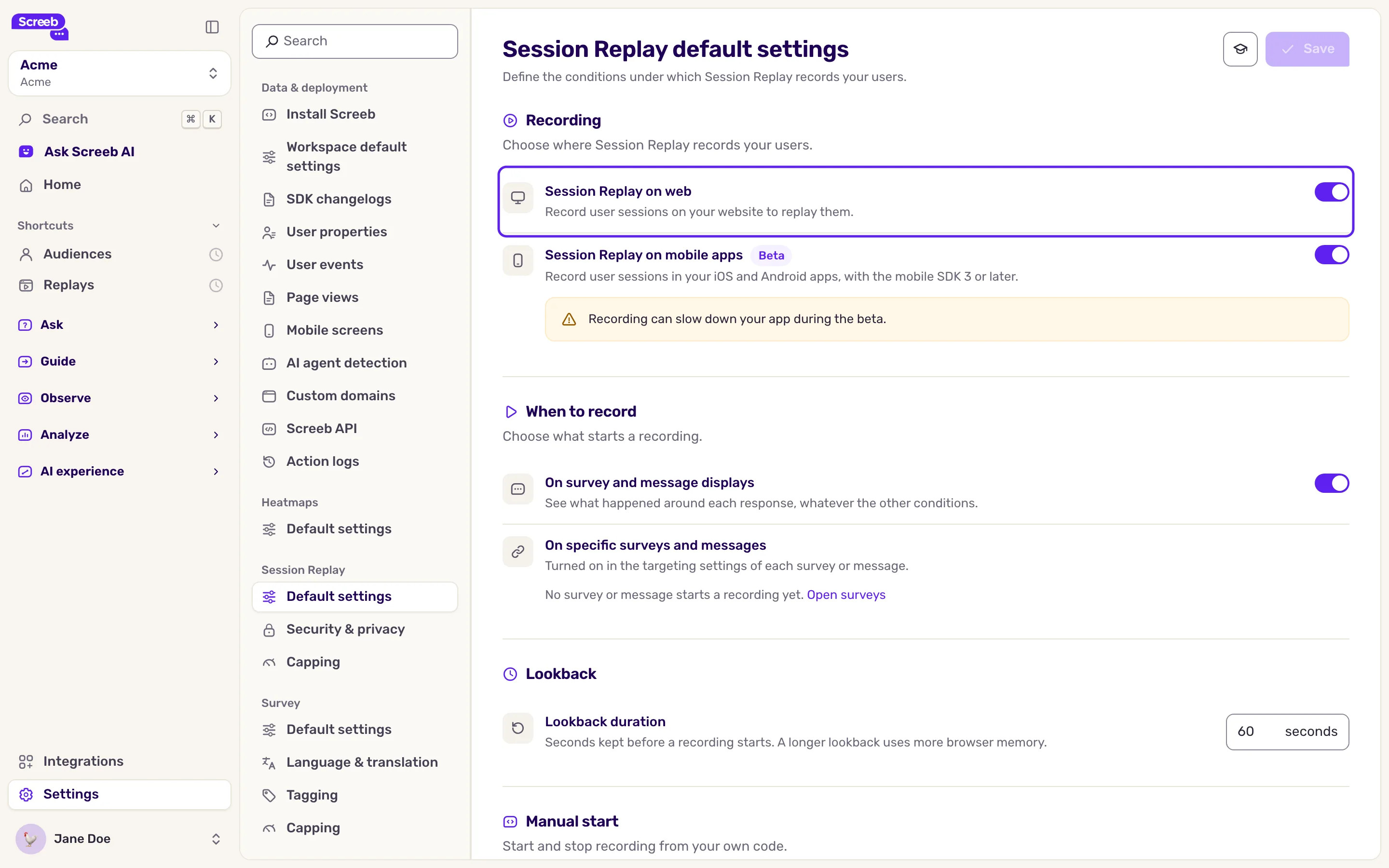
Section titled “Troubleshooting”The list shows “No replays found” and “Session Replay is off for this workspace, so nothing is being recorded.” Organization admins can click Turn on Session Replay, or open settings: Session Replay, then Default settings, click Session Replay on web and click Save. Only sessions that start after this, and match a start condition or a recording scope, are recorded.
A session you expect is missing. Check the period and the active filters first. Then check that the session matched a start condition or a live recording scope, and that the Screeb SDK runs on that page. A session can take a few minutes to show after the user leaves.