

Track your releases
Log your product releases in Screeb, by hand or from your deployment pipeline, and see them on your charts to measure their impact.
A release marks the day you shipped something. Log your releases in Screeb and they show up on your charts, so you can tell whether a new feature moved your NPS, your response rate or your users’ behavior.
Before you start
Section titled “Before you start”- To add, edit or delete releases, you need the Editor or Admin role in the workspace. With the Analyst role, you can see them only.
- Releases belong to a workspace: log them in the workspace of the product you shipped.
Add a release
Section titled “Add a release”- In the sidebar, under Analyze, click Releases.
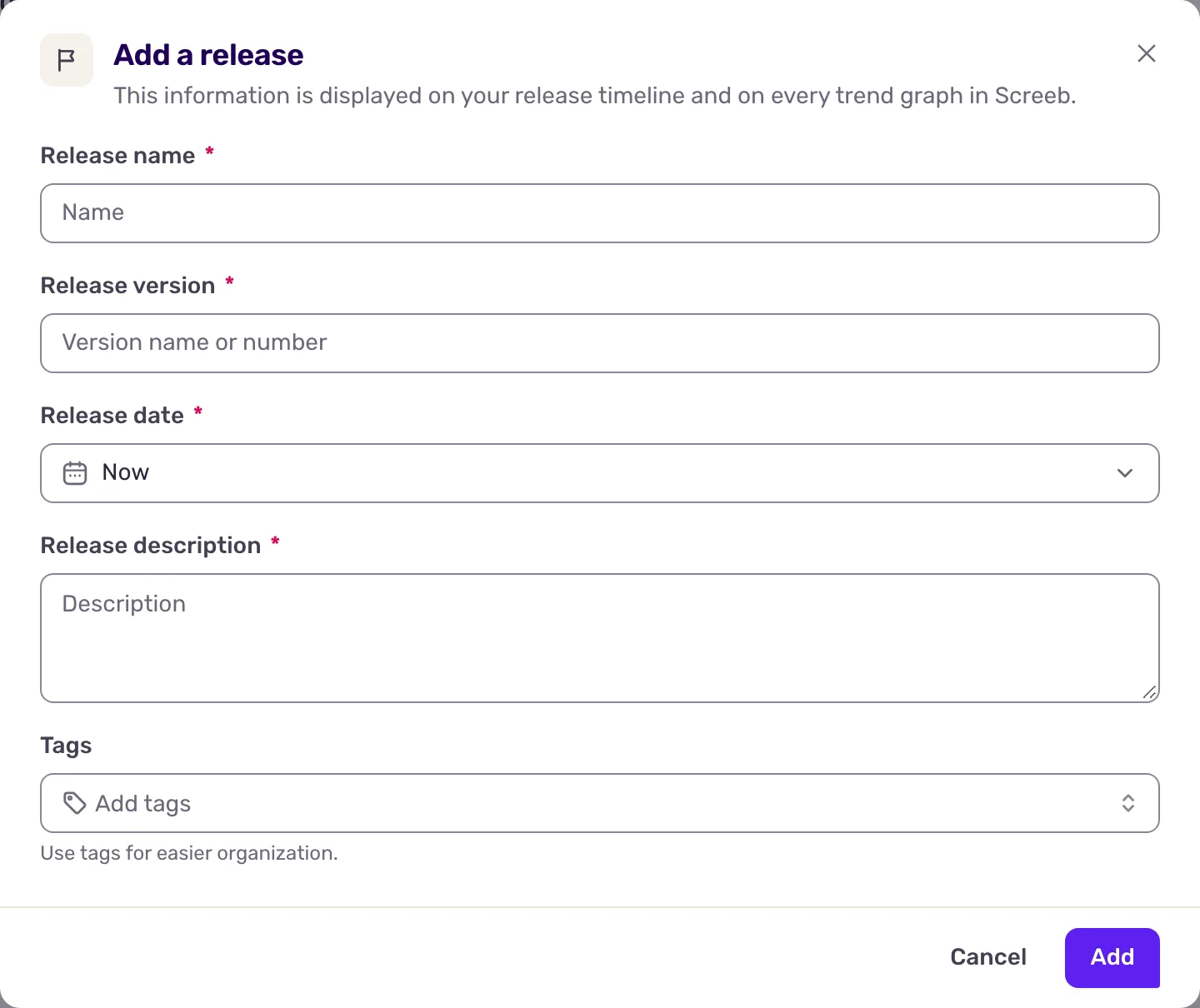
- Click Add a release at the top right. On a workspace without any release, the button is in the middle of the page.
- Fill in Release name, Release version, Release date and Release description. All four are required. The date can be in the past, to log an older release, or in the future.
- Optionally, add Tags, such as the team or the product area, to filter your releases later.
- Click Add. The release joins the list.
Create releases from your deployment pipeline
Section titled “Create releases from your deployment pipeline”To log every release without thinking about it, let your deployment send it to Screeb.
- On the Releases page, click Create releases via API.
- Copy the authentication token shown in the window, and give it to the developer who maintains your deployment.
- At the end of each deployment, have it send a request to the Releases API with the token. The Screeb API documentation has the details.
curl -X POST https://api.screeb.app/1.0/release \ -H "Content-Type: application/json" \ -H "Authorization: Bearer YOUR_TOKEN" \ -d '{"name": "New onboarding", "version": "2.4.0", "description": "Shorter signup form", "tags": ["onboarding"]}'Without a released_at date, the release is dated at the time of the request. In the list, these releases show Created via API instead of an author.
The token is your workspace API key, the same one as on the Screeb API settings page. Resetting it from the window breaks every tool that still uses the old one, see Get your Screeb API key.
See your releases on your charts
Section titled “See your releases on your charts”Every chart over time shows your releases: the trend charts of your survey reports (survey analytics, NPS, CSAT, CES), the line charts of your workspace and organization reports, and the timeline of a heatmap.
- Each release day shows a flag on the chart, with the version, or the number of releases when there are several that day. When flags do not fit, they shrink to small marks on the axis.
- Hover a flag to read the name, description, version, author and date. When the flag holds one release, Read more opens the list of releases.
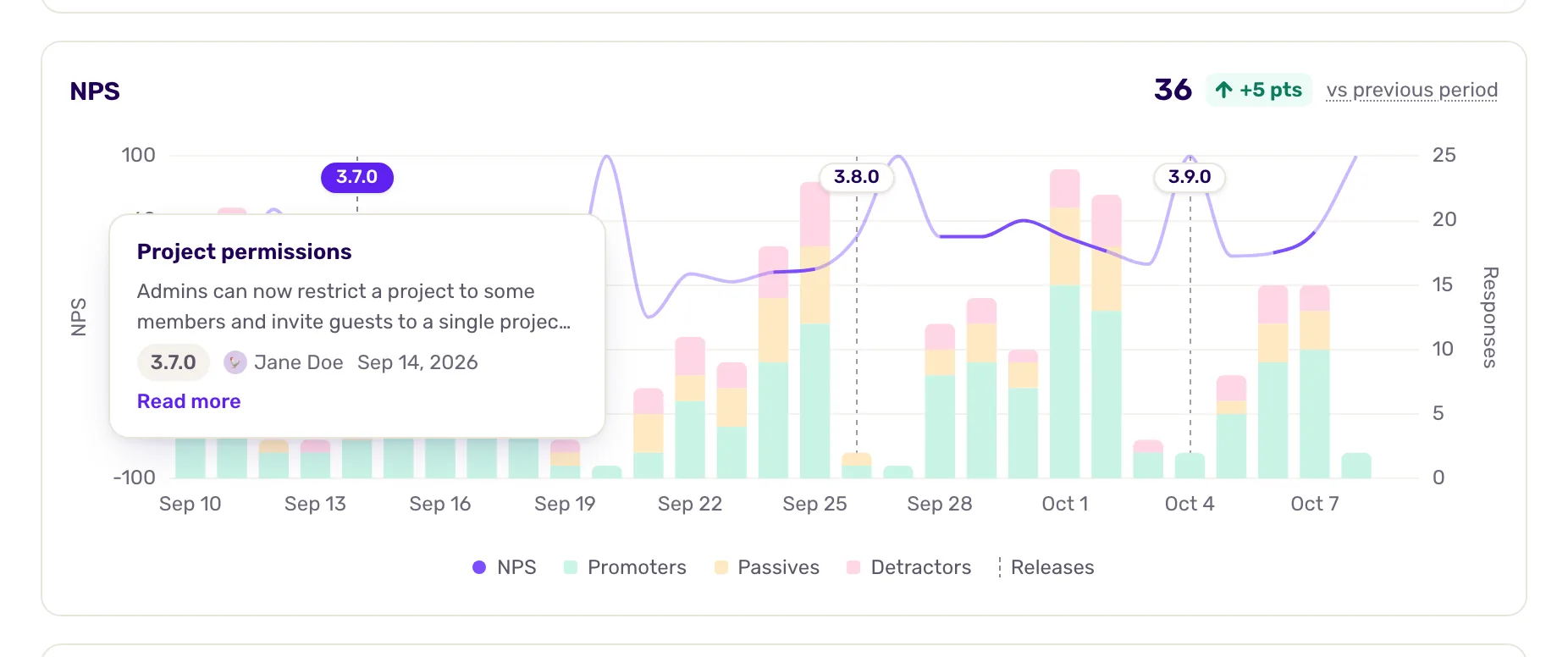
Compare the curve before and after the flag. A rise or a drop right after a release is a strong hint of its impact, especially when it lasts several days.
Browse and manage your releases
Section titled “Browse and manage your releases”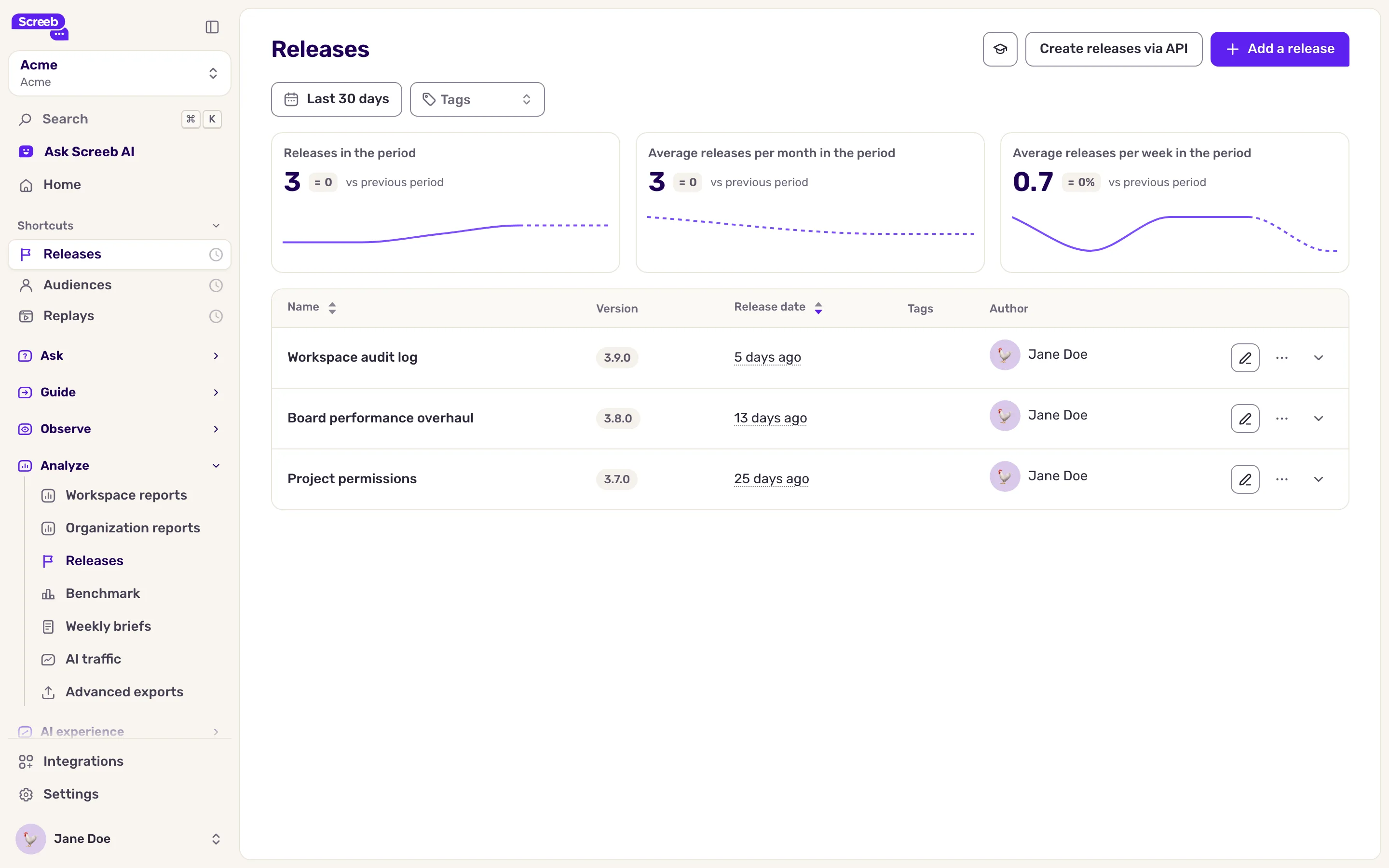
- Pick the period and filter on Tags at the top of the page.
- Three tiles follow your release pace over the period: Releases in the period, Average releases per month in the period and Average releases per week in the period, each with its change from the previous period.
- A release dated in the future shows Upcoming. Click a row to read its description.
- Use the Edit and Delete icons at the end of a row to change or remove a release.
What you get
Section titled “What you get”A timeline of everything you shipped, laid over the metrics it was meant to move.
Troubleshooting
Section titled “Troubleshooting”The list says “No release in this period”. Your releases are outside the selected period. Click Show all time.
A release does not show on a chart. The chart’s period must include the release date, and the chart must be over time. Gauges, tables and single figures show no release.
The API refuses a release. Check the token: it changes when someone resets it. If the answer is “Rate limit exceeded”, wait a minute and send the request again.
The page shows “Could not load your releases”. Click Retry. If the error persists, contact support.