

Choose who sees your message and when
Set which users see your message, on which pages or screens and at what moment, how often it shows, then set it live.
Message targeting decides when a message starts, for which users, where and how often. Once it has started, the conditions of each step decide when that step shows. A user sees the message only when every targeting condition matches.
Before you start
Section titled “Before you start”- The message exists and has its steps, see Create an in-app message or product tour.
- Your role lets you edit messages.
Open the targeting
Section titled “Open the targeting”- Open the message and click Design & targeting at the top. From the builder, the Next button brings you there too.
- In the side menu, click Audience targeting.
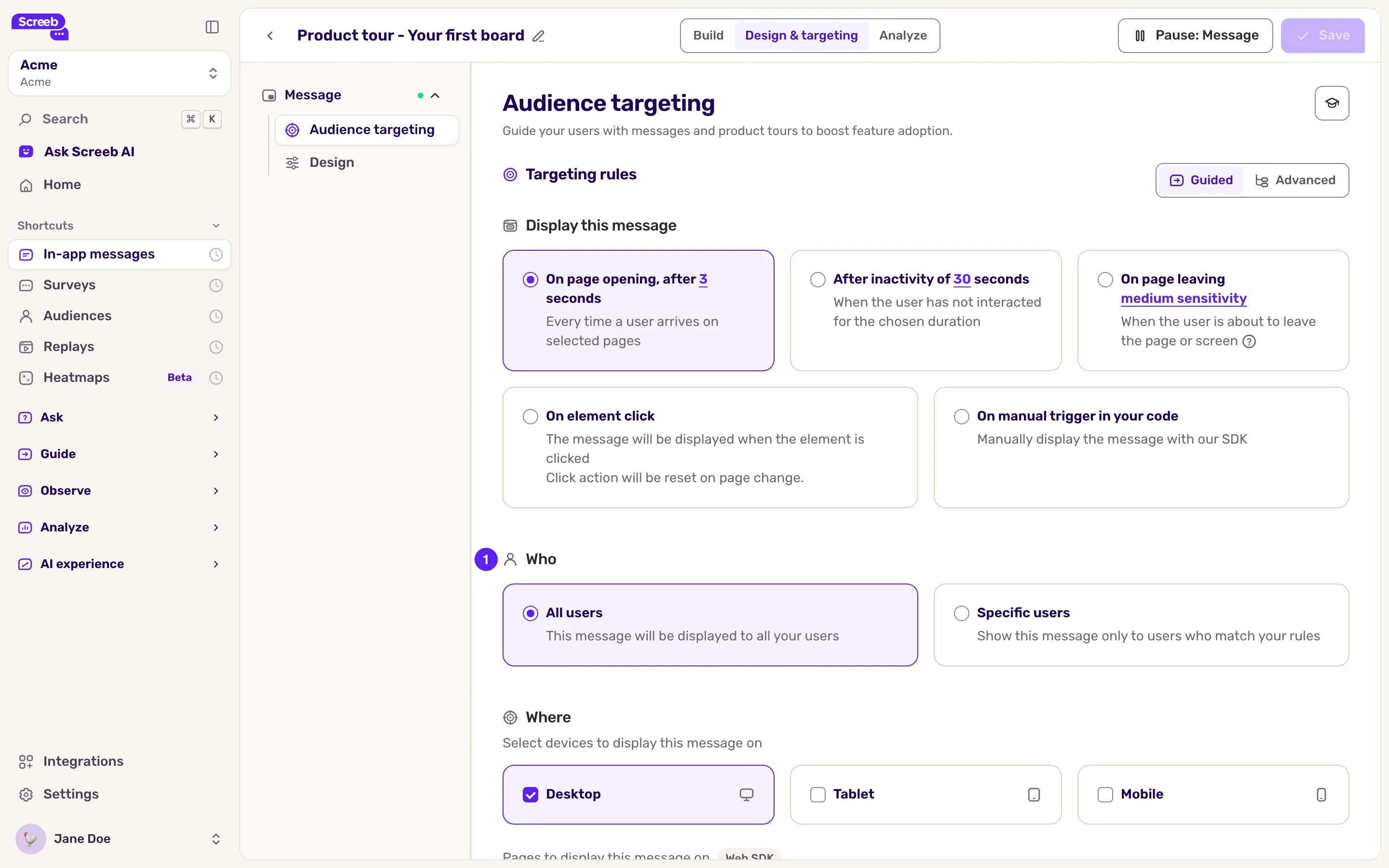
What differs from a survey
Section titled “What differs from a survey”The trigger and the Who, Where and When sections work as for a survey. Follow Choose who sees your survey for each of them. Keep in mind:
- The platform is already set. The Web app, iOS app or Android app choice made at creation is saved in the targeting: the message only shows on that platform. Under Where, the Mobile card has no platform picker for a message.
- The preview page is not targeting. The page you entered to open the editor does not limit where the message shows. Keep On all pages, or choose On specific pages (websites) or On specific screens (mobile apps). If your targeting already has a URL rule set to “equal”, changing the preview page in the builder updates that rule too.
- Steps have their own conditions. Use the targeting for the start of the message, and step conditions for later steps (for example a popover that waits for a page). For the first step, both apply, so avoid contradictory rules.
- Several triggers. To display the message on one trigger or another, use the advanced mode, see Combine triggers in advanced mode.
- AI agents. With AI agent detection on, the AI classification rule shows or hides the message for AI agents, see Detect AI agents and AI-referred visitors.
- Manual start. With On manual trigger in your code, your developers start the message with the SDK, see Start a message programmatically. A contextual action of another message can start it too.
Set the message settings
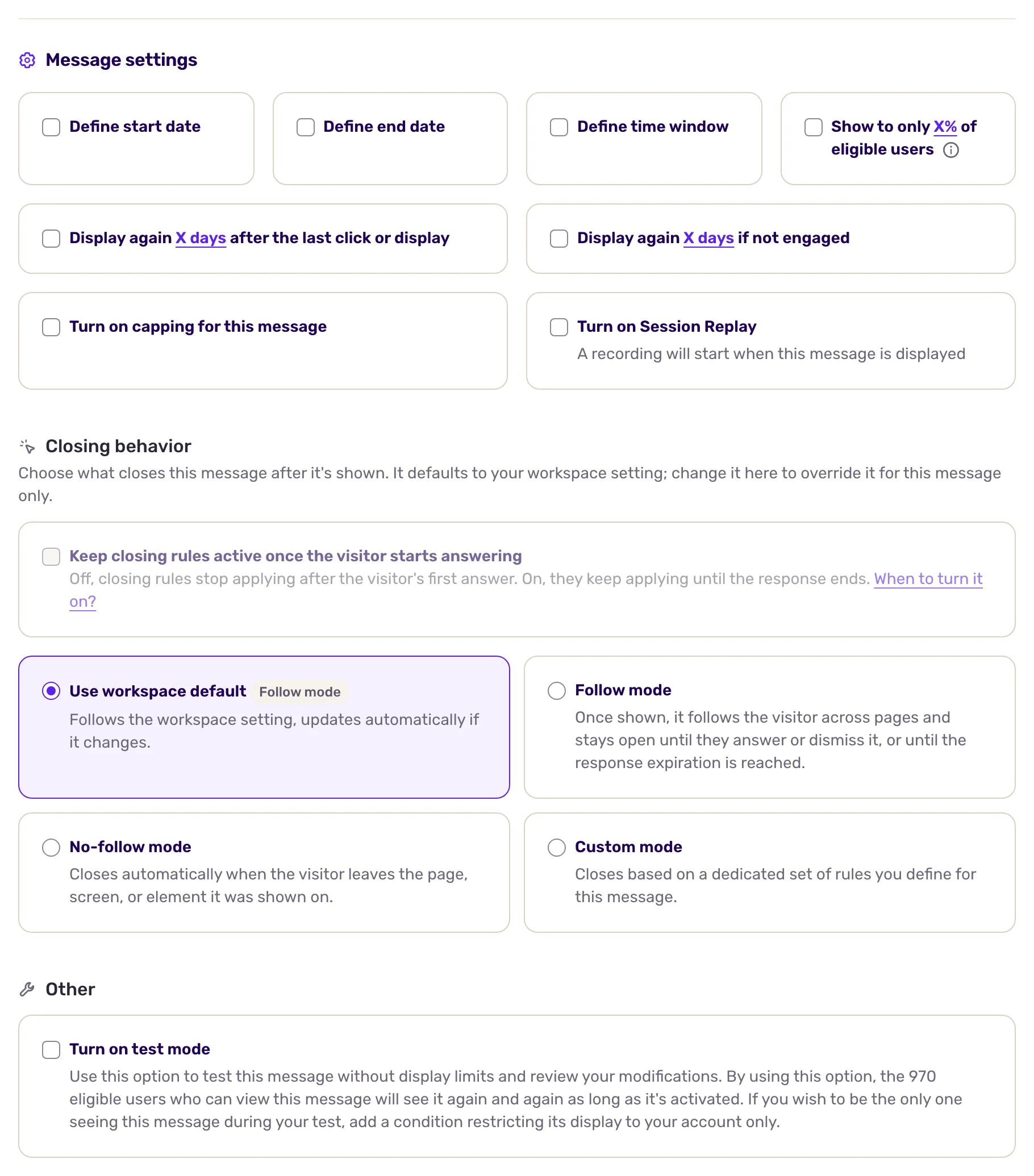
Section titled “Set the message settings”Below the targeting, Message settings controls how long and how often the message runs:
- Define start date, Define end date and Define time window to start, stop or limit the message automatically.
- Audience sampling: a percentage of eligible users.
- Display again: after the last click or display (the user interacted with the message), if not engaged, or both, each after a delay in days (up to 365), hours (up to 24), minutes or seconds (up to 60). By default, a user sees the message once.
- Capping for this message, to limit its displays and engagements over a period.
- Turn on Session Replay to record the session when the message shows. It shows only when your plan includes Session Replay.
- Closing behavior: what closes the message once shown. The options are the same as for surveys.
Messages have their own workspace capping, separate from surveys: In-app messages & product tours, then Capping in the settings. When it is on, the targeting page shows “Global capping activated”. See Limit how often surveys are displayed for how capping works.
Save and set live
Section titled “Save and set live”- Click Save at the top right.
- Click Set live. If Screeb is not installed on your site or app yet, a window asks you to confirm. The message starts showing to the users who match.
To stop it, click the pause button at the same place.
What you get
Section titled “What you get”The message starts only for the users, pages or screens and moments you chose, then each step follows its own conditions. Changes to a live message apply once saved.
Troubleshooting
Section titled “Troubleshooting”The message does not show. Open Debug your setup with Screeb Inspector on the page: its Messages tab shows which rule fails, and “not displayed” means a step condition is not met yet. See also My survey or message is not displayed.
The message shows on pages where you did not expect it. The preview page does not limit the message: add a rule under Where.
The page warns “Some formats have limited support on mobile apps”. A step uses Embedded, which mobile apps do not show, or Popover or Beacon, which cannot anchor to the elements of a mobile app yet. Change the format of that step to Banner, Modal or Sidebar.
The message is live but shows to nobody. Check the start date, end date and time window: outside them, a live message waits.