

Support ticket reduction with in-app guidance
Turn your most frequent support questions into in-app messages that show where and when users get stuck, then check that the tickets go down.
Most support tickets are the same few questions, asked again and again by users who hit the same obstacle with no help in sight. An in-app message shown at that exact spot, at the moment the user hesitates, answers the question before it becomes a ticket.
When to use it
Section titled “When to use it”Use in-app guidance for questions about your product’s interface: where to find a setting, how to export, what a field expects, why a button is disabled. It works less well for account-specific problems, such as billing or a bug: keep your support channel for those.
Start from your support data
Section titled “Start from your support data”Pick the topics from your ticket history, not from intuition.
- List the five most frequent questions in your help desk.
- For each one, find the page or screen where users ask it, and the element they look for.
- Watch a few sessions of those users if your plan includes Session Replay. The Rage clicks and Dead clicks views of the sessions list point at the elements that frustrate users. See Watch a session replay.
Build one small message per topic: a Popover attached to the confusing element, a Beacon on the option users cannot find, or a Sidebar with a short explanation and a link to the full help. In a mobile app, use the Sidebar: Popover and Beacon cannot anchor to the elements of an app yet. See Create an in-app message or product tour.
Show it when the user is stuck
Section titled “Show it when the user is stuck”Help shown to every visitor of a page is noise for those who do not need it. Tie it to a sign of difficulty instead. The message targeting offers several triggers:
| Sign | Trigger |
|---|---|
| The user stops, unsure what to do | After inactivity of a number of seconds without interaction |
| The user gives up and leaves | On page leaving: on a website the mouse heads for the tabs or the address bar, or the user scrolls back up fast on a phone; in a mobile app, the user leaves the screen |
| The user looks for help | On element click, for example on your own help icon. Websites only |
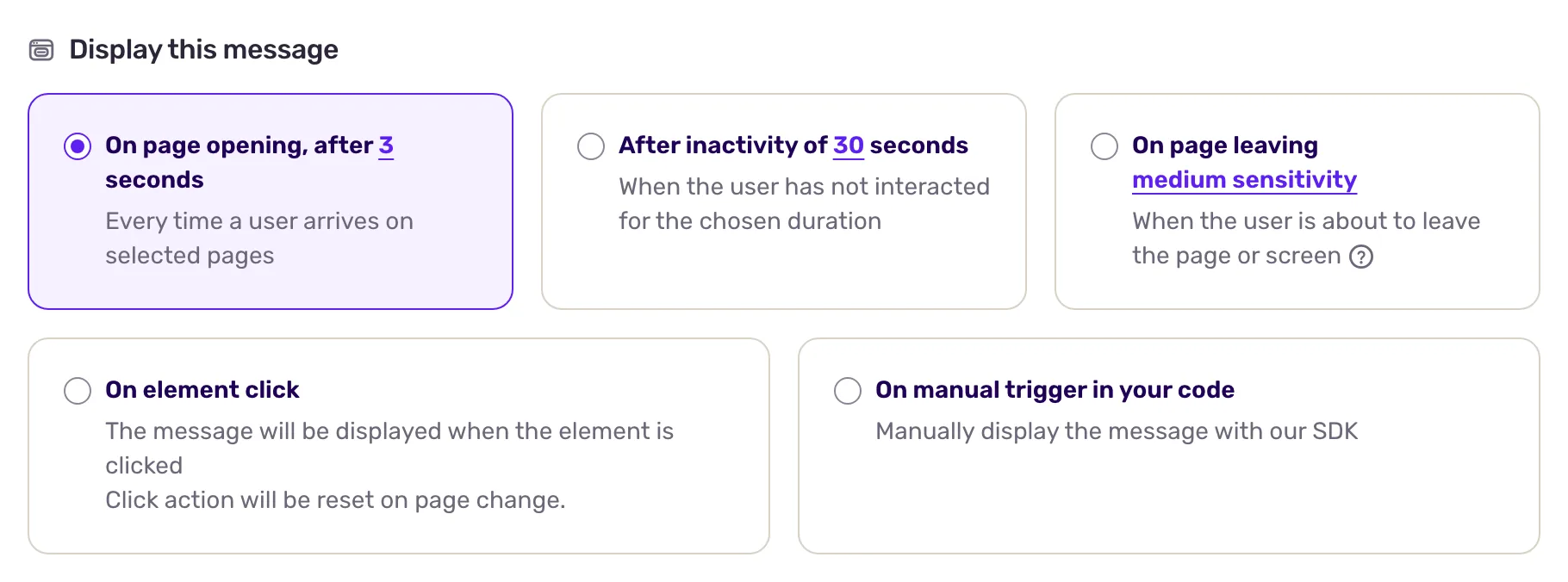
Narrow it down with the rest of the targeting:
- Under Where, choose On specific pages or On specific screens to show the help only where the question comes up.
- Under When, Element presence check shows the message only when an element is on the page, such as an error banner. Websites only.
- Under Specific users, target repeated failures. If your app tracks an event such as
export_failed, combine Performed event (count) (Greater than 2) with Performed event (time) (Last trigger, Less than 10 minutes ago). Screeb checks the targeting again when the event arrives, so the help appears right after the failure.
See Choose who sees your message and when for every option.
Make the help actionable
Section titled “Make the help actionable”The buttons of a message can do more than close it, with contextual actions: highlight the element the user is looking for, open the page of the setting, or open your help article in a new tab. If your support chat should take over, “Dispatch custom event” lets your developers open it from the message.
Check that tickets go down
Section titled “Check that tickets go down”- In your help desk, compare the number of tickets on that topic for a few weeks before and after the launch. A drop on the topic is the real result.
- In Screeb, Message analytics shows whether the message is seen and used. See Measure the results of your messages.
- If tickets do not move, change the trigger or the content before you give up on the topic: the help may show too late, or answer another question.
Limits
Section titled “Limits”- Inactivity and leaving cannot be combined: they are two choices of the same trigger.
- Event rules need your site or app to send the event, see Track and manage user events.
- By default, a user sees a message once. For help that stays useful, turn on Display again in the message settings, with a delay.