

Preview and test a message
Run your message on your own page from the builder before it goes live, then test it with its real targeting for your account only with test mode.
Check a message in two passes before your users see it. The preview runs it on your own page, step by step, whatever its targeting and status. Test mode then runs it live, with its real targeting, for your own account only.
Before you start
Section titled “Before you start”- The message has its steps, see Create an in-app message or product tour.
- Your role lets you edit messages.
- Screeb is installed on the page you preview, see Install Screeb on your website or web app. For test mode, the SDK also identifies your own account.
Preview on your website
Section titled “Preview on your website”- Open the message and click Build at the top.
- Click Preview, next to the Open builder button. The builder saves the message, then opens your page in a new tab with the message running from its first step, with no earlier progress.
- Go through the steps and click the buttons as a user would. In that tab, the preview keeps running when you move to another page, so you can follow a tour across pages.
- To start again, go back to the builder and click Preview again.
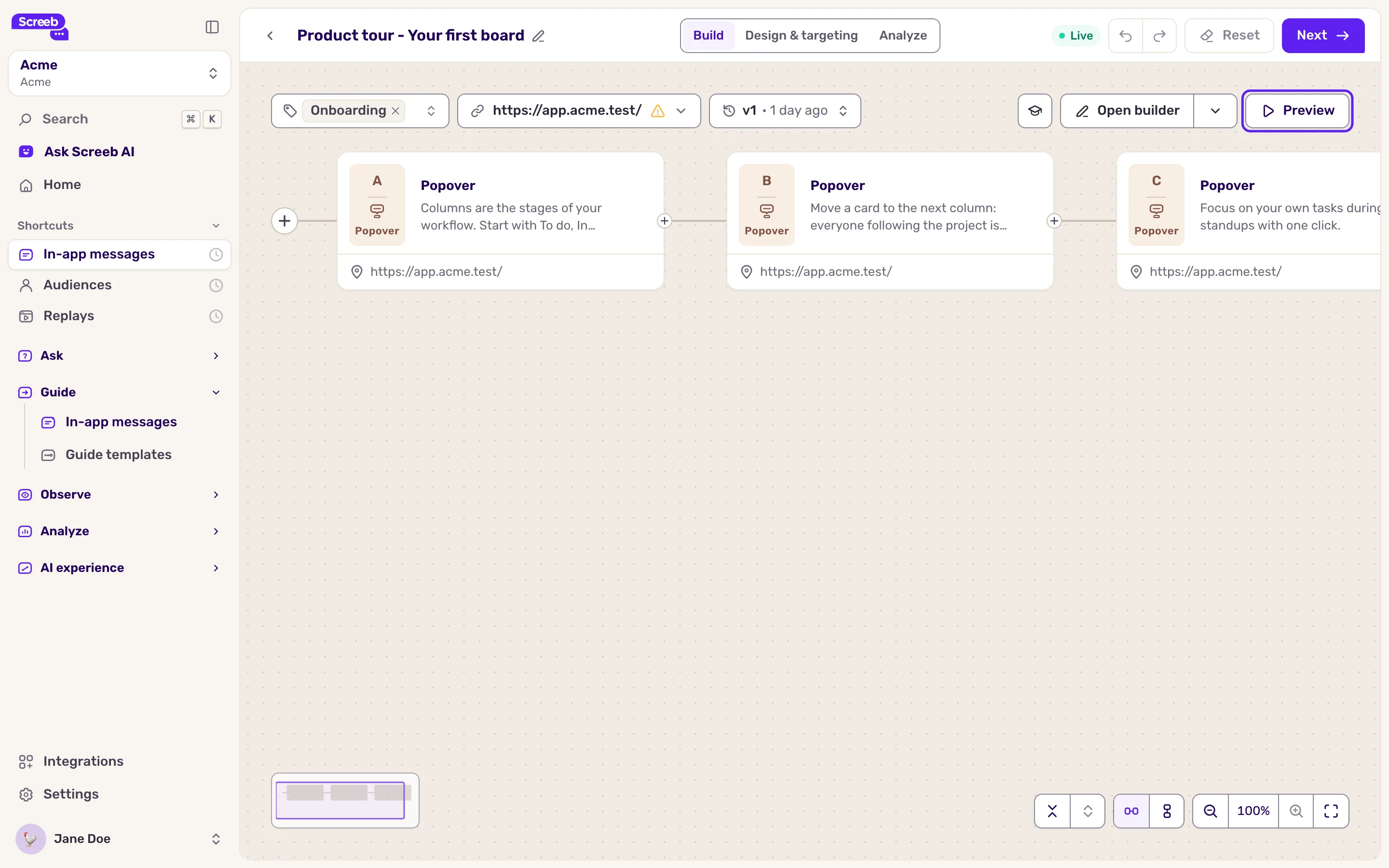
The preview opens the page you entered under Which page should the builder load for preview?, or the page set on the first step in the editor. To change it later, click the page URL in the builder toolbar: it opens Preview page.
The preview ignores the targeting, the capping and the status of the message: it runs even when the message is not live. The conditions of each step still apply, so a step that waits for a page, a delay or an element waits in the preview too. When the preview message ends, its data is deleted: it never counts in your results.
In a mobile app, there is no Preview button. The editor already shows each step in your app while you build it, see Create an in-app message or product tour. To run the whole message, use test mode.
Test it live with test mode
Section titled “Test it live with test mode”By default, a user sees a message once. Test mode lifts that limit, so you can trigger the message again and again on your real pages or screens while you adjust it.
Test mode applies to every eligible user
While test mode is on and the message is live, every user who matches the targeting sees the message each time the conditions are met, without display limits. Restrict the audience to your own account first.
- Click Design & targeting, then Audience targeting.
- Click Specific users and add an Identifier rule with your own user ID, or a property rule on your email. See Show a survey based on events and user properties: rules work the same for messages.
- In the Other section at the bottom of the page, tick Turn on test mode. The card tells you how many eligible users will see the message: check it says 1.
- Click Save, then Set live.
- Open your site or app, signed in with your account, and trigger the message.

While test mode is on, the message shows Test mode in the list. Unlike the preview, your interactions are real and count in the results.
Launch
Section titled “Launch”- Untick Turn on test mode.
- Replace your test rule with the real audience, see Choose who sees your message and when.
- Click Save. Changes to a live message apply once saved.
What you get
Section titled “What you get”A message whose look, steps and buttons you checked on your own page, and whose trigger and targeting you checked live, before any user sees it.
Troubleshooting
Section titled “Troubleshooting”“Could not open the preview”. The message has no page to open. Enter one under Which page should the builder load for preview? in the builder.
The preview tab opens but no message shows. Screeb is not installed on that page, or the first step waits for a condition that is not met there, such as another URL or a missing element. Open Debug your setup with Screeb Inspector on the page.
Turn on test mode is greyed out. It does not work with Display again, whether after the last click or display or if not engaged is ticked, or with the On manual trigger in your code trigger. Remove them while you test.
The message does not show during the test. Check that the SDK identifies your account and that the message is live. See My survey or message is not displayed.