

Install Screeb on your website or web app
Add the Screeb tag to your website or web app, with an AI coding tool, a code snippet or a package, and check that it works.
Screeb needs its tag on your website or web app to display surveys and messages, record sessions and track your users. The install page gives you the code for your workspace, ready to copy.
Before you start
Section titled “Before you start”- You need access to the code of your site, or a developer who can add the code. You can also send them the instructions, see Send the instructions to a developer.
- No code change possible? Install Screeb with Google Tag Manager instead, see Install Screeb with Google Tag Manager.
- Your site enforces a Content Security Policy? Read Use Screeb with a Content Security Policy first.
Open the install page
Section titled “Open the install page”- In the main navigation, click Settings, then, under Data & deployment, click Install Screeb. You can also click your name at the bottom of the sidebar, then Install Screeb.
- Stay on the Web app tab.
- Pick how to install: With your AI coding tool, selected by default, or, under Or install it yourself, JS snippet, JS module, React, Angular, Vue, Svelte, Segment Action or GTM. Every code block and prompt already contains your workspace ID.
Installation status, at the top of the page, shows whether Screeb is installed on the web and on mobile, with the last activity of your users, and your Channel ID with a button to copy it. The channel ID is public: you can commit it with your code.
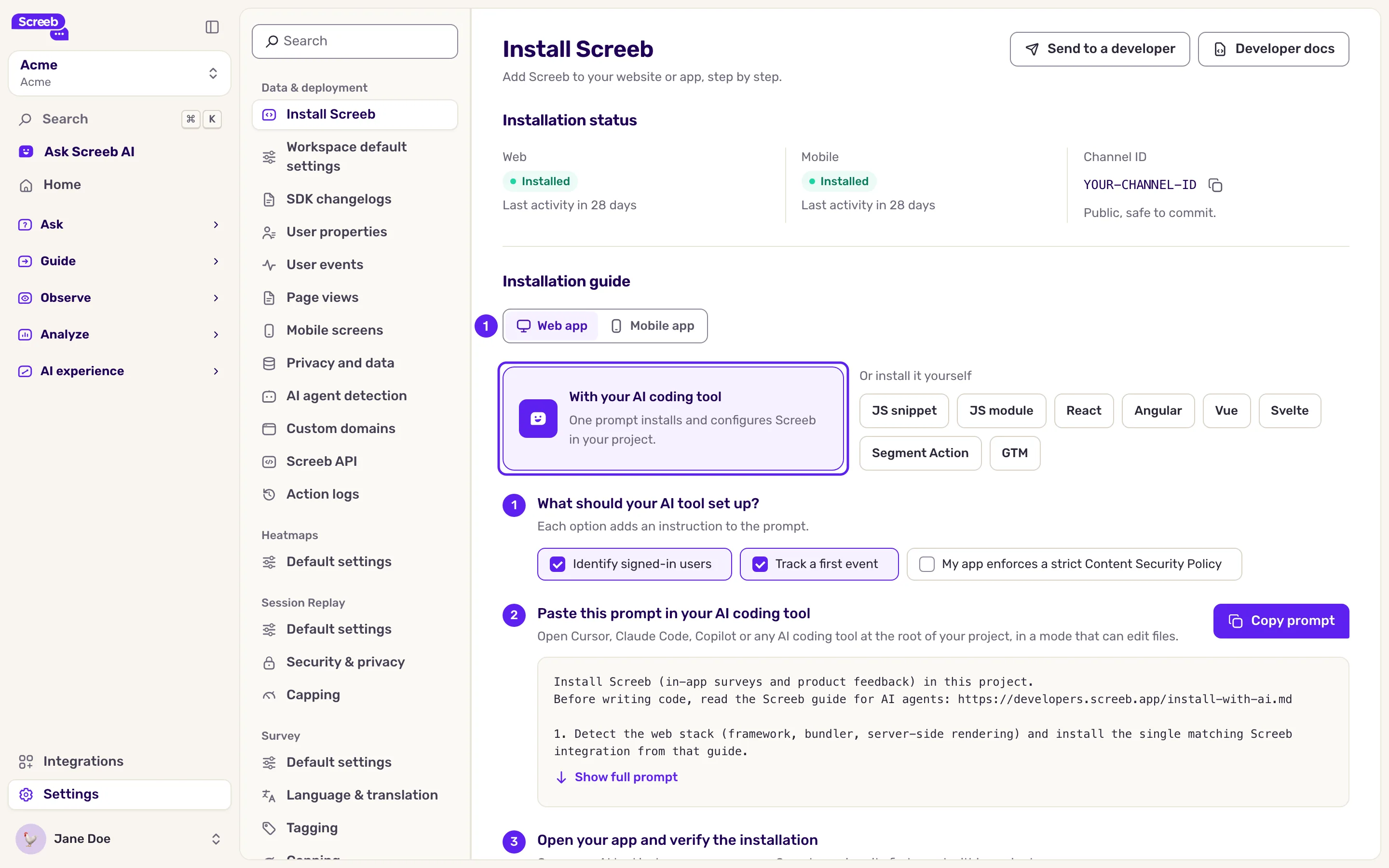
Install with an AI coding tool
Section titled “Install with an AI coding tool”The fastest way if you use Cursor, Claude Code, Copilot or a similar tool.
- Select With your AI coding tool.
- Under What should your AI tool set up?, choose what the tool sets up: Identify signed-in users and Track a first event are ticked by default. Tick My app enforces a strict Content Security Policy if your site has one: the tool then installs Screeb without inline script.
- Click Copy prompt. To read the whole prompt first, click Show full prompt.
- Open your AI coding tool at the root of your project, in a mode that can edit files, and paste the prompt. It installs the right Screeb SDK with your workspace ID.
- Review the changes and deploy them.
- Open your app, then click Verify installation in the last step: Screeb waits up to a minute for a first user.
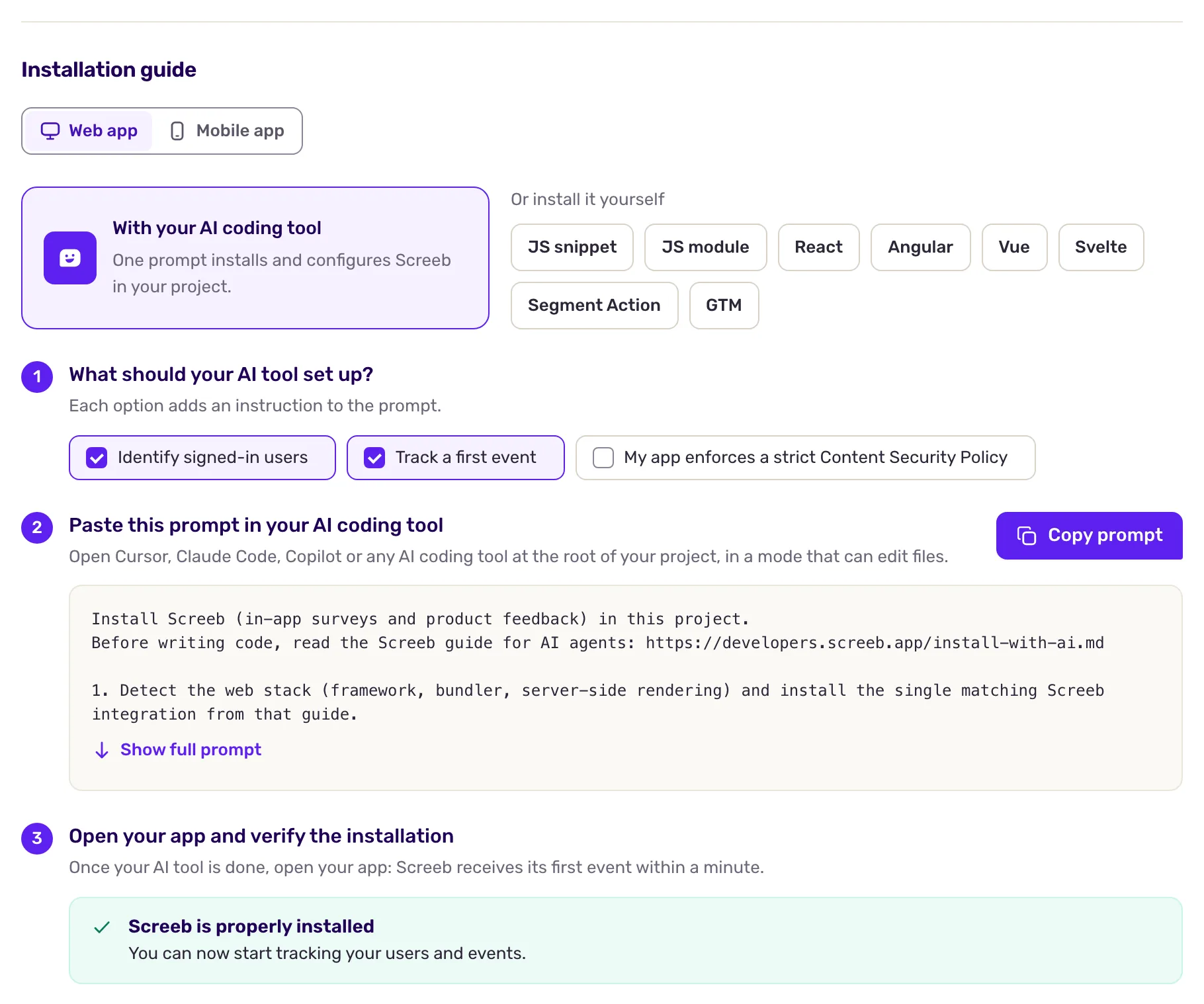
Install with code
Section titled “Install with code”Under Or install it yourself, select your integration.
- For a plain HTML site, click JS snippet. Above the steps, Dark mode for surveys and messages offers Light / Dark / Auto and stays on Auto to have surveys and messages follow your page’s dark mode or, without one, the visitor’s device setting, or pick Light or Dark to always show them in that mode. In Install the main Screeb tag, copy the code and paste it in every page of your site, before the
</body>tag. - For an app built with a bundler, click JS module, React, Angular, Vue or Svelte. Follow Add dependency, then Initialize Screeb (with anonymous users).
- To tie responses and sessions to your users, complete Identify your users. Send the ID of the signed-in user, where your app knows who it is.
- Optionally, complete Track user events to target surveys on what users do.
- Deploy your site.
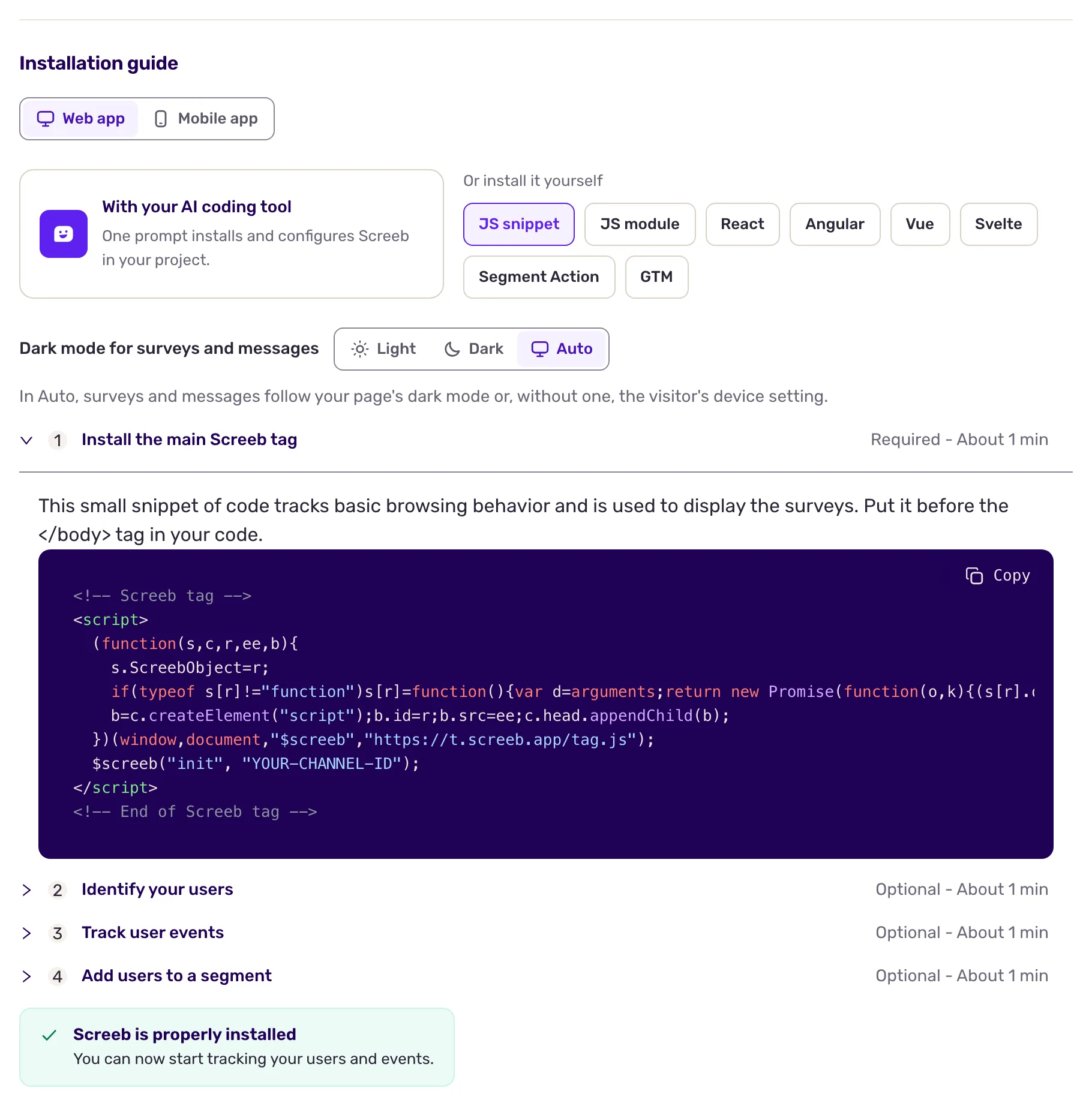
Each step shows whether it is Required or Optional. Identifying users is optional, but it gives you much better targeting and analysis.
Segment Action and GTM install Screeb from those tools without touching your code. For GTM, see Install Screeb with Google Tag Manager.
Send the instructions to a developer
Section titled “Send the instructions to a developer”- At the top right of the install page, click Send to a developer.
- Type your colleague’s email address and click Send email. Screeb emails them the instructions to set up the SDK.
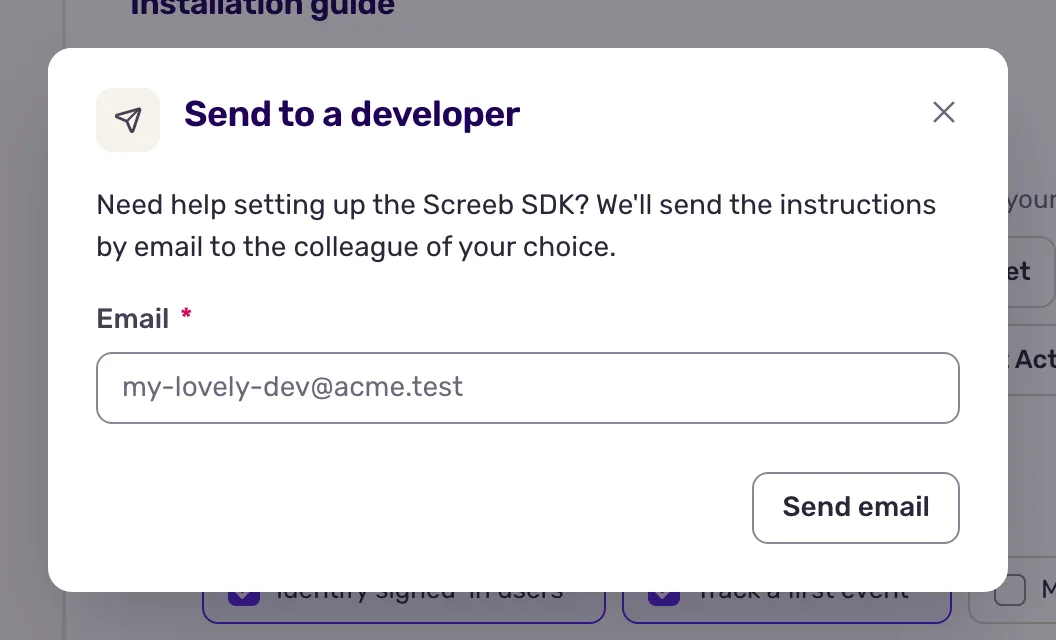
What you get
Section titled “What you get”Once Screeb has seen more than one user in the workspace, the status at the top of the install page reads Installed instead of Not installed. Users of every site and app of the workspace count, and one test visit is not enough: visit your site from two different browsers, then reload the install page. You can then create your first survey.
During sign-up, the same guide shows on the Connect step of the onboarding, with the same Send to a developer button.
Troubleshooting
Section titled “Troubleshooting”The page still says Screeb is not installed. Open your site in a browser, then the developer console, and run $screeb('debug'). If you get $screeb is not defined, the tag is not on the page: check that your deployment includes it. If the channel ID is empty, the init call is missing.
The tag is blocked. A Content Security Policy or an ad blocker can block the scripts served from screeb.app. See Use Screeb with a Content Security Policy.
Surveys disappear after a page change. Some single-page app frameworks replace the whole page body on navigation. The developer docs explain how to keep Screeb attached.