

Show a survey based on events and user properties
Target a survey at users by their properties, by how many times or when they performed an event, or by a sequence of events.
Show a survey only to the users it is meant for: customers on a given plan, users who exported a report three times, or users who signed up more than 30 days ago. This article details the property and event rules. For the rest of the targeting (trigger, pages, devices, dates), see Choose who sees your survey.
Before you start
Section titled “Before you start”- Your site or app sends the properties and events you want to use. See Send and manage user properties and Track and manage user events.
- These rules work on the channels with audience targeting (proactive, embedded, feedback button), not on link and email surveys.
- Your role lets you edit surveys.
Open the rules
Section titled “Open the rules”- Open the survey and click Design & targeting, then Audience targeting under the channel.
- Under Who, click Specific users. A window opens.
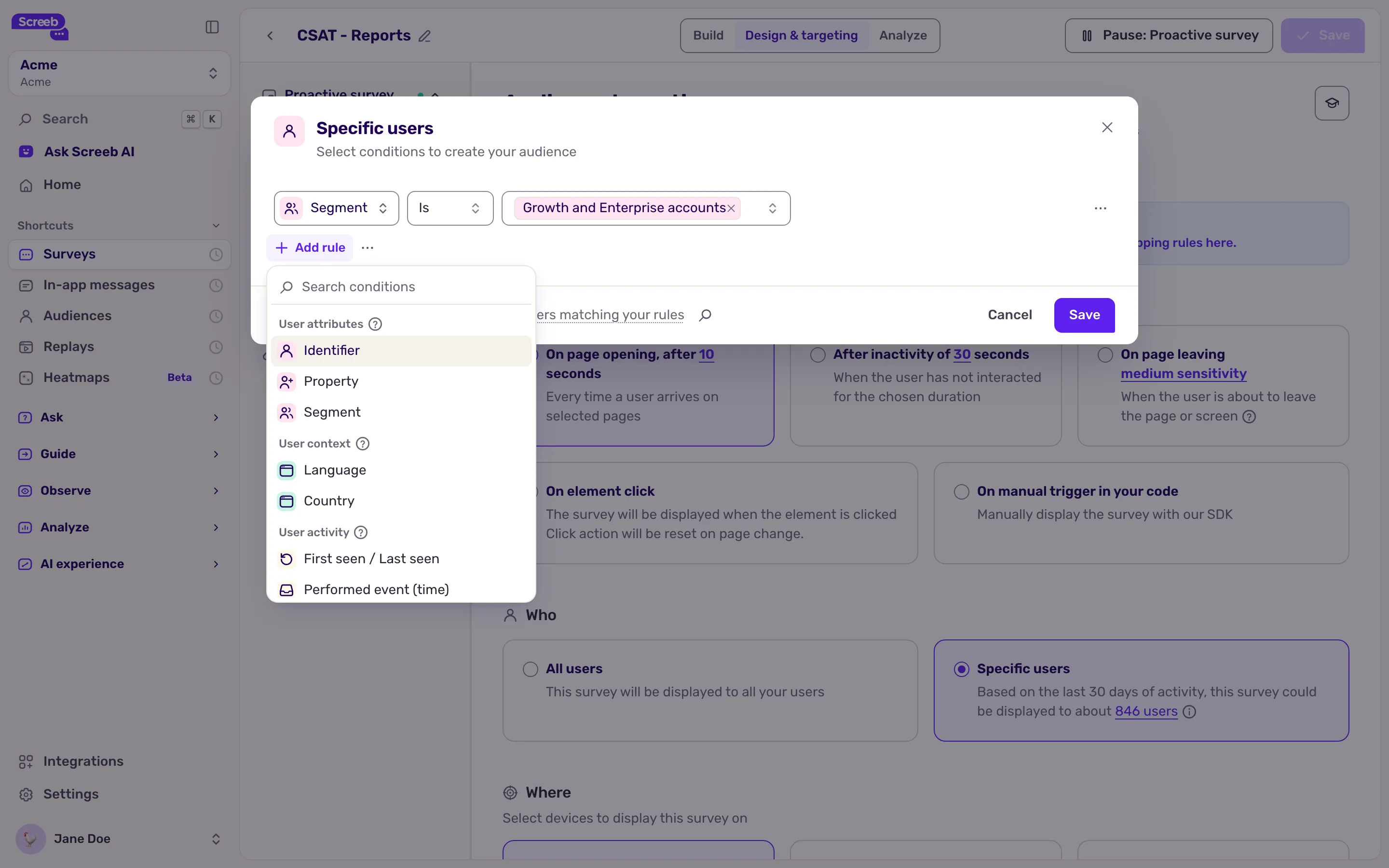
- Click Add rule (with no rule yet, its list is already open). The rules are listed by group: properties are in User attributes, events in User activity. Type to search the list, then pick a rule: it is added with its first field ready. To change a rule’s type later, click its first field: the same list opens on the current type.
Target by user property
Section titled “Target by user property”- Pick Property in User attributes.
- Choose the property, for example
plan. - Choose an operator and a value. The operators depend on the type of the property.
| Property type | Operators |
|---|---|
| Text | Is, Is not, Contains, Does not contain, Matches pattern, Does not match pattern. Upper and lower case matter. |
| Number | Greater than, Less than, Is, Is not |
| True or false | Is, Is not |
| Date | Relative date (More than or Less than a number of days ago) or Absolute date (Before or After a date) |
Every type also has Exists and Does not exist. Matches pattern compares the whole value to a pattern where * stands for any text: acme* starts with acme.
With Is and several values, the rule matches any of them. With Is not, it matches none of them. The negative operators, such as Is not and Does not contain, also match users who have no value for the property, as their hint says: “Also matches when there is no value.”
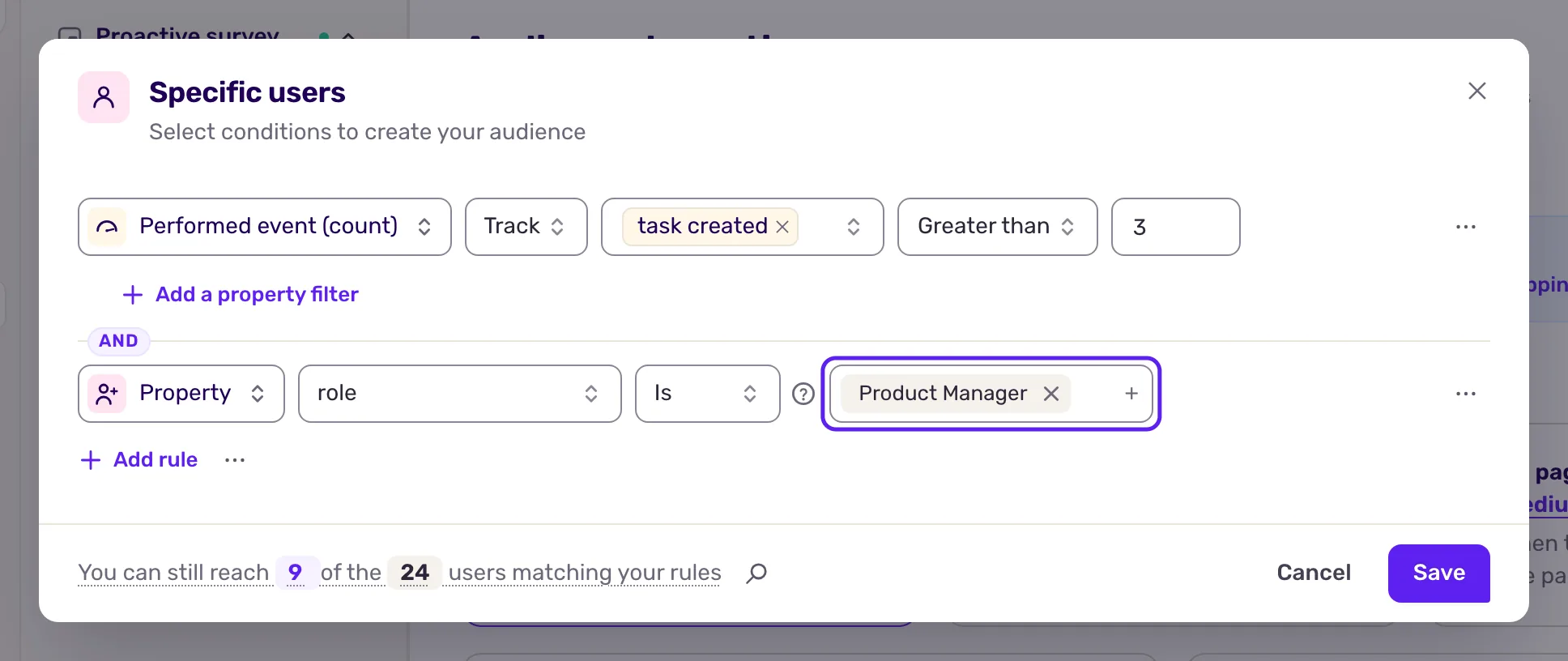
The same group has Identifier (the user ID your code sends) and Segment, see Create user segments.
Target by event
Section titled “Target by event”In User activity, three rules use events:
| Rule | Matches users who | Operators |
|---|---|---|
| Performed event (count) | performed the event a number of times | Greater than, Less than, Is, Is not (0 to 1000) |
| Performed event (time) | performed the event at a given time | relative date (more or less than a duration ago, in minutes to months) or absolute date |
| Performed events in order | performed at least two events in the order you set | Is, Is not |
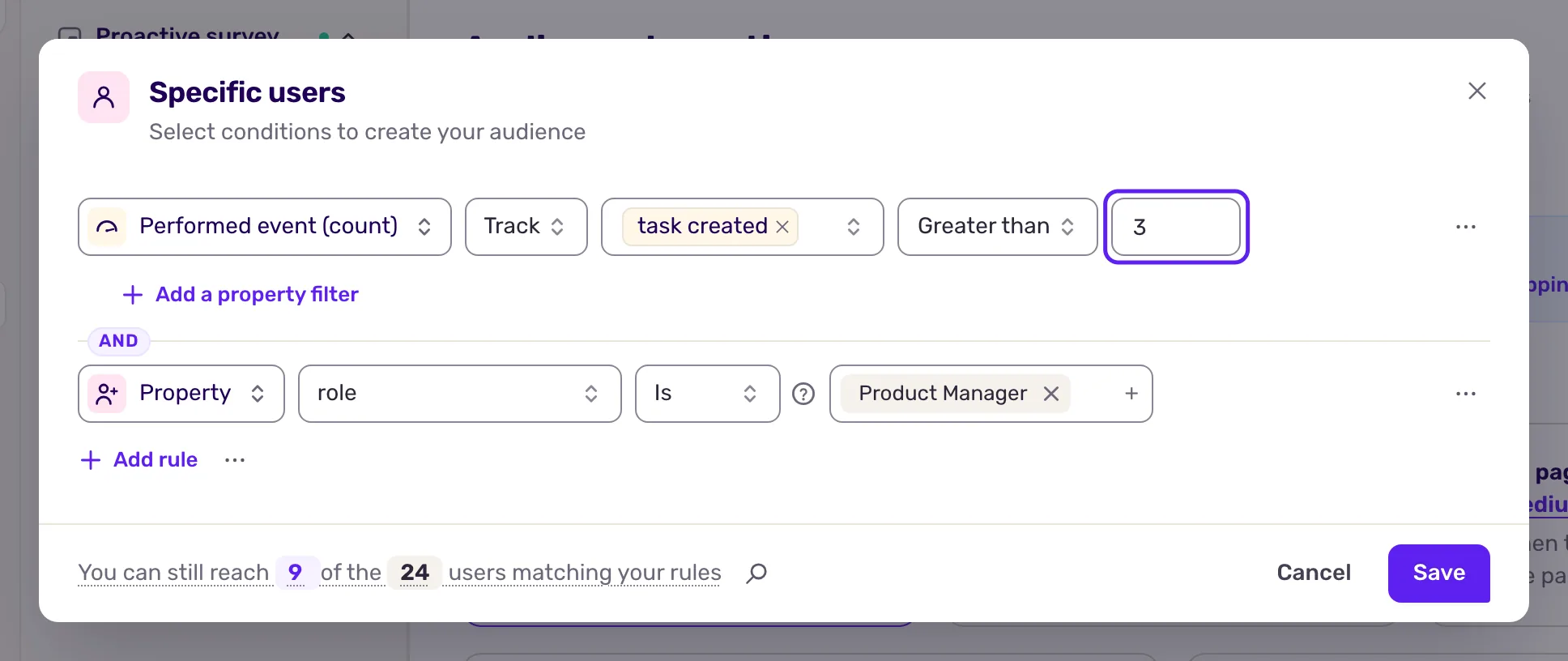
- Pick the rule.
- Choose the kind of event: Track (events your code tracks), Page, Screen or Agent.
- Choose the event name. You can pick several.
- For a time rule, choose which occurrence counts: Last trigger or First trigger.
- Set the operator and the value.
- To count only some occurrences, click Add a property filter and filter on a property of the event, such as
format is csv.
Filters that never match together
Section titled “Filters that never match together”When an event rule has at least two complete property filters, Screeb checks in the background whether a recent event satisfies all of them at once. On large workspaces it checks a sample of the last 7 days. If none does, a yellow line appears under the filters: “No recent purchase event matches these filters together.” When each filter matches events on its own, it adds “Each one matches on its own.”
This is a warning only. It never blocks Save and never changes the rule. If the check is slow or fails, nothing is shown.
To fix it, check which values your app sends for each property of this event, in your events list (see Track and manage user events). Then change or remove a filter, or fix your tracking so the property is sent with that event. For example, if every order event with plan set to free also has country set to FR, a rule asking for free and US never matches.
Combine and save
Section titled “Combine and save”- Join rules with AND or OR, as explained in Combine rules.
- Check the number of users reached at the bottom of the window, then click Save.
- Save the page. If the channel is not live yet, click the Set live button at the top right, followed by the channel name.
What you get
Section titled “What you get”The survey shows only to users who match. When your site or app sends an event or a property used in a rule, Screeb checks the targeting again, so the survey can appear a few seconds after the action, on the same page.
Troubleshooting
Section titled “Troubleshooting”The property or event is not in the list. Screeb has not received it yet. Send it once from your site or app, then reload the page. When no property was ever received, the window says “No user properties collected yet.”
A text rule never matches. Check upper and lower case, and that the value has no trailing space.
The survey does not show to a user who should match. Open Debug your setup with Screeb Inspector on your site: it shows which rule fails and which events and properties the user has.