

Create an in-app message or product tour
Create a message from a template or a format, build its steps in the visual editor on your site or app, and get it ready for targeting.
Create a message, build its steps in the visual editor on top of your own site or app, then move on to targeting. To learn what messages and formats are, read In-app messages and product tours.
Before you start
Section titled “Before you start”- In-app messages are part of your plan, and your role lets you create messages.
- For a website: Screeb is installed on the page where you build, see Install Screeb on your website or web app. With a strict Content Security Policy, allow the message builder, see Use Screeb with a Content Security Policy.
- For a mobile app (iOS, Android, Flutter or React Native): messages need nothing more in your plan. Your app includes the Add configuration for in-app messaging step of Install Screeb in your mobile app. Check which formats work in an app in In-app messages and product tours.
Create the message
Section titled “Create the message”- In the Guide section of the side menu, open In-app messages.
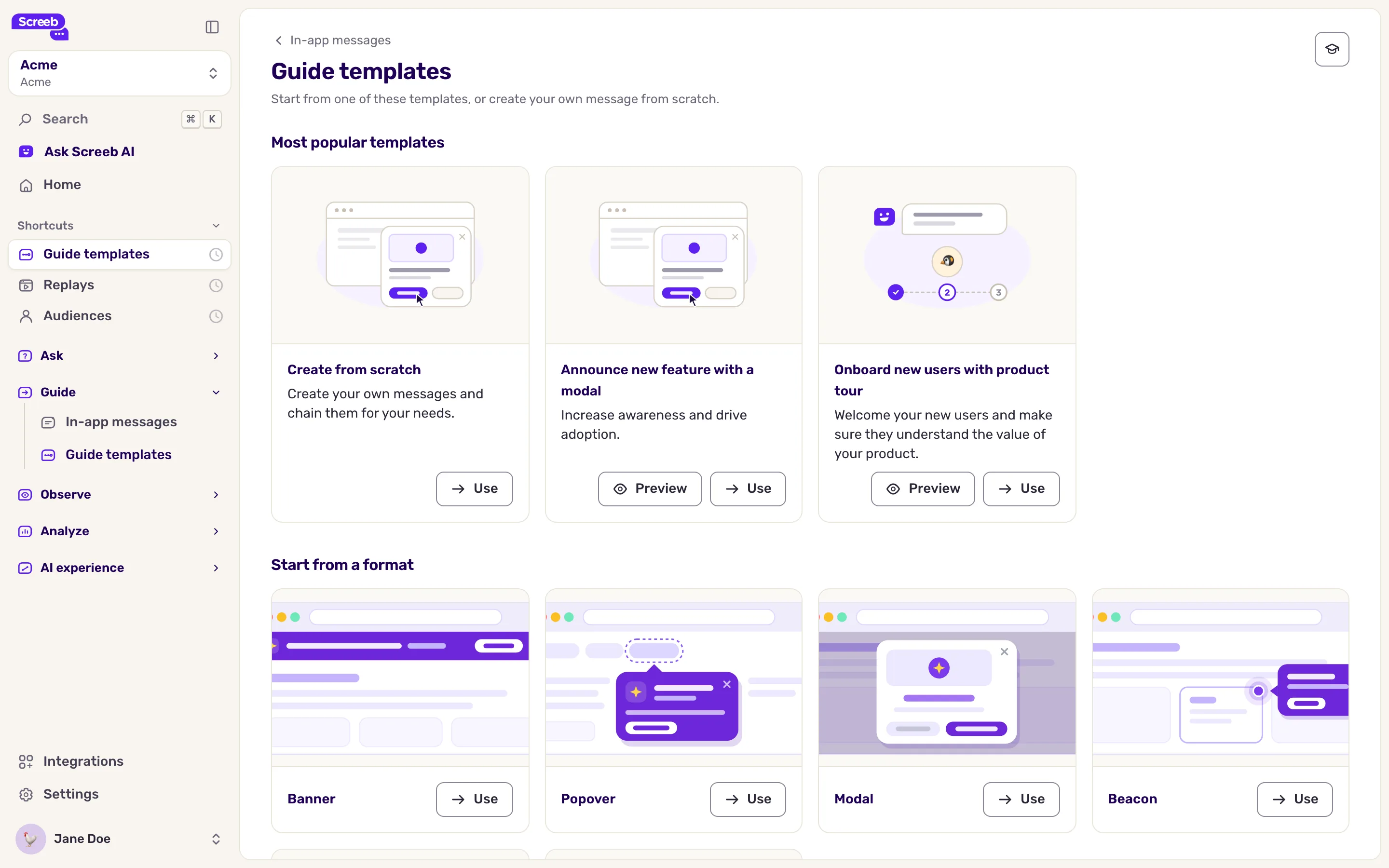
- Click New message, then Create from template. The Guide templates page opens.
- Pick a starting point: Create from scratch, a popular template, a format under Start from a format, or a template in All templates. Click Preview to see a template first, then Use.
- Choose where the message shows: Web app, iOS app or Android app, and click Continue. A template brings content only, never targeting.
Open the editor
Section titled “Open the editor”On a website:
- Under Which page should the builder load for preview?, enter the full address of a page of your site, starting with
https://orhttp://, or pick a recently used page. - Click Open builder. Your page opens in a new tab, with the Screeb editor on top of it.
If the editor does not open, or you close it before saving a step, the builder shows Write the first step of your message. Click Open builder again, or The builder did not open? for other ways to open it.
In a mobile app: the admin shows a QR code. Scan the QR code with a device that has the app installed. On a simulator or emulator, copy the command shown and paste it into your terminal. You then build from the editor while you navigate in the app. Later, Preview on device at the top right of the builder shows the QR code again.
Build the steps
Section titled “Build the steps”- Add a step and choose its format: Banner, Modal, Popover, Beacon, Sidebar or Embedded. Embedded is greyed out in a mobile app.
- For a Popover or a Beacon on a website, attach the step to an element: “Pick element” lets you click it on the page, “Use CSS” lets you type a selector.
- Add blocks. Content blocks are Header (once per step, not on Embedded), Title, Text, Image, Video, Stepper, Checklist, Divider and Spacer (a Banner takes no image or video). Action blocks are “Go to next step”, “Choices”, “Open a URL” and “Reaction”. A step has one action block: adding another one replaces it. “Skip” can be added next to Choices, Open a URL or Reaction.
- To delay a step, open its settings and add Conditions, such as a URL, a delay, a scroll or an element on the page.
- Add more steps for a product tour. They show in order.
- Click “Save”, then “Close builder” to go back to the admin, or “Continue editing”.
To make a button do more than move to the next step, add contextual actions.
Review and continue
Section titled “Review and continue”Back in the admin, each step shows as a card. Click a card: its panel lets you reopen the editor on that step. To run the message on your page, see Preview and test a message. For colors and fonts, see Customize the design of your messages.
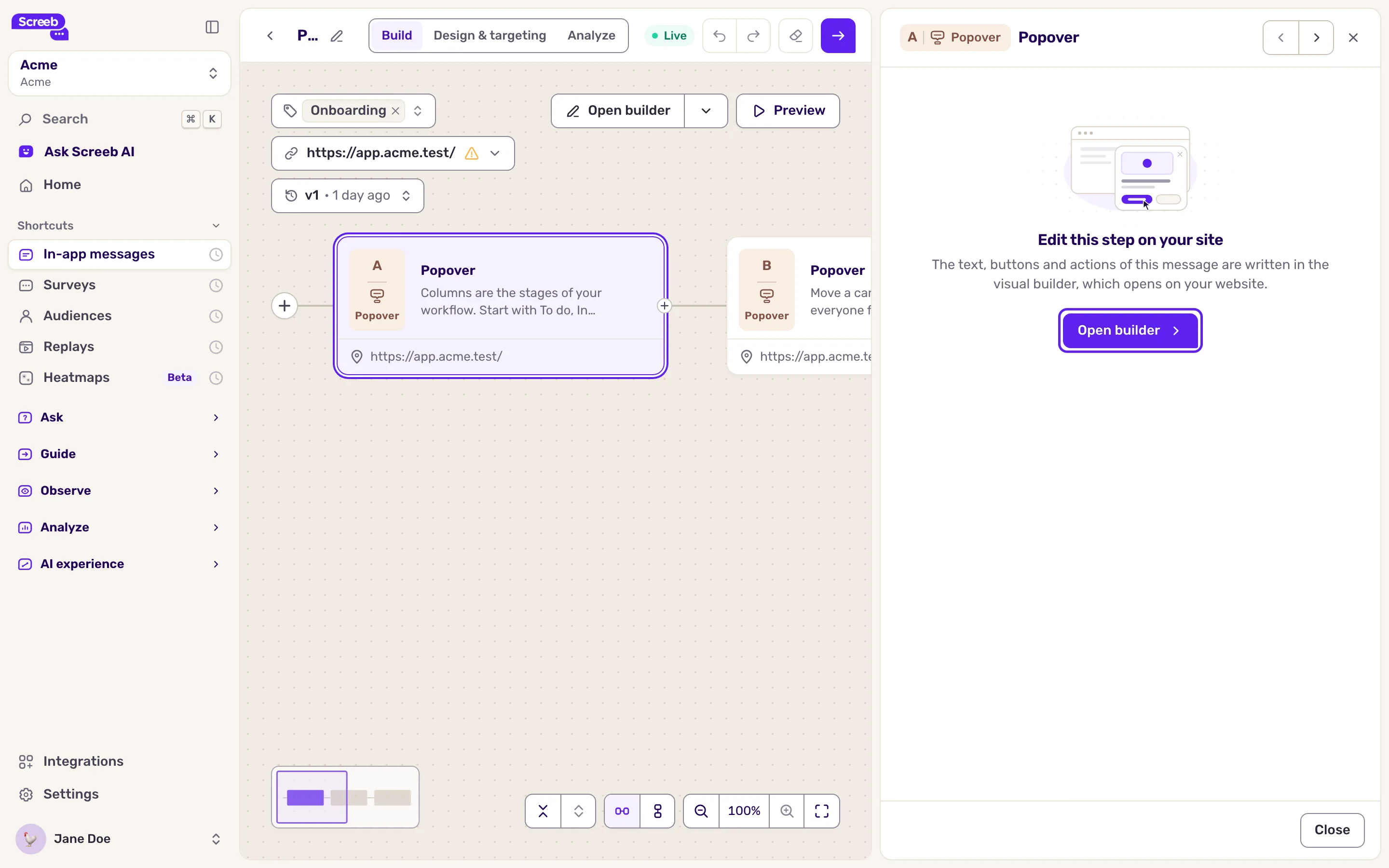
When the steps are ready, click the arrow button at the top right. Its tooltip reads Save and next, or Next when nothing changed. The targeting page opens.
What you get
Section titled “What you get”A message saved with its steps. It shows to nobody until you set it live, see Choose who sees your message and when.
Troubleshooting
Section titled “Troubleshooting”“Having trouble opening the message builder?” opens and the editor does not show. Reload the page, disable your ad blocker, check that Screeb is installed on that page, or try another browser. The window also offers Open builder with URL parameters and a command to paste into the browser console of your page.
“This page's security settings are blocking the builder”. Your site sends a Cross-Origin-Opener-Policy header. Use Open builder with URL parameters, also offered in the menu of the Open builder button.
Saving says “Pick an element for every popover and beacon step.” Attach every Popover and Beacon step to an element.
The step loses its element, or the picker selects the wrong one. Some sites generate class names that change at each release. Ask your developers for a stable id, and enter it with “Use CSS”.
The mobile app does not open from the QR code. Complete the Add configuration for in-app messaging step for your stack and rebuild the app.