

Understanding surveys
Learn what a Screeb survey is made of, where it can appear, how it goes live and how displays and responses are counted.
A survey asks your users questions at the moment you choose, in your site or app, on a page, by email or through a link. Each user follows a path through the questions that can depend on their previous answers, so they only see what is relevant to them.
What a survey is made of
Section titled “What a survey is made of”You find your surveys in Surveys. Each one has three steps, shown at the top of the survey:
- Build: the questions, laid out as a flow in the builder.
- Design & targeting: the channels and, for each one, who sees the survey and when, its settings and its look. See Configure your survey settings.
- Analyze: the results.
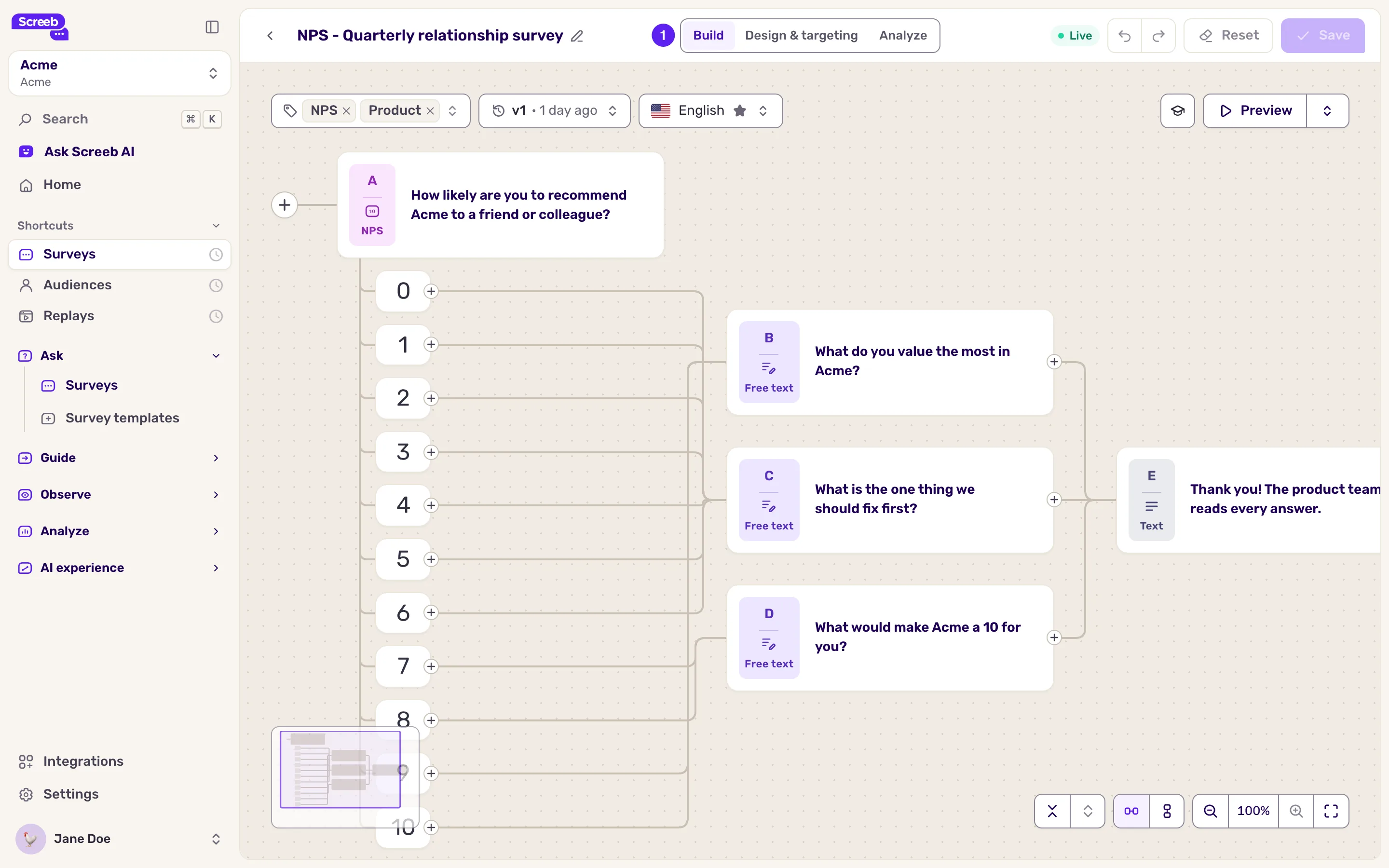
To start one, see Create a survey from a template or with AI. To rename, duplicate or delete one, see Manage your surveys.
Question types
Section titled “Question types”When you add a step in the builder, the menu sorts the types in three groups.
| Group | Types |
|---|---|
| Questions | Text (a message with no question), Free text, Multiple choice, Rating, AI follow-up |
| Scores | NPS, CES, CSAT, NES, SUS |
| More | Likert scale, Range rating, Calendar, Link, Conditional, App store rating |
The score types get their own report in the results: to pick one, see Choosing between NPS, CSAT, CES, NES and SUS. To book a meeting from a survey, see Add a calendar question. AI follow-up and App store rating can only end a survey. To send users down different paths, see Build conditional surveys with branching logic.
Channels
Section titled “Channels”A survey reaches users through one or more channels: a proactive survey in your site or app, a survey embedded in a page, a feedback button, an email or a link. Each channel has its own targeting and design, and starts or stops on its own. See Understanding survey channels.
Lifecycle
Section titled “Lifecycle”A new survey is not shown to anyone: all its channels are off. You can edit it, preview it and test it as long as you need, see Preview and test a survey before you launch it. To launch it, set one of its channels live, see Understanding survey channels.
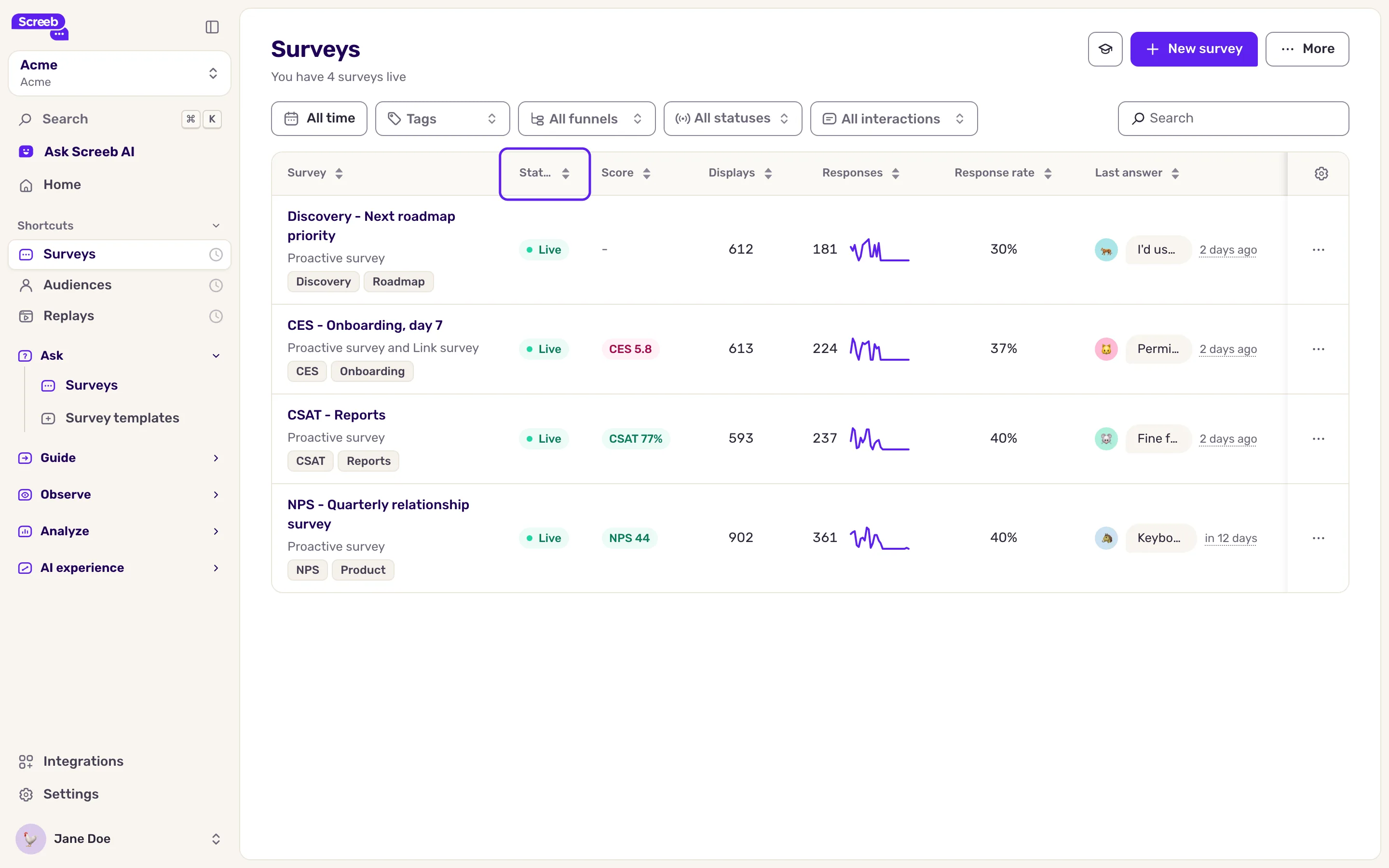
The Status column of the list sums up the channels:
| Status | Meaning |
|---|---|
| Stopped | No channel is on. This is the state of a new survey, and of a survey you paused. |
| Live | Every channel that is on is showing the survey. When only some are, the status says how many. |
| Test mode | A channel is on in test mode. |
| The start date, or Scheduled | A channel is on, but it is not showing yet: the status gives its start date when one is set. |
| Paused | A channel is on, but its end date has passed. |
Click the status to see each channel and turn it on or off.
Displays and responses
Section titled “Displays and responses”The list counts the displays, responses and response rate of each survey under Displays, Responses and Response rate, as defined in the Glossary. Answers given in a preview are deleted and never count.
Limits
Section titled “Limits”- Users only see surveys on channels that are live, and only when your site or app runs the Screeb SDK (except link and email surveys).
- Showing surveys on desktop and in mobile apps depends on your plan.
- How often the same user sees a survey again is set on each channel, see Configure your survey settings.