

Build conditional surveys with branching logic
Send each user to the next question that fits their answer, or to a different path based on their properties and events.
Branching sends each user to the question that fits what they answered, so a detractor gets a “what went wrong” question and a promoter gets a testimonial request. A Conditional step goes further and picks the path from who the user is, what they did or what they answered so far.
Before you start
Section titled “Before you start”- The survey exists, see Create a survey from a template or with AI.
- Your role lets you edit surveys.
- Add every question you need first: you can only route an answer to a step that exists.
Route answers to the next step
Section titled “Route answers to the next step”- Open the survey on the Build step.
- Click a question. Its settings open in a side panel.
- Next to each answer, pick the step that follows it, or the end of the survey. The list leaves out the steps on a path that leads to this one, so a survey never loops.
- Click Apply. The builder draws the new path.
- Click Save at the top right (Save and next while the survey has no response yet).
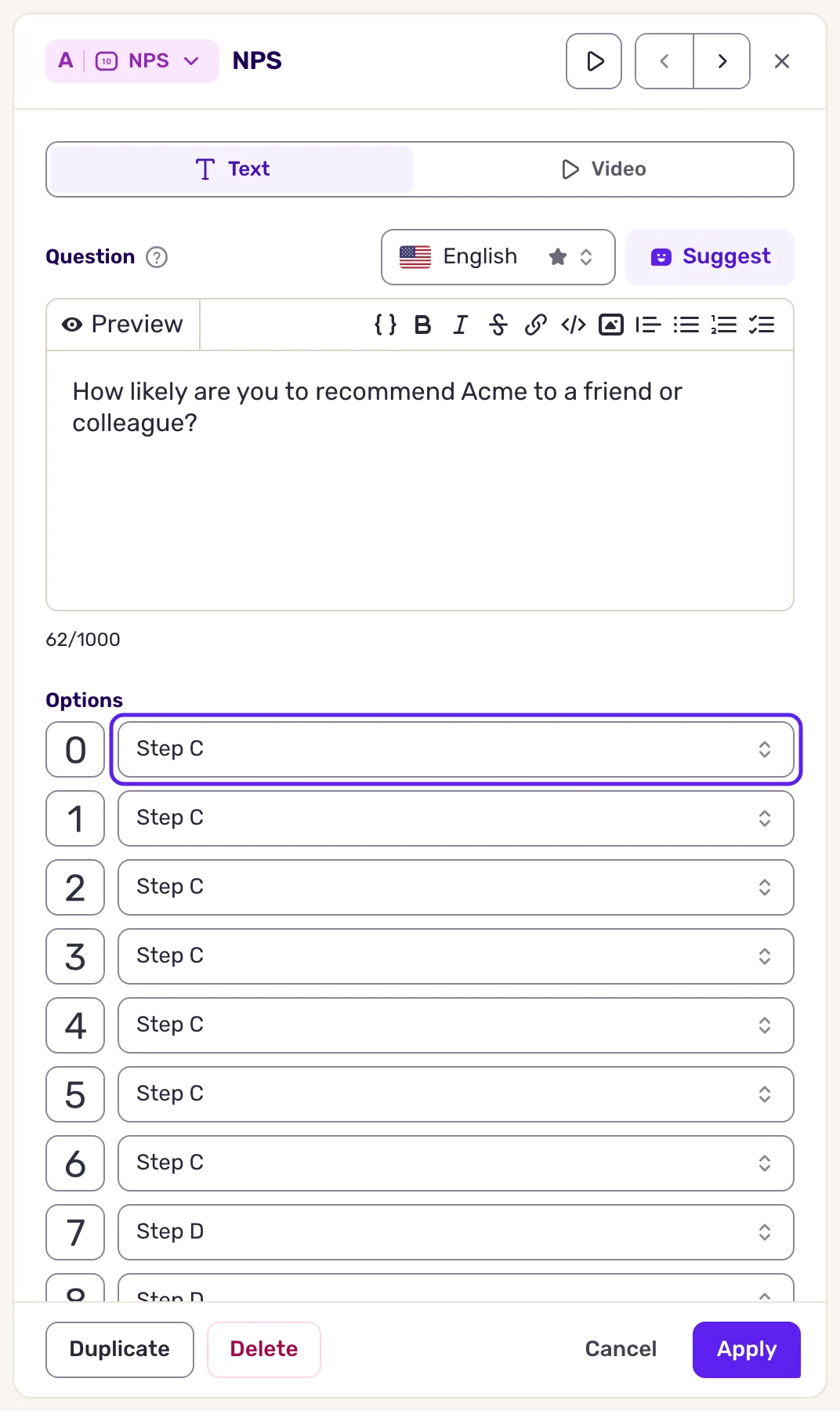
Where you choose the next step depends on the question type:
| Question type | Where |
|---|---|
| NPS, CES, CSAT, NES, Rating | One choice per score. To route a range (0 to 6, 7 to 8, 9 to 10), pick the same step for each score of the range. |
| Multiple choice | One choice per option. With Multi-select on, a single Next step applies to all options. |
| Link | One choice per button. |
| Free text, Range rating | A single Next step for every answer. |
| Text, Calendar, a question in Video mode with no answer | A single next step. |
| Likert scale, SUS | A single Next step once every statement is answered, and Skip to step for users who skip the question. |
Most other types also offer Skip to step: the step users reach when they skip the question. To make a question optional, see Make a question optional.
Make a question optional
Section titled “Make a question optional”A question is required by default: users must answer it to move on. It becomes optional once you give it a step to skip to.
- Open the survey on the Build step and click the question. Its settings open in a side panel.
- Scroll the side panel down to Skip to step (“Allow users to skip to a later step”).
- Open the list. It reads “Pick a step” until you pick a step. Choose the step users reach if they skip the question, for example the next step.
- Click Apply, then Save at the top right.
Once a step is chosen, the question can be skipped. Free text, Range rating, NPS, CES, CSAT, NES, Rating, Multiple choice, Link, Likert scale, SUS offer Skip to step.
Read a survey with many paths
Section titled “Read a survey with many paths”On a long survey, fold the steps you are not working on and follow one path at a time. The controls sit next to the zoom, at the bottom right of the builder.
- Hover a step and click Collapse step at its top right. It folds to one line: its letter, its type icon, the start of its text and its number of options. Its links now leave from the folded step. Click Expand step to open it again.
- Click Collapse all steps to fold every step at once, or Expand all steps to open them all.
- Hover a step to see its paths: the steps that lead to it and the steps it leads to stay highlighted, the rest fades. Hover one answer to follow that answer only.
- Click Zoom out down to 30% to see a whole folded survey, or Vertical flow to read the branches from top to bottom.
Folding only changes your view: users see the same survey. The builder remembers the folded steps of each survey in your browser, and Survey breakdown always shows every answer.
Copy steps with the keyboard
Section titled “Copy steps with the keyboard”To reuse a step without opening it, point at it on the canvas:
- Press Ctrl+C (Cmd+C on Mac) to copy the step under the cursor, or the step open in the side panel. The step flashes to confirm.
- Point at another step and press Ctrl+V (Cmd+V on Mac): the copy goes right after it, on the path of its first answer, and flashes. Answers that lead elsewhere keep their path. With no step under the cursor, the copy goes right after the original and takes over its paths. An open side panel closes first.
- Press Ctrl+V again to paste more copies. Each paste is the step as it was when you copied it.
Ctrl+Z (Cmd+Z) is Undo, Ctrl+Shift+Z (Cmd+Shift+Z) or Ctrl+Y is Redo: their tooltips show the keys, and so does Duplicate in the side panel for copy and paste. In a text field, these keys act on the text instead. Copies stay in the survey you copied them from.
Branch on who the user is or what they answered
Section titled “Branch on who the user is or what they answered”A Conditional step is invisible to users. It checks rules on the user and on the response in progress, and sends them down one of two paths.
- Add a step and pick Conditional in the menu.
- Under Rules, click Add rule and set rules, for example a user property, a segment or an event count. They use the same builder as the audience targeting, see Show a survey based on events and user properties. To route on an earlier answer of the same response, such as a score below 7 or a chosen option, pick Answer in the Response group: it lists the questions that come before the step.
- Under Conditions (“If the rules are met, or else:”), pick the step for users who match the rules, then the step for the others.
- Click Apply, then save the survey.
Keep it simple
Section titled “Keep it simple”- Branch only when two users really need different questions.
- Stay within two or three levels. Deeper than that, split the survey in two.
- Prefer a condition on the previous answer, such as “score below 7”, to a mix of external rules: it is easier to read and less likely to break when your data changes.
- Give every path a clear end, such as a closing message.
What you get
Section titled “What you get”Each user follows the path their answers lead to. The results keep all answers together, and Survey breakdown shows how users moved through the steps.
Troubleshooting
Section titled “Troubleshooting”Conditional is not in the menu. It is hidden when your workspace forces device tracking.
A user saw the wrong question. Open Preview and go through each path, not only the main one. A Conditional step reads real user data, so test it in test mode with your own account, see Preview and test a survey before you launch it.
The survey ends right after a Likert scale or SUS question. Click the question and pick the step that follows in Next step. Removing the steps that came after it can leave it leading to the end of the survey.
A step is missing from the list. It sits on a path that leads to the current step: routing to it would make a loop. Route to it from another step instead.