

Preview and test a survey before you launch it
Go through your survey as a user would in the preview, share the preview with your team, then test it live on your site with test mode.
Check a survey in two passes before your users see it: the preview shows it exactly as it will look and lets you answer every path, without touching your results. Test mode then runs it on your real site or app, with your real targeting, for your own account.
Before you start
Section titled “Before you start”- The survey has at least one question, see Create a survey from a template or with AI.
- Your role lets you edit surveys.
- For test mode, the Screeb SDK runs on your site or app and identifies your own account, see Install Screeb on your website or web app.
Preview in the builder
Section titled “Preview in the builder”- Open the survey in the builder.
- At the top right, pick the channel in the list next to Preview, then click Preview. The builder saves the survey and opens the preview beside it. For a survey of a mobile app, the button reads Preview on device and shows a QR code to open the survey on your phone.
- Switch between Desktop and Mobile. On mobile, choose a phone or tablet in the device list at the top of the preview, and click the rotate icon (Rotate device) to turn it.
- For an email survey, switch between Embedded (inside the email) and Browser (the page the email opens).
- Answer the questions. Click Refresh to start again, and go through each path of a branching survey.
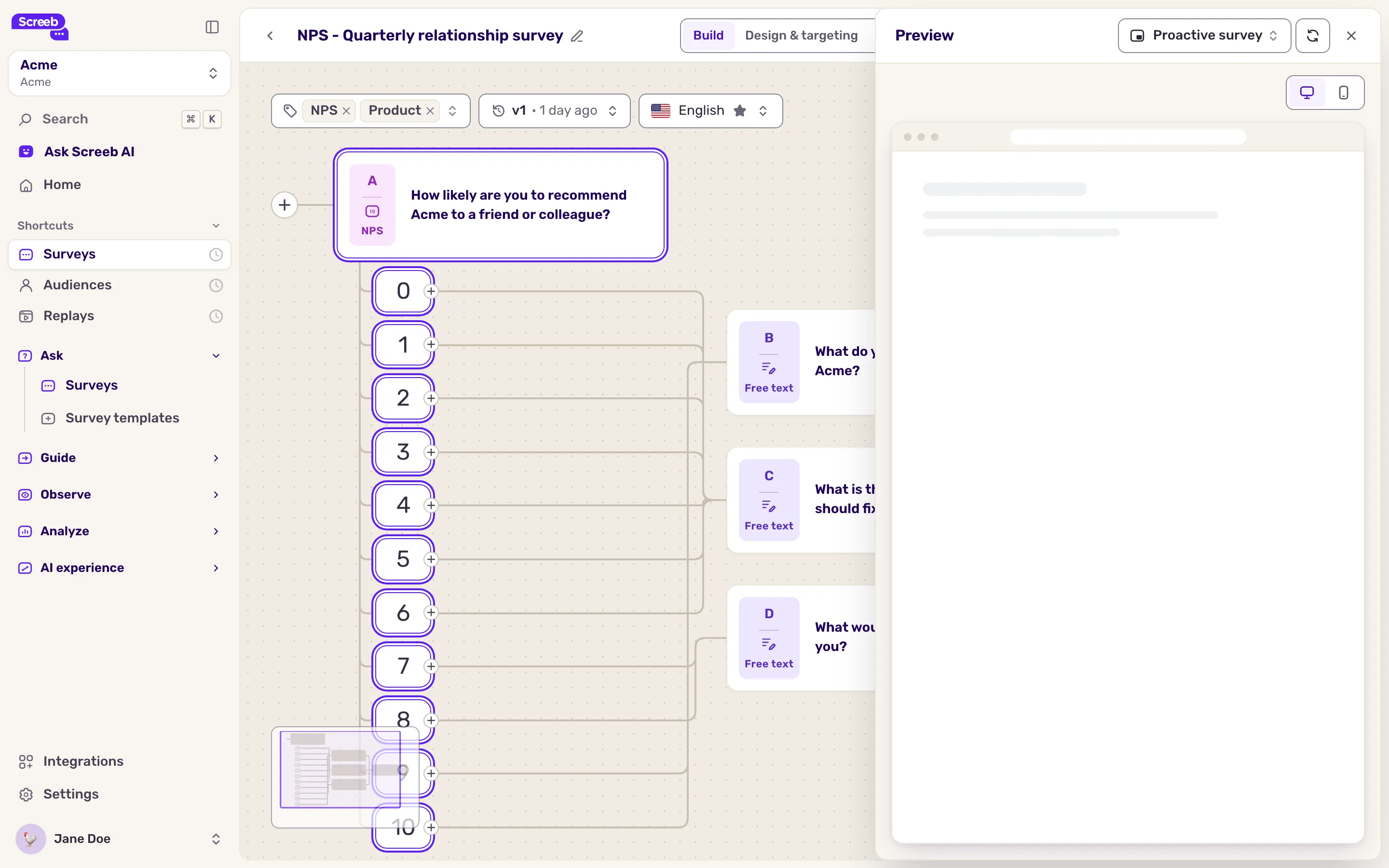
The preview ignores the targeting and shows the survey in the current builder language. Answers given in the preview never count in your results.
Start the preview at a given step
Section titled “Start the preview at a given step”In a long survey, check one question without answering all the ones before it.
- Click the step on the canvas to open its panel.
- At the top of the panel, click the play icon (Preview from this step) next to the step arrows. The builder saves the survey and opens the preview on this step, even when the step only shows after a given answer.
- Answer it: the preview then follows the survey from there. Refresh starts again from the same step, Preview at the top right from the first one.
The steps before it are skipped, so they have no answer: a question that quotes an earlier answer shows it empty.
Share the preview
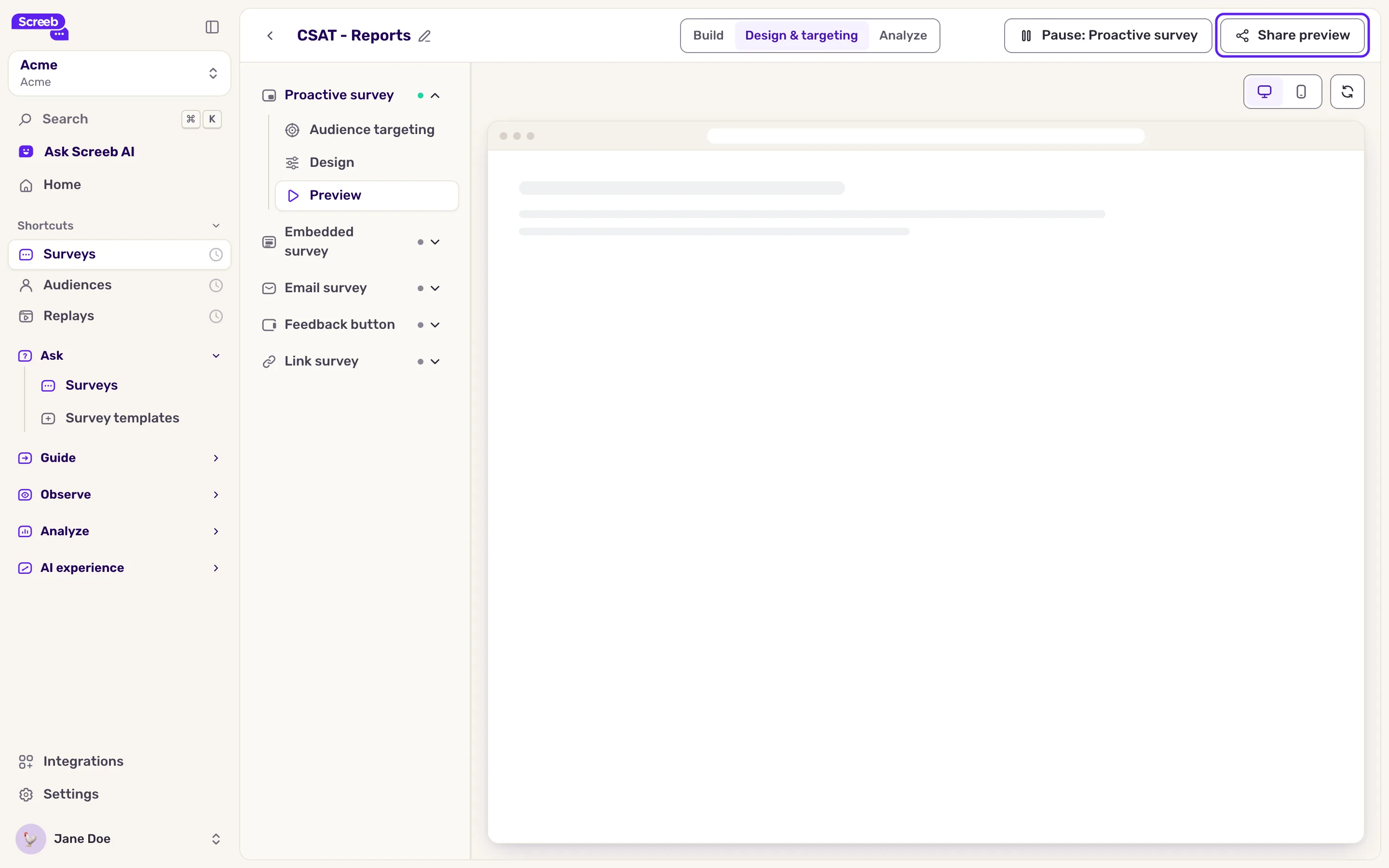
Section titled “Share the preview”- Click Design & targeting, then Preview under the channel. The preview fills the page.
- Click Share preview at the top right. A link to this preview is copied.
- Send the link to your teammates so they can review the survey before launch.
Test on your site with test mode
Section titled “Test on your site with test mode”By default, a user sees a survey only once. Test mode lifts that limit, so you can trigger the survey again and again on your real pages while you adjust it. It works as for messages, see Preview and test a message.
Test mode applies to every eligible user
While test mode is on and the channel is live, every user who matches the targeting sees the survey each time the conditions are met. Restrict the audience to your own account first.
- Click Design & targeting, then Audience targeting under the channel.
- Click Specific users and add an Identifier rule with your own user ID. See Show a survey based on events and user properties.
- In the Other section, tick Turn on test mode. Check that the card counts 1 eligible user.
- Click Save, then the button at the top right that reads Set live followed by the channel name. Trigger the survey on your site or app, signed in with your account.

When no other channel of the survey is live, the survey shows Test mode in the list. Answers you give are real responses and show in the results.
Launch
Section titled “Launch”- Untick Turn on test mode.
- Replace your test rule with the real audience, see Choose who sees your survey.
- Click Save. Changes to a live channel apply once saved.
What you get
Section titled “What you get”A survey whose look, wording and paths you checked in the preview, and whose trigger and targeting you checked on your real site, before any user sees it.
Troubleshooting
Section titled “Troubleshooting”Turn on test mode is greyed out. It does not work with Display again or with the On manual trigger in your code trigger. Remove them while you test.
There is no test mode on a channel. Link, email and feedback button surveys have none. Use the preview, or for a link survey, the link itself: it opens the real survey.
The survey does not show during the test. Open Debug your setup with Screeb Inspector on your site to see which rule fails, and check that the SDK identifies your account.