

Import users from a CSV file
Create or update users from a CSV file with their properties, or add users already in Screeb to a segment, matched by user ID or property.
Bring users from a spreadsheet, your CRM or your database into Screeb with a CSV file. Every import fills a segment, so you can target those users right away.
Before you start
Section titled “Before you start”- Your role lets you edit segments (Editor or Admin).
- Prepare a CSV file, comma or semicolon separated: the first line holds the column names, then one user per line, up to 50,000 rows per file.
- To import, the file needs a column with the user ID you send to Screeb when you identify users on your site or app. Otherwise Screeb creates new users instead of updating yours. See Understanding user properties.
- The users an import creates count in your users quota, and the import stops if the quota is reached, see Plans, quotas and billing.
Choose a mode
Section titled “Choose a mode”- Import users creates the users who do not exist yet, sets the properties of your columns on every user, then adds them all to the segment.
- Assign users only adds users already in Screeb to the segment. It creates nobody and changes no property. Use it to tag a list of customers, for example the accounts of a sales campaign.
Import or assign users
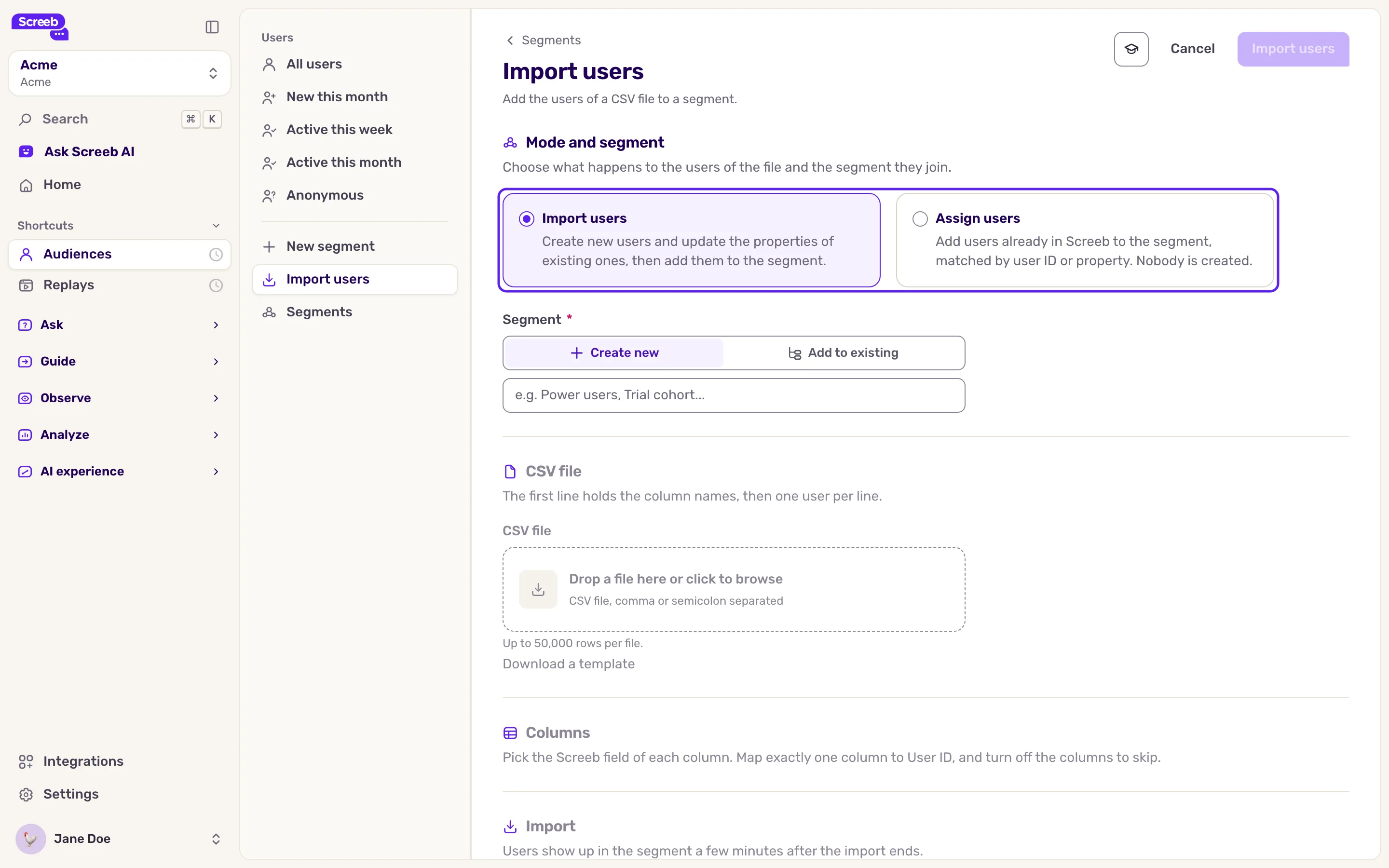
Section titled “Import or assign users”- Under Observe in the sidebar, open Audiences and click Import users in the side menu. Import on the Segments page leads to the same place.
- Pick Import users or Assign users.
- Under Segment, choose Create new and type a name (up to 255 characters, with at least one visible character other than a dot, and no control characters), or Add to existing and pick a segment.
- Drop your CSV file in the file area, or click it to browse. Need an example? Click Download a template.
- Set up the columns (see below).
- Click the button at the top right. It shows the number of rows in your file.
Set up the columns to import
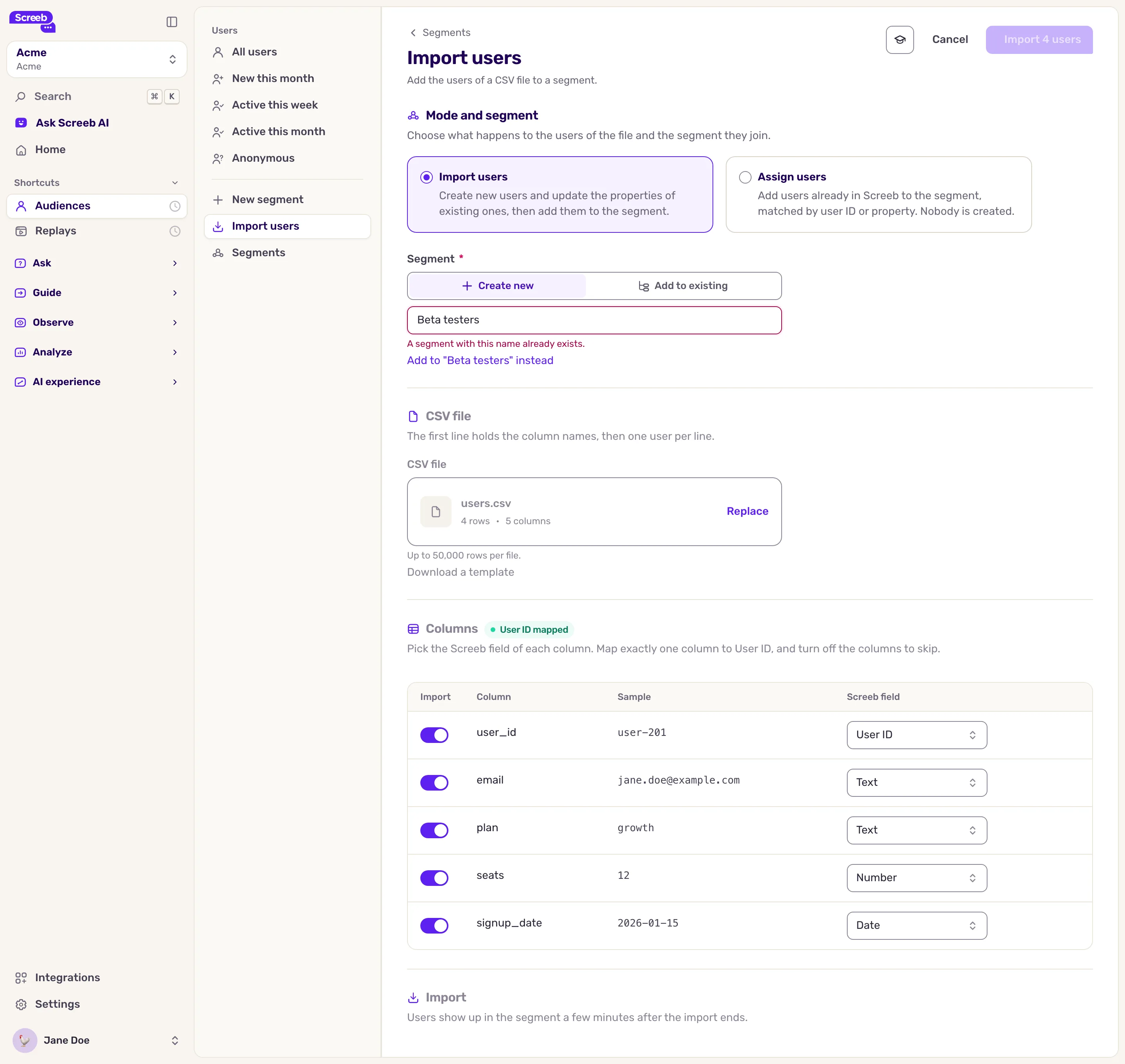
Section titled “Set up the columns to import”In Columns, each column of the file shows a sample value and its Screeb field, guessed from the sample.
- Map exactly one column to User ID. A column named
user_idoridis picked for you. The badge reads User ID mapped when it is right. - Every other column becomes a user property of the same name, typed Text, Number, Boolean (
trueorfalse) or Date (a date such as2026-01-15). Values with leading zeros, like zip codes, stay text. - Turn off Import on the columns to skip.
Set up the matching to assign
Section titled “Set up the matching to assign”In Matching, pick the Column to match, then what it holds under Match against: User ID, or User property and the Property to compare it with, such as an email. Users who match no row are left out.
What you get
Section titled “What you get”An import runs in batches: Keep this page open until the import ends. At the end, the page gives the number of users imported or added, and the rows skipped: rows without a user ID, and repeated user IDs. Click View the users of the segment to see them.
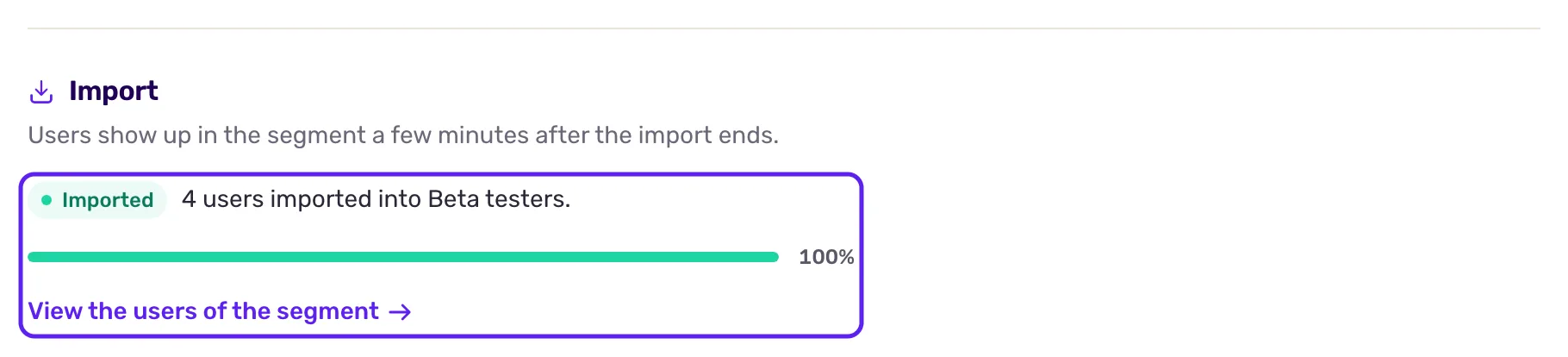
Users show up in the segment a few minutes after the import ends. Use it in survey targeting and in the user filters like any other segment, see Create user segments.
Troubleshooting
Section titled “Troubleshooting”A property is missing on some users. A value that does not fit the column type, such as text in a Number column, is skipped. Fix the type or the file, and import again: importing the same users again updates them.
“No user matched” No user in Screeb has the values of your column. Check that you match against the right field, and that the values are written the same way in Screeb.
“Only text and number properties can be matched.” Pick a text or number property to match against.
“A segment with this name already exists.” Pick another name, or choose Add to existing.
Import failed. The import stops at the first error, for example when your users quota is reached. The page says how many users were imported before it. Fix the cause, then import the file again: users already imported are updated, not duplicated.
A file has more than 50,000 rows. Split it into several files and import them one after the other into the same segment.