

Understanding survey channels
Pick the channels of a survey, in your site or app, embedded in a page, behind a feedback button, by email or through a link.
A channel is the way a survey reaches your users. Every survey has the same five channels. Each one has its own targeting, design and status, so you can run a survey in your app and share it by link at the same time.
The five channels
Section titled “The five channels”The first time you open Design & targeting on a survey, the Type of interaction page lists them. Click one to set it up. Design & targeting and Analyze stay disabled until the survey has a first question.
| Channel | Where it shows | Use it to |
|---|---|---|
| Proactive survey | Over your website, web app or mobile app, when the trigger and conditions you set are met. Tagged Best response rate. | Ask in context, right after an action. |
| Embedded survey | Inside a page of your website, in the element you pick under Embedded in (a CSS selector). See Embed a survey in your page. | Collect feedback next to content, such as a help article. |
| Email survey | In an email you send with your own emailing tool. You copy the Code to embed the email survey in your emailing platform. See Send a survey by email. | Reach users who are not in your product. |
| Feedback button | Behind a button that stays on your site. The user opens the survey when they want. See Add a feedback button. | Keep a permanent way to give feedback. |
| Link survey | On a page hosted by Screeb, opened from a link or a QR code. | Share a survey anywhere, see Share a survey with a link. |
Proactive surveys, embedded surveys and the feedback button need the Screeb SDK on your site or app, see Install Screeb on your website or web app and Install Screeb in your mobile app. Email and link surveys do not.
How channels work
Section titled “How channels work”After the first visit, Design & targeting opens the live channel, or the one you edited last. The side menu lists every channel with three entries:
- Audience targeting: who sees the survey, where and when (for link and email surveys: the link, the code and their options). See Choose who sees your survey.
- Design: the look of the survey on this channel. See Customize the design of your surveys.
- Preview: the survey as users will see it on this channel. See Preview and test a survey before you launch it.
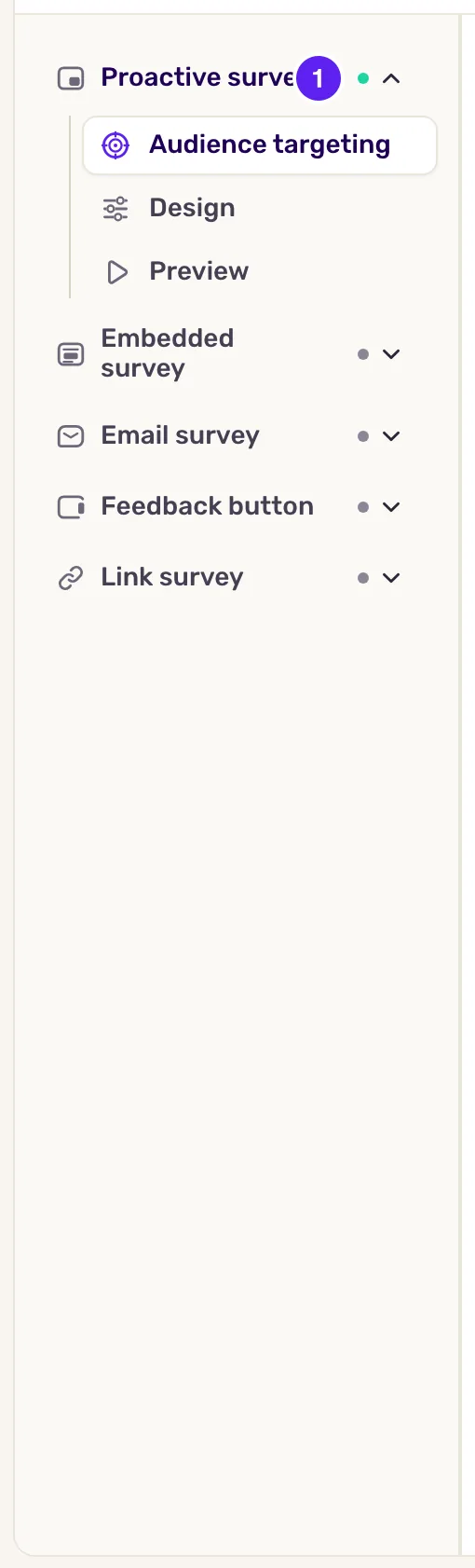
Each channel starts when you click the Set live button at the top right of its page, followed by the channel name, or when you click the status dot next to its name in the menu. When a channel of your site or app has no targeting rule, or Screeb has not seen any user yet, a confirmation asks you first. The Pause button, also followed by the channel name, stops it again.
Stopping one channel leaves the others running, and the responses already collected are kept. Answers from every channel land in the same results.
Web and mobile
Section titled “Web and mobile”A Proactive survey covers websites and mobile apps at once: in its targeting, you choose the devices and the platforms (Web, iOS, Android). Showing surveys on desktop, and on Mobile and Tablet, depends on your plan. When mobile is not included, those options are greyed out.
Limits
Section titled “Limits”- An embedded survey needs a valid CSS selector before it can go live.
- Link and email surveys have no audience targeting: anyone with the link can answer. Respondents are anonymous unless the link identifies them.