

Configure your survey settings
Set how one survey behaves on each channel, and the defaults every survey of your workspace starts from.
Survey settings decide how a survey behaves once it is live: when it runs, how often it comes back, whether respondents can go back. Each channel of a survey has its own settings, and your workspace holds the defaults they start from. For the look of the survey, see Customize the design of your surveys.
Before you start
Section titled “Before you start”- Your role lets you edit surveys. Changing the workspace defaults also needs the permission to update the organization settings.
- The survey has at least one channel, such as a proactive survey or a feedback button.
Set the settings of one survey
Section titled “Set the settings of one survey”- Open the survey and click Design & targeting at the top.
- Under the channel, click Audience targeting, then scroll to Survey settings, below the targeting.
- Tick the cards you need and click their value to change it. Each option is described below.
- Click Save at the top right. A live survey uses the new settings right away.
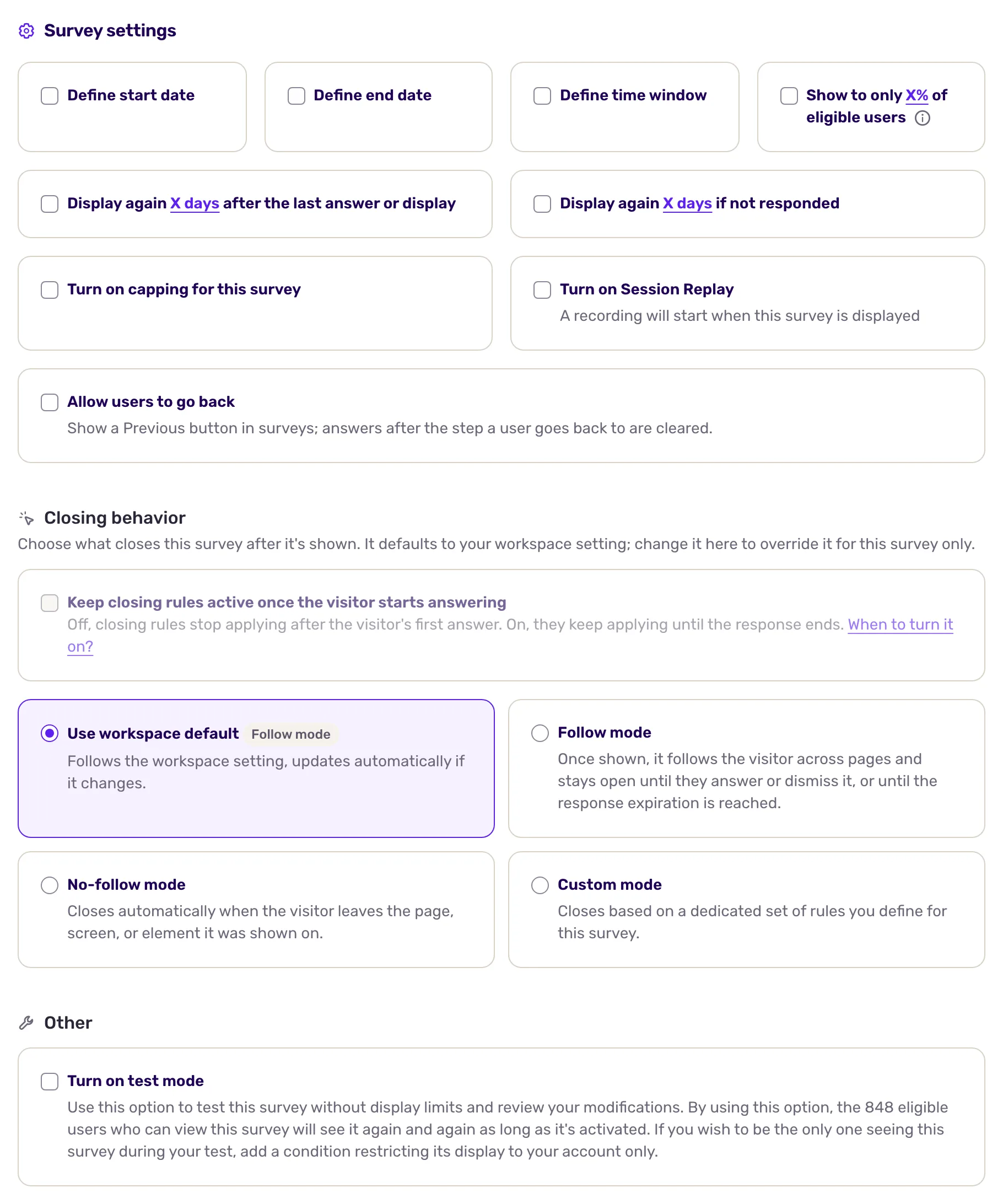
The options:
- Define start date and Define end date: the channel starts and stops showing the survey on its own on these dates.
- Define time window: the survey only shows on the days and hours you pick.
- Audience sampling: the survey shows to a random share of the users who match the targeting, to lower survey pressure or roll it out step by step.
- Display again: by default, a user sees the survey once. Tick one card or both, and set a delay for each: up to 365 days, 24 hours, 60 minutes or 60 seconds.
- after the last answer or display: the survey comes back once the delay has passed since the user’s last answer, or since it was shown if they did not answer. It keeps coming back even after a complete response.
- if not responded: the survey comes back only to users who saw it without starting to answer. Once they answer, even partly, it stops. Tick this card alone to ask until the user answers.
- Both cards: a user who did not answer sees the survey again after the shorter of the two delays.
- The capping card, to turn on capping for this survey: limits the displays and responses of this survey over a period, see Limit how often surveys are displayed.
- Turn on Session Replay: starts a recording when the survey shows, so you can watch what the respondent did. Only shown when Session Replay is part of your plan. Picking a trigger other than On element click turns it off: turn it back on after changing the trigger.
- Allow users to go back: adds a button to go back to earlier questions. Answers given after the step they return to are cleared. It starts from the workspace default.
- Closing behavior: what closes the survey once shown, and whether it can come back. See Control when a survey closes.
- Multiple responses: feedback button only. Lets a user answer several times.
- Turn on test mode: every channel except the feedback button, under Other. Every eligible user sees the survey again and again, without display limits, while it is on. Restrict the audience to your own account before you turn it on, and turn it off before launch. See Preview and test a survey before you launch it.
With the On manual trigger in your code trigger, your code decides when the survey starts, so the dates, sampling, display again and capping options are locked.
For link and email surveys, the options that apply (going back, multiple responses) are on the channel page itself, see Share a survey with a link and Send a survey by email.
Set the workspace defaults
Section titled “Set the workspace defaults”- Open Default settings, in the survey group of the settings menu.
- Under Close response after, pick how long a response stays open, from 1 minute to 1 month. After that, the response is marked as closed.
- Under Respondent experience, set Allow users to go back and Terms and Conditions of Use. The terms text is set per language and shows on free-text questions. With the audio and video surveys add-on, you can also Turn off audio and video responses, see Ask questions in video and collect audio or video answers.
- Click Save.
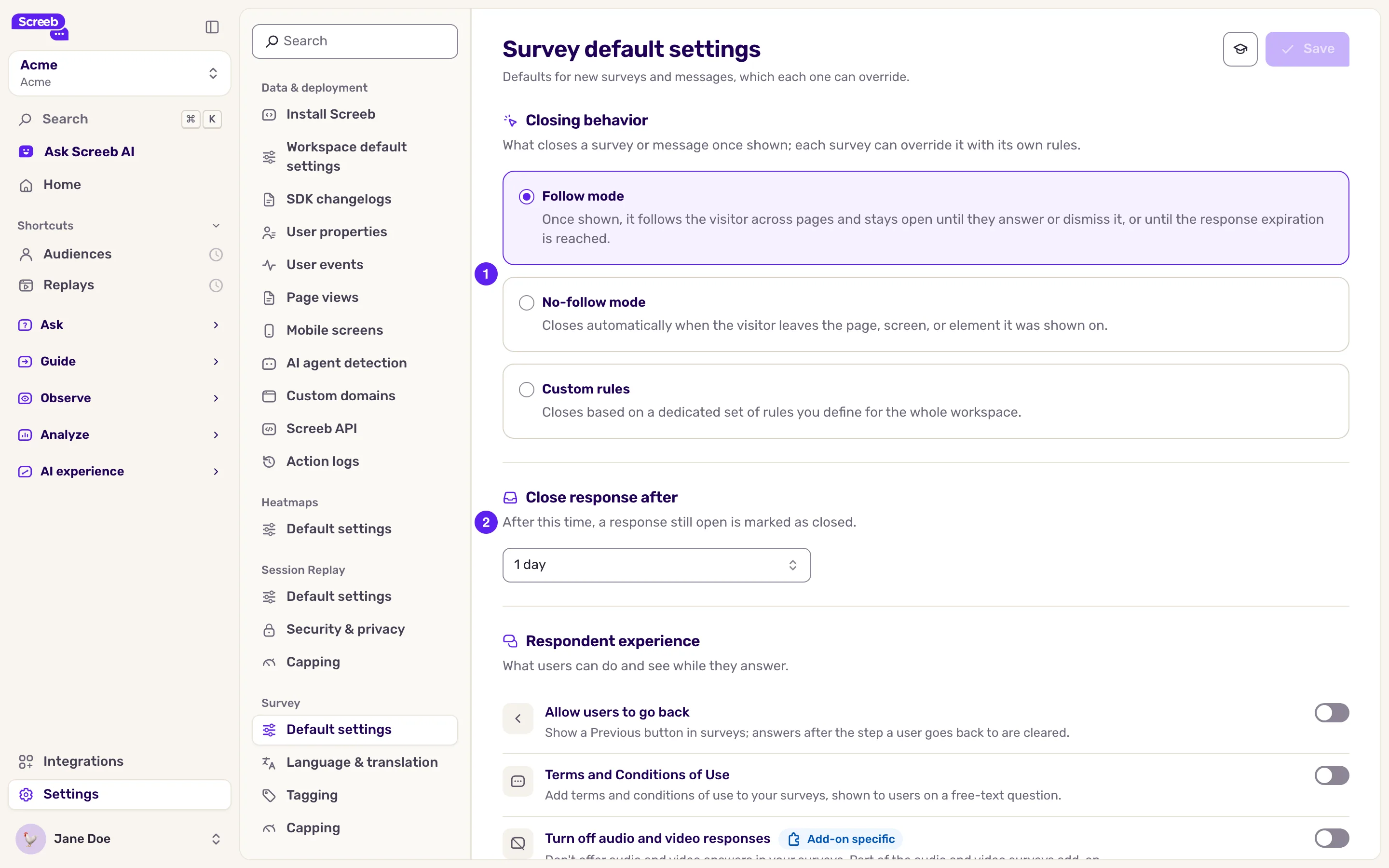
The same page holds the default closing behavior, see Control when a survey closes. These defaults apply to the surveys and messages of the workspace.
What you get
Section titled “What you get”Each channel of the survey behaves as you set it, and new surveys start from the workspace defaults. Changes to a live survey apply once saved.
Troubleshooting
Section titled “Troubleshooting”Turn on test mode is greyed out. It does not work with Display again, as the tooltip says (“Test mode is not compatible with a recurrence rule”). Untick the Display again cards first.
Multiple responses is greyed out on a feedback button. It does not work with Display again either (“The multiple responses rule is not compatible with a recurrence rule”). Untick the Display again cards first.
The options are greyed out. The survey uses the On manual trigger in your code trigger, or your role or plan does not allow editing it.
The Default settings entry is missing. It needs both the permission to update the organization settings and the permission to edit surveys. Ask an admin.