

Add a calendar question
Embed your Calendly, Google Calendar, HubSpot, Cal.com, SavvyCal or Microsoft booking page in a survey, so users book a meeting without leaving it.
A calendar question shows your booking page inside the survey: users pick a slot and book a call with you without leaving the conversation. Use it to turn a good answer into a meeting.
Before you start
Section titled “Before you start”- Your role lets you edit surveys.
- You have a public booking page on one of the supported providers below.
Add the calendar step
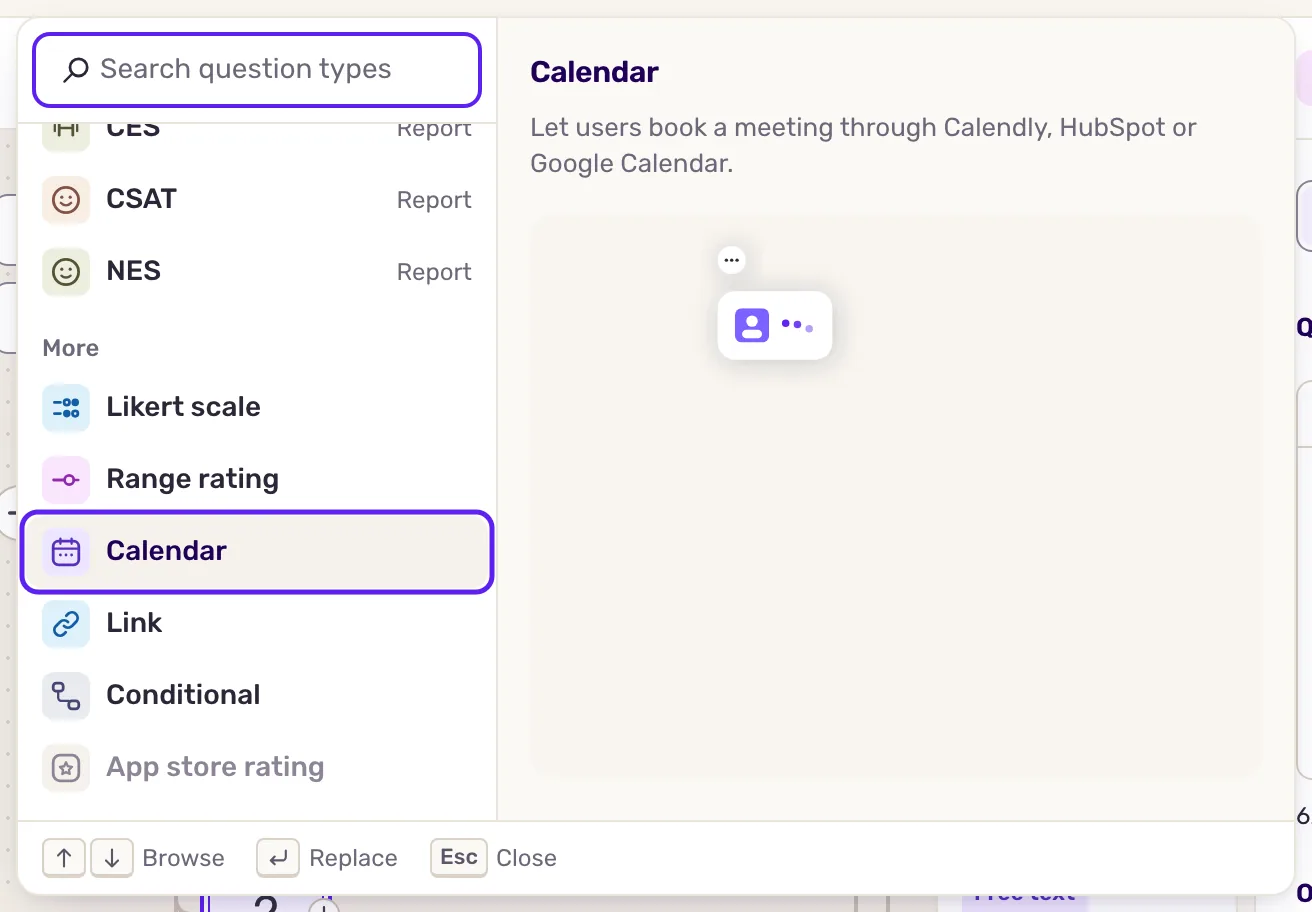
Section titled “Add the calendar step”- Open the survey on the Build step and click a + button in the flow, where the step should go. The Add a question to this survey window opens.
- Under More, pick Calendar. The new step opens in the side panel.
- In the Question field, write a short line that says why you offer a call, for example “Would you walk us through your setup? Pick a time that suits you.”
- Under Calendar, paste the address of your booking page, as the panel tip says: “Use the embed (iframe) link.” Paste only the address that the embed code points to, not the whole code: Screeb embeds the page for you.
- Below the link, choose the step that follows the booking.
- Click Apply, then Save at the top right.
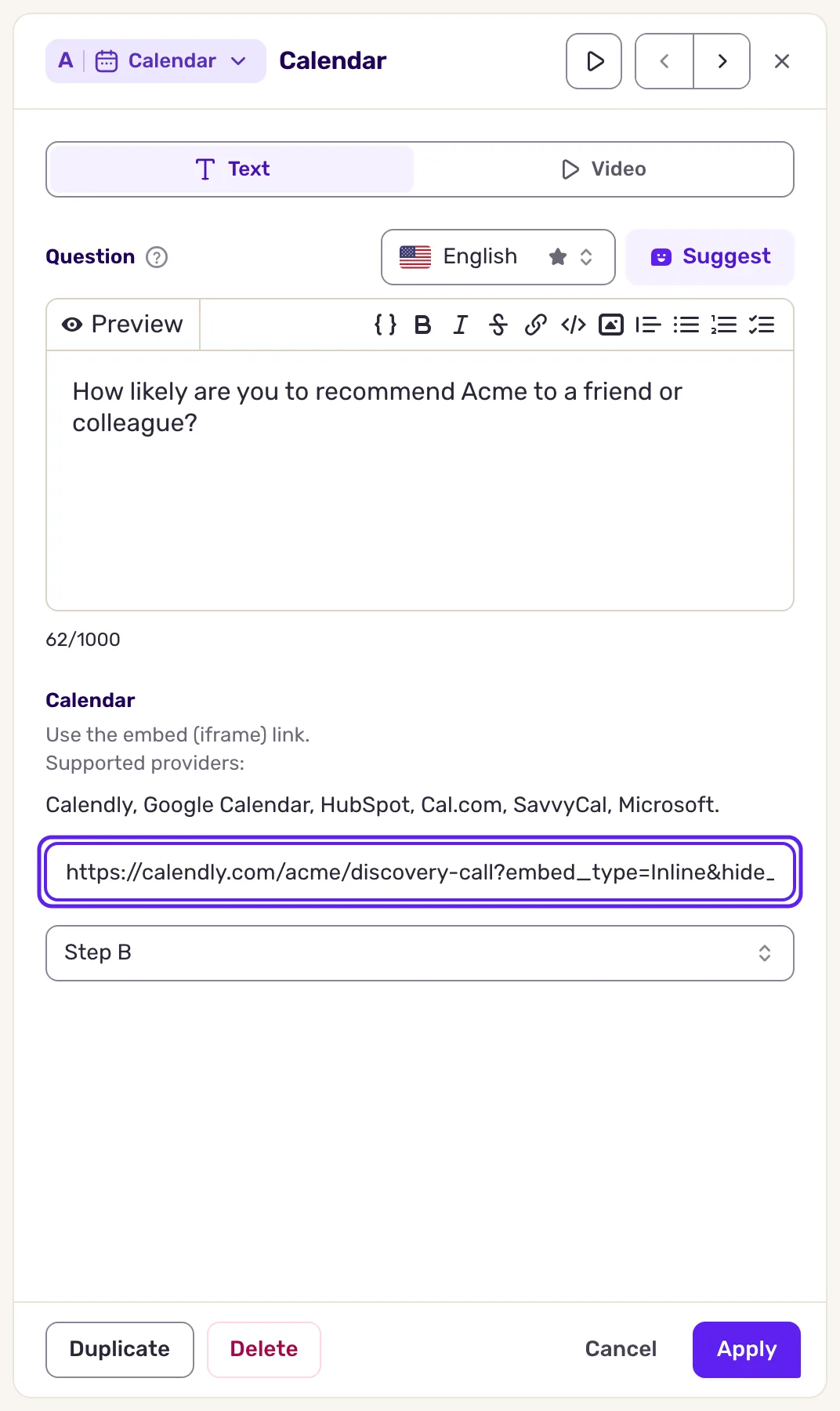
If the survey has several languages, pick a language next to the Question field to set a text and a link for each one.
Supported links
Section titled “Supported links”Copy the public link of the booking page from the sharing options of your provider. Screeb checks its format:
| Provider | Link format |
|---|---|
| Calendly | https://calendly.com/your-name/your-event |
| Google Calendar | https://calendar.google.com/calendar/appointments/..., the link of an appointment schedule |
| HubSpot | https://meetings.hubspot.com/your-name, or a regional address such as https://meetings-eu1.hubspot.com/your-name |
| Cal.com | https://cal.com/your-name |
| SavvyCal | https://savvycal.com/your-name/your-link |
| Microsoft | https://outlook.office.com/bookwithme/user/... or https://outlook.office.com/book/..., the link of a Bookings page |
For Calendly, Screeb adds the embed options that hide the cookie banner and the event details. For Google Calendar, it shows the page in the language of the survey.
What you get
Section titled “What you get”Users see your text, then your booking page. They book a slot in it, then click the next button of the survey to go on. Check the result with Preview, see Preview and test a survey before you launch it.
Screeb does not receive the booking: you find the meeting in your calendar tool. In the results, the step itself records no answer.
Turn a good answer into a meeting
Section titled “Turn a good answer into a meeting”- Ask at the right moment. Place the step right after a high score, such as an NPS promoter or a satisfied CSAT, see Build conditional surveys with branching logic. Users who just told you they are happy are the most open to a call.
- Do not show it to everyone. Keep the survey for a targeted segment, such as key accounts, see Choose who sees your survey. Shown to all, it reads like cold outreach.
- Say why before the link. One line such as “We would love to dig into your feedback with you” makes the request a natural follow-up.
- One action only. Make the booking the only thing the step asks for.
Troubleshooting
Section titled “Troubleshooting”The card in the builder says “No calendar link” or “Invalid calendar link”. Open the step and paste a link in one of the formats above.
“Invalid URL” The link is not from a supported provider, or not a booking page. For Google Calendar, use the link of an appointment schedule, not of a calendar.
“URL: max 250 characters allowed.” Remove the tracking parameters from the end of the link.
The booking page stays blank in the survey. Open the link in a private window: if it asks for a sign-in or is not public, change its sharing settings at your provider.