

Day 1 technical checklist
Go through the technical setup of a new workspace, from installing Screeb to checking that users, properties and events arrive.
Use this checklist on your first day to set up Screeb in your site or app. Once every box is ticked, you can display your first survey to the right users.
Before you start
Section titled “Before you start”- You have a Screeb workspace: see Create your Screeb account and workspace.
- You can change the code of your site or app, or the Google Tag Manager container or Segment workspace it uses. If you cannot, open Install Screeb, click Send to a developer and send the instructions to a developer.
Go through the checklist
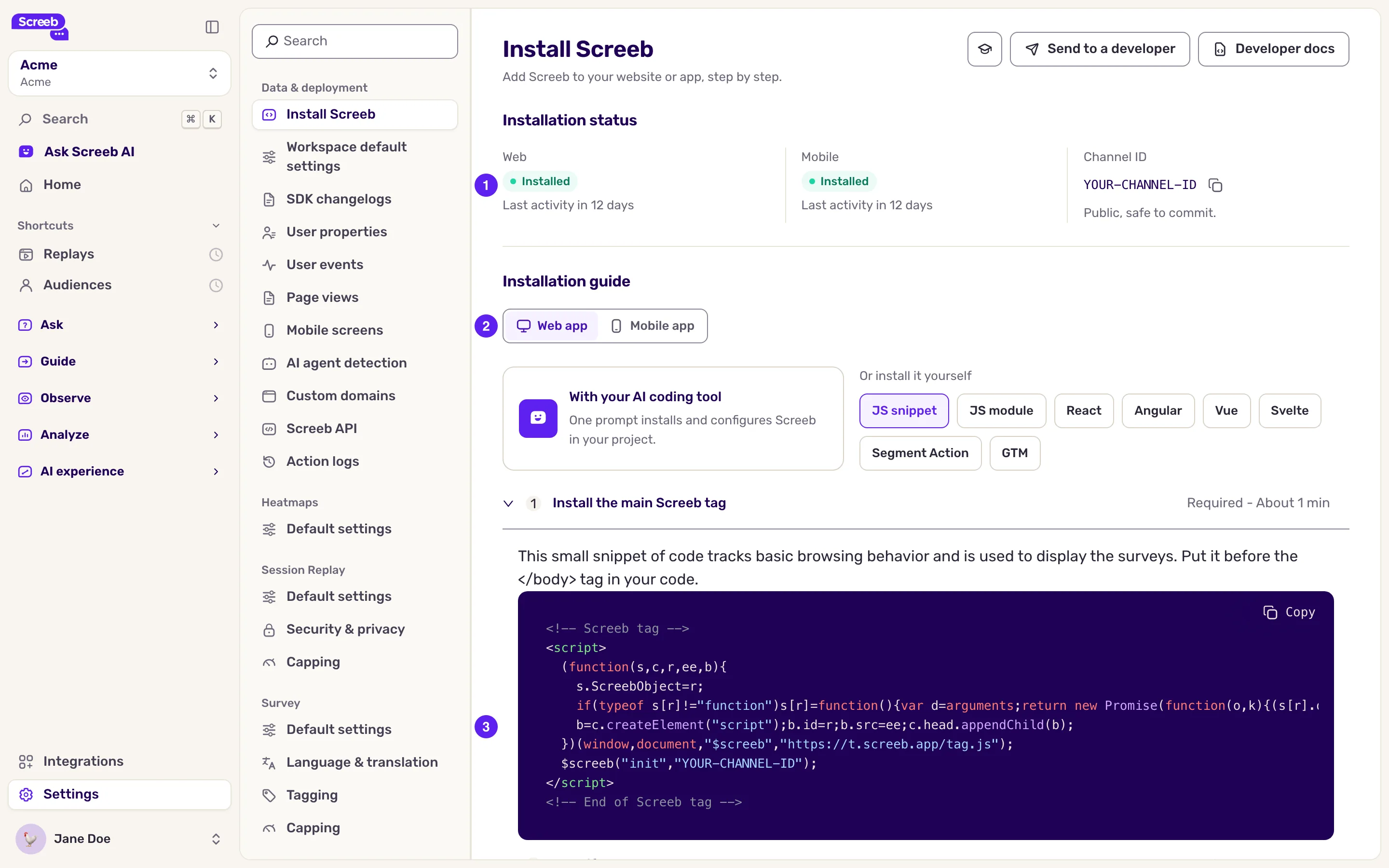
Section titled “Go through the checklist”- Install Screeb. Open Install Screeb and pick the Web app or Mobile app tab. Choose how to install: With AI, a JavaScript snippet or package, a mobile SDK, Segment Action or GTM. Follow Install the main Screeb tag: the snippets already hold your workspace ID. See Install Screeb on your website or web app, Install Screeb in your mobile app and Install Screeb with Google Tag Manager.
- Identify your users. Follow Identify your users to give Screeb the user ID and the properties of logged-in users, such as their plan or role. For a mobile app, follow the identity guide of your SDK in the developer docs. See Send and manage user properties.
- Track user events. Follow Track user events for the key actions you want to ask feedback about. See Track and manage user events.
- Add users to segments (optional). Follow Add users to a segment to group users from your code, by company or plan for example, and target those segments.
- Check the installation. Open your site or app, then come back to Install Screeb. Once Screeb has seen your users, the status at the top reads Installed. To check a given page, use the Screeb Inspector.
- Check your data. In User properties and User events, make sure the properties and events you send show up with the right names and types.
The identify, track and segment steps are optional, but without them you cannot target users on who they are or what they did. Add them as soon as you can.
What you get
Section titled “What you get”Screeb runs on your site or app, users show up in Audiences, and their properties and events are ready for survey targeting.
Troubleshooting
Section titled “Troubleshooting”The status still reads Not installed. It turns to Installed once Screeb has seen more than one user. Visit a page where you installed Screeb from two different browsers, then reload the settings page. If nothing changes, check the page with the Screeb Inspector, and check your Content Security Policy: see Use Screeb with a Content Security Policy.
Properties or events are missing. Check that your code sends them after Screeb is initialized, and that their names follow the rules in User properties and User events.