

Create your Screeb account and workspace
Sign up to Screeb, confirm your email and answer the onboarding questions to get your organization and first workspace.
Create your Screeb account in a few minutes. Screeb sets up your organization and a first workspace, then takes you to the feature you want to start with.
Before you start
Section titled “Before you start”- Use your work email: free and disposable email addresses are refused. Screeb names your organization after your email domain.
- If a teammate already uses Screeb, ask them for an invitation instead: you then join their organization rather than creating a new one.
Create your account
Section titled “Create your account”- Open the sign-up page.
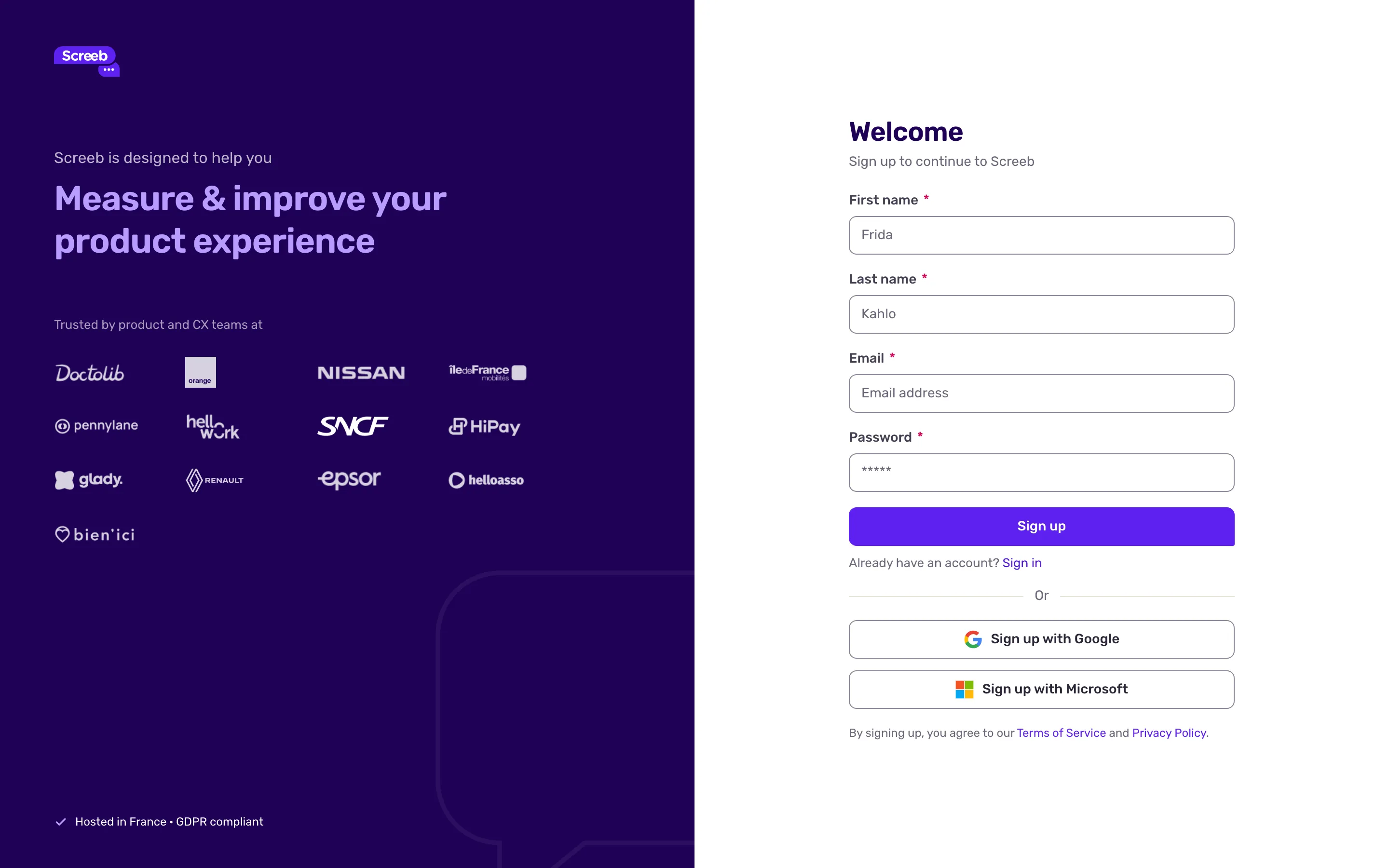
- Fill in First name, Last name, Email and Password. The password needs at least 8 characters, one uppercase letter, one number and one special character, such as ! or #.
- Click Sign up. To skip the password, click Sign up with Google or Sign up with Microsoft instead.
- On the One last step screen, click the link in the email Screeb sent you. If you opened the email on another device, type its code and click Confirm.
Complete the onboarding
Section titled “Complete the onboarding”The onboarding has three steps. Connect and Team are optional, and a member who joins with an invitation skips them.
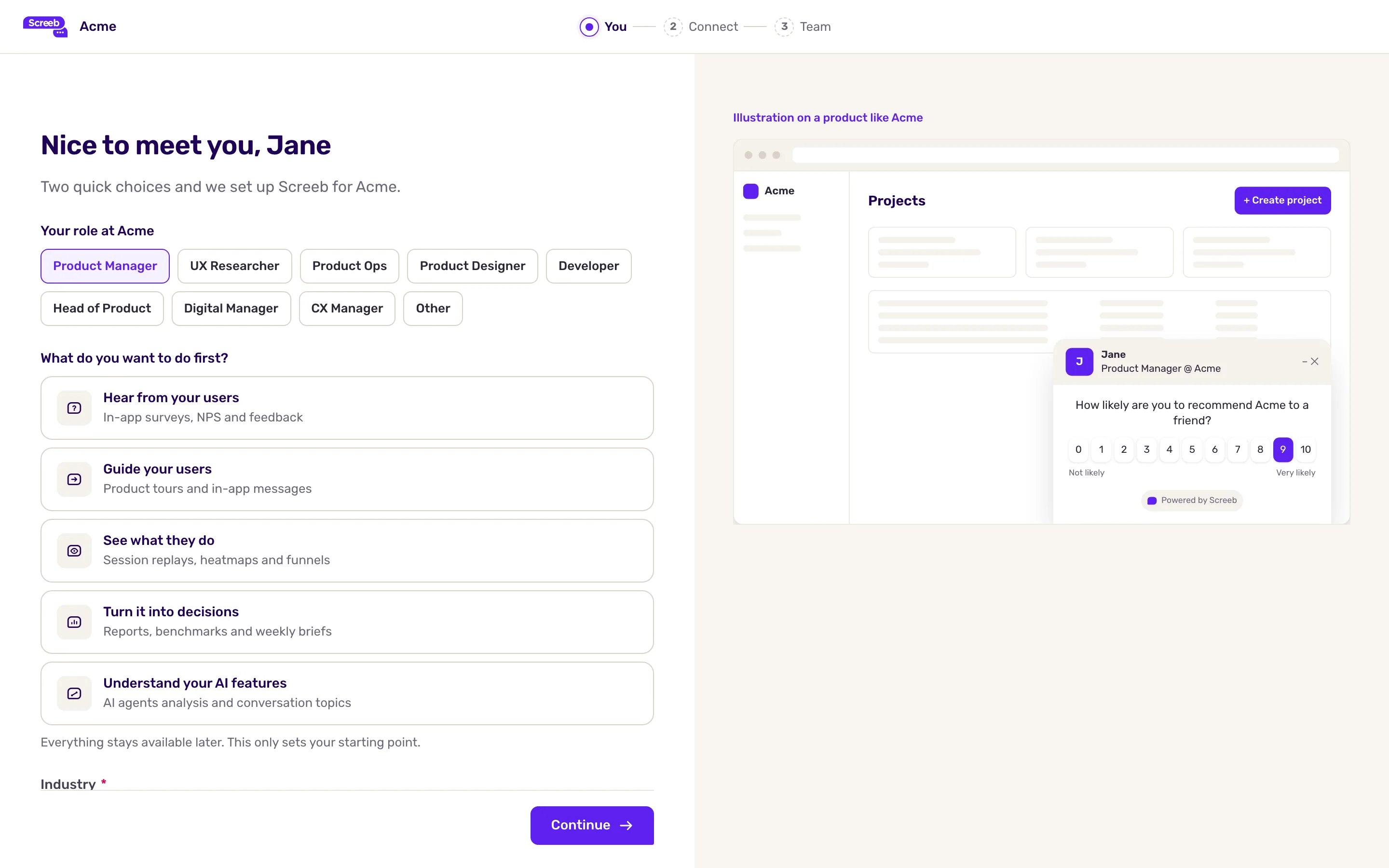
- On the You step, pick Your role and answer What do you want to do first?: hear from your users, guide them, see what they do, turn it into decisions, or understand your AI features. The preview on the right shows what the chosen one does on a product page; nothing is created and nothing shows to your users. This only sets your starting point: every feature stays available.
- Check the company Screeb shows for your organization. To change its industry or its activity description, click Edit. Screeb AI uses the description to make its analyses more relevant. When one of them is missing, the fields show directly.
- Click Continue, then wait a few seconds on the Hold tight screen while Screeb sets everything up.
- On the Connect step, pick one of three ways. With your AI coding tool: choose what the tool sets up and click Copy prompt, then paste the prompt shown on the right in your AI coding tool. Send to a developer: type their email and send. Install it yourself: pick your integration, such as JS snippet, React, Segment Action or GTM, and follow its steps on the right. The page detects the first visit on its own: once Screeb is connected, click Continue. You can also click I'll do it later.
- If you created the organization, the Team step follows. Type a teammate’s email in Invite by email and click Invite: they get an invitation to your first workspace when you finish. Click Finish: once you have added teammates, the same button sends their invitations.
To go back to the previous step, click Back. From the Connect step on, Skip for now at the top right takes you straight to Screeb: you can install Screeb and invite teammates later from the settings.
What you get
Section titled “What you get”- An organization named after your email domain, with a first workspace inside it.
- For a new organization, a 14-day free trial of the Pro plan, started at the end of the onboarding.
- The admin opens on the feature you chose: Surveys, In-app messages, Replays or Workspace reports, or the home for your AI features, where a short product tour can start.
Nothing shows up on your site or app until Screeb is installed. If you skipped the installation step, see Install Screeb on your website or web app.
Troubleshooting
Section titled “Troubleshooting”The free trial did not start. The sidebar then offers Start my free trial: click it to start the trial. Only members who can see the organization billing get this button, and a trial can be used once per organization.
The sign-up page only shows Continue with single sign-on. Your organization requires single sign-on. Click it and sign in with your company identity provider.
The page says an account already exists for this email. Sign in with the method that account uses. To add a password to it, click Forgot your password? on the sign-in page.
The page says “Your organization only allows sign-ups with an invitation.” Ask an administrator of your organization for a new invitation, then use the link it contains.
The sign-up page refuses your email. Use a business email: free and disposable email addresses cannot be used to sign up.
The confirmation email does not arrive. Check your spam folder, then click Resend account activation email.