

Install Screeb with Google Tag Manager
Add Screeb to your website through Google Tag Manager with the Screeb community template, without changing your code.
If your website already uses Google Tag Manager (GTM), you can install Screeb from your GTM container with the Screeb template, without touching your code.
Before you start
Section titled “Before you start”- You can edit and publish the GTM container of your website.
- GTM is for websites. For a mobile app, see Install Screeb in your mobile app.
Copy your Website ID
Section titled “Copy your Website ID”- In the main navigation, click Settings, then, under Data & deployment, click Install Screeb.
- On the Web app tab, click the GTM card.
- In Install the Screeb tag, copy the ID shown below the instructions. It is the Website ID of your workspace.
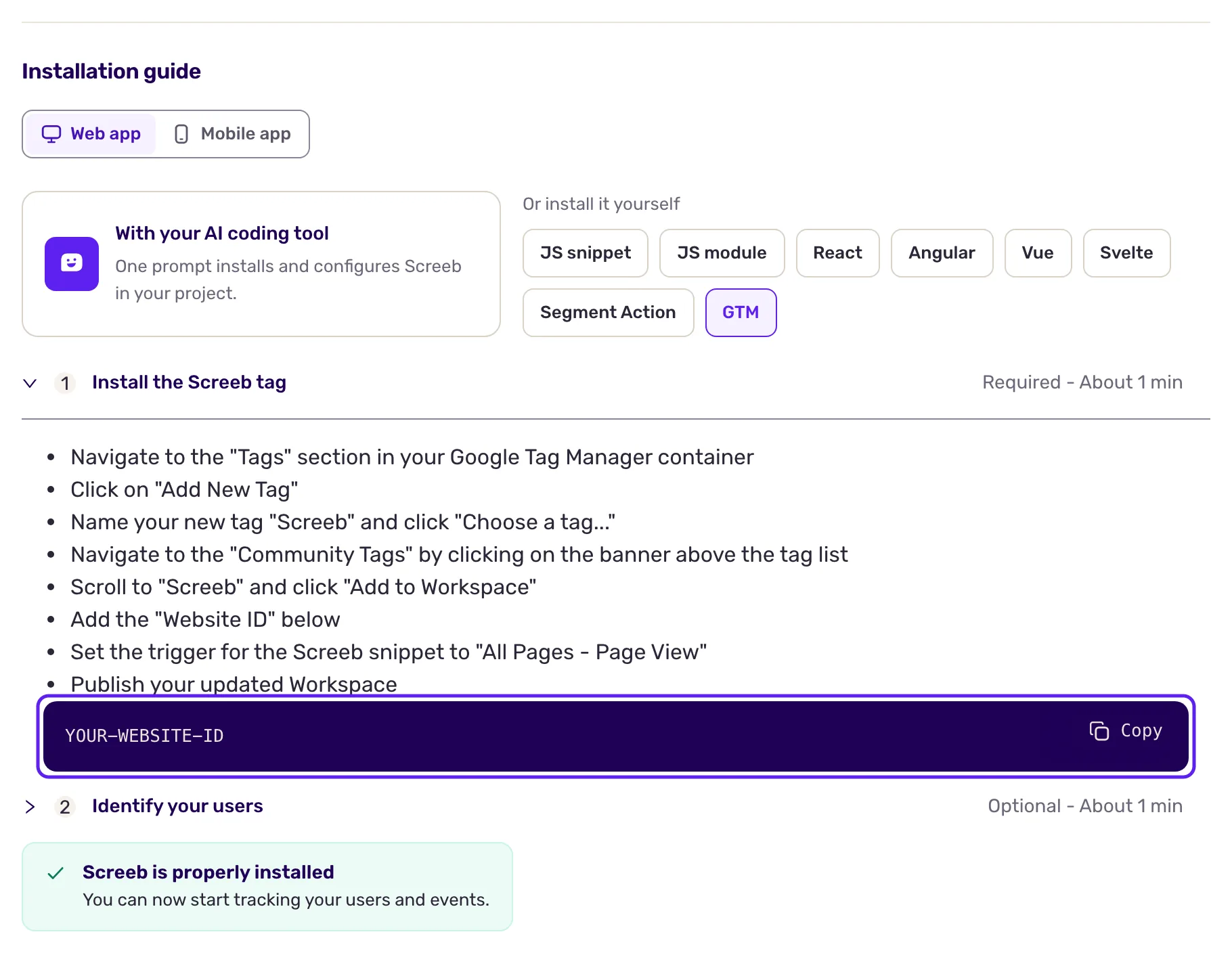
During sign-up, the Connect step of the onboarding offers the same steps: pick GTM under Or install it yourself.
Add the Screeb tag in GTM
Section titled “Add the Screeb tag in GTM”- In your GTM container, open Tags and click New.
- Name the tag “Screeb”, then click Tag Configuration to choose a tag type.
- Click the banner to discover more tag types in the Community Template Gallery, search for Screeb and click Add to workspace.
- Paste your Website ID in the Website ID field.
- Under Triggering, choose the built-in All Pages trigger (type Page View).
- In the tag’s Advanced Settings, set the tag firing option to Once per page.
- Save the tag, then click Submit and publish the new version of your container.
Screeb now loads on every page, with anonymous visitors.
Identify your users
Section titled “Identify your users”To tie responses and sessions to your users, send their ID to Screeb. This step is Identify your users on the install page.
- In GTM, open Variables and create a user-defined variable for each user data you want to send, at least the user ID (for example
user_id), and optionally the email or the name. - Edit the Screeb tag and fill the User ID field with your variable, for example
{{user_id}}. - Add other user properties from your variables if you want to.
- Save and publish the container again.
If you also use a customer data platform such as Amplitude, Segment or RudderStack through GTM, the developer docs explain how to keep its identity in sync with Screeb.
What you get
Section titled “What you get”Once Screeb has seen more than one user in the workspace, from your site or any other channel, the status at the top of the install page reads Installed. Use the Preview mode of GTM to check that the Screeb tag fires on your pages.
Troubleshooting
Section titled “Troubleshooting”Screeb loads only after a page reload, on a site with a cookie banner. The trigger fired before the visitor accepted cookies. Add the consent event of your consent management platform as a second trigger of the Screeb tag, still with the Once per page option.
On a single-page app, the user is not identified after login. All Pages fires only on a full page load. Send the identity again on a History Change trigger, or on a dataLayer event pushed on each page.
Nothing happens on your site. Check that the container version with the Screeb tag is published, not only saved. Then open your site and run $screeb('debug') in the browser console: $screeb is not defined means the tag did not load.