

Install Screeb in your mobile app
Add the Screeb SDK to your iOS, Android, Flutter or React Native app from the install page, and check that it works.
The Screeb SDK displays surveys and messages in your mobile app, records sessions and tracks your users. The install page gives you the code for your workspace, ready to copy, for the four most common stacks.
Before you start
Section titled “Before you start”- Surveys in mobile apps are part of your plan.
- You need access to the code of your app, or a developer who can add the code.
- Check the technical requirements of your stack in the developer docs: for example iOS 12 and Android SDK 19 at least for the native SDKs.
Install the SDK
Section titled “Install the SDK”- In the main navigation, click Settings, then, under Data & deployment, click Install Screeb.
- Open the Mobile app tab.
- Under Or install it yourself, click your stack: iOS, Android, Flutter, ReactNative, Kotlin Multiplatform, .NET MAUI or Ionic.
- Follow Add dependency (iOS, Android, Kotlin Multiplatform) or Add package (Flutter, React Native, .NET MAUI) to add Screeb to your project.
- In Install the main Screeb tag, copy the code into the main controller of your app, where it starts. The code already contains your channel ID. To identify your users, uncomment the user ID and properties lines and fill them with the signed-in user’s data.
- Build and run your app.
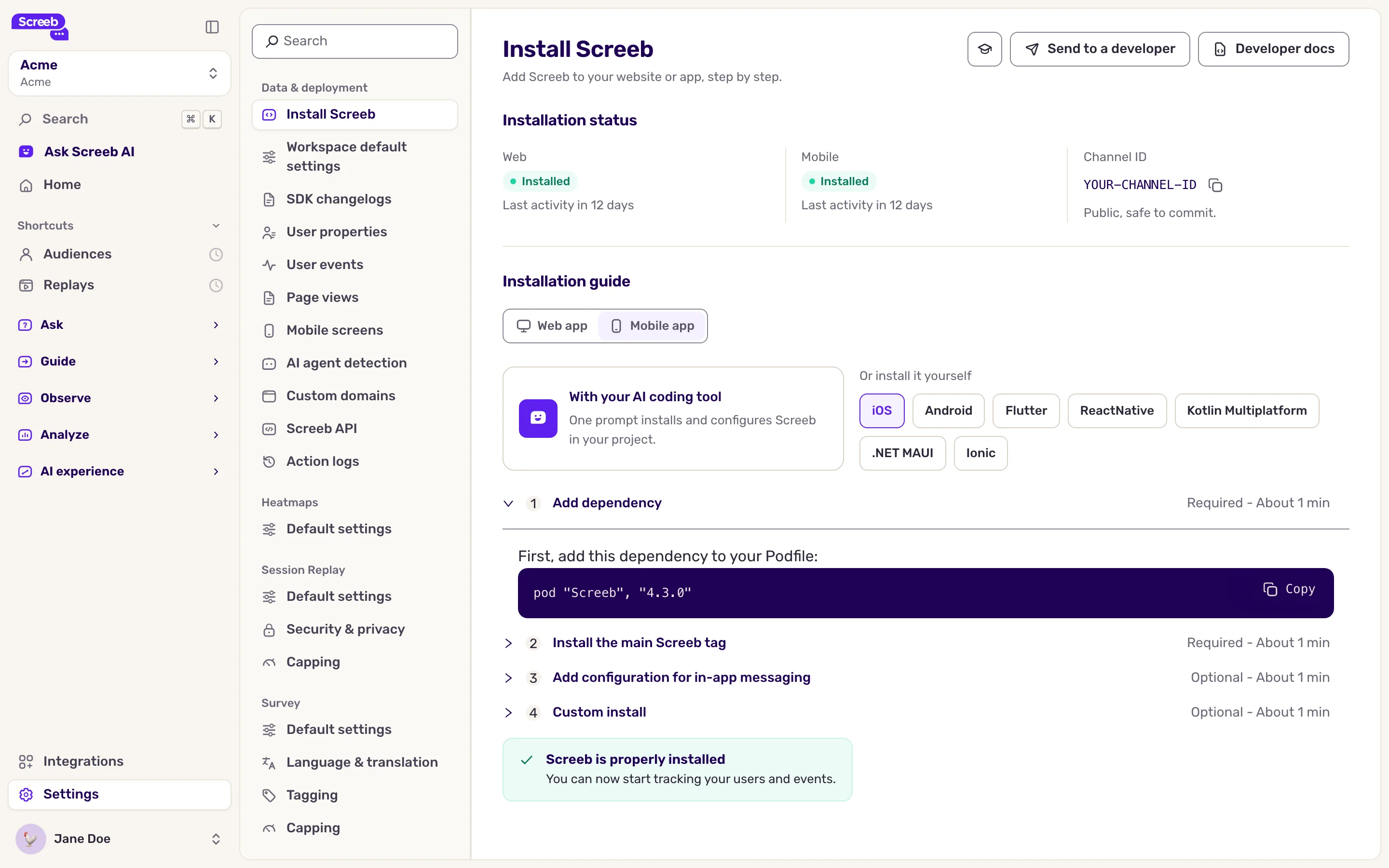
Two more steps are Optional:
- Add configuration for in-app messaging: registers a link scheme for your app, needed to edit in-app messages on your app with the Screeb message editor, see Create an in-app message or product tour.
- Custom install: gives the channel ID alone, if you prefer to follow the developer docs.
Install with an AI coding tool
Section titled “Install with an AI coding tool”On the Mobile app tab, keep With your AI coding tool selected. Keep or untick Identify signed-in users and Track a first event, click Copy prompt, then paste the prompt in your AI coding tool, opened at the root of your project. Review the changes before you ship them.
An Ionic app runs in a WebView and uses the Screeb JavaScript SDK. Click Ionic: it gives your channel ID and links to the Ionic guide, which shows the package to install for Ionic Angular, React, Vue or plain JavaScript. Users of an Ionic app count as web users in the installation status.
Turn the SDK off in your continuous integration runs. Automated tests would otherwise create many new users in your workspace.
What you get
Section titled “What you get”Once Screeb has seen more than one user in the workspace, the status at the top of the install page reads Installed. Users of your website count too, so it can read installed before your app sends anything. You can then create your first survey for your mobile app.
To follow SDK releases, open SDK changelogs in the same settings section: it opens the changelog of every SDK in the developer documentation.
Troubleshooting
Section titled “Troubleshooting”The page still says Screeb is not installed. Check that the build you run includes the SDK and calls its initialization when the app starts, with the channel ID of this workspace. Then open the app on two different devices and use it for a few seconds: the status turns to installed once Screeb has seen more than one user.
The in-app message editor does not open your app. Complete Add configuration for in-app messaging for your stack, then rebuild the app.
Go further
Section titled “Go further”- Install Screeb on your website or web app
- iOS SDK, Android SDK, Flutter SDK and React Native SDK in the developer docs