

In-app messages and product tours
Understand what in-app messages and product tours are, which formats they use, how they start and when to use them instead of a survey.
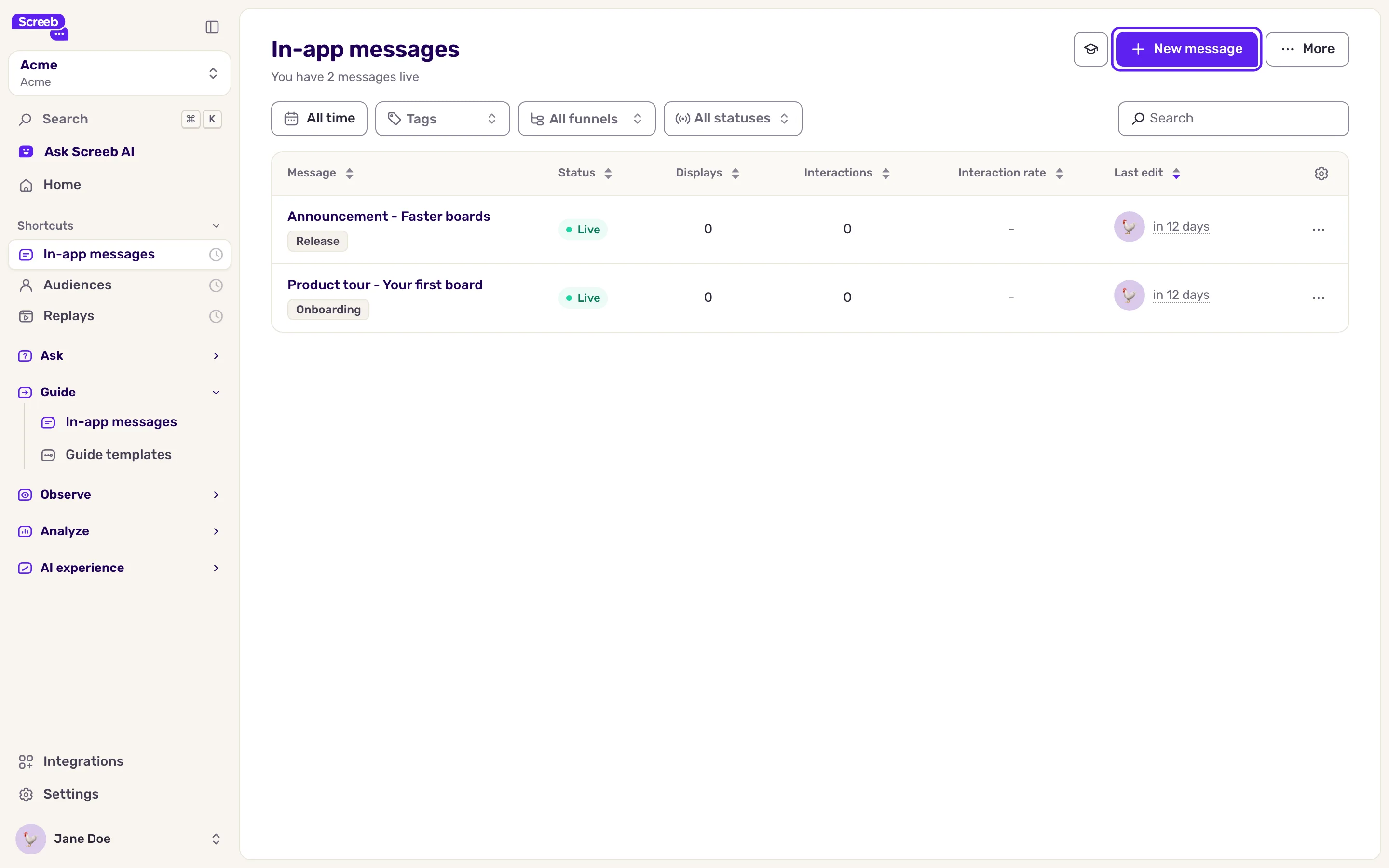
An in-app message shows content to your users inside your site or app: an announcement, a tip, an onboarding flow. A product tour is a message with several steps that walks the user through your interface, one element at a time. You find both in the Guide section of the side menu, under In-app messages.
When to use a message
Section titled “When to use a message”Use a survey when you want answers: it asks questions and collects responses to analyze. Use a message when you want the user to know or do something:
- announce a new feature or a change;
- welcome new users and show them the first actions to take;
- point at a button or a menu the user has not found yet;
- send the user to a page, or start a survey at the right moment.
A message can still collect light feedback, with buttons to choose from or a reaction scale. For real questions, open answers or scores like NPS, create a survey.
How a message is built
Section titled “How a message is built”A message is a sequence of steps, shown one after the other. Each step has a format, content blocks (title, text, image, video, checklist, progress stepper…) and usually one action block: a button to go to the next step, several buttons to choose from, a link or a reaction.
Buttons can also run contextual actions: open a page, scroll, highlight an element, track an event, start a survey, and more.
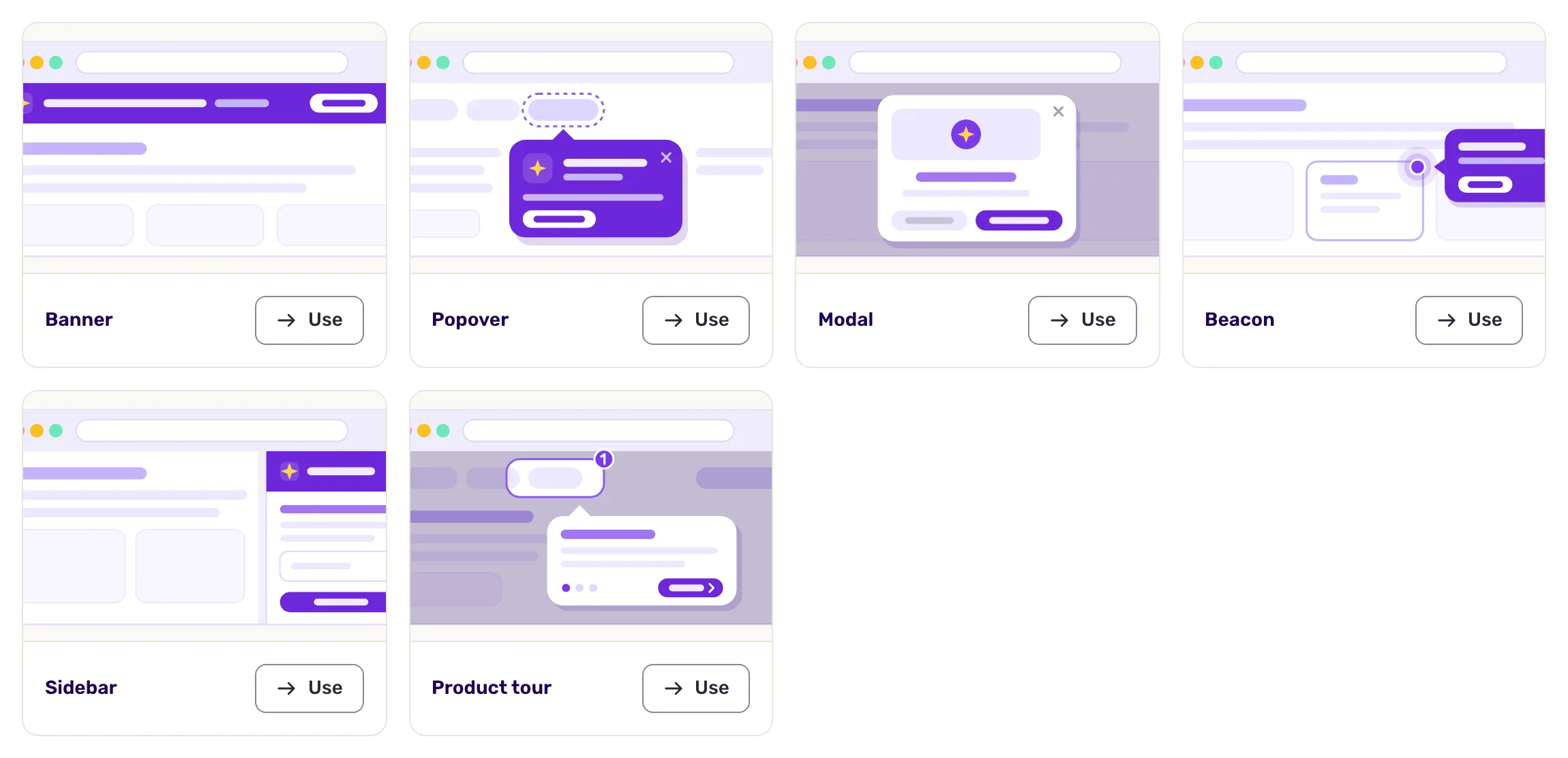
The formats are:
| Format | What it is | Mobile apps |
|---|---|---|
| Banner | A strip fixed at the top or bottom of the page, or floating, for alerts and tips. No image or video. | Yes |
| Modal | A window for important information, centered or in a corner, with or without an overlay. | Yes |
| Sidebar | A side panel, on the left or the right. | Yes |
| Popover | A bubble attached to an element of the page, to explain it. | Not yet |
| Beacon | An animated dot, a sticker or your own visual on an element, often the starting point of a product tour. | Not yet |
| Embedded | Content inserted inside your page, without covering it. | No |
In iOS, Android, Flutter and React Native apps, Banner, Modal and Sidebar work. Popover and Beacon cannot anchor to the elements of a mobile app yet. Embedded only works on websites.
The Guide templates page offers templates and a starting point per format, including Product tour.
How a message starts and runs
Section titled “How a message starts and runs”Each message is built for one platform, chosen when you create it: Web app, iOS app or Android app. On a website, you build it in a visual editor that opens on top of your own page. In a mobile app, you connect your app to the editor with a QR code.
Two levels of rules decide what the user sees:
- Message targeting decides who can see the message, where and when it starts. You set it after building, like for a survey. See Choose who sees your message and when.
- Step conditions decide when each step shows once the message has started: on a URL or a mobile screen, after a delay, after a scroll, or once an element is on the page or visible. For the first step, both the message targeting and its conditions apply.
When a step’s conditions do not match yet, or its element is missing, the message waits on that step. When the user closes the message, the following steps do not show.
The page you enter to open the editor is only a preview. It does not decide where the message shows: the targeting does.
What you measure
Section titled “What you measure”Each message has its own Analyze tab. Message analytics shows displays and engagement, and Message breakdown shows how many users reach each step, so you can see where they drop off. See Measure the results of your messages, and In-app message best practices to make them work.
Limits
Section titled “Limits”- In-app messages must be part of your plan. Otherwise, the Guide section does not show in the side menu.
- Screeb must be installed on the pages or in the app where the message shows. In iOS, Android, Flutter and React Native apps, messages need nothing more in your plan: your app only needs the in-app messaging setup of the SDK, see Install Screeb in your mobile app.
- A message shows inside your site or app only: it has no link or email channel.
- The editor itself is in English, whatever the language of the admin.