

Create user segments
Group users who match your filters into a static or dynamic segment, then use it to target surveys and messages or to analyze results.
A segment is a named group of users, such as “Premium plan” or “Active last month”. Use it to target surveys and messages, filter results, or follow a group over time.
Before you start
Section titled “Before you start”- Your users are identified and send the user properties and events you want to group them by.
- Your role lets you edit segments.
- Saving segments from filters is not available when device tracking is forced for the workspace.
Choose static or dynamic
Section titled “Choose static or dynamic”- Static: Snapshot at creation: users don't move in or out automatically. Use it for a fixed list, such as the beta testers of a feature.
- Dynamic: Auto-synced: membership is continuously updated as users match your filters. Use it for a group defined by rules, such as users on the Pro plan.
Dynamic is not offered when the filters use the page, screen, device, platform, app version, language or country: those only fit a static segment, and the Dynamic card is greyed out.
Create a segment from filters
Section titled “Create a segment from filters”- Under Observe in the sidebar, open Audiences and click New segment in the side menu. Create a segment on the Segments page leads to the same place.
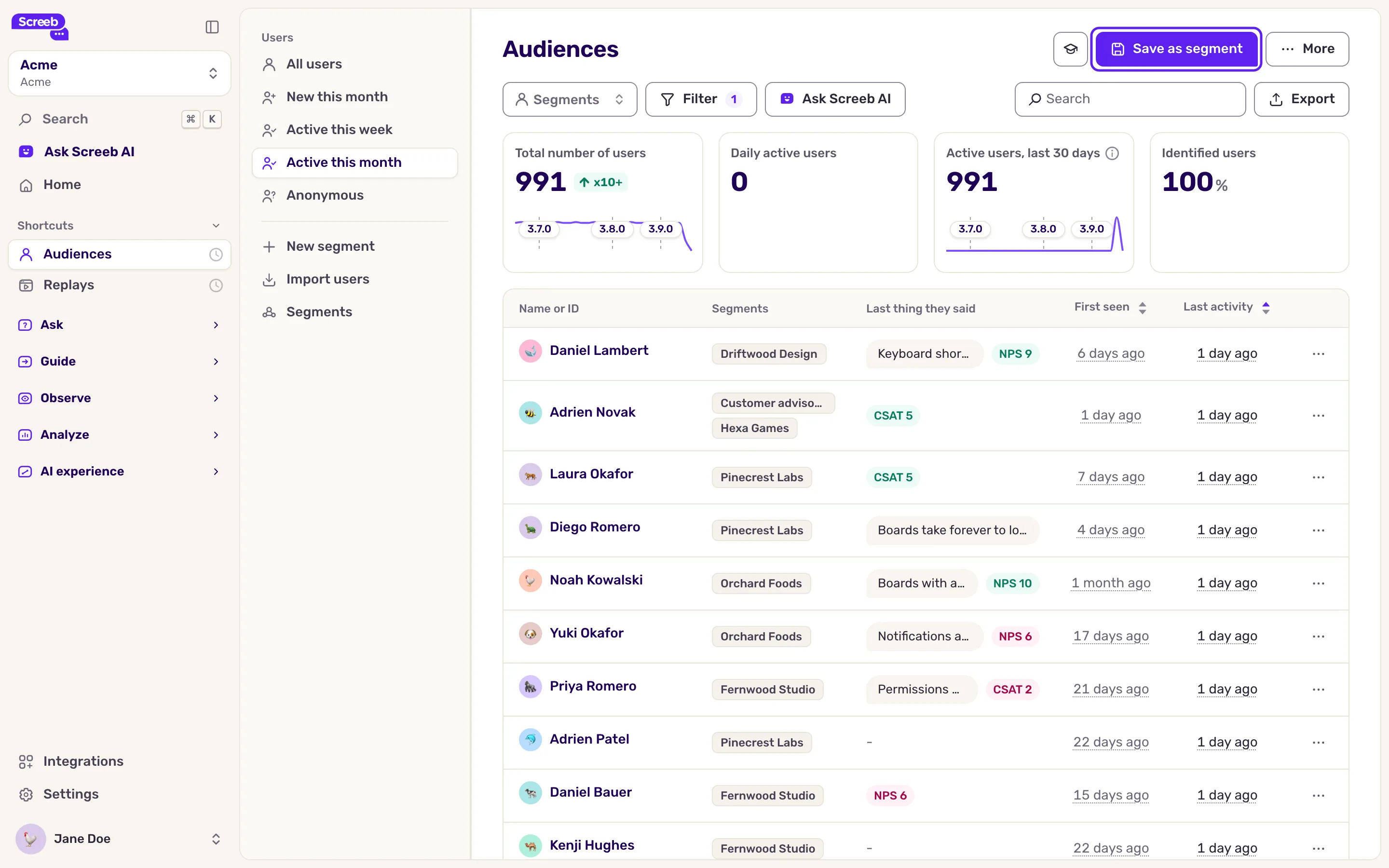
- Click Filter and add the rules that describe the group, for example a property and an event, then click Apply. The list shows the users who match.
- Click Save as segment at the top right. A window opens on Create new.
- Fill in Segment name: up to 255 characters, with at least one visible character other than a dot, and no control characters.
- Under Segment type, pick Static or Dynamic.
- Turn on Mark as favorite to pin the segment in the side menu, then click Save.
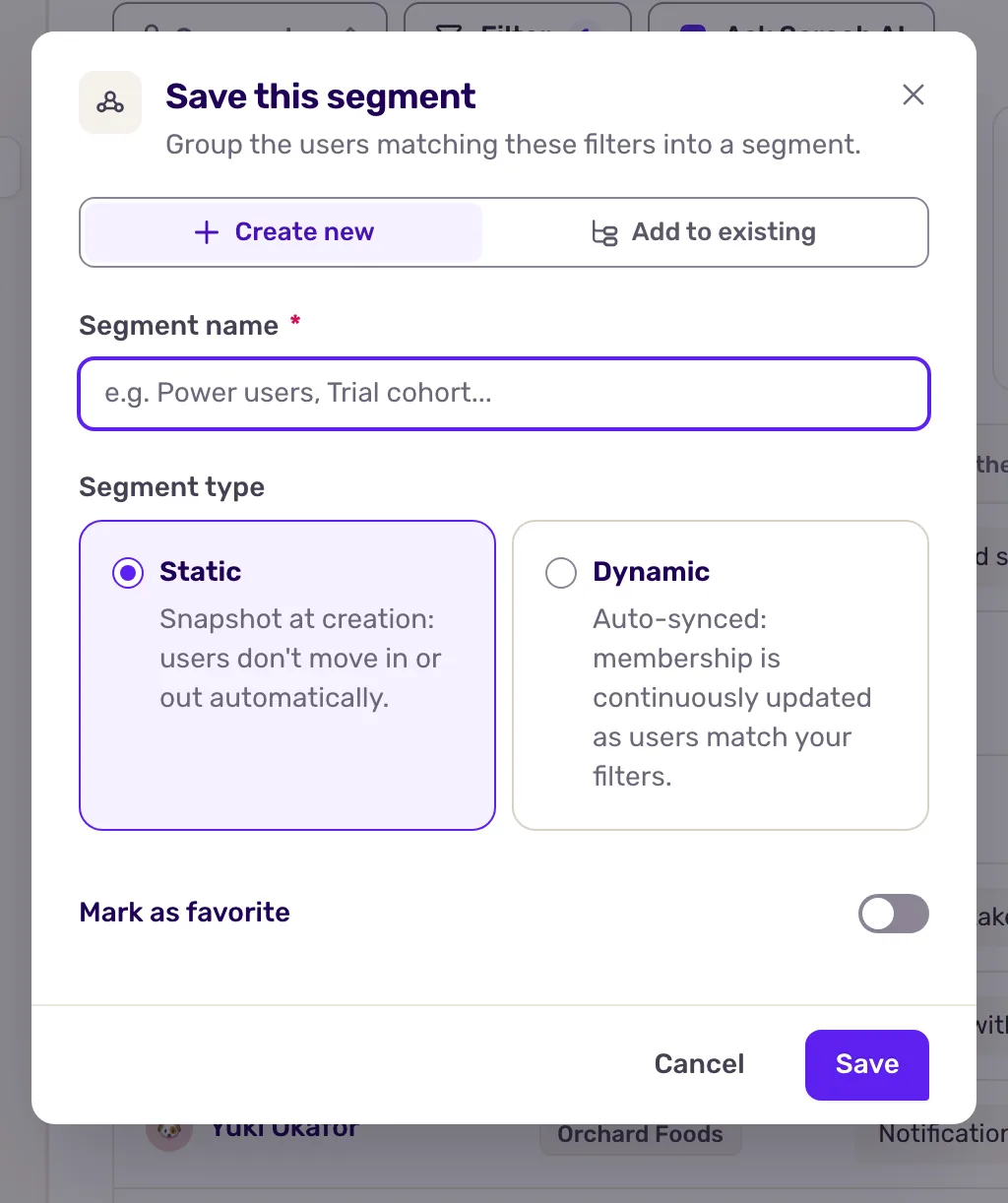
To add the matching users to a segment that already exists, choose Add to existing in the window, pick it under Choose a segment and click Save.
Other ways to fill a segment
Section titled “Other ways to fill a segment”- One user at a time. On a user profile, click Add to segment, pick segments or type a new name. See Browse user profiles.
- From a file. Click Import users in the side menu to add the users of a CSV file to a segment, see Import users from a CSV file.
- From your product. Your developers can assign users to groups with the SDK, see group assignation in the developer docs.
- From a heatmap. Asking the users who clicked an element creates a segment of them, see Analyze pages with heatmaps.
Manage your segments
Section titled “Manage your segments”Open Segments from the side menu. Each segment shows its type, its source and its last assignment. A new segment shows In progress for a few minutes while Screeb fills it. Cohort segments group users by their first month of activity and are managed by Screeb.
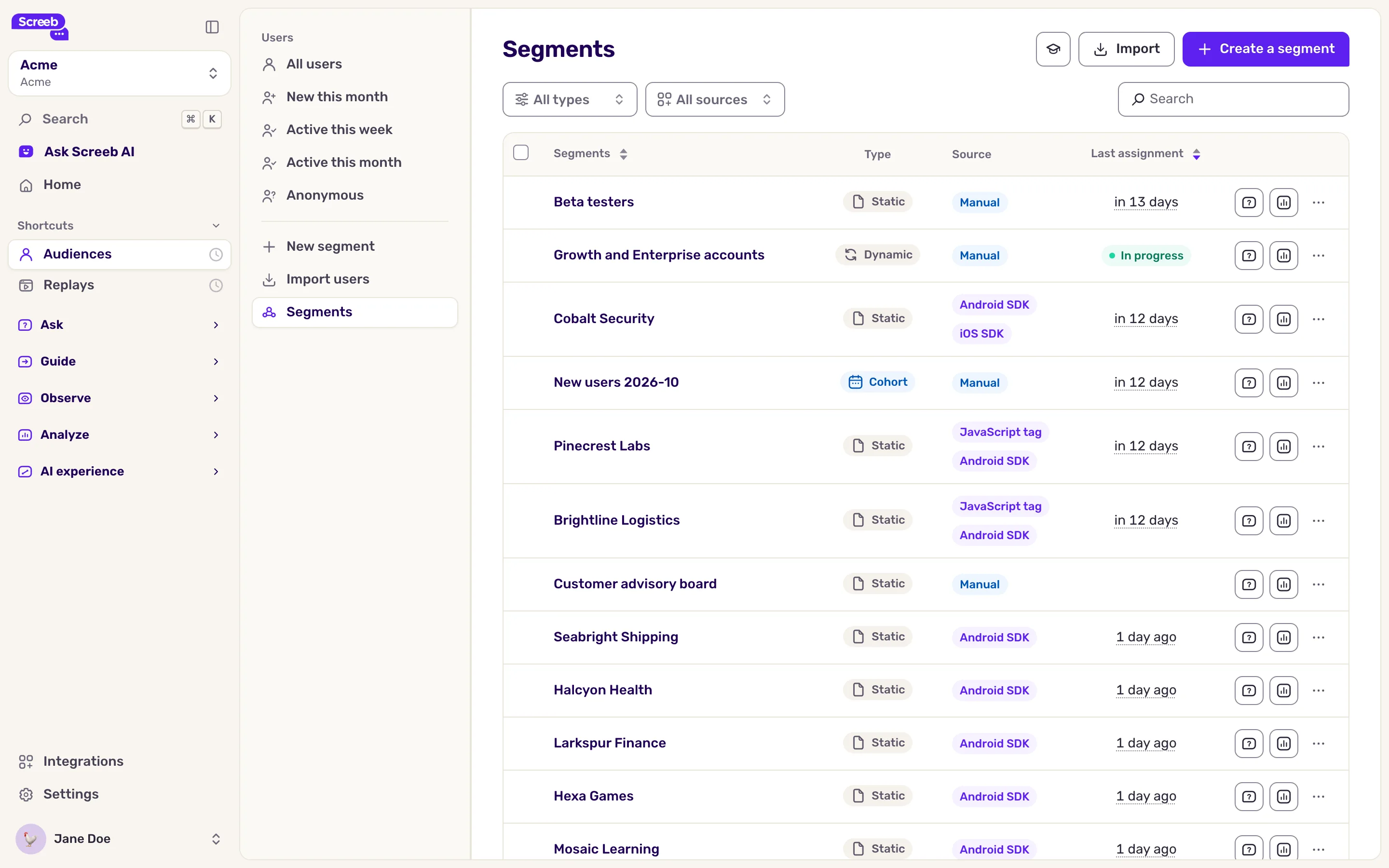
On each row:
- Ask a question starts a survey targeted on the segment.
- Stats opens the list of its users.
- The menu offers Favorite, Rename and Delete. For segments created from filters, it also offers Edit rules (dynamic) or View rules (static), and Make dynamic or Make static.
Deleting a segment does not delete its users.
What you get
Section titled “What you get”Your segment shows in the user list filters, in your Favorite segments if you starred it, and as a rule in survey and message targeting. See Choose who sees your survey and Choose who sees your message and when.
Troubleshooting
Section titled “Troubleshooting”The Save as segment button is missing. Add at least one filter first. The button is also hidden when you opened an existing segment, and when device tracking is forced for the workspace.
The name is refused with “A segment with this name already exists.” Pick another name, or add the users to that segment instead.
A static segment misses new users. A static segment is a snapshot. Turn it into a dynamic one with Make dynamic, or add users again.