

Inactive user reactivation
Find the users who stopped using your product, greet them with one short message when they come back, and check that they pick up the habit again.
A user who comes back after weeks away does not need a tour of everything you shipped since. They need a quick reminder of the one thing that made your product useful to them. An in-app message shown on their return, to them only, does that.
When to use it
Section titled “When to use it”Use it for users who were active, then stopped: they used the key feature, then nothing for a month. It is not an onboarding: a user who never got started needs your onboarding messages instead.
An in-app message shows inside your site or app only. It greets users who come back, it does not bring them back: use your other channels for that, and let the message take over once they return.
Find the inactive users
Section titled “Find the inactive users”- Open Audiences and click Filter.
- In User activity, pick First seen / Last seen, choose Last seen, then More than 30 days ago. The list shows the users inactive for a month.
- Click Save as segment and pick Static.
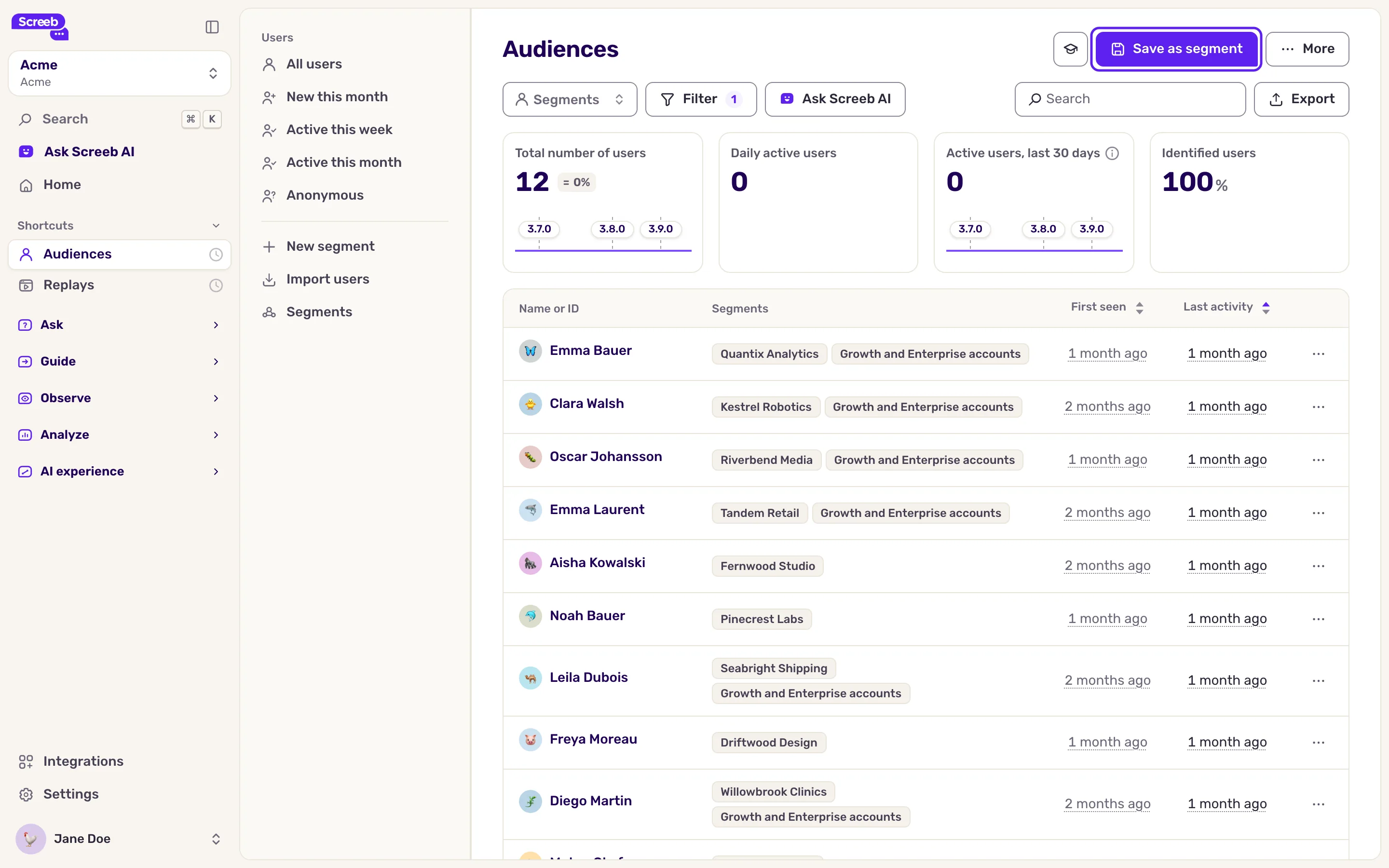
Choose Static, not Dynamic. A static segment is a snapshot: a user stays in it when they come back. A dynamic segment updates with their activity, so a returning user leaves it as soon as they are active again. To add the users who become inactive later, apply the filter again and use Add to existing. See Create user segments.
Last seen includes the current visit
Last seen is the user’s most recent activity, and their return updates it a few moments after they arrive. A First seen / Last seen rule directly in the message targeting stops matching then: do not rely on it to catch the return.
Target the return
Section titled “Target the return”In the message targeting, under Specific users, add one of these rules:
- Segment, set to your static segment of inactive users.
- Performed event (time) on the event of your key action, with Last trigger and More than 30 days ago. It matches users who did that action before but not for a month, whatever their visits in between, and needs no segment to refresh. Users who never did the action do not match.
See Show a survey based on events and user properties: the rules work the same for messages, and Choose who sees your message and when for the rest of the targeting.
Remind them of the value
Section titled “Remind them of the value”- One action. Point at the action that brought them value the first time, such as sharing a project or opening a report, not at the features shipped since. A changelog adds effort at the moment they are deciding whether to stay.
- One step. A short Modal or, on a website, a Popover on the right button, with one clear call to action. Its button can open the right page directly with a contextual action.
- The right tone. Welcome them back without blame. A message that implies they did something wrong makes leaving again easier.
See Create an in-app message or product tour and In-app message best practices.
Measure the reactivation
Section titled “Measure the reactivation”Coming back is not the result: the user already came back. The result is that they repeat the key action.
After a few weeks, compare how many returning users did the key action again, between those who saw the message and those who did not see it. Message analytics tells you how many saw and used it. See Measure the results of your messages.
Limits
Section titled “Limits”- The message reaches only users who come back to your site or app.
- Event rules need your site or app to send the event of the key action, see Track and manage user events.
- A static segment does not update itself: refresh it from the user list when you need to.