

Browse user profiles
Find any user of your site or app, filter the list, and open a profile to see their responses, events, pages, replays and properties.
The Audiences pages list every user Screeb has seen on your site or app. Open a profile to see everything a user did and said, in one place.
Before you start
Section titled “Before you start”- Screeb is installed and identifies your users, see Install Screeb on your website or web app. Users your code never identified show as Anonymous.
- Deleting users depends on your role.
Browse the user list
Section titled “Browse the user list”- Under Observe in the sidebar, open Audiences. The list opens on All users.
- Read the figures at the top: Total number of users, Daily active users, Active users, last 30 days (active today or in the 29 days before) and the share of Identified users.
- In the side menu, pick a ready-made view: New this month, Active this week, Active this month or Anonymous. Your Favorite segments show below them.
- To find one user, type in Search at the top right.
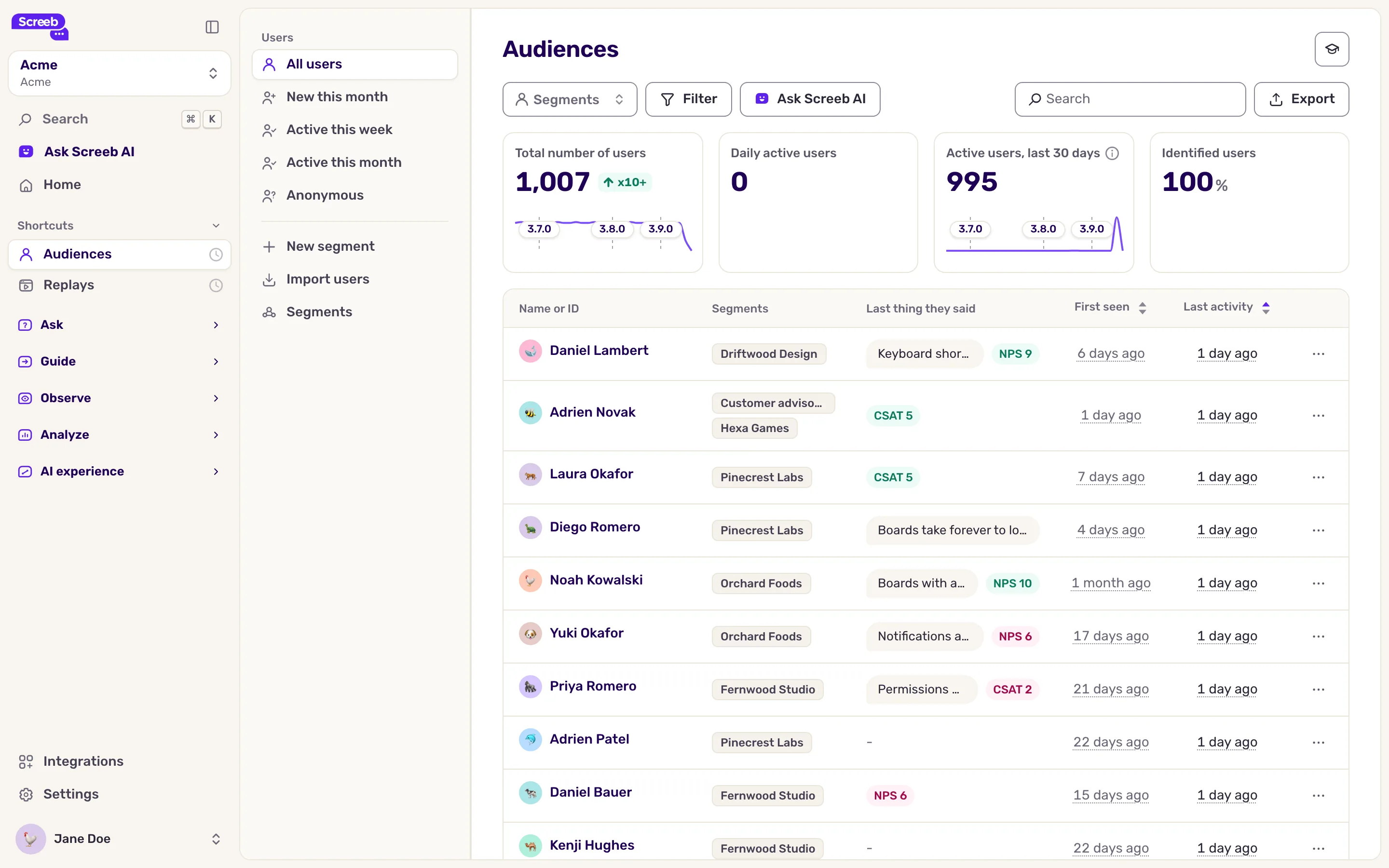
Each row shows the user’s segments, the last thing they said in a survey and when they were last active.
Filter the list
Section titled “Filter the list”- Use Segments to keep the users of one or more segments.
- Click Filter to add rules: user ID, user properties, segments, activity dates, events done or not, and context such as the country or the device.
- Click Apply. The figures and the list update.
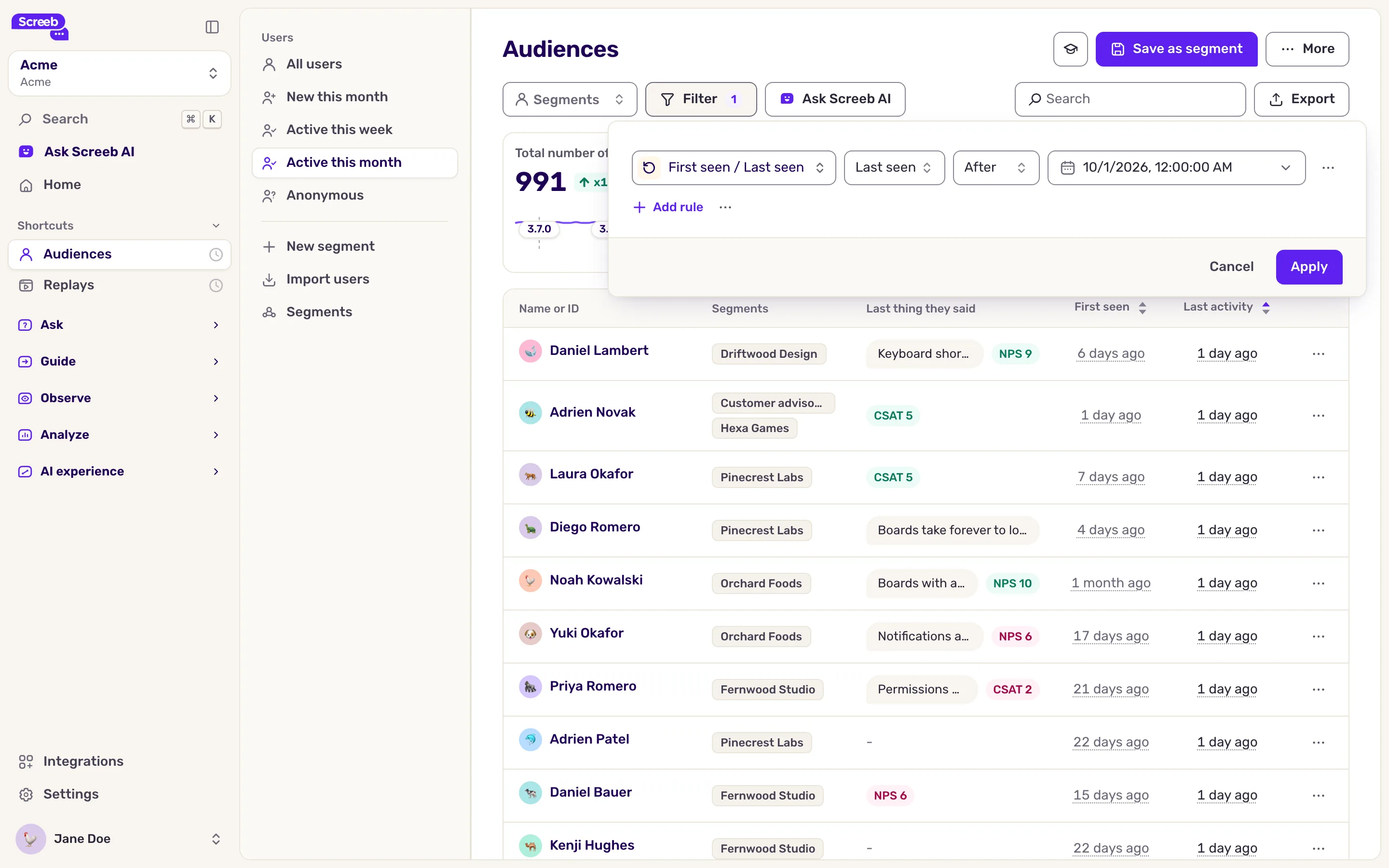
Filters stay in the page address, so you can bookmark or share the view. To keep a filtered group, save it as a segment, see Create user segments. To download the list, click Export.
Open a profile
Section titled “Open a profile”- Click a user’s name, or open the menu at the end of the row and click View profile.
- Read the header: First seen, Last seen, the user’s other IDs and their segments. Below, the NPS, CES, CSAT and NES scores of their answers, when there are any.
- Click a tab to browse the user’s activity.
The tabs:
- All: the user’s timeline.
- Responses and Messages: the surveys they answered and the messages they saw.
- Events, Pages and Screens: what they did and where they went.
- Replays: their recorded sessions, when Session Replay is part of your plan.
- Properties: everything your product sent about them.
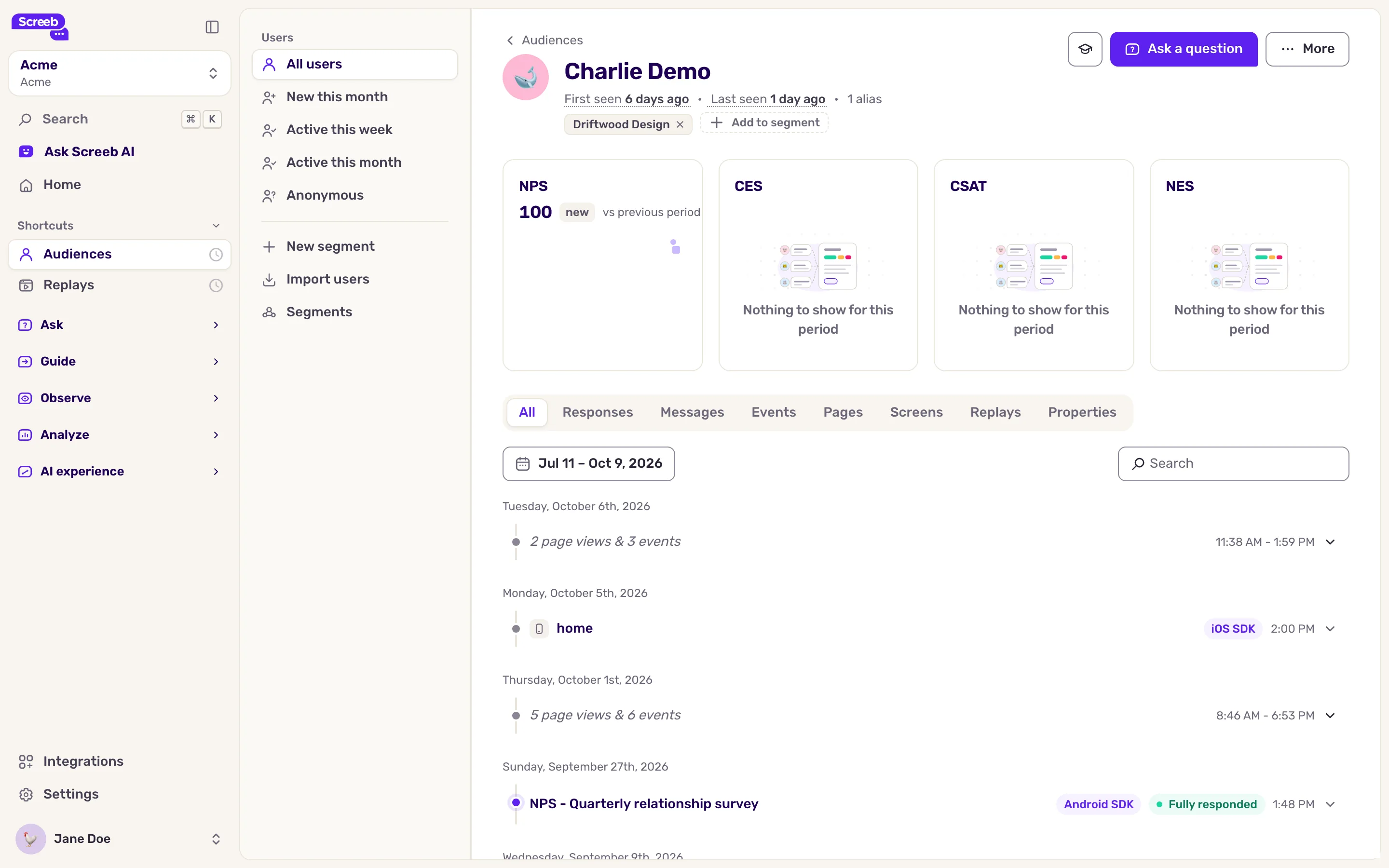
From the header, Add to segment puts the user in a segment, and Ask a question starts a survey aimed at this user only.
Delete users
Section titled “Delete users”Use this to answer a data deletion request, for example under GDPR.
Deleting a user permanently removes the user and all related data, including responses and tracked events. It cannot be undone.
- On the profile, click More at the top right, then Delete. You can also use Delete in the menu of a row of the list.
- Type DELETE and click Delete user. The deletion is queued and can take some time.
To delete every user matching the current filters, add at least one filter first: the menu only shows then. Open the menu at the top right of the page, click Delete these users, type the confirmation word and click Delete users.
What you get
Section titled “What you get”You can find any user, see who is active, and read a user’s full story (answers, messages, events, pages, replays and properties) before you reach out or target them.
Troubleshooting
Section titled “Troubleshooting”The list says “No users found”. Screeb has not seen any user in this workspace yet. Check the installation with Debug your setup with Screeb Inspector.
A user shows as anonymous. Your code does not identify this user. Ask your developers to identify users once they sign in, see Install Screeb on your website or web app or Install Screeb in your mobile app.
The Replays tab is missing. Session Replay is not part of your plan.