

Analyze pages with heatmaps
See where visitors click, how far they scroll and where they struggle on each page, then act on it with a replay, a survey or a message.
Heatmaps show, page by page, where visitors click, how far they scroll and where they get stuck. There is nothing to set up per page: Screeb builds them from the behavior it captures on your site or app.
Before you start
Section titled “Before you start”- Heatmaps must be part of your plan (the Observe add-on, or Session Replay). The Heatmaps entry then shows in the sidebar.
- Screeb must capture behavior in the workspace, through Session Replay or the traffic sample of your plan. See Configure session replay recording and Choose what to record with recording scopes.
- Behavioral capture must be on. Open Heatmaps, click Settings, click Turn on behavioral capture and click Save. Changing this setting needs a role that can edit the organization.
- Heatmaps work on websites and in iOS and Android apps that use the Screeb SDK. In mobile apps, clicks, dead clicks and rage clicks are captured.
Pick a page
Section titled “Pick a page”- Open Heatmaps. Each detected page shows its Sessions, Clicks, Friction, scroll depth and last activity.
- Set the period with the date picker, narrow the users with Filter, or search a page by its address.
- Look at the badges: Most friction, Most visited and Lowest scroll depth point to good places to start.
- Click a page’s address. The analysis opens.
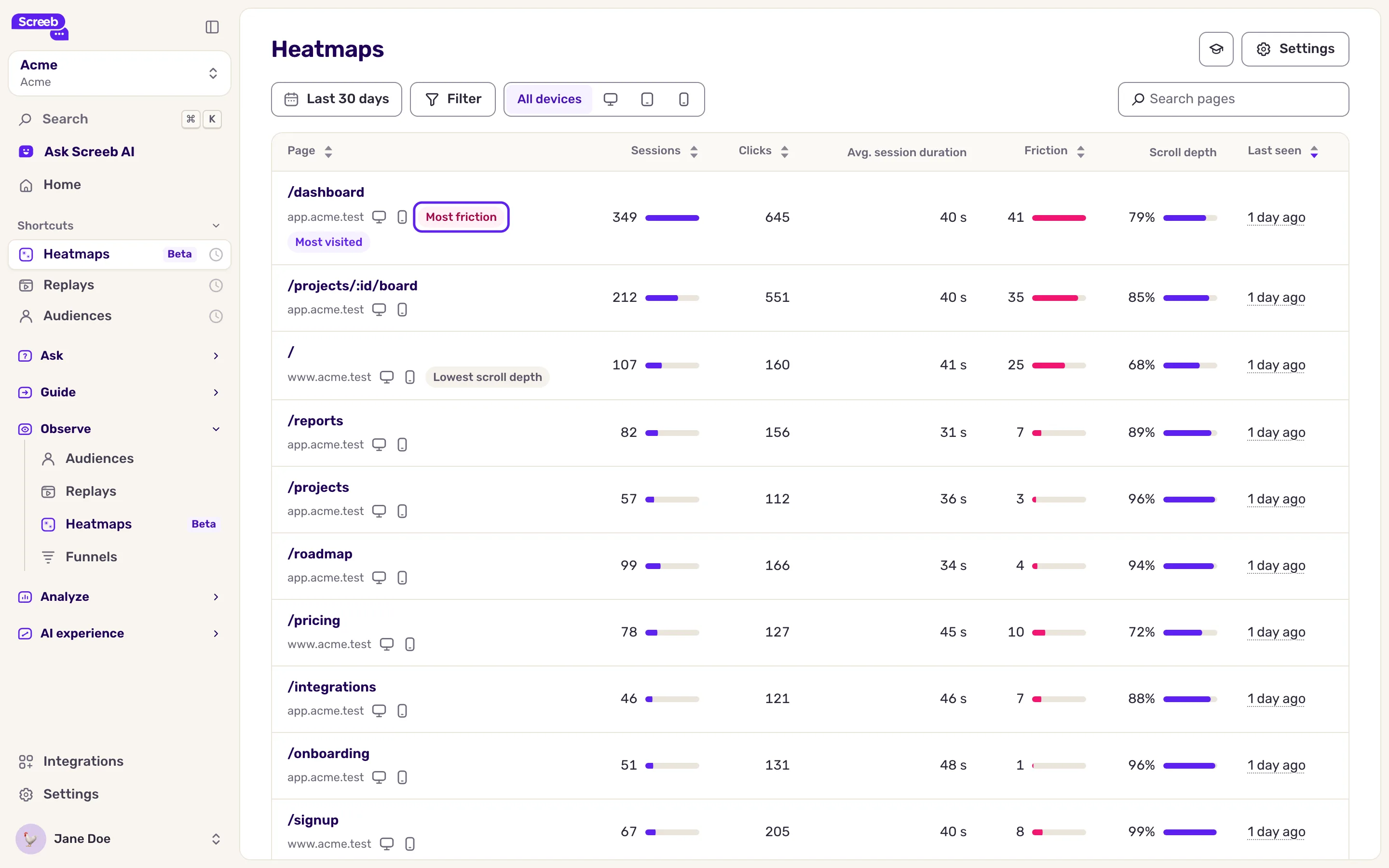
Pages whose addresses only differ by an id are grouped under a single page, so you analyze a template rather than each URL.
Read the click heatmap
Section titled “Read the click heatmap”The page opens on Heatmap. Warm areas get the most clicks, cold areas the fewest.
- At the top right, pick the device: Desktop, Tablet or Mobile.
- When AI features are available for your organization, click Hotspots above the page to list the clicked elements. Keep only frustration with Rage or Dead.
- Click a hotspot on the page or in the list to see its clicks, Dead clicks (no visible response), Rage clicks (rapid repeated clicks), the number of sessions and the Nearby hotspots: the most clicked elements close to it, ranked by distance and clicks.
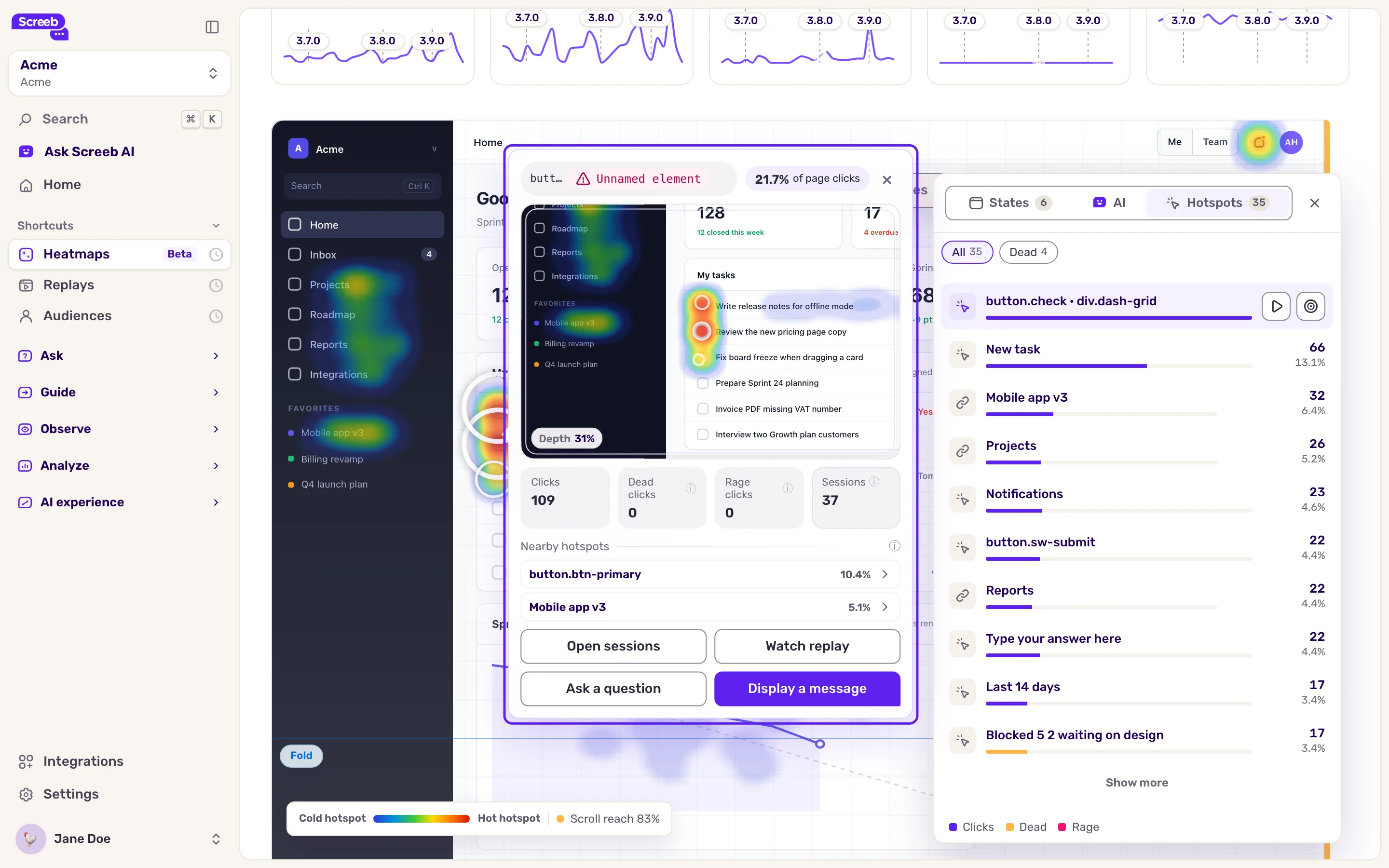
Clicks that landed on no element are grouped under Clicks on empty space. The details of a hotspot also give its share of the page’s clicks (“of page clicks”) and, when several devices clicked it, its clicks per device. For a link, they show the page it leads to: Open its heatmap opens the heatmap of that page.
Act on a hotspot
Section titled “Act on a hotspot”From the details of a hotspot:
- Open sessions lists the replays where this element was clicked. Watch replay opens one of them. Both need Session Replay.
- Ask a question and Display a message create a segment of the users who clicked the element, then open a new survey or message targeted on it, in a new tab. Your role must let you create surveys.
Read the scroll map
Section titled “Read the scroll map”Click Scrollmap at the top right. The colors show the share of visitors who reached each depth of the page. The summary gives the Avg depth, the Fold (what is visible without scrolling) and the number of sessions.
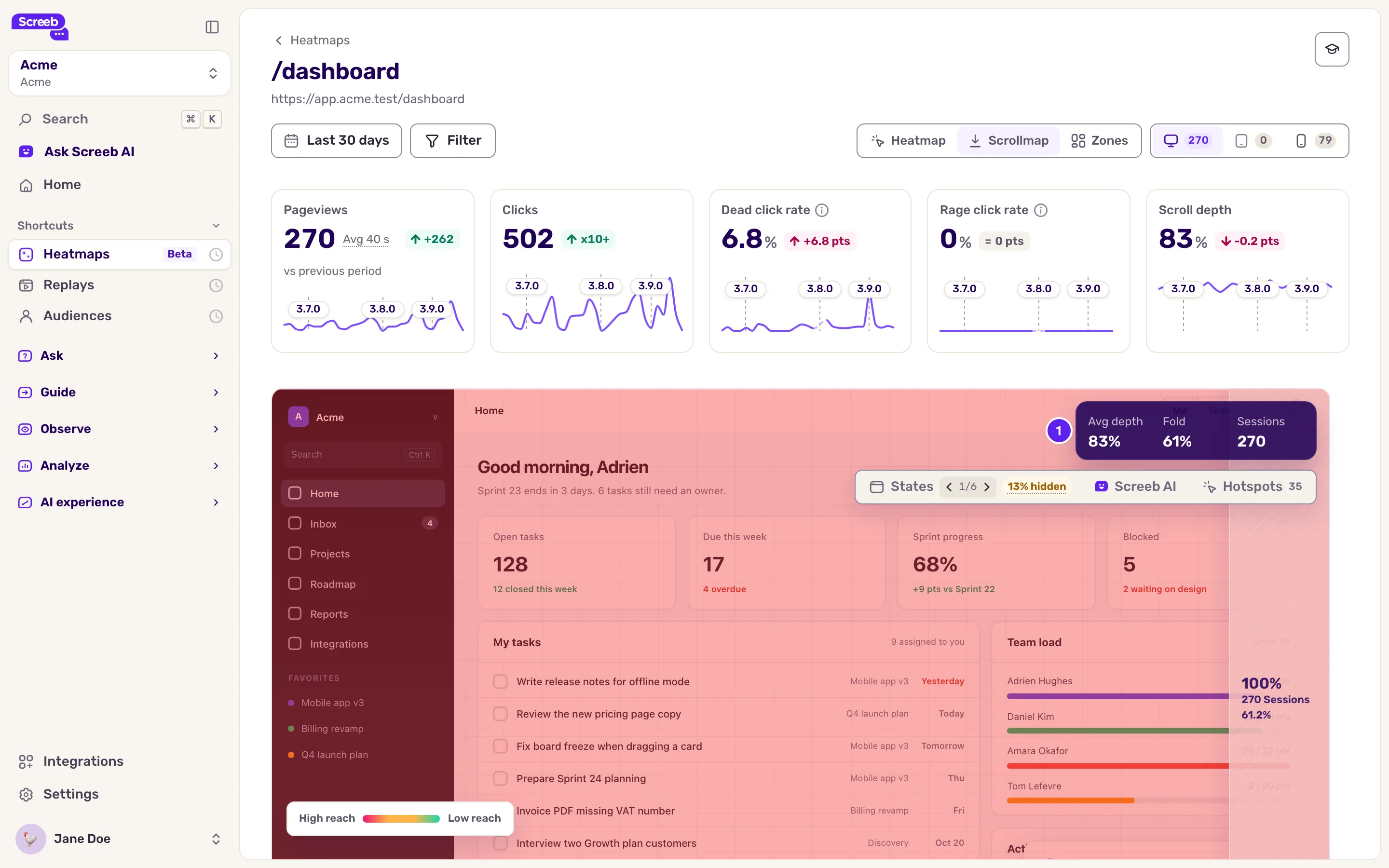
The third view, Zones, measures areas of the page you define. See Track page areas with heatmap zones.
Switch page states
Section titled “Switch page states”A page can look different from one visit to the next: a menu open, a dialog, a step of a form. Click States above the page to pick the state the heatmap is drawn on. The state only changes the backdrop: the click and scroll figures stay the same.
When AI features are available for your organization, Screeb AI summarizes the page and lists opportunities, such as a likely broken button.
What you get
Section titled “What you get”For each page: what visitors click, what frustrates them and how far they read, by device and audience, with the replays and users behind it.
Troubleshooting
Section titled “Troubleshooting”The page says “Behavioral capture is off for this workspace, so no heatmap data is being collected.” Click Turn on behavioral capture as described above. Only behavior captured after that shows up.
A page is missing, or shows “No activity on this page for these filters” No session was captured on it for the period, device and filters. Widen the period, switch device or remove filters. Check that Session Replay records this page.
Clicks land on an “Unnamed element” The element has no text, label or id Screeb can rely on, so its clicks are grouped loosely. Ask your developers to add a data-screeb-id or an aria-label to key elements.
The hotspots look slightly off. The backdrop is a recorded visit. If the page design changed since, overlays can be misaligned, while the figures stay correct.