

Track page views and mobile screens
Make sure Screeb receives the pages and app screens your users visit, and check them in the settings.
Screeb uses the pages and screens your users visit to target surveys and messages, filter session replays, build funnels and fill user profiles. Websites send page views on their own; mobile apps send screens from your code.
Before you start
Section titled “Before you start”- Screeb is installed on your site or app, see Install Screeb on your website or web app or Install Screeb in your mobile app.
Track page views on your website
Section titled “Track page views on your website”There is nothing to code. The Screeb tag sends a page view when a page loads and each time its address changes, single-page apps included. It records the address without the part after #, and the page title.
The address keeps its query parameters: keep personal data such as emails out of your URLs.
Track screens in your mobile app
Section titled “Track screens in your mobile app”Mobile apps do not send screens on their own. Call the SDK each time a screen shows, with its name:
- iOS:
Screeb.trackScreen(name: "Checkout") - Android:
Screeb.trackScreen("Checkout")
A screen name has up to 128 characters: letters, numbers, spaces and - _ . / :. You can add properties, such as a step number. If your app shows the Screeb tag in a webview, the tag reports screens with $screeb('event.screen', 'Checkout'). The screen tracking guide in the developer docs covers every platform.
Segment and RudderStack, connected as sources, also forward their screen events to Screeb. Their page events are not imported.
Check the pages Screeb receives
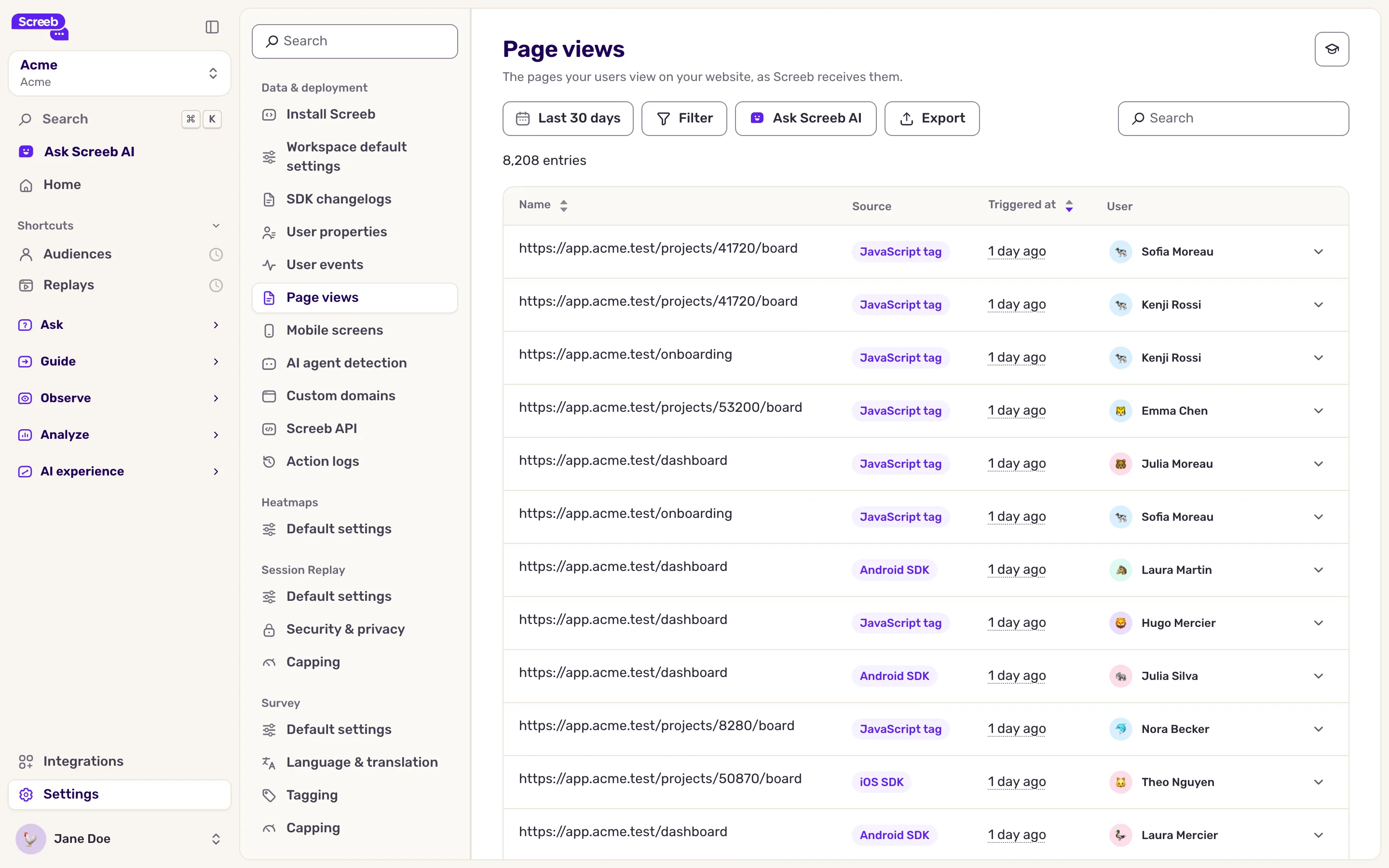
Section titled “Check the pages Screeb receives”- Click Settings, then, under Data & deployment, click Page views. Each row is one page view: Name (the address), Source, Triggered at and User.
- Change the period with the date picker, or click Filter to narrow the list.
- To find a page, type part of its address in Search.
- Expand a row to see the page title and the context of the visit.
Check the screens Screeb receives
Section titled “Check the screens Screeb receives”- Under Data & deployment, click Mobile screens. The Summary tab lists each screen name once, with its source, the first and last time it was received and its Count.
- To find a screen, type its name in Search.
- To see each occurrence, with the user and the time, open the All entries tab.
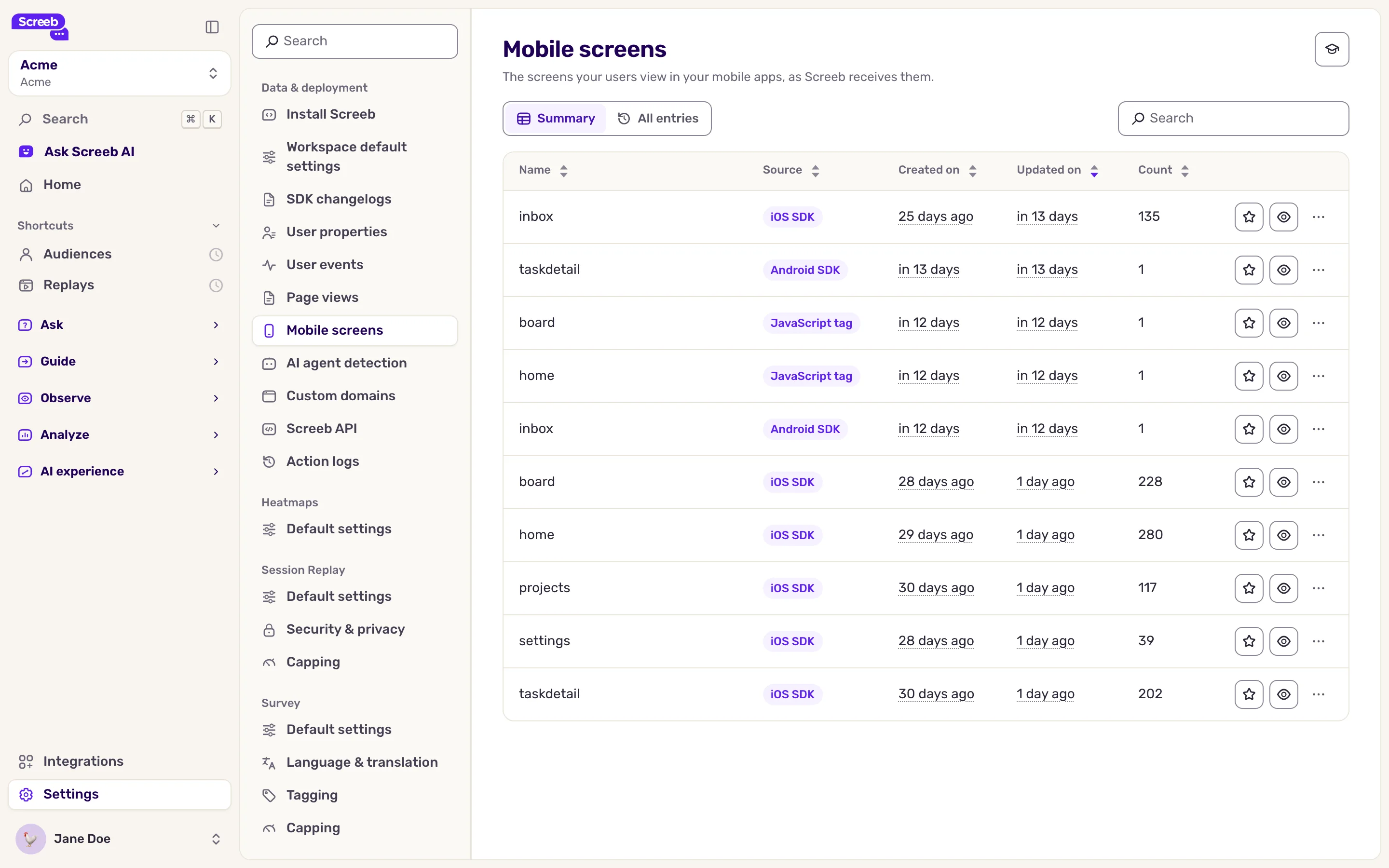
Each screen row ends with a star, an eye and a menu to favorite, hide or delete the screen. They work as for events, see Track and manage user events.
What you get
Section titled “What you get”- On each user profile, the Pages and Screens filters of the activity show where the user went, see Browse user profiles.
- In the targeting of a survey or message, On specific pages and On specific screens show it on the right page or screen, see Choose who sees your survey.
- Page views and screens can be funnel steps, see Build and read funnels.
Troubleshooting
Section titled “Troubleshooting”The page says “No page views found”. The tag does not run on your site, or not for this period. Open your site and run $screeb('debug') in the browser console, or see Debug your setup with Screeb Inspector.
The page says “No screen views found”, or a screen is missing. Check that your app calls trackScreen when the screen shows, after Screeb is initialized, and that the name follows the rules above.