

Build and read funnels
Follow users through the key steps of a journey, find where they drop off, and ask the users who dropped why.
A funnel follows your users through the steps of a journey, such as sign-up or checkout, and shows where they drop off. You can then ask the users who dropped, at the moment it happens, what stopped them.
Before you start
Section titled “Before you start”- Screeb receives the steps you want to follow: events tracked by your site, app or tracking tool, page views from the JavaScript tag, or screens from the mobile SDKs. See Track and manage user events.
- Your role lets you create funnels. The number of funnels is capped across all the workspaces of your organization, depending on your plan.
- Funnels is not available when device tracking is forced for the workspace.
Create a funnel
Section titled “Create a funnel”- Under Observe in the sidebar, open Funnels and click New funnel.
- Fill in Name of your funnel, for example “Onboarding”.
- Under Steps, pick the first step. The list groups Track events, Page views and Screens. To follow a page nobody has visited yet, type its URL.
- Click Add a step for each next step, in the order users go through them. A funnel has 2 to 32 steps. Drag a step by its handle to reorder it.
- Check the Preview on the right, computed on the last 30 days, and click Create funnel. The report opens.
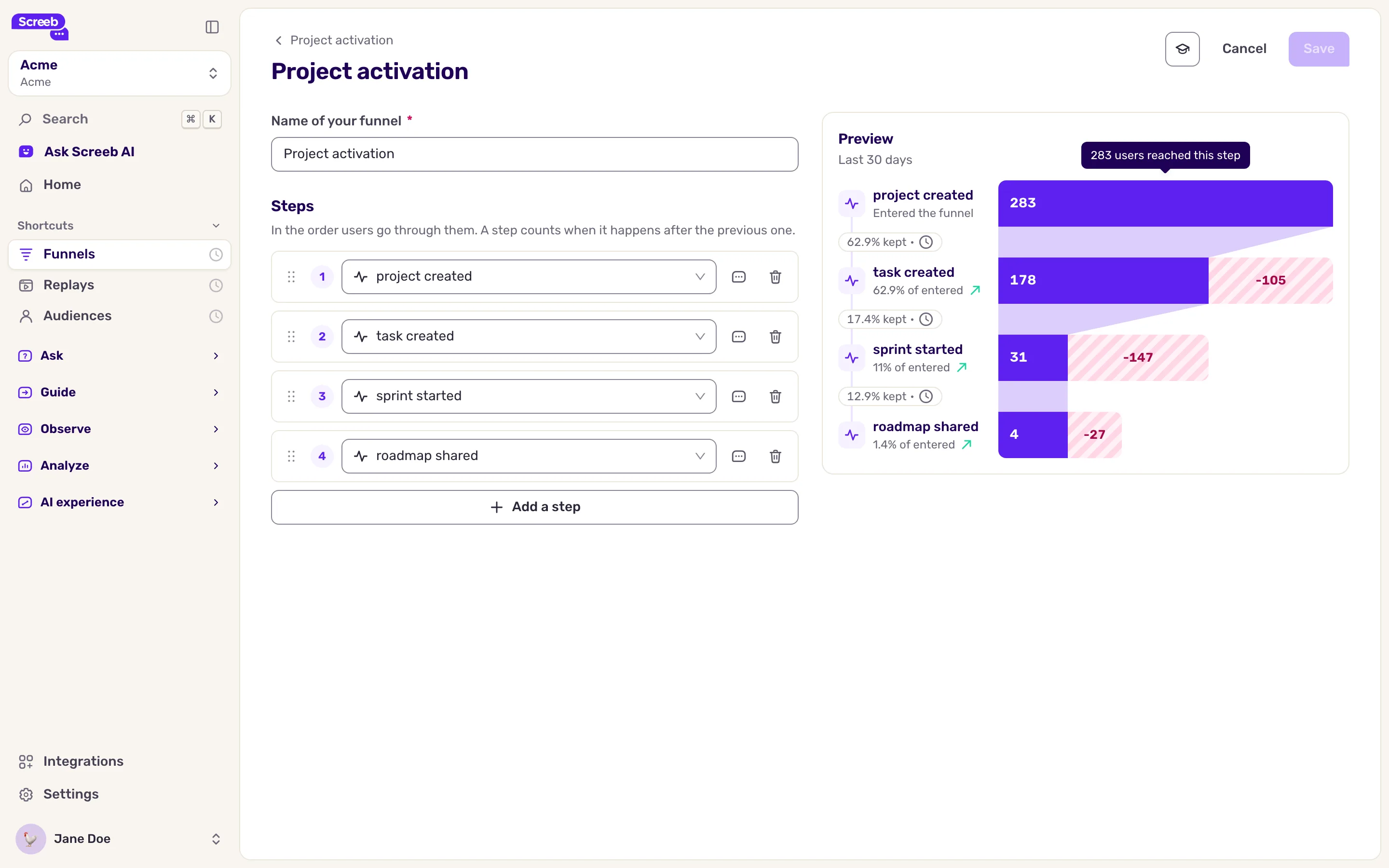
A step counts only when it happens after the previous one.
Read the report
Section titled “Read the report”Open a funnel from the list to see its report:
- Overall conversion: the share of users who went from the first step to the last.
- Largest drop-off: the step that loses the most users.
- Slowest step: the step users take the longest to reach.
- The funnel chart, step by step, then the conversion over time and the time between steps.
- When AI features are available for your organization, a Summary of your funnel.
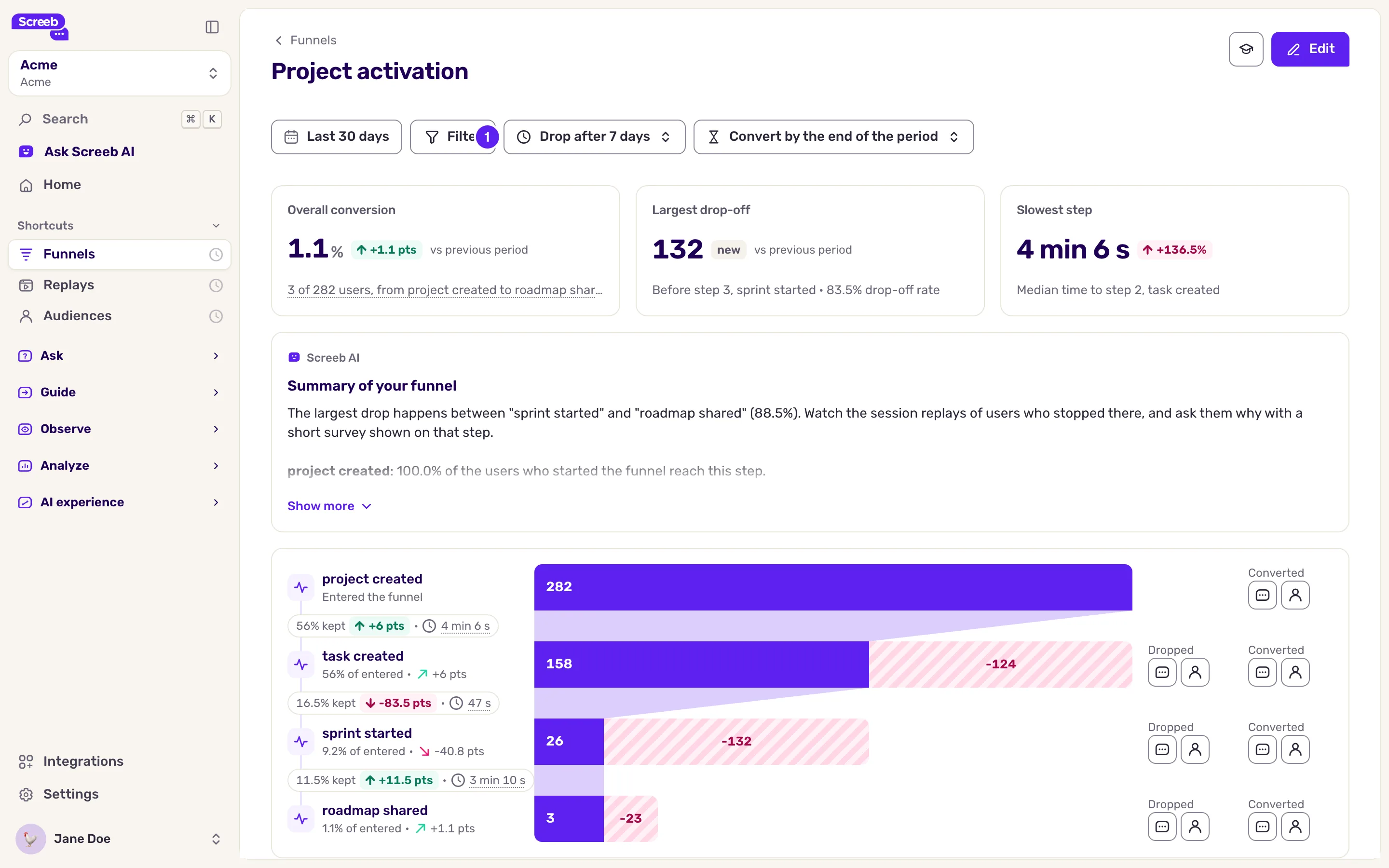
Use the date picker to change the period and compare it with the previous one, and Filter to keep only some users or events.
Set the time limits
Section titled “Set the time limits”Two buttons in the toolbar decide when a user counts as dropped:
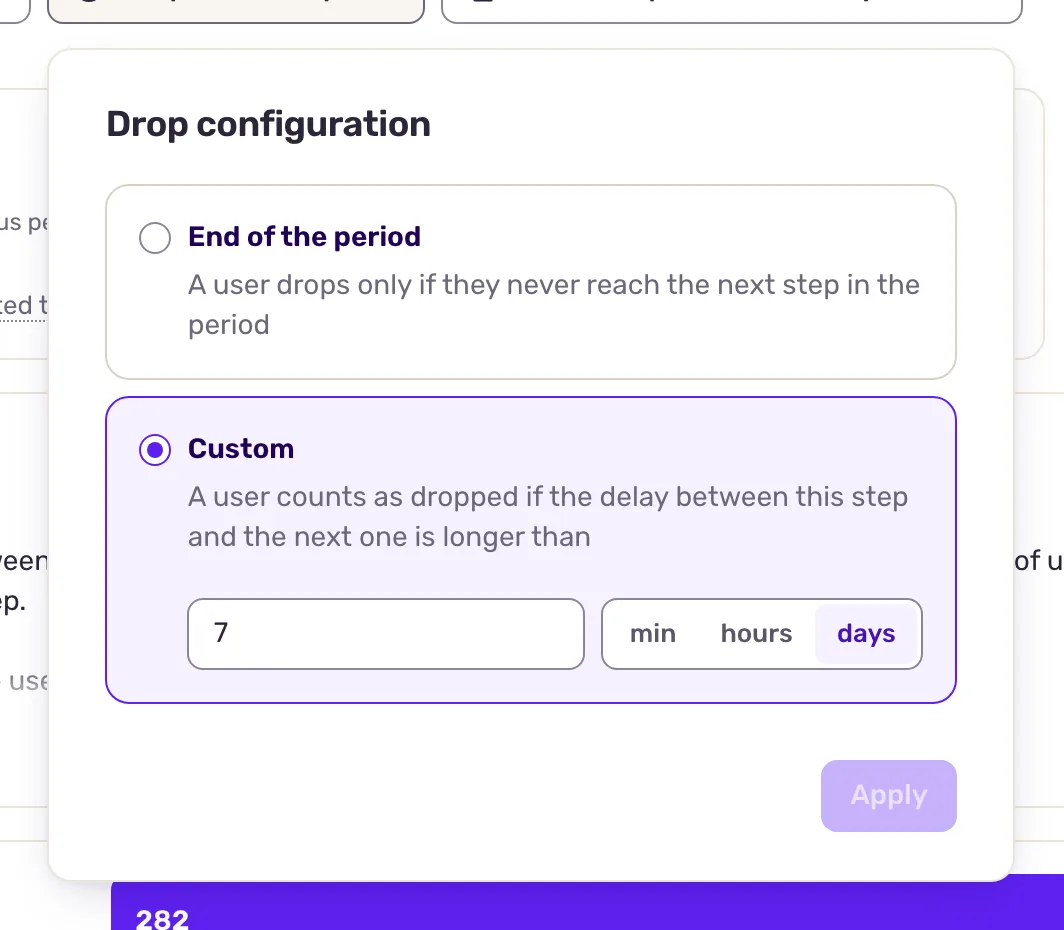
- Drop configuration: the longest delay allowed between a step and the next one.
- Conversion window: the time users have from their first step to complete the funnel.
Click one, choose End of the period (the default) or Custom with a number of minutes, hours or days, then click Apply. These limits apply to the report you are viewing and are kept in its URL, so you can share that view.
Ask users why they dropped
Section titled “Ask users why they dropped”Under each step of the chart, the Dropped and Converted groups have two buttons:
- Ask them or Ask who converted creates a survey shown to those users. Once it exists, the button opens its responses.
- Users who dropped or Users who converted opens the list of those users.
You can also click Edit, then Surveys of this step on a step: Ask who dropped after this step or Ask who reached this step. The survey editor opens: write your questions, then set the survey live as usual.
Manage your funnels
Section titled “Manage your funnels”In the list, each row has a stats button, an edit button and a menu with Duplicate and Delete. When deleting, choose Delete funnel only or Delete funnel and all surveys.
Best practices
Section titled “Best practices”- Start with your core journey. Build first the funnel of the path that brings the most value, in 3 to 5 steps that end on a clear success.
- Split variants. Build separate funnels for an old and a new version of a flow and compare them, rather than mixing them. Add a step for users who go back to the old version.
- Ask at the largest drop-off. A survey on the step where most users leave tells you why, not only where.
- Keep funnels alive. Delete funnels that no longer feed a decision.
What you get
Section titled “What you get”You see how many users complete each journey, where they leave and how long each step takes, and you collect their reasons right where they drop.
Troubleshooting
Section titled “Troubleshooting”The report says a step has no users. Check the step name against what Screeb receives, in Track and manage user events, and widen the period.
The ask buttons are disabled with “Surveys can only be triggered on funnels whose steps are all of the same type.” Surveys and user lists need every step of the same kind: only events, only page views or only screens. Split the funnel or change its steps.
You cannot create a funnel. Your organization reached its funnel limit. Delete a funnel you no longer use, or contact us to raise the limit.