

Control when a survey closes
Choose whether a survey follows users across pages, closes when they leave the page, or closes on your own rules, and whether it can come back.
Once a survey shows, it stays until the user answers or closes it, unless you decide otherwise. The closing behavior lets a survey close on its own when the user moves on, so it does not follow them around your product. Messages have the same setting.
Before you start
Section titled “Before you start”- Your role lets you edit surveys. Changing the workspace default also needs the permission to update the organization settings.
- The survey shows in your site or app: proactive survey, embedded survey or feedback button. Link and email surveys run on their own page and have no closing behavior.
Choose the closing behavior of a survey
Section titled “Choose the closing behavior of a survey”- Open the survey and click Design & targeting at the top, then Audience targeting under the channel.
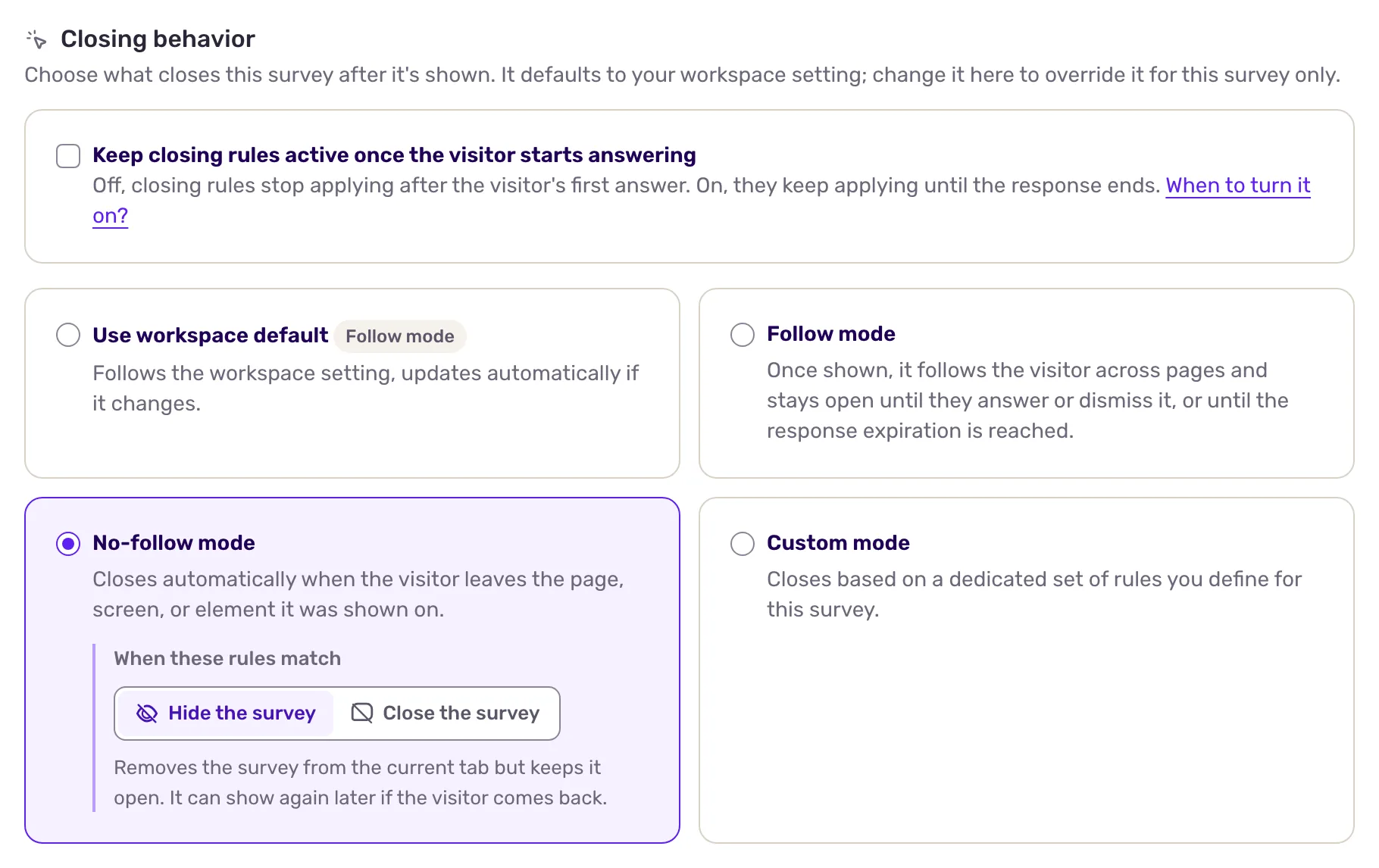
- Scroll to Closing behavior, in Survey settings.
- Pick a mode (described below).
- For No-follow mode and Custom mode, choose under When these rules match whether to hide or close the survey.
- Click Save at the top right.
| Mode | The survey closes |
|---|---|
| Use workspace default | As set for the workspace. The card shows the current workspace mode. |
| Follow mode | Never on its own: it follows the user across pages until they answer or close it, or until the response expires. |
| No-follow mode | When the user leaves the page, screen or element it was shown on, that is when the page and element conditions of its targeting stop matching. |
| Custom mode | When your own closing rules match, see below. |
Closing rules only apply before the user interacts with the survey. Once they start answering, it stays open until they finish or close it.
Hide or close
Section titled “Hide or close”When the closing rules match, the survey can:
- Hide the survey: it leaves the current tab but the response stays open. If the user comes back to a page where the survey can show, it shows again.
- Close the survey: it ends for good, in every open tab. It will not show again, unless you set it to display again, see Configure your survey settings.
Pick hide when you want the survey to wait for the right page, close when the moment has passed.
Write custom closing rules
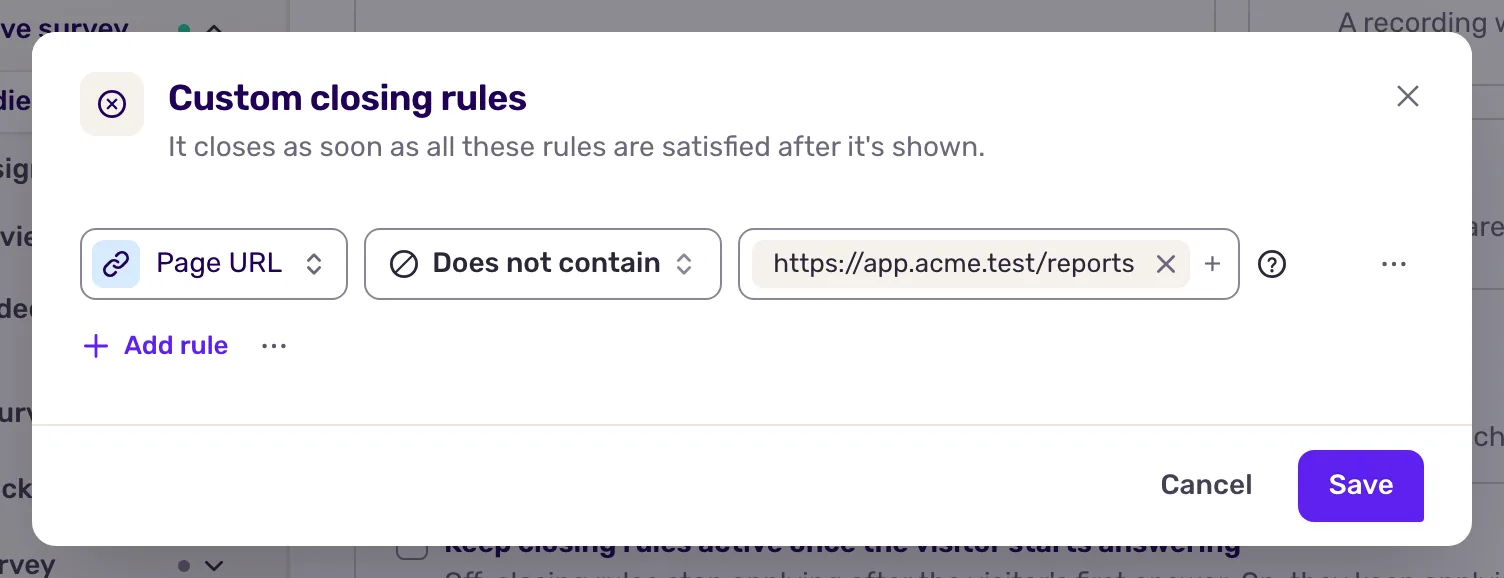
Section titled “Write custom closing rules”- Choose Custom mode and click Configure closing rules. The Custom closing rules window opens.
- Click Add rule and pick a rule, then set its value. Combine several rules with AND and OR.
- Save the window, then click Save on the page.
The rules you can use:
- On the page: Page URL (or screen in a mobile app), Scroll, Reached an element, DOM element, Intent to leave page, Inactivity on page.
- On the user: Performed event (count) and the other event rules, Property, Segment.
The survey closes when the rules start to match after it shows. A rule that already matches when the survey appears does not close it: the user must get there afterwards.
Some examples:
- Close a survey about the checkout when the user reaches the confirmation page: a Page URL rule on
/checkout/confirmation. - Hide a survey that the user ignores: Inactivity on page of 30 seconds.
- Close an onboarding survey once the user did the action it asks about: Performed event (count) on that event.
Set the workspace default
Section titled “Set the workspace default”- Open Default settings, in the survey group of the settings menu.
- Under Closing behavior, pick the default mode, and hide or close. With Custom rules, configure rules shared by every survey that keeps the default.
- Under Close response after, set how long a response stays open, from 1 minute to 1 month. It also ends a survey in follow mode that the user never answers.
- Click Save.
Every survey that keeps Use workspace default follows the default, including later changes. For the other workspace defaults, see Configure your survey settings.
What you get
Section titled “What you get”Surveys leave the screen when they no longer make sense, instead of following users everywhere. Hidden surveys come back on the right page; closed ones are done.
Troubleshooting
Section titled “Troubleshooting”The survey closes right after it shows. In No-follow mode, the page or element conditions of the targeting stop matching at once, for example an element that disappears. Check the targeting with Screeb Inspector, or switch to follow mode.
The survey does not close. The user already started answering, or the rules matched before the survey showed. In follow mode, it stays until answered or closed.
The Closing behavior section is missing. The channel is a link or email survey, which has none.