

Share a survey with a link
Get a link and a QR code to your survey, add parameters that identify respondents, and collect answers from people outside your product.
A link survey opens on a page hosted by Screeb. Share the link by email, in a newsletter, on social media or as a QR code to collect feedback from people who are not in your product, without installing anything.
Before you start
Section titled “Before you start”- The survey exists, see Create a survey from a template or with AI.
- Your role lets you edit surveys and set them live.
Get the link
Section titled “Get the link”- Open the survey and click Design & targeting.
- On the Type of interaction page, click Link survey. If another channel opens instead, click Audience targeting under Link survey in the side menu.
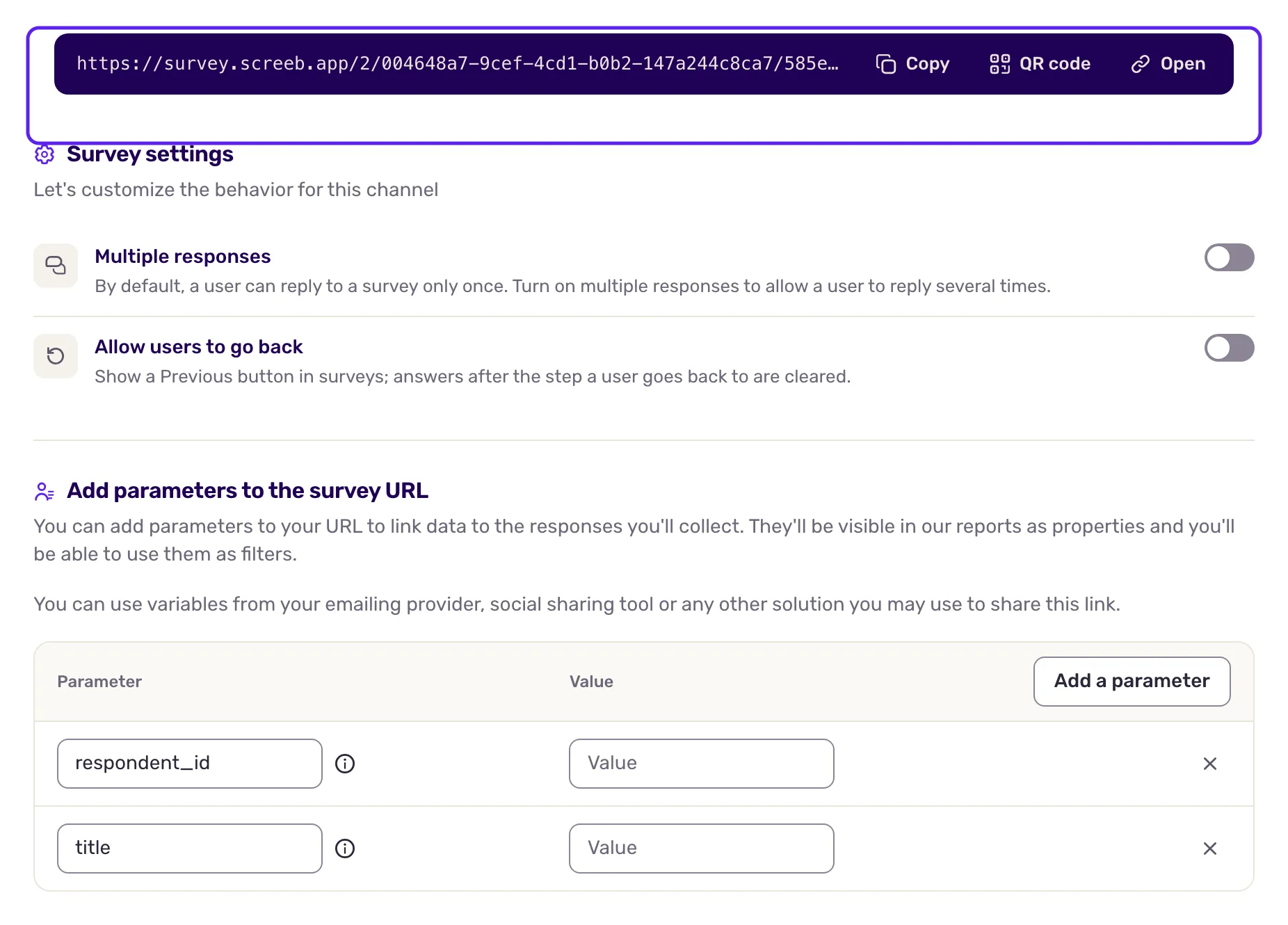
- At the top of the page, click Copy to copy the link, QR code to get a QR code, or Open to try it.
Set the options
Section titled “Set the options”Below the link:
- Multiple responses: by default, a person answers once. Turn it on when the same person may answer several times, for example on a shared device at an event.
- Allow users to go back: shows a button to go back to earlier questions. Answers after the step they return to are cleared.
Click Save at the top right after changing them.
Add parameters to the link
Section titled “Add parameters to the link”Respondents of a link survey are anonymous: Screeb does not know who they are. Parameters in the link tell it. Under Add parameters to the survey URL, the table starts with two parameters that Screeb recognizes:
| Parameter | Use |
|---|---|
respondent_id |
Identifies the person who opens the link: a user ID or an email. Answers then link to that user. |
title |
Sets the title of the survey page. |
- Enter a value for each parameter you need. Leave the others empty: they are not added.
- Click Add a parameter to add your own, such as
campaignwith the valuenewsletter-october. They are usually recorded with each response, so you can filter on them. - Copy the link at the top of the page. It now ends with your parameters, for example
?respondent_id=jane@example.com&campaign=newsletter-october.
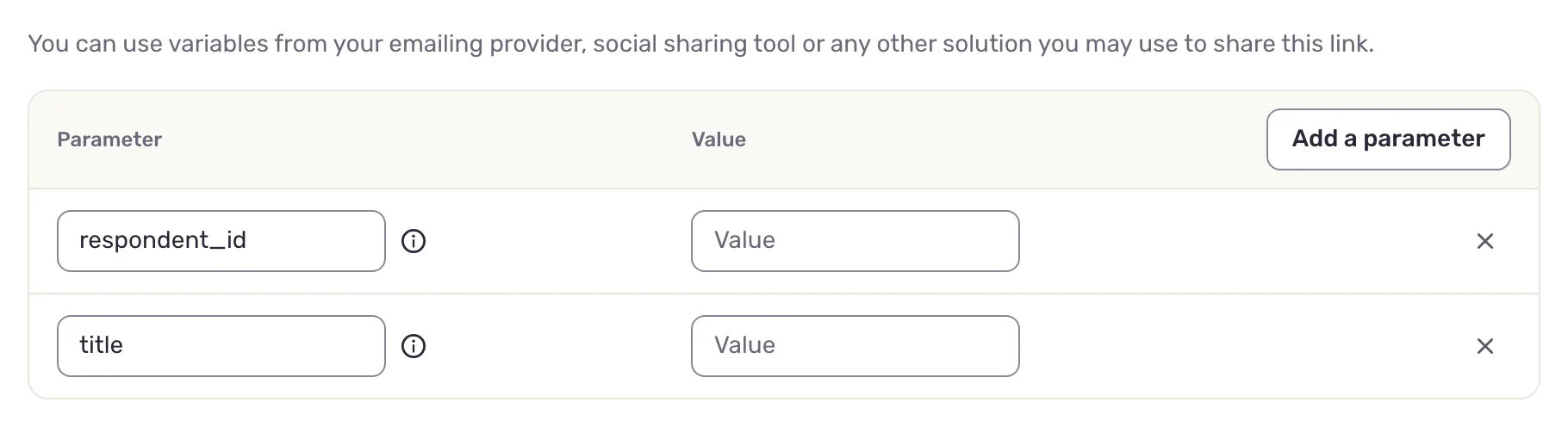
When you send the link to many people from an emailing tool, use the tool’s placeholder as the value, for example respondent_id set to {{email}}. The tool replaces it with each recipient’s address.
Your parameters are saved in your browser for the whole workspace, so you find them again on your next link survey. Teammates and other browsers do not see them.
Customize the page
Section titled “Customize the page”Click Design under Link survey to give this survey its own look and page background, or change the default of every link survey in the survey design settings. See Customize the design of your surveys.
Set the link live
Section titled “Set the link live”Click the button at the top right that reads Set live followed by the channel name. The link collects answers only while the channel is live. To close it, click the button that reads Pause followed by the channel name.
What you get
Section titled “What you get”A link you can share anywhere. Answers land in the survey results with those of the other channels, tied to the user when the link carries a respondent_id.
Troubleshooting
Section titled “Troubleshooting”The link does not accept answers. The Link survey channel is not live. Set it live with the button at the top right of the page.
The channel page shows a “Anonymous users are ignored” banner. Your workspace has Ignore anonymous users on, in the workspace settings. Only identified people are targeted, so anonymous respondents may not see the survey. Add a respondent_id to the link.
A parameter value is cut or wrong. Screeb encodes the values for you (a space becomes %20), and a value you typed already encoded is not encoded twice. Placeholders of emailing tools, such as {{email}}, are left as they are so your tool can replace them.