

Send a survey by email
Put the first question of a survey in your own emails, so recipients answer in one click and finish the survey on a page hosted by Screeb.
An email survey puts the first question of your survey inside an email you send with your own tool (Brevo, Mailchimp, HubSpot, Customer.io…). The recipient clicks an answer, lands on a page hosted by Screeb with that answer already recorded, and finishes the survey there. Use it to reach users who are not in your product right now.
Before you start
Section titled “Before you start”- The survey exists, see Create a survey from a template or with AI, and your role lets you edit it.
- You have an emailing tool that accepts HTML content. Screeb gives you the code; it does not send the email.
- No Screeb tag is needed: the survey runs on a Screeb page.
Get the code for your email
Section titled “Get the code for your email”- Open the survey and click Design & targeting at the top.
- On the Type of interaction page, click Email survey. If another channel opens instead, click Audience targeting under Email survey in the side menu.
- Under Add parameters to the survey URL, give
respondent_idthe placeholder of your emailing tool for the recipient’s email or user ID, for example{{email}}. Add your own parameters with Add a parameter if you need them. The code updates as you type. - Under Code to embed the email survey in your emailing platform, click Copy.
- Paste the code in an HTML block of your email template.
- Click the button at the top right that reads Set live followed by the channel name. Answers are collected only while the channel is live.
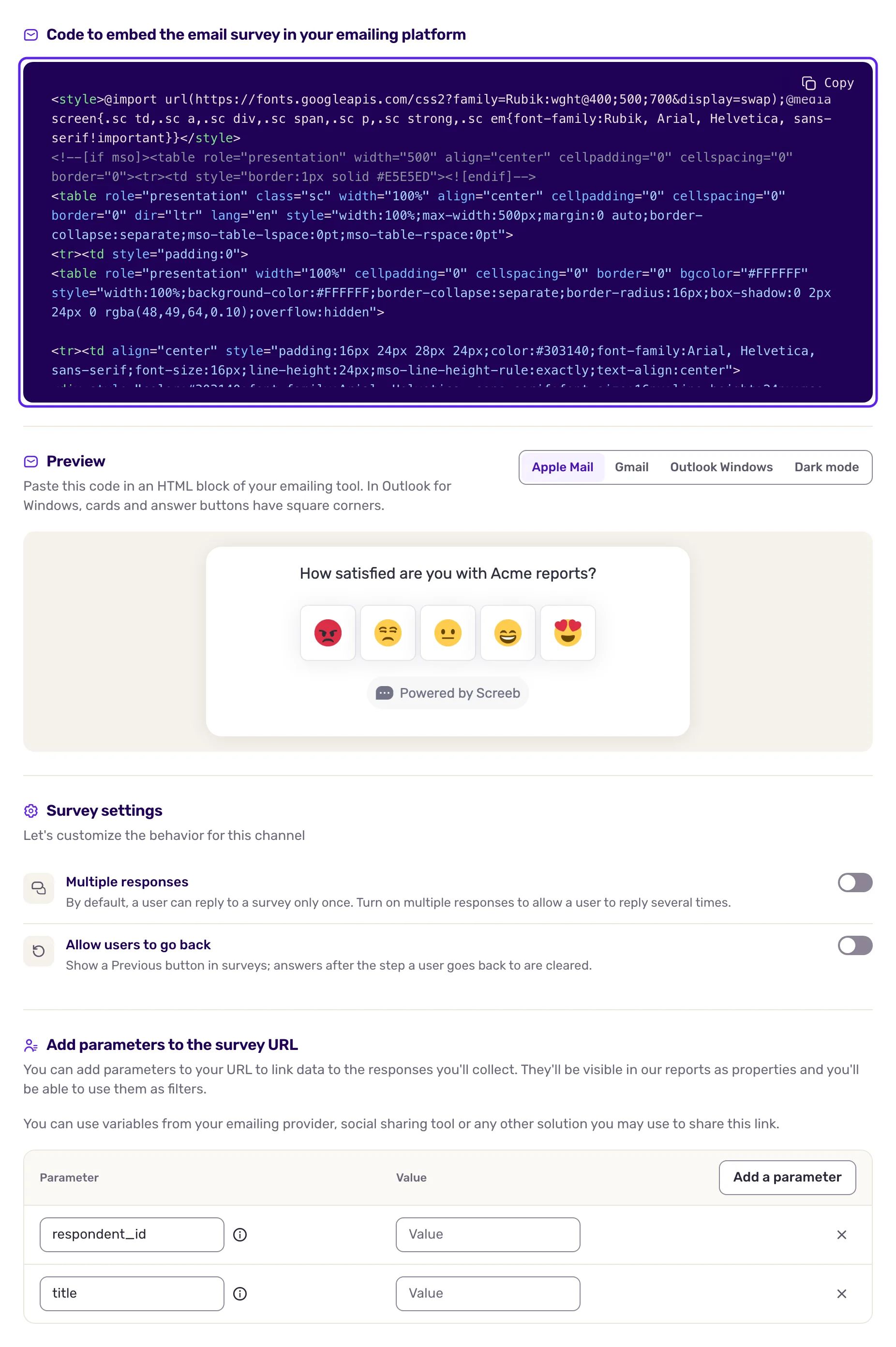
Parameters work as for link surveys: respondent_id ties the answers to a user, the others are saved with each response so you can filter on them. See Share a survey with a link.
Without a respondent_id, every answer comes from an anonymous respondent. When your workspace ignores anonymous users, the page shows a “Anonymous users are ignored” banner, and anonymous recipients may not see the survey.
What the email shows
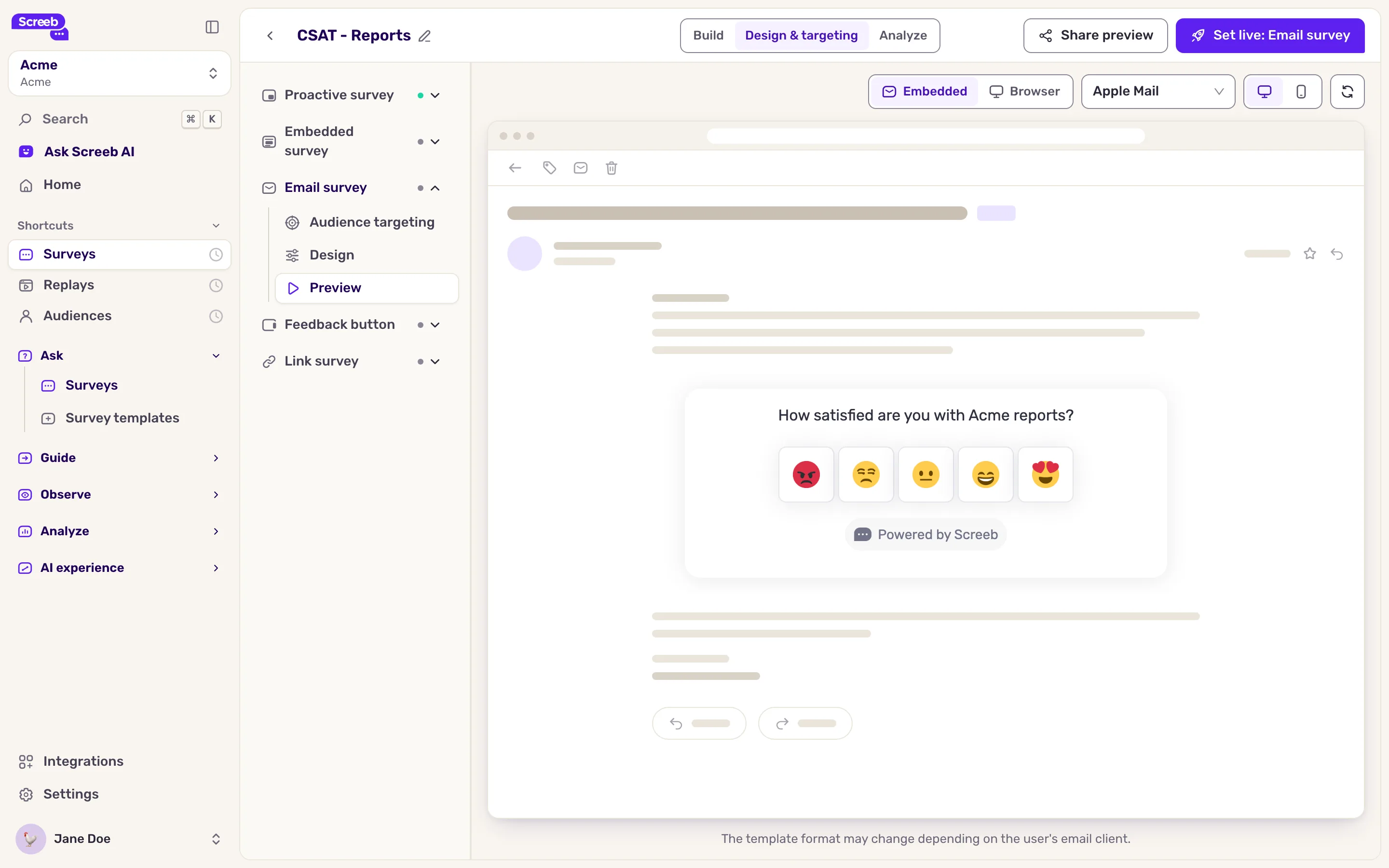
Section titled “What the email shows”The email shows the first question with one button per answer. A click on a score or a single choice records the answer and opens the survey page for the next questions. Each question type is detailed in Questions in an email survey.
Set the options
Section titled “Set the options”Below the code, under the survey settings:
- Multiple responses: by default, a person answers once. Turn it on to accept several answers from the same person, for a recurring newsletter for example.
- Allow users to go back: shows a button to go back to earlier questions on the survey page.
Click Save after changing them.
Preview the email
Section titled “Preview the email”Click Preview under Email survey. Embedded shows the question as it appears in an email; click an answer to continue in Browser, as your recipients will. As the page says, “The template format may change depending on the user's email client.” Send yourself a test email from your tool before the real one.
Change the design
Section titled “Change the design”Click Design under Email survey, then switch to Specific design to give this survey its own look, or change the default of every email survey in the survey design settings. In the email itself, only the Background color, the Text color and the Border radius apply; the other settings style the survey page. The Border radius, the size, the border and the button settings need advanced customization in your plan. Save, then copy the code again: the email keeps the code you pasted. See Customize the design of your surveys.
What you get
Section titled “What you get”Recipients answer the first question from their inbox and finish on the survey page. Their answers land in the survey results with those of the other channels, tied to the user when the link carries a respondent_id.
Troubleshooting
Section titled “Troubleshooting”The code shows “This survey has no questions.” Add a question to the survey first.
The code shows “Could not load the email template” The code failed to load. Click Retry.
A click on an answer does not record it. The Email survey channel is not live: set it live. When the first question allows several choices, the click only preselects the choice: the answer is recorded when the recipient confirms it on the survey page.
The answers are anonymous. The respondent_id value is empty or your tool did not replace its placeholder. Check the placeholder syntax of your emailing tool, then copy the code again.
The email does not show your last changes. The code in your email is a copy. After changing the question, the parameters or the design, copy the code again and update your template.