

Translate your surveys and choose the display language
Pick the languages of your workspace, translate a survey in the builder, and control which language each user sees, including from your code.
Show each user the survey in their own language. You choose the languages of your workspace, translate each survey in the builder, and Screeb picks the language for each user when the survey shows.
Before you start
Section titled “Before you start”- Your role lets you edit surveys. Changing the workspace languages also needs the permission to update the organization settings.
- The language menu of the builder is available for surveys only.
Choose the languages of your workspace
Section titled “Choose the languages of your workspace”- Open Language & translation, in the survey group of the settings menu.
- In Survey languages, add or remove languages. Keep between 1 and 20.
- Click Save.
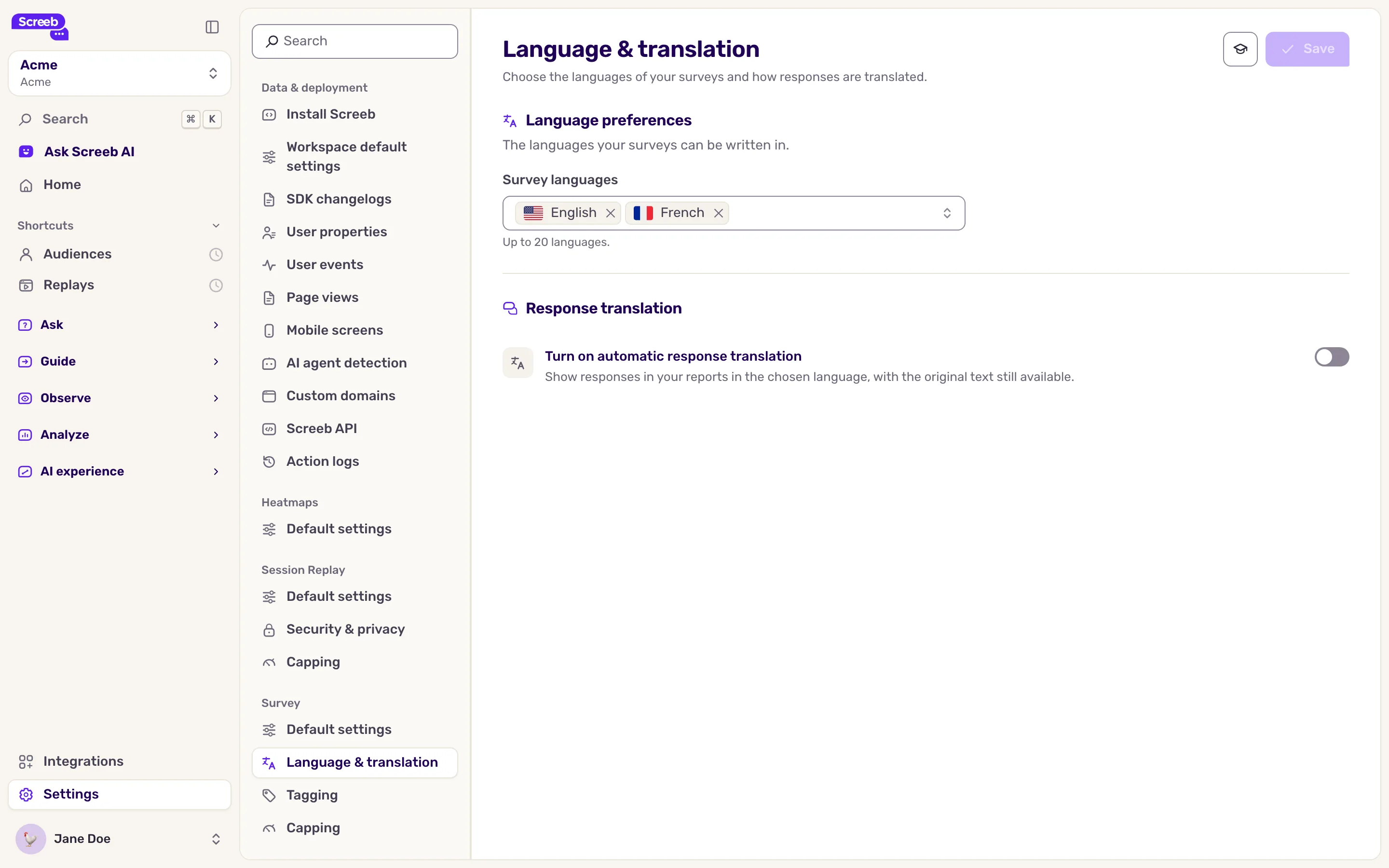
These languages are offered in the builder of every survey.
Translate a survey
Section titled “Translate a survey”- Open the survey and click Build.
- Open the language menu in the toolbar above the questions. Each language shows its state: Default for the default language, the number of missing questions, or Complete.
- To translate automatically from the default language, click Translate on a language, or Translate missing questions at the bottom of the menu for all of them. Only the missing questions are translated.
- To review or write a translation yourself, click the language in the menu. The builder now shows and edits the texts in that language. Click a question to change its text.
- Switch back to the default language when you are done.
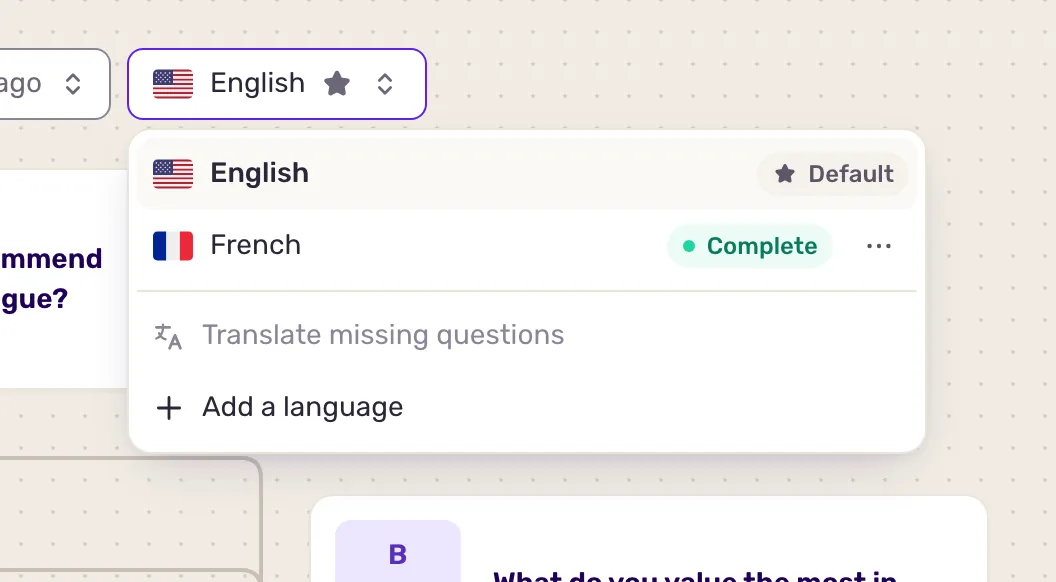
More actions in the menu:
- Add a language opens the workspace language settings.
- The menu of a language row offers Set as default, Retranslate all questions, which replaces your manual edits in that language, and Remove translation, which deletes every text in that language.
The default language is the fallback for every user. If the builder warns “Missing translation in the default language”, fill in the missing texts in the default language before you launch.
How Screeb picks the language
Section titled “How Screeb picks the language”When a survey starts for a user, Screeb takes the first language available in this order:
- The language your code passes when it starts the survey.
- The language your code passes when it loads Screeb.
- The
languageuser property of the user. - The language of the user’s browser or device.
If the survey has no translation in that language, it shows in its default language. A text missing in the chosen language also falls back to the default language. A user who resumes a response keeps the language of that response.
To show a survey only to users of a given language, add the Language rule in Choose who sees your survey.
Force a language from your code
Section titled “Force a language from your code”Your developers can force the language with the JavaScript tag. Use a two-letter language code such as en or fr:
- For one survey, when they start it:
$screeb("survey.start", "<SURVEY_ID>", { language: "en" }); - For every survey and message, when they load Screeb:
$screeb("init", "<WEBSITE_ID>", { language: "en" }); - For one user, by setting their
languageproperty:$screeb("identity.properties", { language: "en" });
Messages accept the same option with message.start. The mobile SDKs have the same options, see the developer docs.
What you get
Section titled “What you get”Each user sees the survey in the best language available, and the responses keep the language they were given in, so you can filter on it.
Troubleshooting
Section titled “Troubleshooting”A user sees the default language. The survey has no translation in their language, or a higher-priority setting forces another one. Check the language property on their profile and the options in your code.
A language is missing from the builder menu. Add it to the workspace languages first.
Go further
Section titled “Go further”- Translate responses automatically: to read the answers in your language.
- Choose who sees your survey
- Send and manage user properties
- Configure your survey settings