

Ask questions in video and collect audio or video answers
Record or upload a video to ask a survey question, let respondents answer open questions with their voice or camera, and read the transcripts.
Ask a question with a short video of yourself, and let respondents answer open questions by speaking or filming themselves. You read each audio and video answer as a transcript, and play the original when it matters.
Before you start
Section titled “Before you start”- Audio and video surveys are included in the Plus plan, the Pro plan and the Enterprise plan. On other plans, they are an add-on, see Plans, quotas and billing.
- Your role lets you edit surveys.
- In a mobile app, your developers must declare the camera and microphone permissions, see the iOS and Android install guides.
Ask a question in video
Section titled “Ask a question in video”- Open the survey on the Build step and click a question. Its settings open in a side panel.
- At the top of the panel, switch from Text to Video.
- Add the video: drop a file on the upload area (Video file, such as MP4 or MOV), or click Record a video to film yourself with your webcam.
- To record, pick your camera and microphone, click Start recording, then Stop recording. Click Retry to start over, or Confirm to keep it. The video uploads, then shows as a thumbnail you can play or delete.
- Subtitles are generated from what you say in the video. To hide them, click Turn off subtitles.
- Optionally, type an Overlay question (optional): a short text, up to 100 characters, shown over a darkened video.
- Click Apply, then Save at the top right.
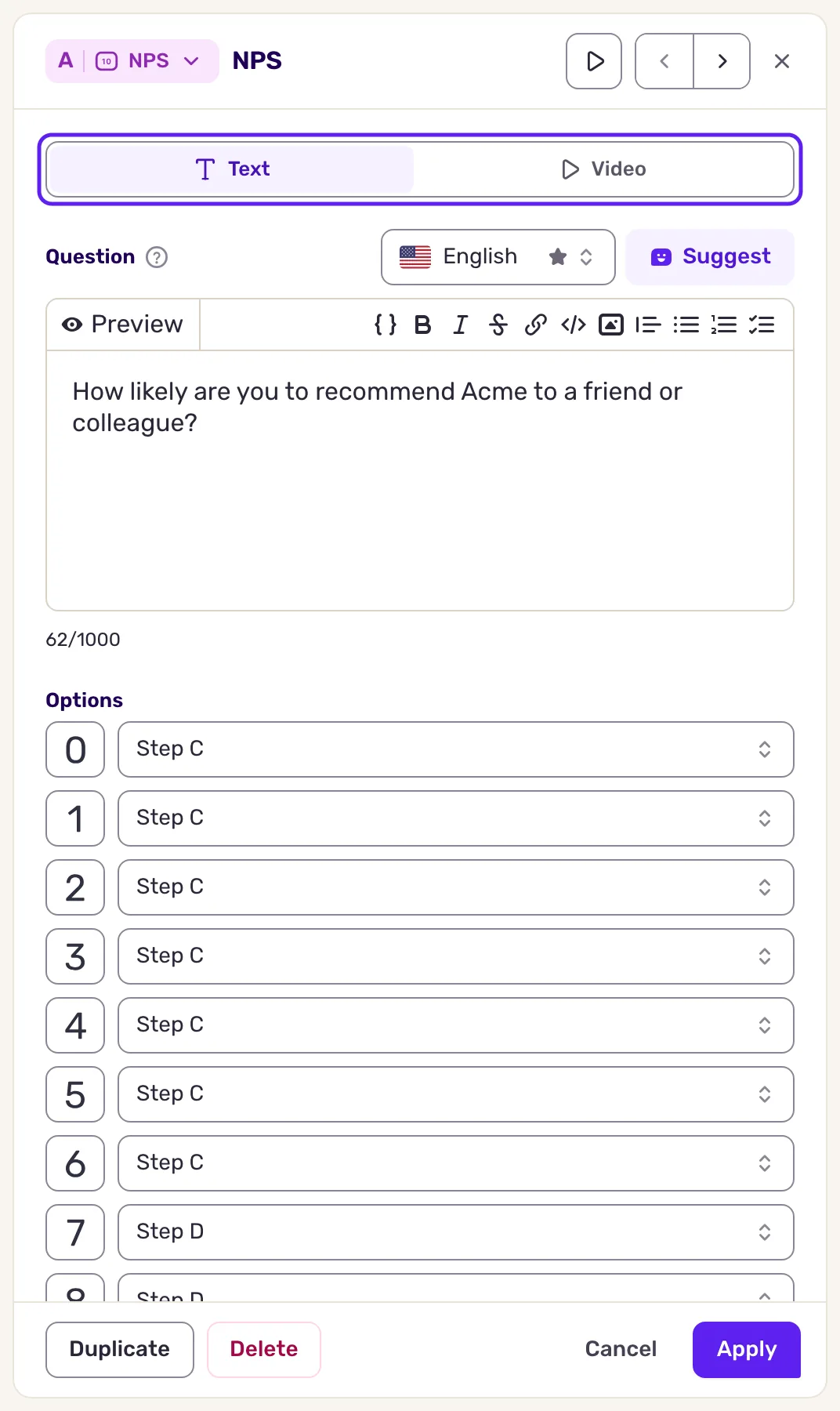
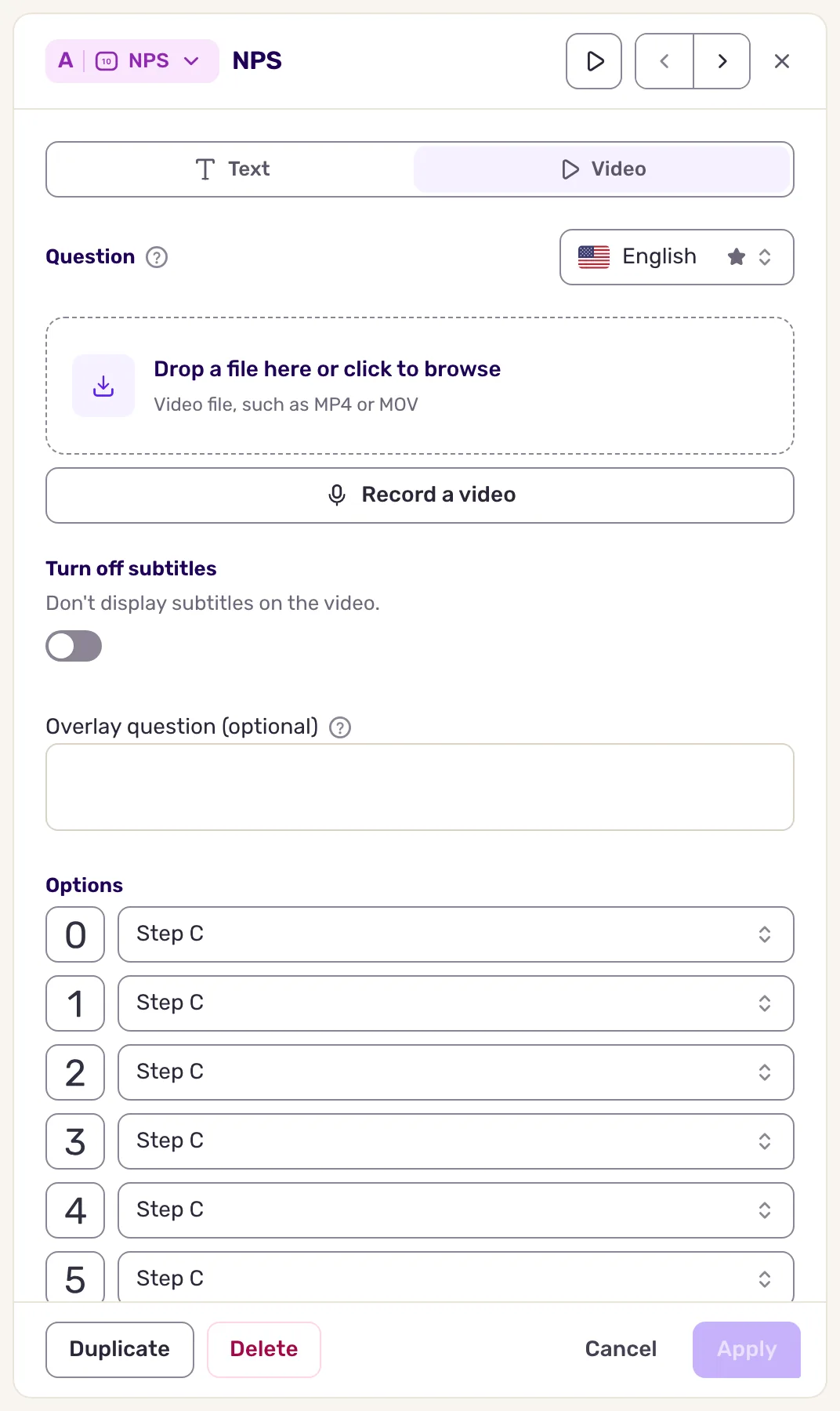
The switch is available on every question type except AI follow-up, App store rating and Conditional. The video is cropped to the survey format, a portrait shape like a phone screen: film upright, keep your face in the center, then check it with the survey preview. If the survey has several languages, pick a language next to the video field to add a video for each one.
Activate the option
Section titled “Activate the option”Without audio and video surveys in your plan, the Video tab shows a short explanation and an Turn on the video questions option button. It opens the billing page, where an organization Admin can add the option or contact our team. When your organization can start a free trial, the button reads Start my free trial and starts it instead.
Let respondents answer with audio or video
Section titled “Let respondents answer with audio or video”With the option active, respondents get audio, video and image buttons next to the text field of every Free text question, and next to the free-text field that Add an 'Other' option adds to a Multiple choice question:
- Audio: they hold the microphone button while they speak, release it, then send or delete the recording.
- Video: the camera opens in full screen; they record, then send.
- Image: they attach a picture to their answer.
The buttons show while the field is empty, so respondents can always type instead. If they refuse the camera or microphone access, the matching button disappears.
There is nothing to turn on per question. To stop audio and video answers in the whole workspace, open Default settings, click Turn off audio and video responses and save.
What you get
Section titled “What you get”Your video plays at the top of the question, in both survey formats, with its subtitles and overlay question. In Analyze, then All responses, each audio or video answer shows its transcript, marked Automatic transcript. Click Watch original feedback or Listen to original feedback to play it. The transcript appears greyed out until it is ready.
Use audio and video well
Section titled “Use audio and video well”- Keep it optional. Recording yourself feels personal: offer it, never require it.
- Save it for moments where emotion matters, such as a cancellation or a difficult incident. For routine feedback, a text question is enough.
- Say why you ask and who will watch, just before the question.
- Ask a short, open question, such as “Tell us what happened”.
- Watch or listen to the key answers yourself: a transcript loses the tone.
Troubleshooting
Section titled “Troubleshooting”The upload fails. Use a video file, such as MP4 or MOV, and wait for the progress bar to finish before you click Apply. Your organization can upload up to 1,000 question videos or 10 GB per month: past that, uploads resume the next month.
The webcam does not start. Allow camera and microphone access for the admin in your browser settings, then try again.
Respondents do not see the audio and video buttons. Check that Turn off audio and video responses is off and that the question is a Free text question whose Field type is Text. In a mobile app, check the permissions above. The buttons also stop showing for the rest of the month once your organization has received 100,000 audio, video or image answers, or 100 GB of them.