

Limit how often surveys are displayed
Cap the displays and responses of all your surveys, of each survey and of each user, and override the cap for one survey.
Capping keeps your users from seeing too many surveys. You set limits once for the whole workspace, and they apply on top of each survey’s targeting. Capping covers in-app surveys only: email and link surveys are not affected.
Before you start
Section titled “Before you start”- Your role lets you create targeting rules and edit surveys. Without both, the Capping entry does not show.
- Messages have their own capping page, in the in-app messages group of the settings. It works the same way, see Choose who sees your message and when.
Set the workspace capping
Section titled “Set the workspace capping”- Open Capping, in the survey group of the settings menu.
- Turn on the levels you need (described below). Each one opens its fields.
- Pick a Time period, from 1 hour to 1 year, then fill in Max displays, Max responses or both, from 1 to 1,000,000. Leave a field empty to skip that limit.
- Read the Capping enabled sentence under the fields to check the limit in plain words.
- Click Save.
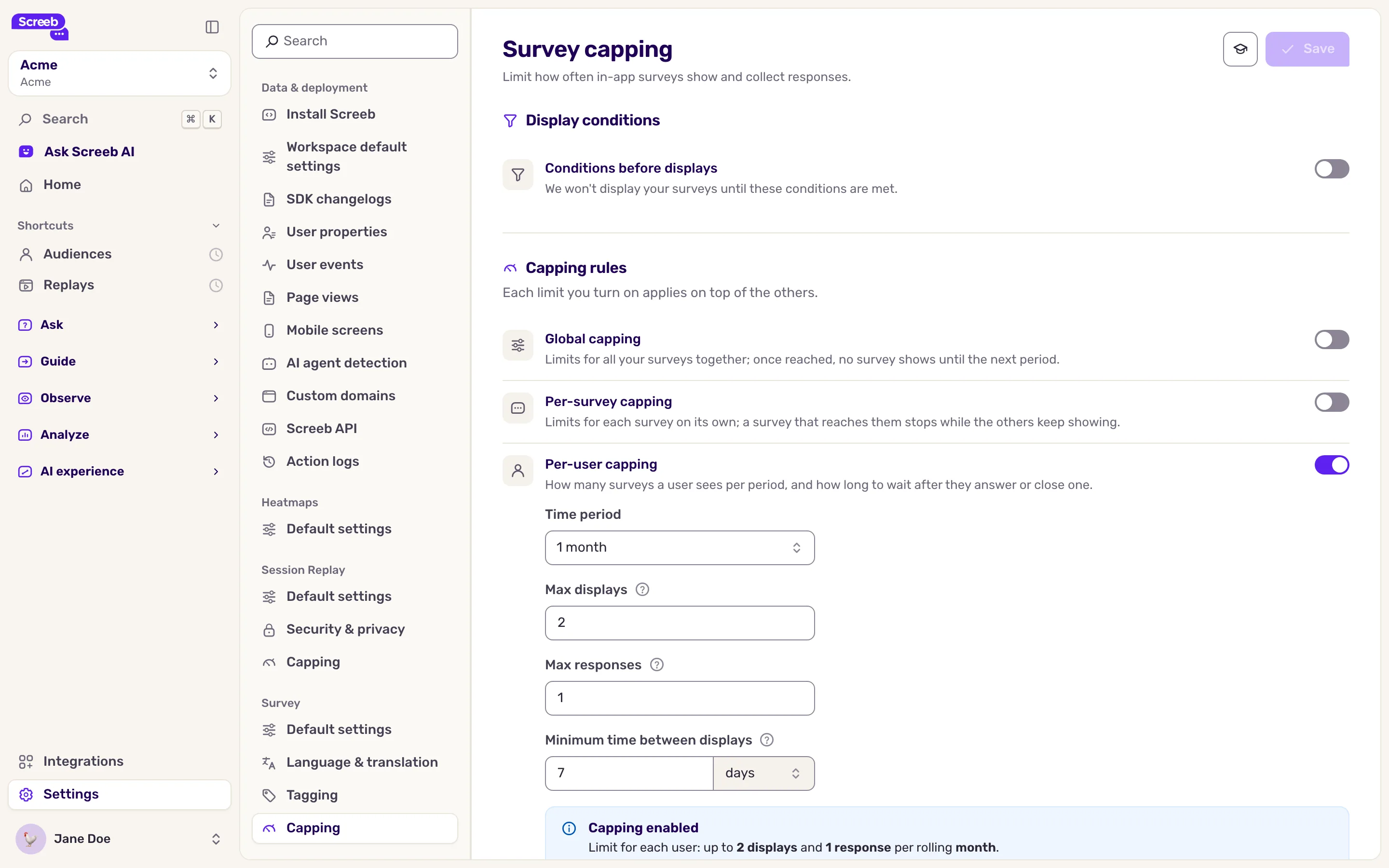
The levels:
| Level | What it limits |
|---|---|
| Conditions before displays | No survey shows until a user matches these rules, for example a minimum number of events, or a user property value. |
| Global capping | The displays and responses of all your surveys together. Once reached, no survey shows until the count drops. |
| Per-survey capping | The displays and responses of each survey on its own. A survey that reaches it pauses; the others keep showing. |
| Per-user capping | How many surveys one user sees or answers, plus a Minimum time between displays in minutes, hours or days, up to about 11 days. |
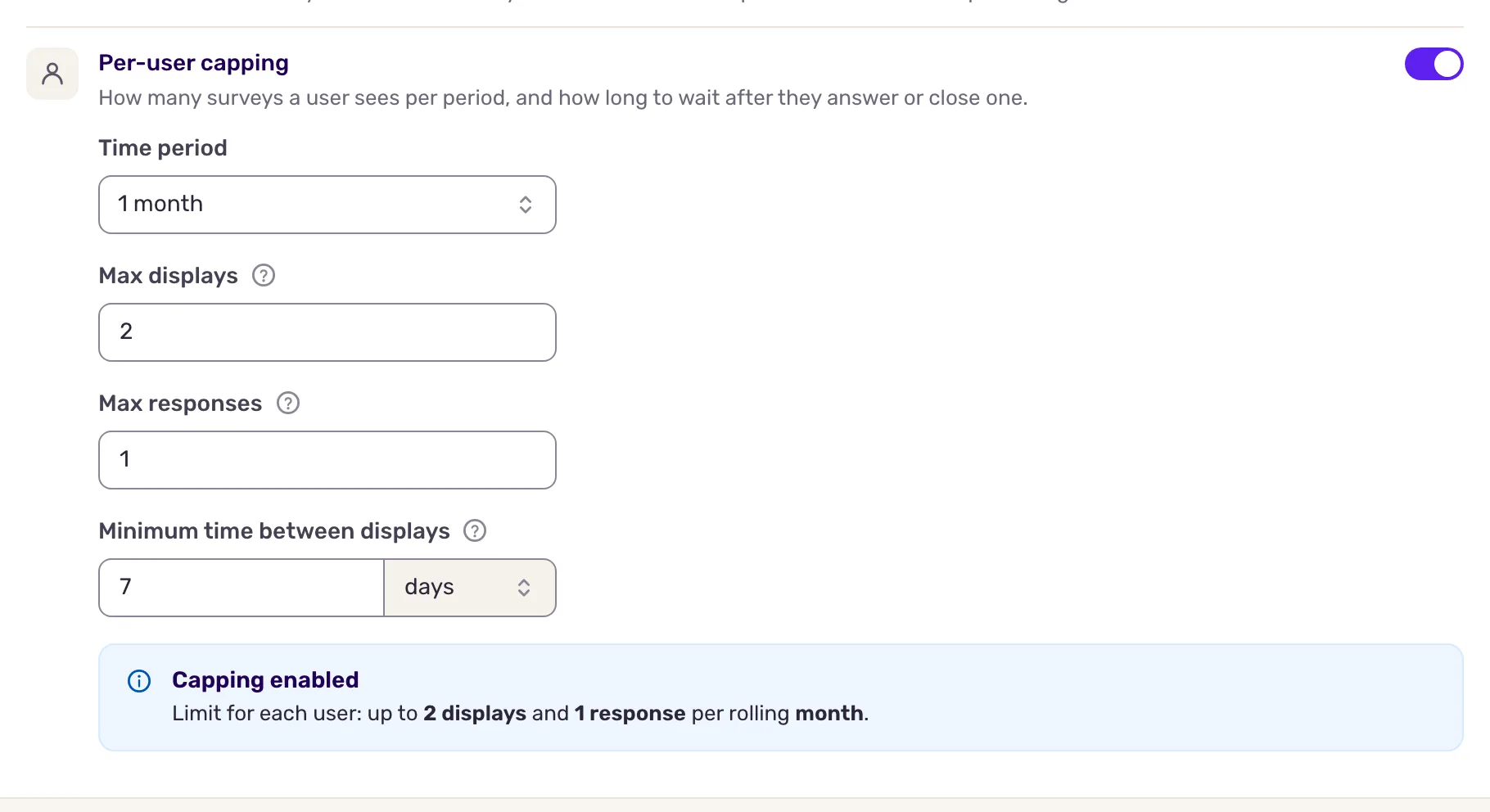
How the counts work:
- The periods are rolling: “1 week” means the last 7 days, not the calendar week. A survey paused by capping comes back as older displays leave the period.
- A display counts as soon as the survey shows, answered or not. A response counts once the user answers at least one question.
- When you turn on several levels, they all apply: a survey shows only if every limit still allows it.
- The minimum time between displays counts from the last survey shown to the user, whatever they did with it.
- Counts are updated shortly after each display, so a few extra displays can occur when many users qualify at the same moment.
When a workspace rule is set, the Global capping activated banner shows on the targeting page of the Proactive survey and Embedded survey channels of your surveys.
Override the cap for one survey
Section titled “Override the cap for one survey”- Open the survey, click Design & targeting, then Audience targeting under the channel.
- Under Survey settings, tick the card that turns on capping for this survey. A window opens.
- Set the period and the maximum displays and responses, then confirm.
- Click Save. To change the values later, click Edit on the card.
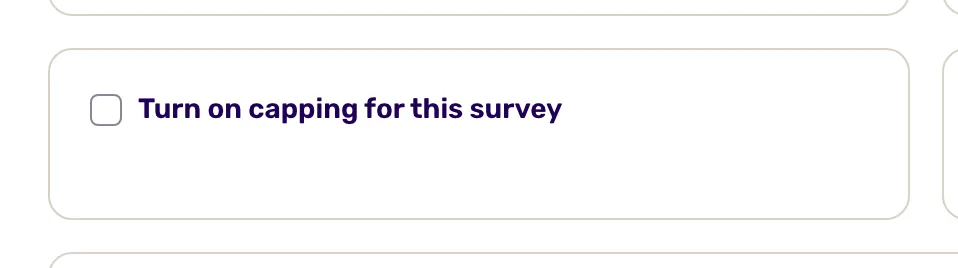
This survey cap replaces the Per-survey capping of the workspace for this survey only: a display limit replaces the display limit, a response limit replaces the response limit. The global and per-user capping still apply.
Capping is a safety net: to keep the survey pressure low with targeting, sampling and timing too, see Survey best practices.
When several surveys match at once
Section titled “When several surveys match at once”Sometimes two or more in-app surveys are eligible at the same moment with the same trigger, for example the same page, the same audience and the same scroll depth. Screeb shows only one of them at that moment. It picks one at random, and every eligible survey has the same chance.
- A survey already shown in another window of the same user goes first, before the draw.
- A stopped survey is never eligible, so it does not enter the draw.
- Surveys that are not picked do not show at that moment.
Screeb has no priority between surveys. To make each survey show when you want, give them different targeting so that only one is eligible at a time: another page or scroll depth, a segment, an event or a user property. See Choose who sees your survey.
What you get
Section titled “What you get”Users see fewer surveys, spread over time, and each survey stops once it has collected enough. Capped surveys stay live and resume on their own.
Troubleshooting
Section titled “Troubleshooting”A survey stopped showing. A capping limit is probably reached. Open Debug your setup with Screeb Inspector on the page to see which rule fails, and check the capping summary.
Two surveys with the same targeting: only one shows. Both surveys are eligible at once, so Screeb picks one at random. The survey that is not picked is not shown at that moment. It may be displayed at a later evaluation, but this is not guaranteed. Differentiate their targeting so that only one is eligible, see above.