

Export your data
Find every way to get your Screeb data out as CSV files, from one survey's responses to users, events and scheduled exports, and the integrations that send it automatically.
Screeb exports your data as CSV files. This page lists what you can export and where, and how to schedule exports.
Before you start
Section titled “Before you start”- Each kind of export (responses, users, events) needs its own permission.
- Session replays cannot be exported as files.
Choose the right export
Section titled “Choose the right export”| You want | Go to |
|---|---|
| The responses of one survey or message | Its results page. See Export survey responses. |
| The responses to every survey (or every message) of the workspace | The survey or message list, below. |
| Your users and their properties | Audiences, below. |
| The responses or events of one user | Their profile, below. |
| Events, page views and screens | Their settings pages, or a user profile. |
| A file with chosen columns, or on a schedule | Advanced exports, below. |
Every export window works the same way, see Export survey responses: pick the rows and the format, then click Export. The file downloads when it is ready.
Export every response of the workspace
Section titled “Export every response of the workspace”- Open the list of Surveys (or of In-app messages).
- Click More at the top right, then Export all responses (Export all interactions for messages).
- Set the period and the format, then click Export.
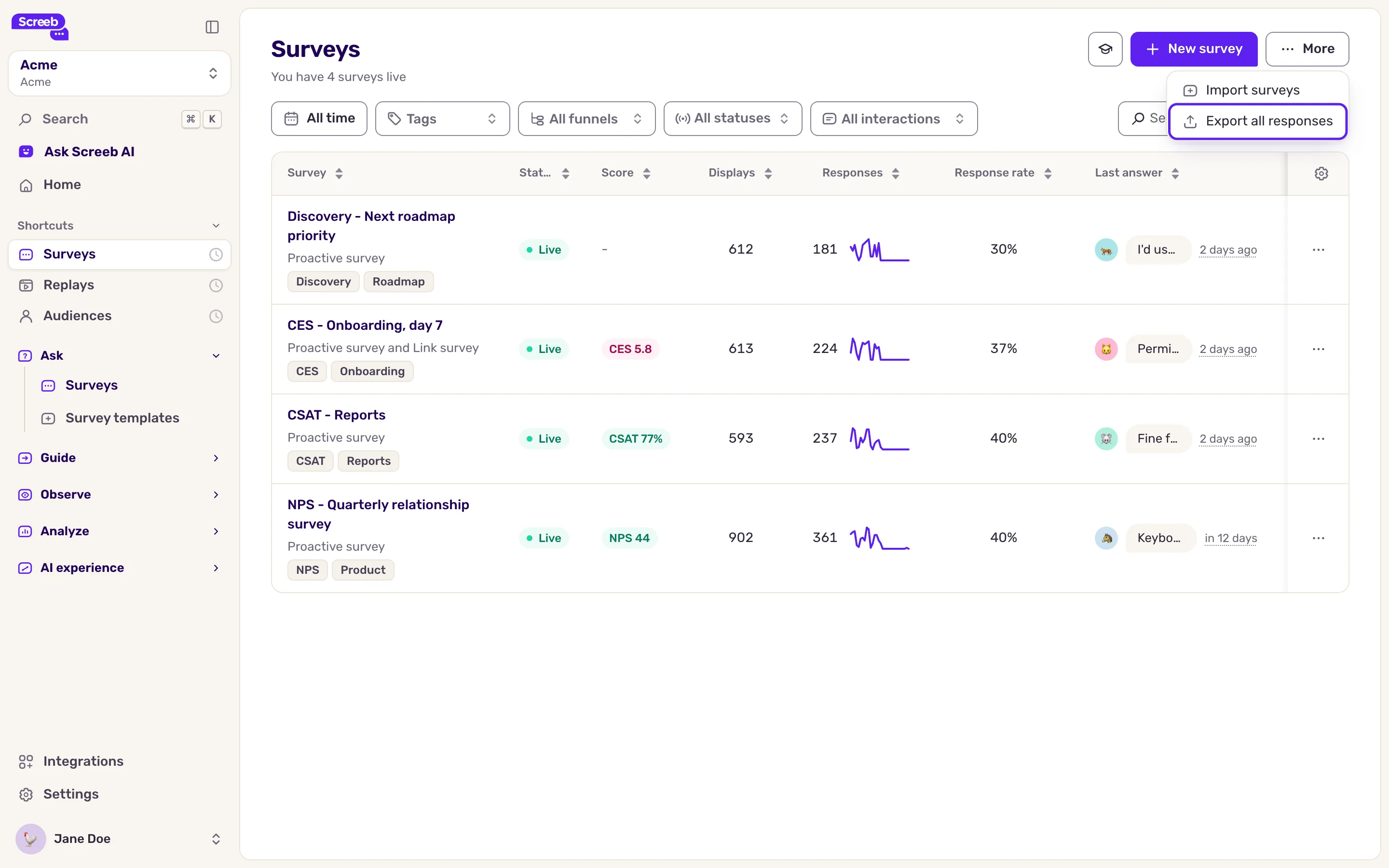
The file has one row per response, with the survey, the user, the date and the completion. The questions and answers of each response sit together in one column.
Export users
Section titled “Export users”- Open Audiences. To export only some users, filter or search the list first.
- Click Export at the top right. The export window of users opens.
- Choose the rows and the format, then click Export.
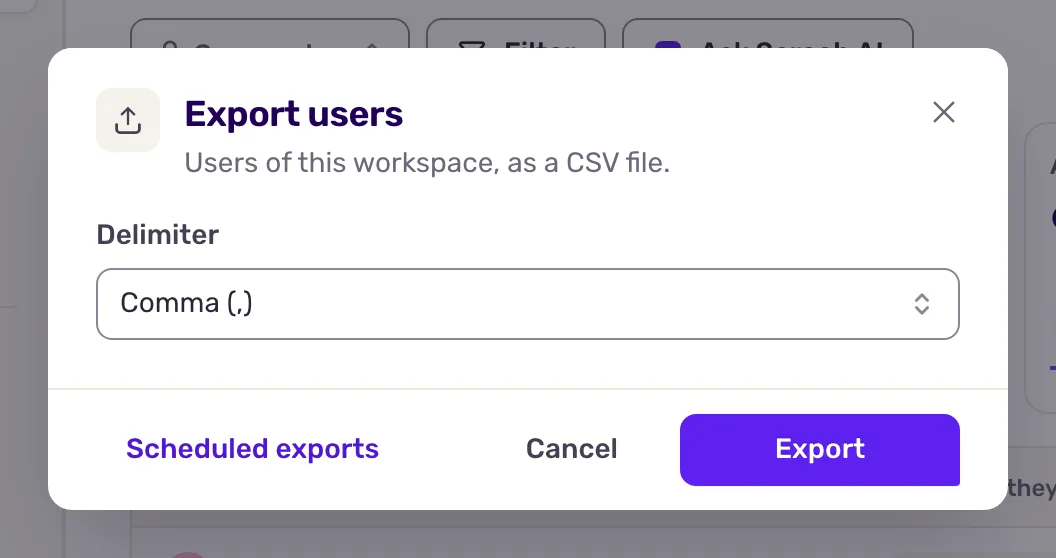
The file has one row per user, with their properties and the events they triggered.
Export one user’s activity, events, pages and screens
Section titled “Export one user’s activity, events, pages and screens”- A user’s responses. On the user profile, open the Responses or Messages tab and click Export.
- A user’s events, pages or screens. On the profile, open the Events, Pages or Screens tab and click Export.
- All events. Open Settings, then User events, the All entries tab, and click Export. Tick Include user aliases to add the alias of each user.
- All page views or screens. In the settings, open Page views, or the All entries tab of Mobile screens, and click Export.
Schedule an advanced export
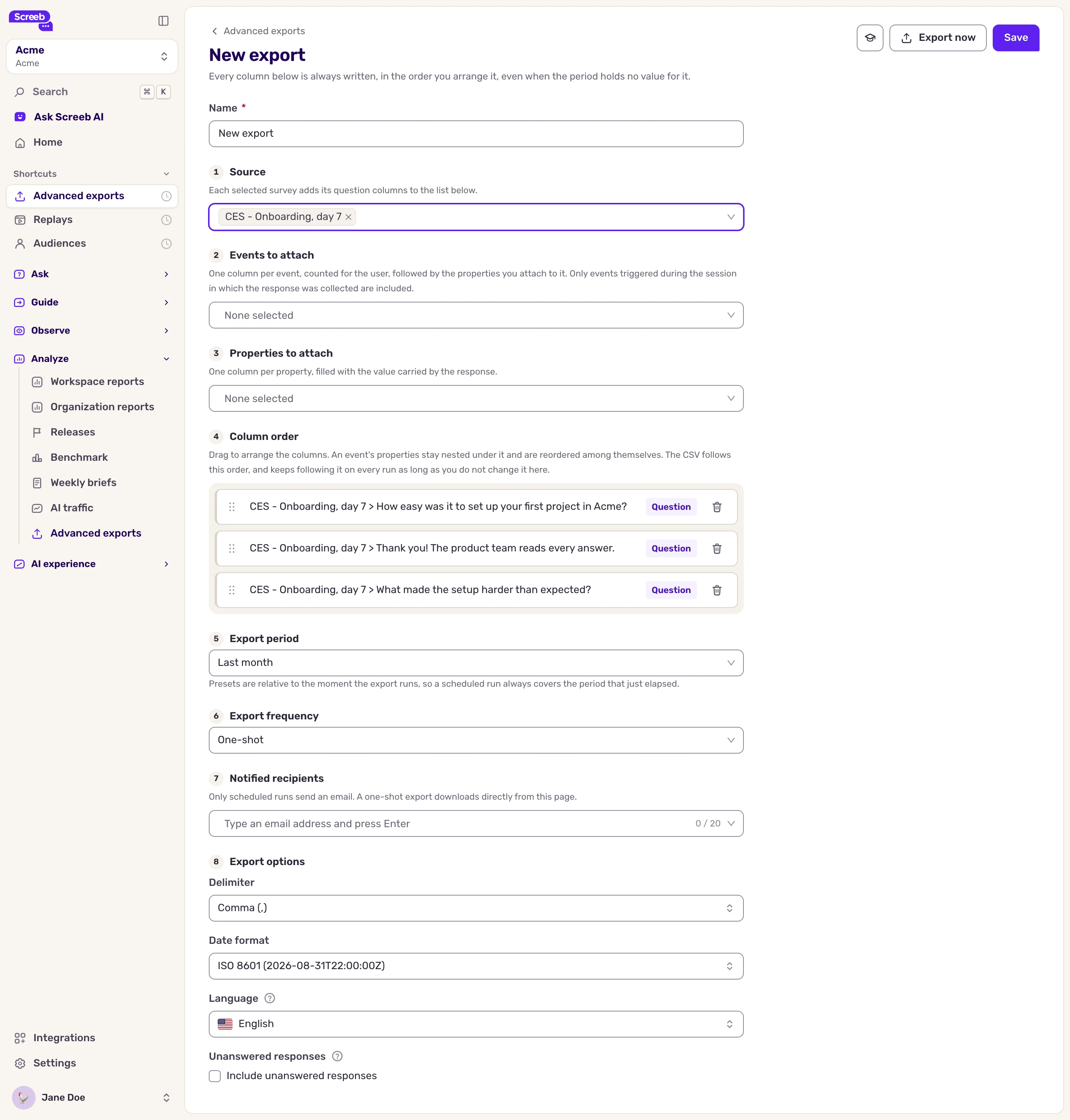
Section titled “Schedule an advanced export”An advanced export builds a CSV from one or more surveys, with the exact columns you pick, in a fixed order. You can run it once or on a schedule.
- In the sidebar, under Analyze, click Advanced exports. You can also click Scheduled exports at the bottom of a response export window.
- Click New export and enter a Name.
- Under Source, pick one or more surveys. Their questions become columns. A multiple choice question with an “Other” choice also gets a
... > Othercolumn right after it, with the text respondents typed. - Optional: under Events to attach and Properties to attach, add events, user properties and hidden fields as columns.
- Under Column order, drag the columns into the order you need, or remove some.
- Under Export period, pick the last day, week or month, or a custom period. The last day, week and month count back from each run.
- Under Export frequency, pick One-shot, Every day, Every week or Every month.
- For a scheduled export, add the emails to notify under Notified recipients, and set the other Export options.
- Click Save, or Export now to run it right away.
Scheduled runs happen at 06:00 UTC: every day, every Monday, or on the first day of each month. Each recipient gets an email with a download link. The list of advanced exports shows Past exports for each one, with Download and Copy link.
Exported files stay available for 30 days. After that, run the export again to get a new file.
Send your data to other tools automatically
Section titled “Send your data to other tools automatically”To receive each new response in your own systems instead of a file, see Connect Screeb to your tools. To query your data from an AI assistant, see Connect an AI assistant to the Screeb MCP server.
What you get
Section titled “What you get”CSV files of your responses, users and events, on demand or on a schedule, ready for a spreadsheet, a BI tool or a data warehouse.
Troubleshooting
Section titled “Troubleshooting”The Export button does not show. Your role does not allow that kind of export (ask a workspace admin), or you are on the All or Replays tab of a profile, which cannot be exported.