

Find your way around Screeb
Learn how the Screeb sidebar, workspace switcher, search palette, shortcuts and account menu help you reach any page in a few clicks.
Everything in the Screeb admin starts from the sidebar on the left. It shows where you are, the features of your workspace and quick ways to jump anywhere: search, shortcuts and Screeb AI.
The sidebar
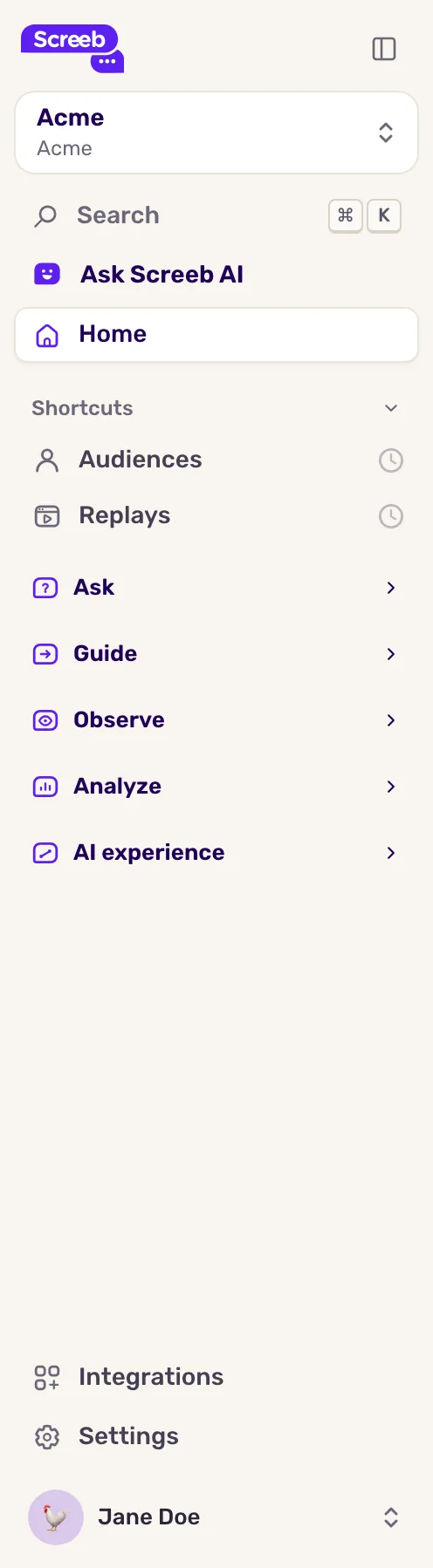
Section titled “The sidebar”From top to bottom, the sidebar of a workspace shows:
- The workspace switcher, with the name of the current workspace and of its organization.
- Search and Ask Screeb AI, described below.
- Home, the home page of the workspace.
- Shortcuts: your starred features and the pages you visited last.
- The feature sections: Ask, Guide, Observe, Analyze and AI experience. Click a section title to expand or collapse it. The section of the page you are on opens by itself.
- At the bottom, Integrations and Settings for the workspace, then your name, which opens the account menu.
The sidebar only lists the features your plan and your role give access to. To get more room, click the Collapse sidebar button at the top: the sidebar shrinks to icons. Rest the mouse on the icons to show the full sidebar over the page, and click Expand sidebar to keep it open.
Switch workspace or organization
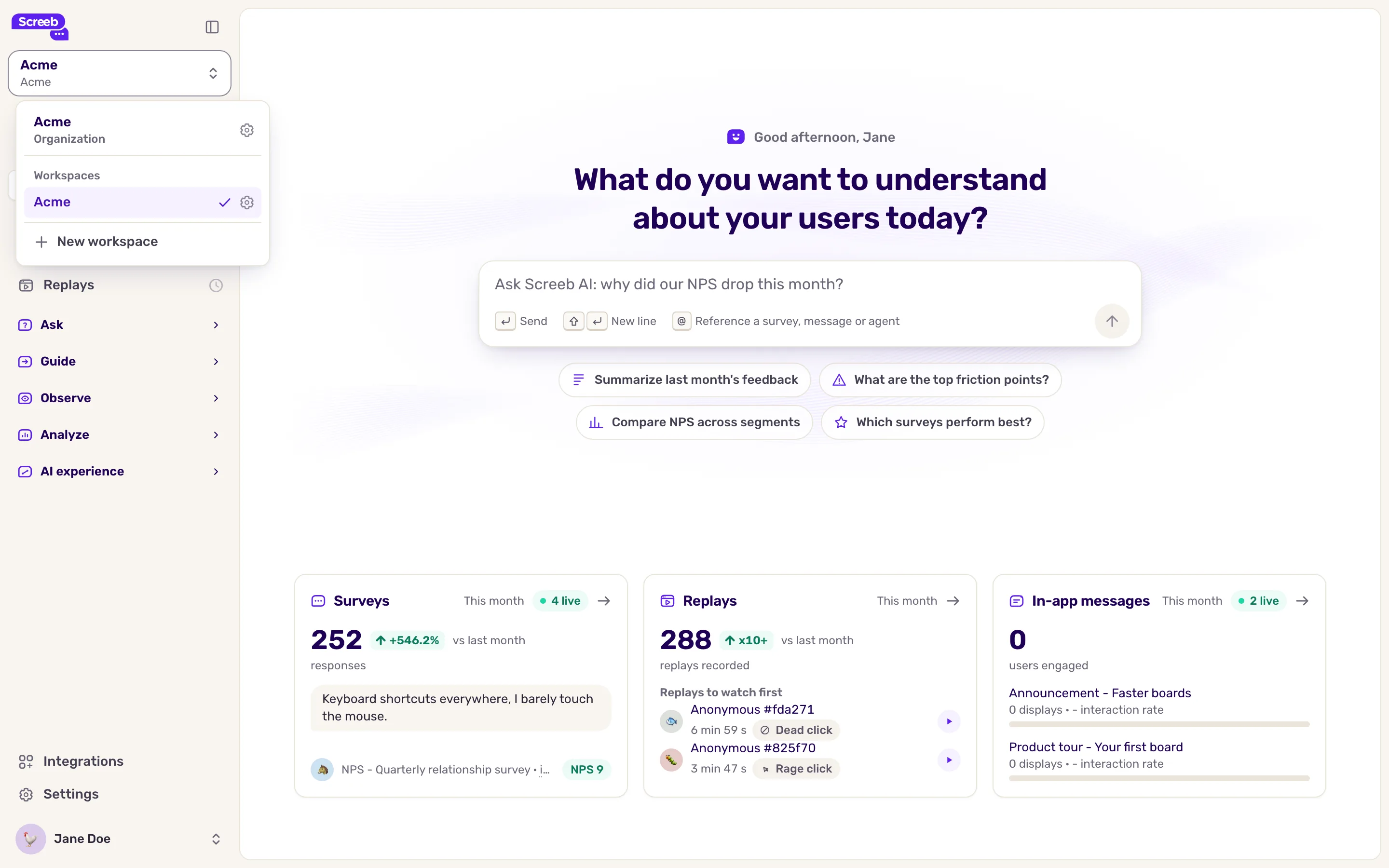
Section titled “Switch workspace or organization”Click the workspace name at the top of the sidebar. The switcher lists the workspaces of your organization: click one to open it, or the gear that appears when you hover it for its Workspace settings. A search field appears when you have more than nine workspaces.
From the switcher you can also open the Organization view, add a workspace with New workspace if your role allows it, or use Switch organization when you belong to several organizations.
The organization view has its own sidebar: Home, Organization reports, Workspaces, then Teammates, Quota allocation, Settings and Billing depending on your role.
Search with the command palette
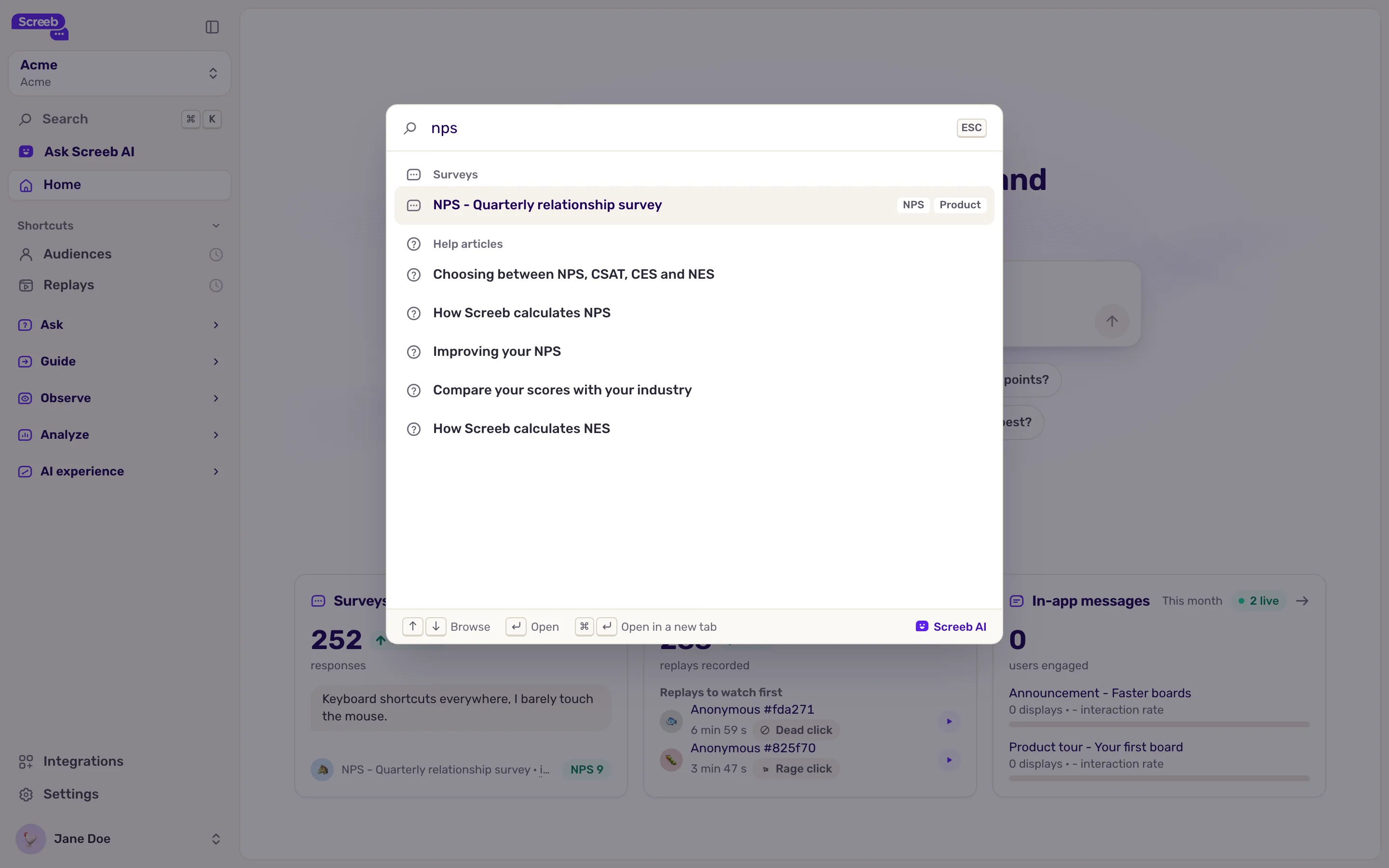
Section titled “Search with the command palette”Click Search, or press Cmd+K on macOS and Ctrl+K on Windows and Linux, from any page. The command palette opens.
- With an empty search, it lists your shortcuts and every feature, grouped by section.
- Type to find a feature, and also your surveys, messages, reports, funnels, settings pages and help articles by name. Developer guides for the SDKs your workspace uses show up too, marked Developers, and open in the help panel with their code.
- Move with the arrow keys and press Enter to open the result. Cmd+Enter or Ctrl+Enter opens it in a new tab.
- When nothing matches, click Ask Screeb AI to send your search to Screeb AI.
Keep your shortcuts
Section titled “Keep your shortcuts”Hover a feature in the sidebar or in the command palette and click the star, Add to shortcuts. It moves to Shortcuts, where you can drag it to reorder your list. Click the star again to remove it.
Below your starred features, Shortcuts also shows the last five features you visited that are not starred, marked with a clock. Shortcuts are saved on your account, so you find them on every device.
Ask Screeb AI
Section titled “Ask Screeb AI”Ask Screeb AI, under Search, opens the Screeb AI assistant. Ask it your questions in plain language. The button shows only when AI is on for your workspace.
The account menu
Section titled “The account menu”Click your name at the bottom of the sidebar:
- Account opens your account settings: profile, language, appearance and security.
- Sign out signs you out.
- Install Screeb shows how to install the SDK in the current workspace.
- Open inspector opens the Screeb inspector on your site.
- Help and docs opens a submenu: Share feedback, Talk to a human, Help center, Developer docs, Status page and New features.

Good to know
Section titled “Good to know”- Expanded and collapsed sections are remembered in your browser only.
- A feature hidden by your plan or role never shows in the sidebar, the palette or your shortcuts.