

Use your workspace home page
Read the monthly summary of your surveys, session replays and messages on the home page, and ask Screeb AI a question from it.
The home page of a workspace sums up the current month for each product, and lets you ask Screeb AI about your data in one step.
Before you start
Section titled “Before you start”- Every teammate of the workspace sees its home page. A block shows “You don't have access to this data.” when your role cannot read its data.
- The Replays and In-app messages blocks depend on your plan and on the features enabled for your workspace.
Open the home page
Section titled “Open the home page”- Click Home at the top of the sidebar. The admin also opens on this page when you sign in.
- Read the greeting and the question field at the top, then the product blocks below.
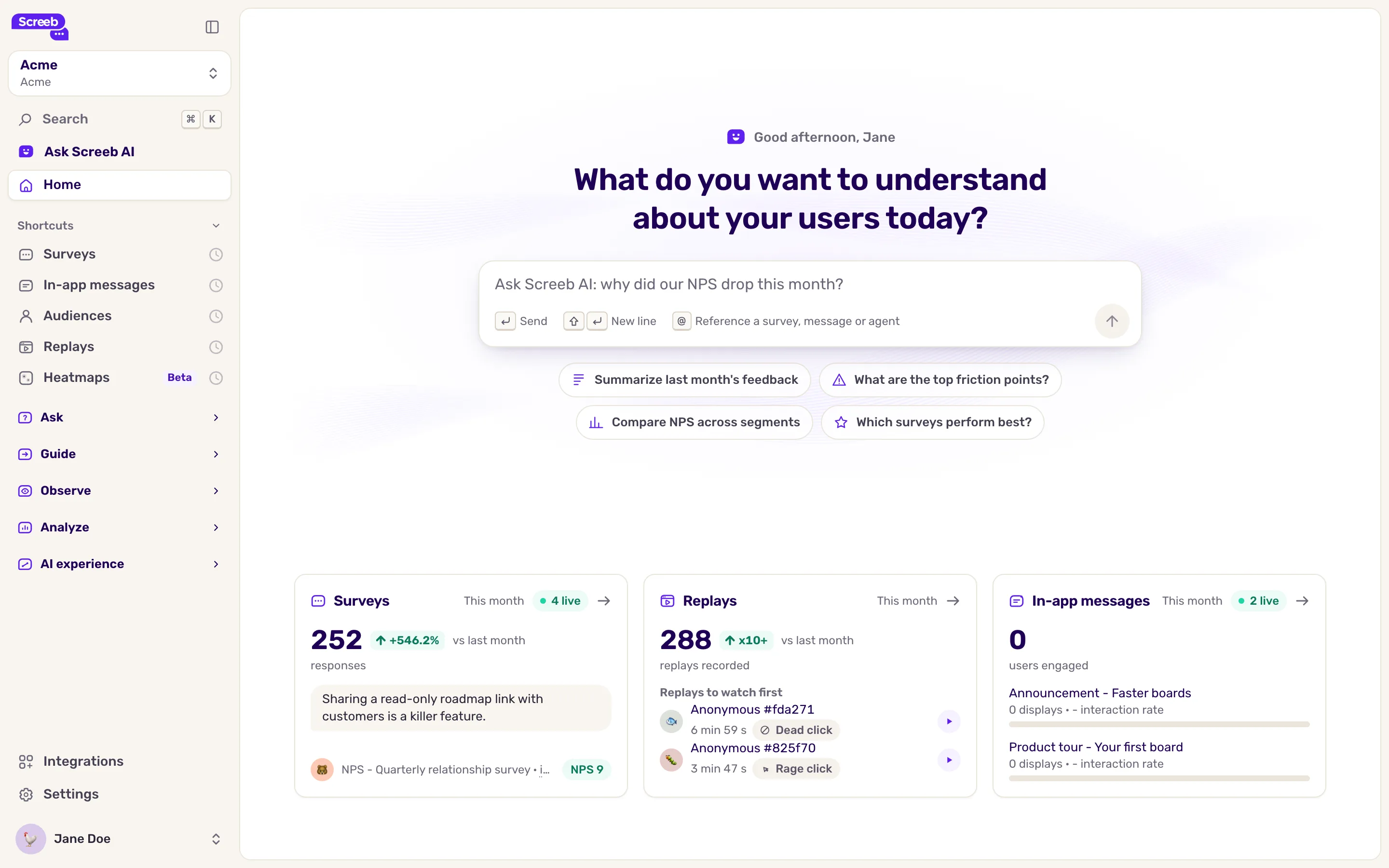
Ask Screeb AI from the home page
Section titled “Ask Screeb AI from the home page”Type a question in the field at the top and press Enter, or click one of the suggestions below it. The Ask Screeb AI panel opens with your question and answers it from your workspace data. See Ask Screeb AI about your data.
When AI features are not available for your workspace, a short note replaces the field.
Read the product blocks
Section titled “Read the product blocks”Each block covers This month: the calendar month so far, in your local time, like the product pages. A change shows vs last month, over the same days of the previous month. The arrow at the top right of a block opens the product page, and a green pill counts what is live.
| Block | What it shows |
|---|---|
| Surveys | The number of responses this month and the latest written answer, with its survey and score. |
| Replays | The number of sessions recorded, then Replays to watch first, tagged Rage click, Dead click or Console error. |
| In-app messages | The number of users engaged this month, then your messages with their displays and interaction rate this month. |
Click an answer, a replay or a message to open it. A block with nothing to show yet offers to create your first survey or message, or to turn on Session Replay. A block that your plan does not include suggests an upgrade.
Build your own dashboard
Section titled “Build your own dashboard”The blocks of the home page are fixed: you cannot add, move or remove them. To follow other metrics, such as NPS by segment or the share of a topic, build a report in Workspace reports. See Build workspace and organization reports.
The organization home page
Section titled “The organization home page”In the organization view, Home opens the Organization overview. It has the same question field, with suggestions that compare your workspaces, and no product blocks. Its “@” mentions search every workspace of the organization.
What you get
Section titled “What you get”A summary of the month that loads each time you open the workspace, and a shortcut to ask Screeb AI about it.
Troubleshooting
Section titled “Troubleshooting”A block says “Could not load this block” Its data did not load. Click Retry in the block; the other blocks are not affected.