

Ask Screeb AI about your data
Ask questions in plain language about your surveys, responses, session replays and messages, and get answers that link back to the data.
Screeb AI is an assistant built into the admin. Ask it a question in plain language, such as “What are users complaining about most this week?”, and it reads your workspace data to answer.
Before you start
Section titled “Before you start”- Screeb AI is in Beta: answers can be incomplete, so check the figures that matter before you share them.
- AI features are available unless your organization has opted out of them; contact support to change that. Without them, the Ask Screeb AI button does not show. See Configure AI settings for your organization.
Ask a question
Section titled “Ask a question”- Click Ask Screeb AI at the top of the sidebar. The Screeb AI panel opens next to the page you are on.
- Click a suggestion under Ask about what your users say, or type your question in the field (Ask Screeb AI, or type @ to mention a survey, message or agent) and press Enter. The suggestions change with the page you are on.
- To point at a precise item, type “@” and pick a survey, a message or a report. It shows as a chip, and the answer focuses on it.
- Wait for the answer. While it works, Screeb AI shows its steps, such as Reading your surveys and responses or Looking at session replays.
- Ask a follow-up question in the same field: Screeb AI keeps the conversation in mind.
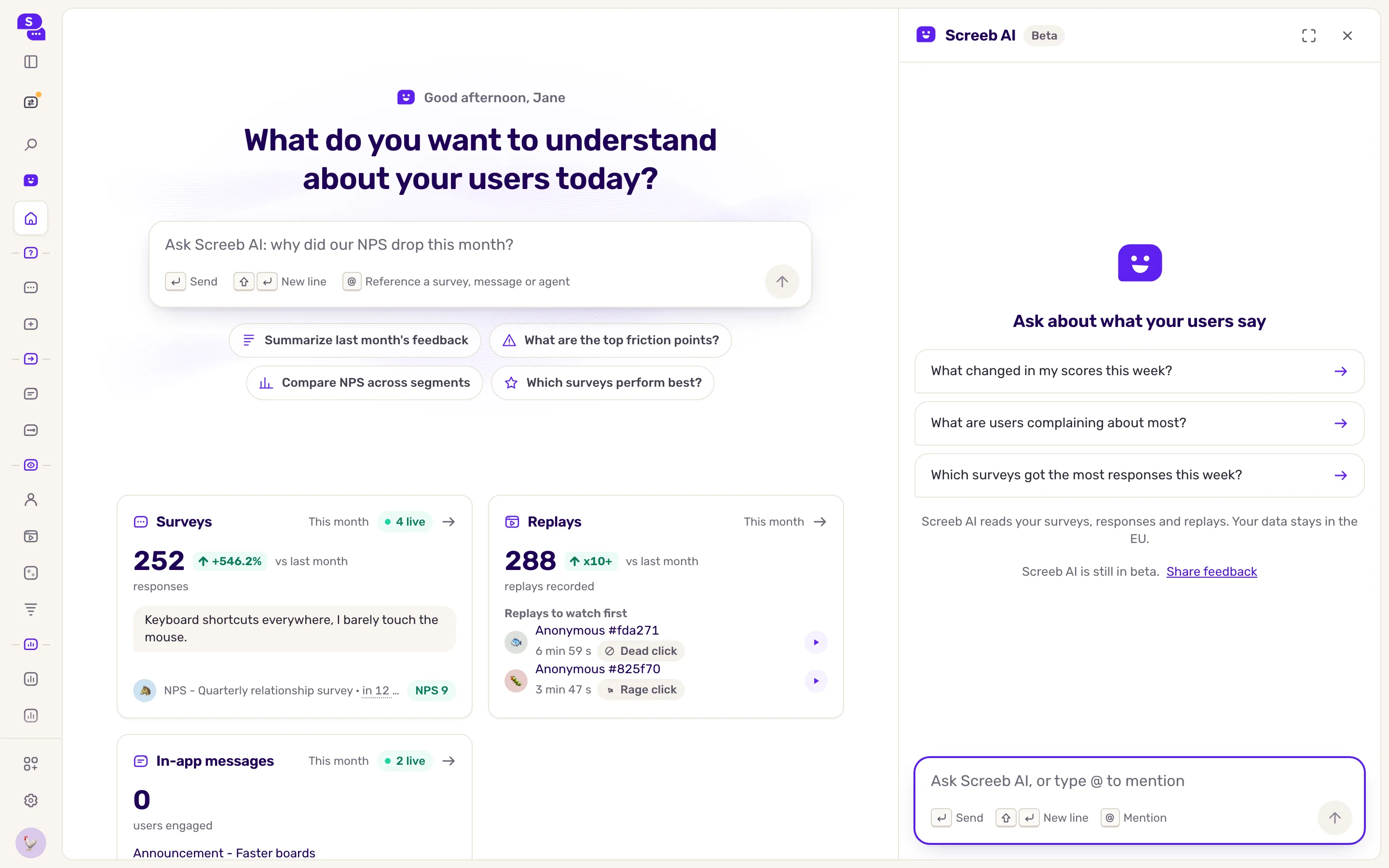
You can also start from the question field of the home page, or from the Ask Screeb AI button in the toolbar of a survey’s results.
Read the answer
Section titled “Read the answer”- Links in the answer open the admin pages it refers to, such as a survey or a replay.
- Open the Thought for line above an answer to see the steps Screeb AI took to reach it.
- A score card in an answer shows its survey and period under its name. Its link icon (Open in survey analytics) opens the survey’s results on that period.
- To keep a chart in a report, or to have Screeb AI change a report for you, see Build and edit reports with Screeb AI.
- Click Maximize at the top of the panel for a wider view. Press Escape to shrink it back, and again to close the panel.
What Screeb AI can read
Section titled “What Screeb AI can read”Screeb AI reads your surveys and responses, session replays, in-app messages, users and events, and the Screeb help center. It works on the current workspace. From the organization home page, its “@” mentions cover every workspace of the organization.
The note under the suggestions says whether your data stays in the EU.
To use your Screeb data from an assistant outside Screeb, such as Claude or ChatGPT, see Connect an AI assistant to the Screeb MCP server.
What you get
Section titled “What you get”Answers about your users in a few seconds, with links to the data behind them, without building a report or a filter first.
Troubleshooting
Section titled “Troubleshooting”“Screeb AI could not finish this answer. Your question is kept below.” The answer could not finish. Click Try again on that answer: Screeb AI asks the same question again.
“Stopped” You stopped the answer: what came through stays. Click Continue to ask the same question again.
The answer is off. Rephrase with a period, a survey or a segment, or mention the item with “@”. Tell us with Share feedback, shown under the suggestions while the panel is empty.