

Personalize questions with variables and hidden fields
Insert user properties in your questions, save answers to properties, and use the hidden fields recorded with each response.
Variables put what you know about a user into your questions, such as “Hi Mary, how was your onboarding?”. Hidden fields are the context recorded with each response, such as the page or the browser, to filter and analyze your results.
Variables in questions
Section titled “Variables in questions”A variable is the name of a user property between braces, with a fallback for users who do not have it:
| You write | Mary, firstname set |
User without firstname |
|---|---|---|
Hi {firstname:there}! |
Hi Mary! | Hi there! |
Hi {firstname}! |
Hi Mary! | Hi ! |
To insert one, open the survey, click Build and click a question. In the Question field, use the variable button of the text toolbar and pick a property: Screeb writes {property:fallback} and selects fallback so you can type yours. You can also type the variable by hand.
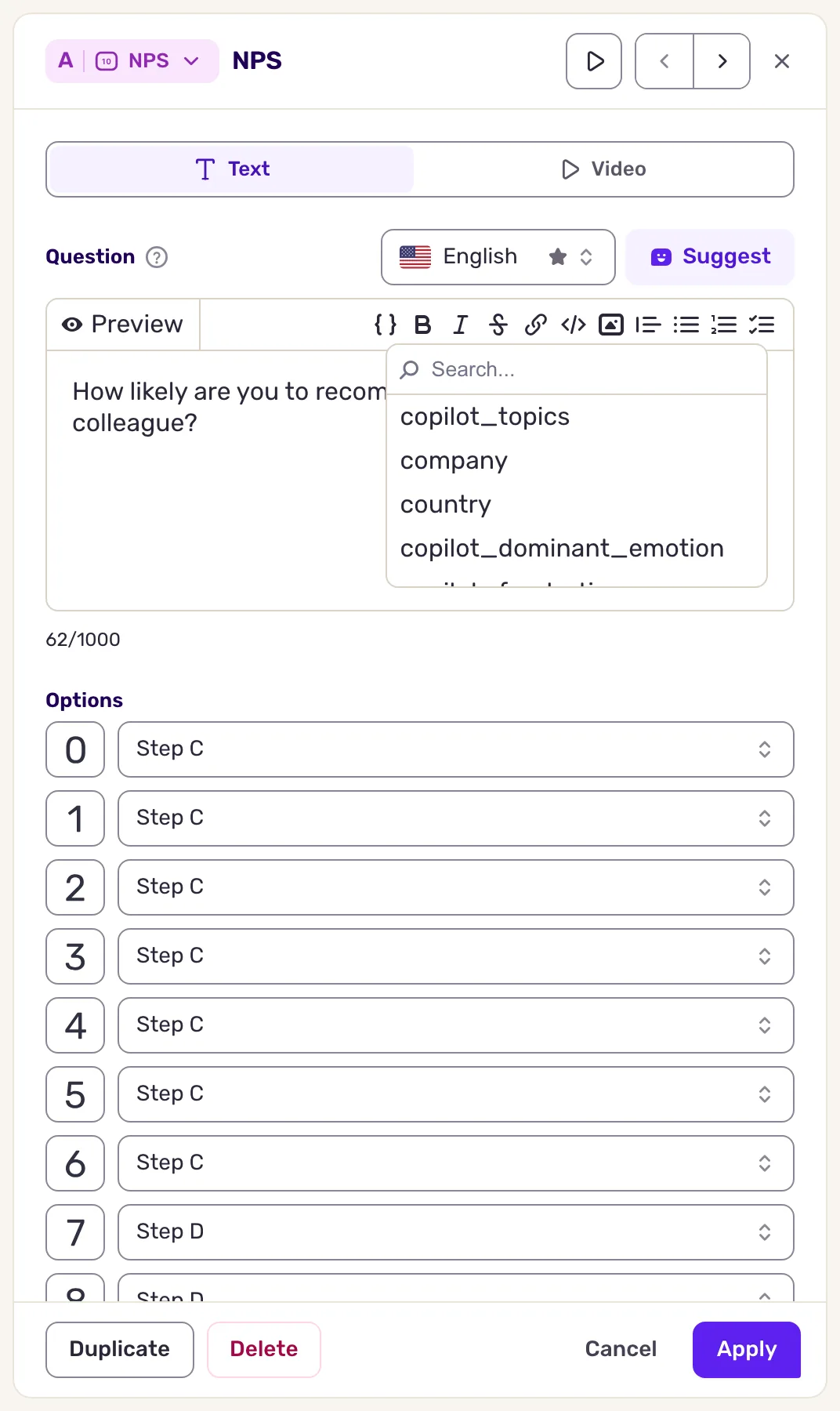
The rules:
| Rule | Detail |
|---|---|
| Source | User properties of the user who answers, sent by your site, app or integrations. See Understanding user properties. |
| Name | The property name exactly as sent, case included. Letters, digits, _ and - only: nested properties (with a dot) cannot be used. |
| Type | Text, number, boolean and date properties. Objects are skipped. |
| Fallback | Everything after the :. Without it, the variable shows as nothing. |
| Where | Question texts, answer choices and buttons, video overlay texts, and the texts and links of contextual actions. |
| Hidden fields | Not available as variables. Only user properties are. |
The variable button only shows when the workspace has user properties.
Save an answer to a property
Section titled “Save an answer to a property”A free-text, score, range or button question can store its answer in a user property, to reuse it in a later question or send it to your integrations.
In the question panel, under Assign this question to a property, open Select a variable and pick a property, or type a new name. Whatever the question type, only text properties are supported, as the panel says: “Only string properties are supported for this question”.
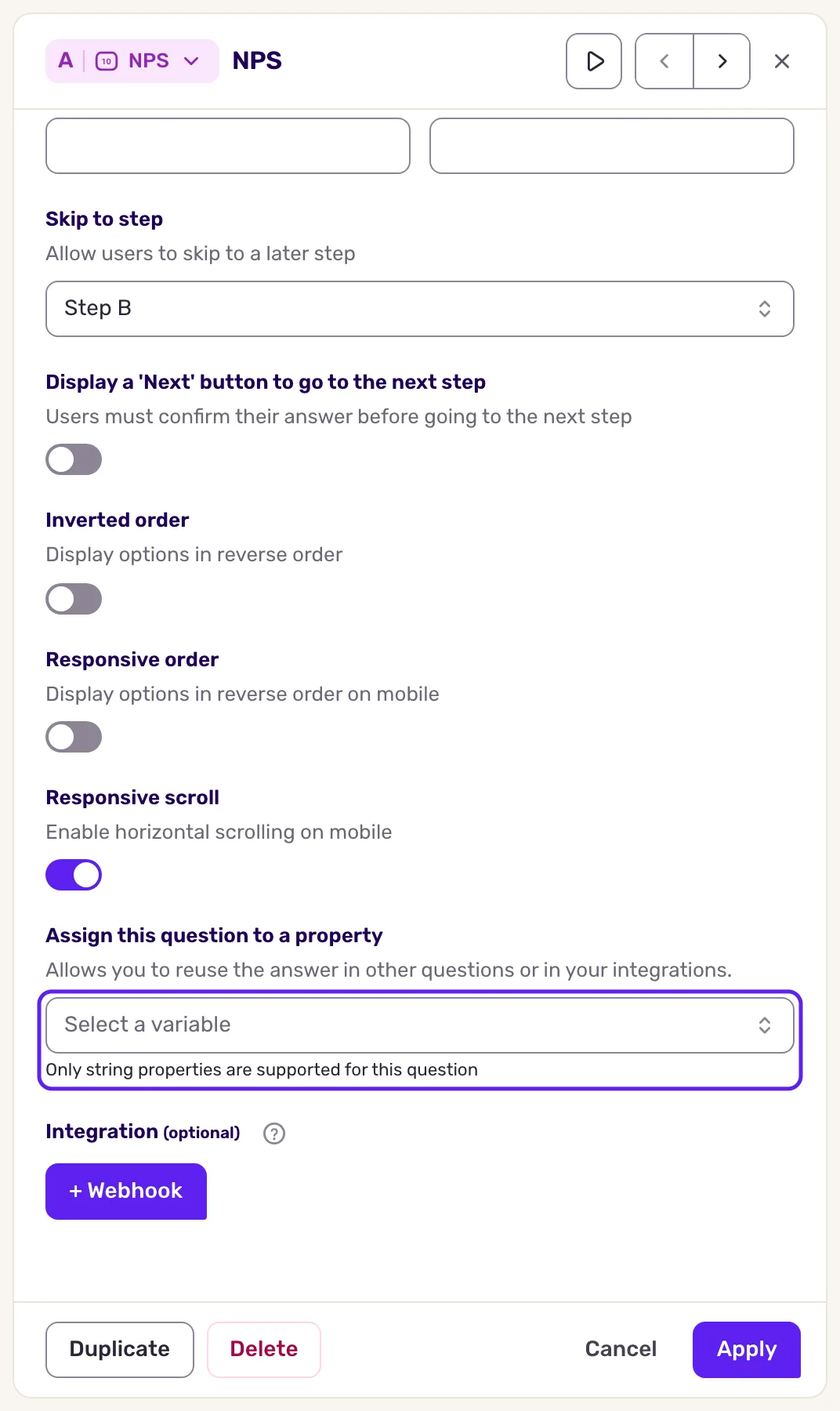
A property saved this way shows in the variable list of every question of the survey, even before anyone has answered.
Hidden fields
Section titled “Hidden fields”Each response records two kinds of hidden fields.
System hidden fields. The SDK records them on its own; you send nothing. The main ones:
| Group | Fields |
|---|---|
| User | locale (such as fr or en-us), timezone (such as europe/paris), platform (desktop, mobile, tablet or other) |
| Page (web) | active_page.url, active_page.title, active_page.domain, active_page.path, active_page.search, active_page.hash |
| Screen (mobile) | active_screen.name |
| Campaign | campaign.name, campaign.source, campaign.medium, campaign.term, campaign.content (from the UTM parameters) |
| Device | os.name, os.version, device.model, device.manufacturer, device.brand, device.type, screen.width, screen.height |
| Browser and SDK | browser.name, browser.version, user_agent, library.name, library.version, app.version (mobile), bot |
| Network (mobile) | network.wifi, network.cellular, network.carrier, network.offline |
| Location | geoip.city, geoip.country.code, geoip.country.name, geoip.continent.name, geoip.timezone.name and more, inferred from the IP address when available |
A field shows only when the platform provides it: page fields on websites, screen and network fields in mobile apps.
Custom hidden fields. Your code adds them when it starts a survey, as text or numbers, for example a plan or an order ID. Other value types are ignored. The code is in the developer docs: Start a survey programmatically.
Parameters added to the address of a link survey are usually recorded the same way, see Share a survey with a link.
Use hidden fields
Section titled “Use hidden fields”| Where | How |
|---|---|
| Response details | In All responses, open a response: locale and timezone are under User, the main page, screen, campaign, device and browser fields under Navigation, custom fields under Your user properties. Location, network, screen size, platform and bot show only in filters and exports. Click a value to filter on it. |
| Filters | Click Filter, pick Hidden field in the Response group of the list, then the field, an operator and a value. The list offers the fields found in this survey’s responses. See Filter survey responses. |
| Exports | Add custom fields from the Hidden fields group. See Export survey responses. |
| Integrations | Custom hidden fields are part of the response data sent to webhooks and other connected tools. |
Hidden fields describe the response. To decide who sees a survey, use user properties and events in Choose who sees your survey.
Go further
Section titled “Go further”- Use contextual actions in messages: variables also work in the URLs and values of message actions.
- Format the text of your questions
- Filter survey responses
- Understanding user properties