

Format the text of your questions
Put words in bold or italic, add links, lists, quotes and images to a survey question with the formatting toolbar of the builder.
Stress a key word, add a link to your terms or show a short list right in a question. The builder writes the formatting for you, and your users see it in the survey.
Before you start
Section titled “Before you start”- Your role lets you edit surveys.
- The question is in Text mode. A video question has its own short overlay text instead, see Ask questions in video and collect audio or video answers.
Format a question
Section titled “Format a question”- Open the survey on the Build step and click a question. Its settings open in a side panel.
- In the Question field (Message for a Text step), select the words to format.
- Click a button of the toolbar above the field, for example “Bold”. The field shows the formatting as Markdown:
**words**for bold. - Click “Preview” at the left of the toolbar to see the result, then “Write” to go back to editing.
- Click Apply, then Save at the top right.
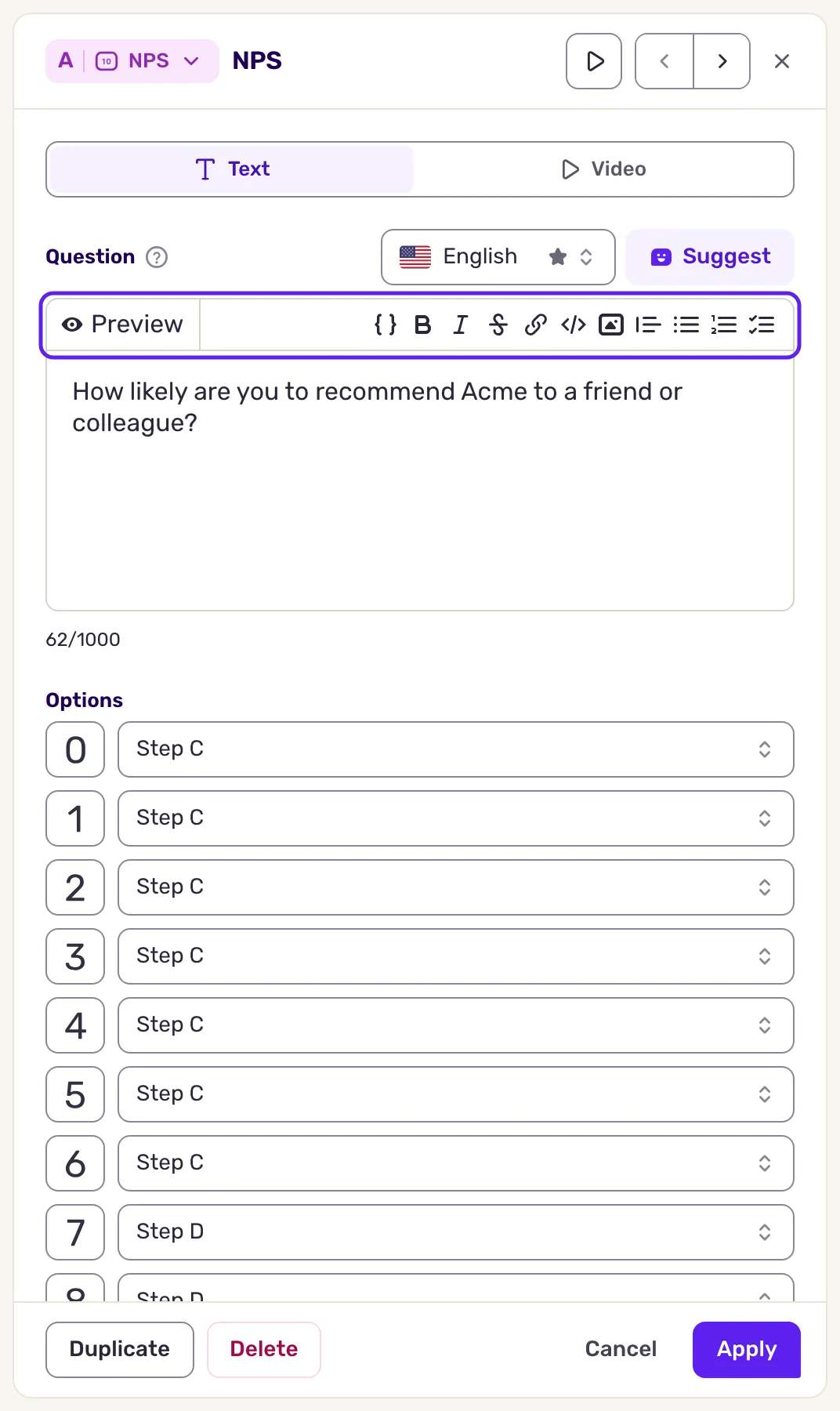
What the toolbar does
Section titled “What the toolbar does”Hover a button to see its name.
| Button | What you type, or what the button writes | What users see |
|---|---|---|
| “Bold” | **text** |
text |
| “Italic” | *text* |
text |
| “Strikethrough” | ~~text~~ |
Struck-through text |
| “Link” | [text](https://example.com) |
A link that opens in a new tab |
| “Code” | `text` |
Text in a code font |
| “Image” |  |
The image, uploaded from your computer |
| “Quote” | > text |
An indented quote |
| “Bulleted list” | - item |
A bulleted list |
| “Numbered list” | 1. item |
A numbered list |
| “Check list” | - [ ] item |
A list with boxes to tick |
| “Variable” | {property:fallback} |
The value of a user property |
You can also type the Markdown yourself. A new line in the field is a new line in the survey.
- Select first. “Bold”, “Italic”, “Strikethrough” and “Code” only wrap the selected text. With nothing selected, “Link” inserts a sample link whose address is selected, ready to replace.
- Links must start with
https://,http://,mailto:ortel:. Other links do not work in the survey: they show as plain text or disappear. - Variables insert user data, such as a first name. See Personalize questions with variables and hidden fields.
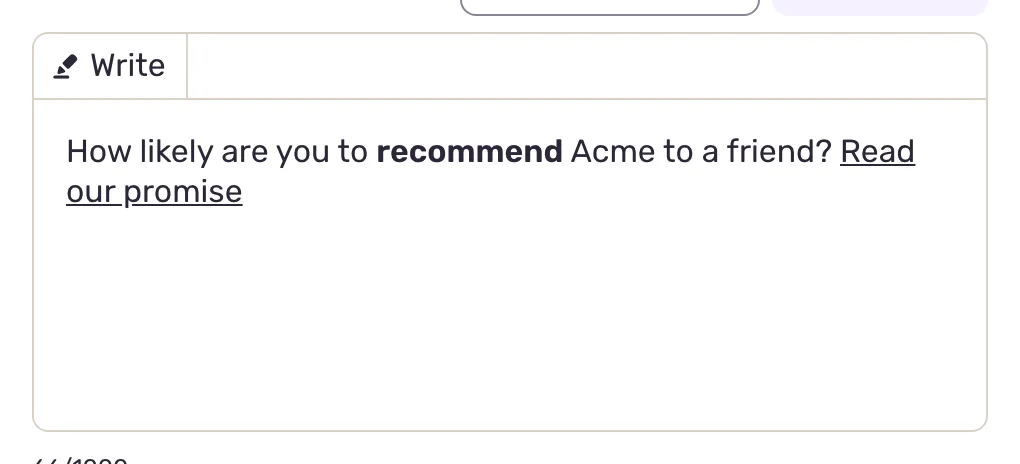
What you get
Section titled “What you get”Users see the formatted text in the survey, in both formats, conversational and card. Check it with Preview in the builder, see Preview and test a survey before you launch it.
A question holds up to 1,000 characters. Only the text users see counts: the Markdown signs and link addresses do not.
Troubleshooting
Section titled “Troubleshooting”“Max 1000 characters allowed.” Shorten the question, or move details to a Text step before it.
“Could not upload the image” Pick an image file and try again.
A link is missing or shows as plain text. Check its address: it needs one of the prefixes above, and no space between ] and (.
An older question uses HTML tags. Questions written with <b>, <i>, <s> and <a> still show formatted. <u> shows as bold: underline is not available.