

Filter survey responses
Narrow the responses of a survey by answer, user, context or activity, and keep the same filters across every analysis tab.
Filters let you focus on the responses that matter: the detractors of last month, the users of a given plan, the answers mentioning a feature. The filters you set apply to every analysis tab of the survey.
Before you start
Section titled “Before you start”- The survey has responses in the period you want to read, see Read your survey results.
- Filters change what you see, never the responses themselves.
Open the responses
Section titled “Open the responses”- Open the survey and click Analyze in the header.
- In the side menu, click All responses.
- Pick the period in the date picker at the top. By default, the page shows the period you used last on this workspace, or Last 30 days.
Add a filter
Section titled “Add a filter”- Click Filter at the top of the page.
- Click Add rule (with no rule yet, its list is already open) and pick a rule type, or type to search it. The list is sorted by the groups described below. To change a rule’s type later, click its first field.
- Fill in the rule, for example the answer to a question or a user property value.
- Add more rules the same way. A word on the line between two rules shows how they combine: AND (every rule must match) or OR (at least one). Click the first one to switch them all. Some rules take several values, such as a page URL, a screen, a property or an event count. Type a value and press Enter, Tab or leave the field: it becomes a chip, spaces included. Paste a list to add one value per line. Any one value matches (“or”); with a negative operator such as “is not”, none may match (“nor”). Click a chip to edit it, or press Backspace in the empty field to edit the last one.
- Click Apply. The responses, charts and counts update, and the Filter button shows how many rules are active. Cancel closes the panel without changing anything.
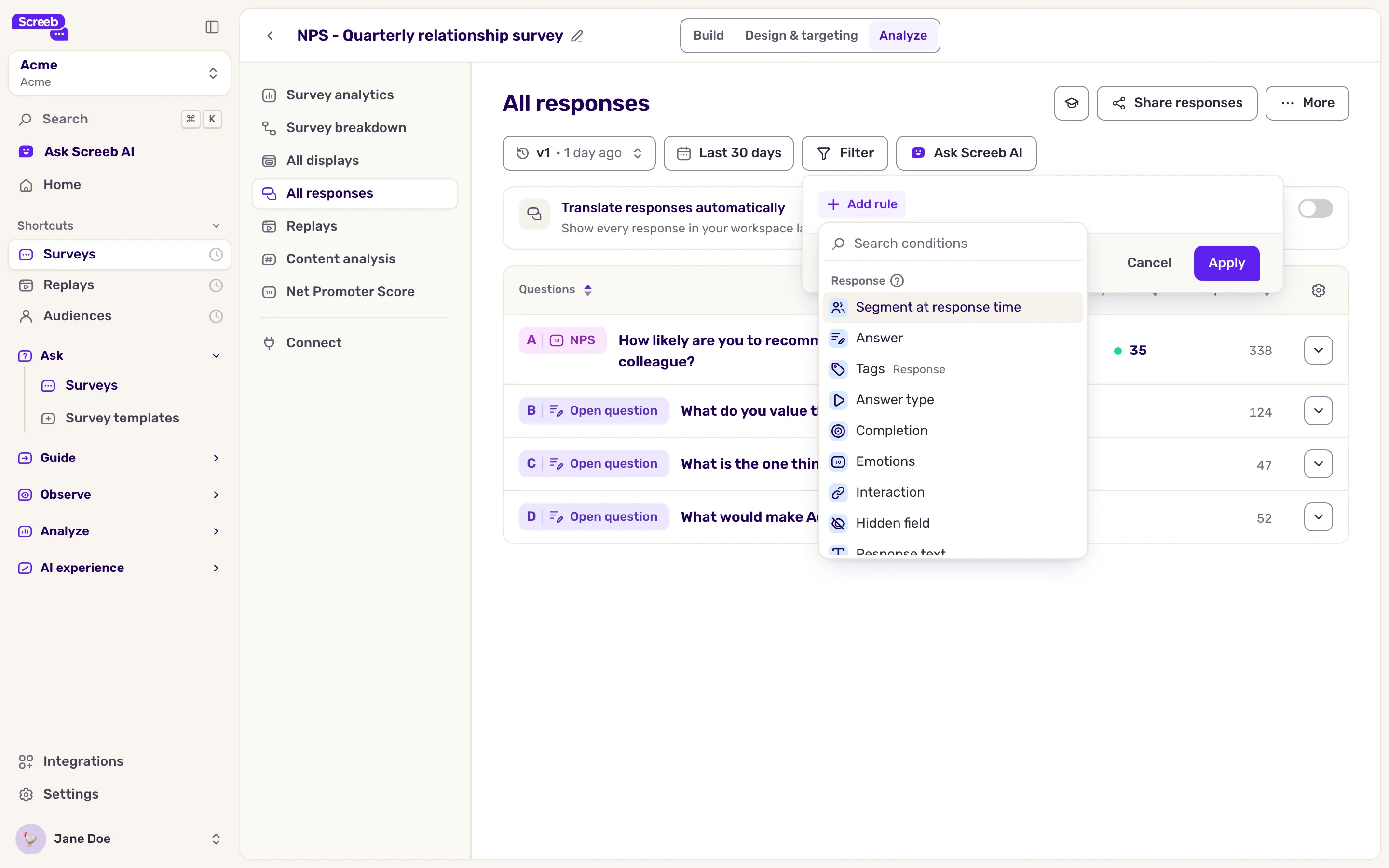
The rule groups:
| Group | Filter on |
|---|---|
| Response | The response itself: Answer, Response text, Tags, Language, Hidden field, Answer type, Interaction, Segment at response time, score, completion, emotions, source. |
| User attributes | Who answered: identifier, Property, Segment. |
| User context | Where the user was: visited pages and screens, Used device type, Was in country, app version. |
| User activity | What the user did: First seen / Last seen, events performed, surveys and messages viewed or answered. |
Combine AND and OR
Section titled “Combine AND and OR”Each rule has a menu on its right, behind the three dots: Duplicate, Turn into group and Delete.
To mix AND and OR, open the menu next to Add rule, pick Add rule group, then the group’s first rule. A group has its own AND or OR, the opposite of the rules around it to begin with, and can hold one sub-group level. For example: “Answer is 9 or 10” AND (“Country is France” OR “Country is Belgium”). The menu under a group also offers Ungroup, Duplicate and Delete group.
A rule outside the groups must always match: AND or OR only decides how the groups combine.
What you get
Section titled “What you get”- The filters and the period stay when you switch to another analysis tab of the survey, so every chart reads the same responses. Event rules are the exception: the session replays page drops the rules on events the user performed, and the other pages drop the rules on session events.
- They are saved in the page address. Copy it from your browser to share the exact same view with a teammate, or bookmark it.
- To act on the filtered users, open More at the top right and pick Create segment from responses. To get the filtered responses as a file, see Export survey responses.
Troubleshooting
Section titled “Troubleshooting”Apply stays disabled. Hover it to see why: “Some conditions are missing a value. Complete them before saving.” means a rule has no value. Fill in or remove that rule.
No response matches. Check the period first: filters only apply inside it. Then switch AND to OR to see which rule excludes everything.