

Export survey responses
Download the responses of a survey as a CSV file, all of them or only those matching your filters.
Export the responses of a survey to analyze them in a spreadsheet or share them outside Screeb. The file is a CSV, with one row per response.
Before you start
Section titled “Before you start”- Your role must allow exporting responses. If Export responses does not show, ask a workspace admin.
- To export only part of the responses, set your filters first: see Filter survey responses.
Export the responses
Section titled “Export the responses”- Open the survey, click Analyze, then a page: All responses, Survey analytics, All displays, Survey breakdown, Content analysis or a score page (NPS, CSAT, CES, NES, SUS).
- Click More at the top right, then Export responses.
- If filters are active, choose the Rows: All rows ignores the filters of the page, Filtered rows keeps only the matching responses.
- Check the Period. It starts from the period of the page.
- Open Format options to change the file format if needed (see below).
- Click Export. The file downloads when it is ready, and the window closes. Cancel stops a running export.
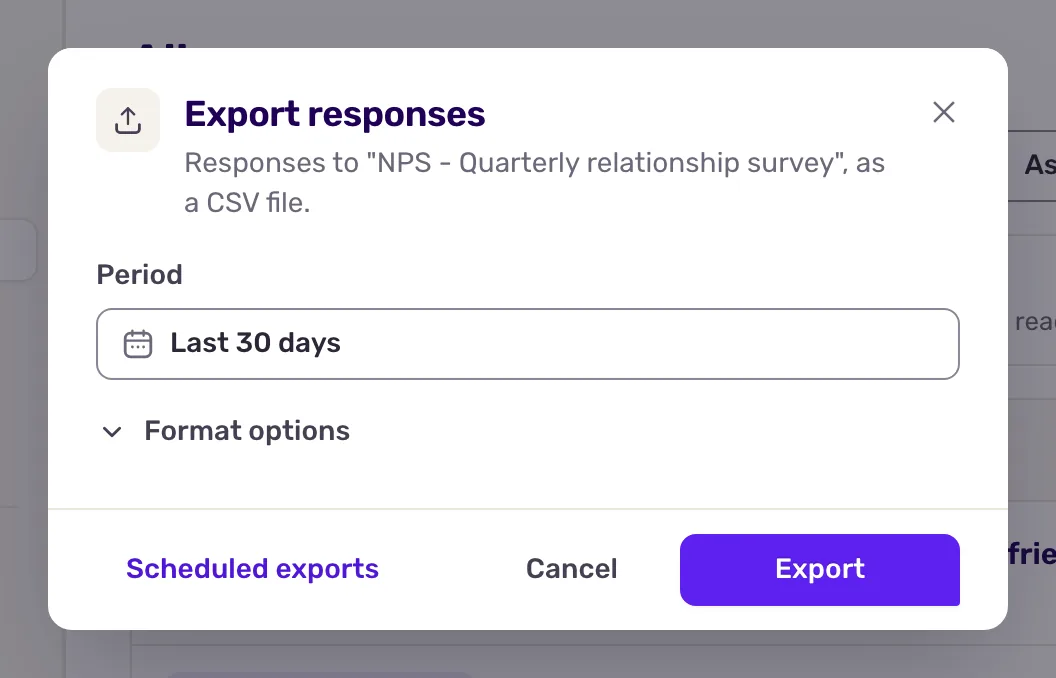
All rows is selected by default, even when filters are active. Pick Filtered rows to export only what you see.
Format options
Section titled “Format options”| Option | Use it to |
|---|---|
| Delimiter | Match your spreadsheet: a comma by default, a semicolon for spreadsheets set up for French and other languages that use a decimal comma, a tab, a colon, a pipe or a space. |
| Language | Choose the language of the questions and answers in the file. It defaults to the survey’s default language. |
| Include unanswered responses | Also list the times the survey was shown without being answered. |
| Exclude user properties | Leave out the hidden field, user property and context columns, for a lighter file. |
What you get
Section titled “What you get”A CSV file with one row per response. The columns, in order:
Response id,User id,AliasandDate.- One
Question: ...column per question. A question removed from the survey since shows asDeleted question: .... - For a multiple choice question with an “Other” choice, a
Question: ... > Othercolumn right after it, with the text respondents typed. The question column keeps the “Other” choice itself, so the text never mixes with the choices. CompletionandEnd reason.- Unless you excluded them: one
Hidden field: ...column per hidden field, oneUser property: ...column per user property, and oneContext: ...column per context value.
A cell of a question with several answers lists them separated by commas, or by the delimiter when it is a semicolon or a pipe.
Exclude user properties keeps the User id and Alias columns: the file still identifies who answered.
To receive an export on a schedule instead, use the Scheduled exports link at the bottom of the export window.