

Plans, quotas and billing
Understand Screeb plans, add-ons and monthly quotas, where to follow your usage and billing, and how quota alerts warn your admins.
Your Screeb subscription belongs to your organization: one plan, with monthly quotas shared by all its workspaces. This article explains what a plan includes, how quotas are counted, and where your admins follow usage and billing.
Plans and add-ons
Section titled “Plans and add-ons”Screeb offers four plans: Essentials plan, Plus plan, Pro plan and Enterprise plan. Each one gives access to the core of Screeb, with higher volumes and more features as you go up. Enterprise has custom volumes, contract and pricing. An older subscription can show another plan name.
When you need more of one thing without changing plans, an add-on adds it: extra volumes (monthly active users, survey responses, sessions, message engagements, workspaces, funnels) or a feature such as Session Replay, mobile SDKs or response translation.
Prices and the full comparison are on the Screeb pricing page. A new organization starts with a 14-day free trial, see Create your Screeb account and workspace.
Quotas
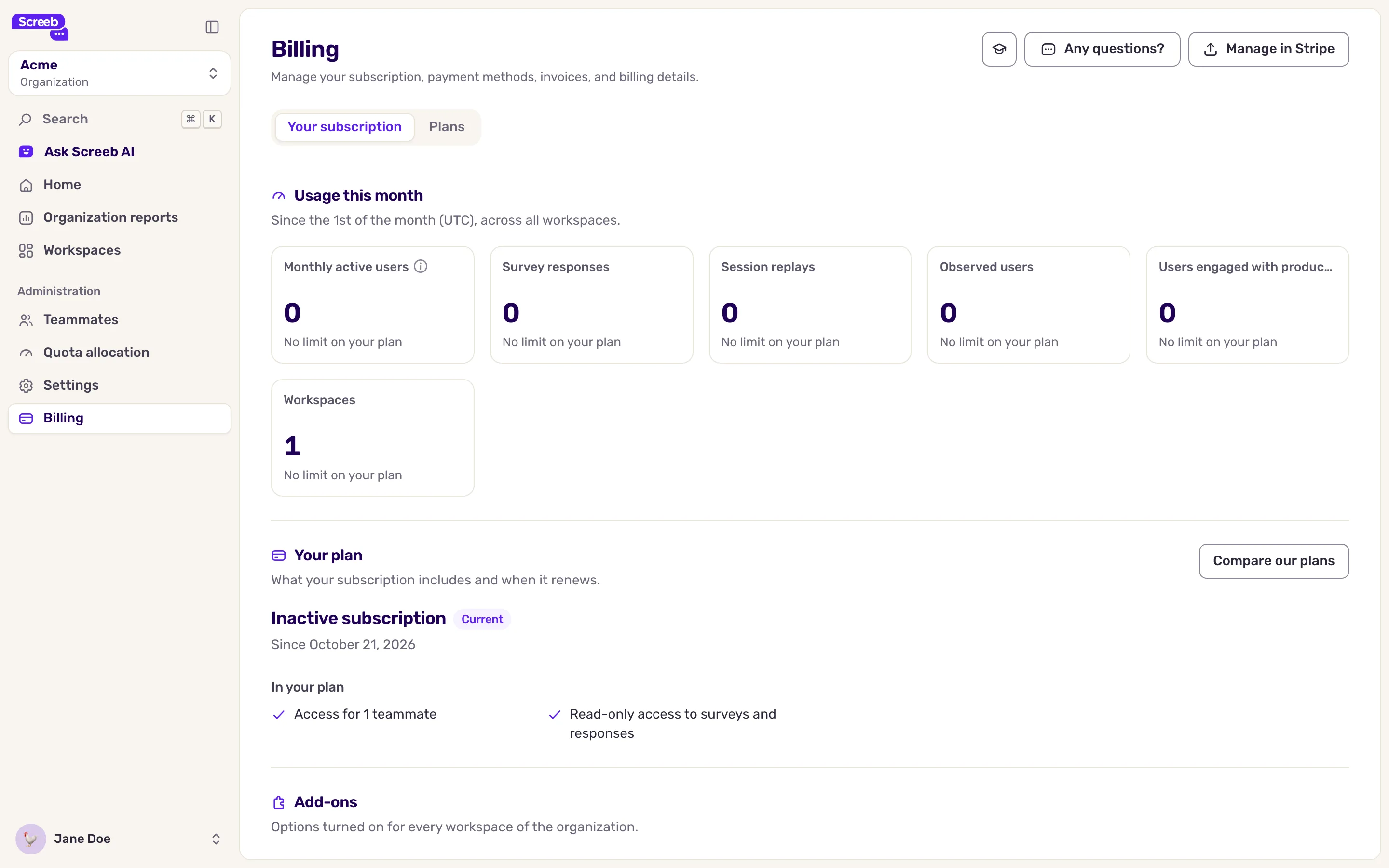
Section titled “Quotas”Your plan sets monthly quotas for the whole organization. The Usage this month section of the Billing page shows each one with its usage and the share already used:
- Monthly active users (MAU): the unique users seen on your site or app during the month.
- Survey responses.
- Session replays, and Observed users when your plan includes Observe (heatmaps and behavioral capture).
- Users engaged with product tours.
- Workspaces: how many workspaces you can create.
A quota’s bar turns orange from 80% used and red at 100%. A quota your plan does not include says so instead of showing a bar.
Monthly quotas count from the 1st of the month (UTC) and start again at zero on the 1st of the next month. You choose how your workspaces share them on the Quota allocation page, see Manage organizations and workspaces.
When a quota is used up, the matching feature usually stops for the users or workspaces over the limit until the next reset: new users are not shown surveys or messages, or new sessions are not recorded. The sidebar warns you when a quota is nearly used up.
Your billing page
Section titled “Your billing page”Only organization Admins see billing. Open the Organization view, then Billing.
The Your subscription tab has these sections:
- Usage this month: your quotas and their usage, see above.
- Your plan: your plan, its price, when it renews and what it includes. Compare our plans opens the plans.
- Add-ons: the add-ons turned on for your organization, then the Available add-ons. An add-on whose quota is nearly used up comes first. Request opens a conversation with our team.
- Your services, on Custom and Enterprise plans: book a meeting with your Customer Success Manager, request a training or open the support chat.
The Plans tab lists the plans. During a free trial or without a subscription, you choose and pay for a plan there. To change an active plan, Contact us on a plan opens a conversation with our team.
At the top right of the page:
- Manage in Stripe: your payment methods, invoices and billing details, in Stripe.
- More, then Cancel subscription: opens a conversation with our team.
Quota alerts
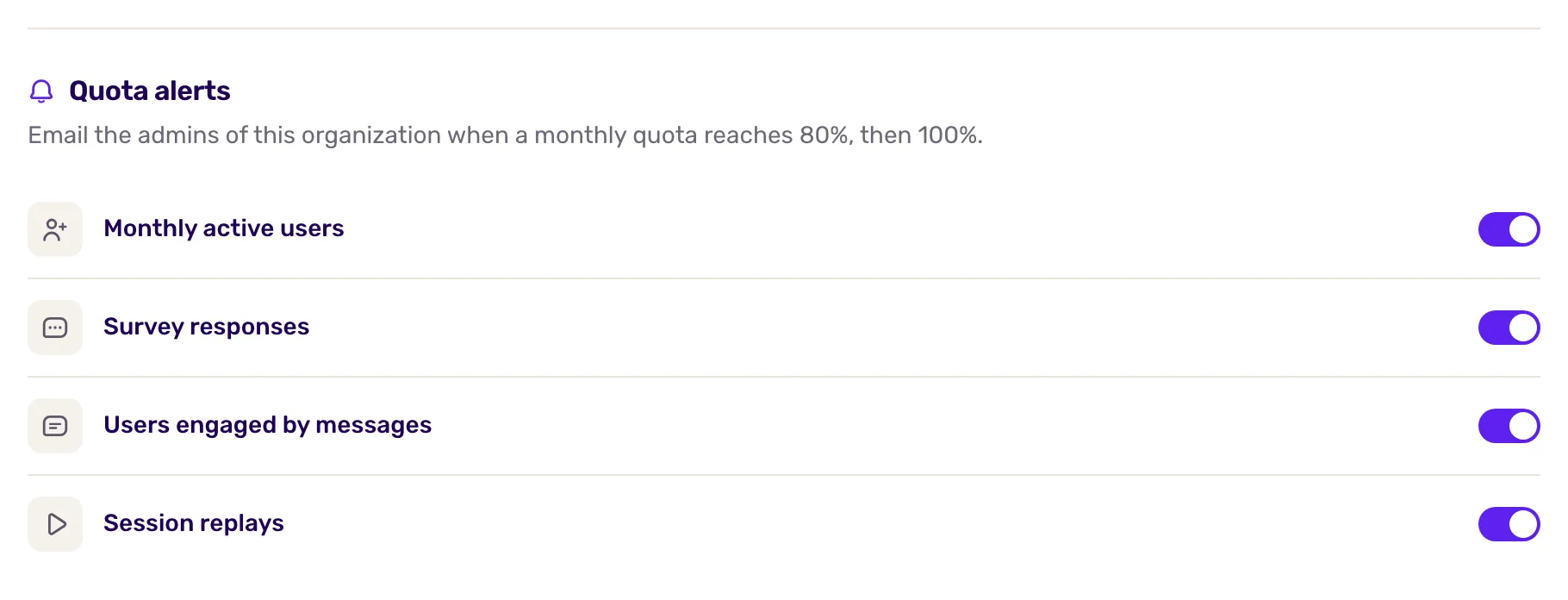
Section titled “Quota alerts”Quota alerts email every organization Admin when a monthly quota reaches 80%, then 100%. Choose them in the organization settings, in the Quota alerts section, then click Save:
- Monthly active users.
- Survey responses.
- Users engaged by messages.
- Session replays, only sent when Session Replay or Observe is in your plan. With Observe, it counts observed users.
How they work:
- Each threshold is sent at most once a month. If a quota jumps straight past 100%, only the 100% email is sent.
- With the Dynamic allocation, alerts follow the organization total. With Even or Manual, each workspace is checked against its own share, and the email names the workspace.
- Screeb checks usage regularly through the day, so an email can arrive some time after the threshold is crossed. None is sent in the first hours of the month, while counters reset.
- Turning an alert back on during the month still sends a threshold already crossed.
- New organizations start with every alert on. Organizations created before quota alerts existed start with them off.
Good to know
Section titled “Good to know”- Members do not see billing and do not receive quota alerts: make sure at least one person who follows the budget is an organization Admin.
- The Quota allocation page is visible to every teammate, but only Admins can save changes.