

Analyze open-ended answers with AI
Let Screeb AI read the written answers of a survey and sum them up as strengths, weaknesses, opportunities, next steps, keywords and quotes, in a report your team can customize.
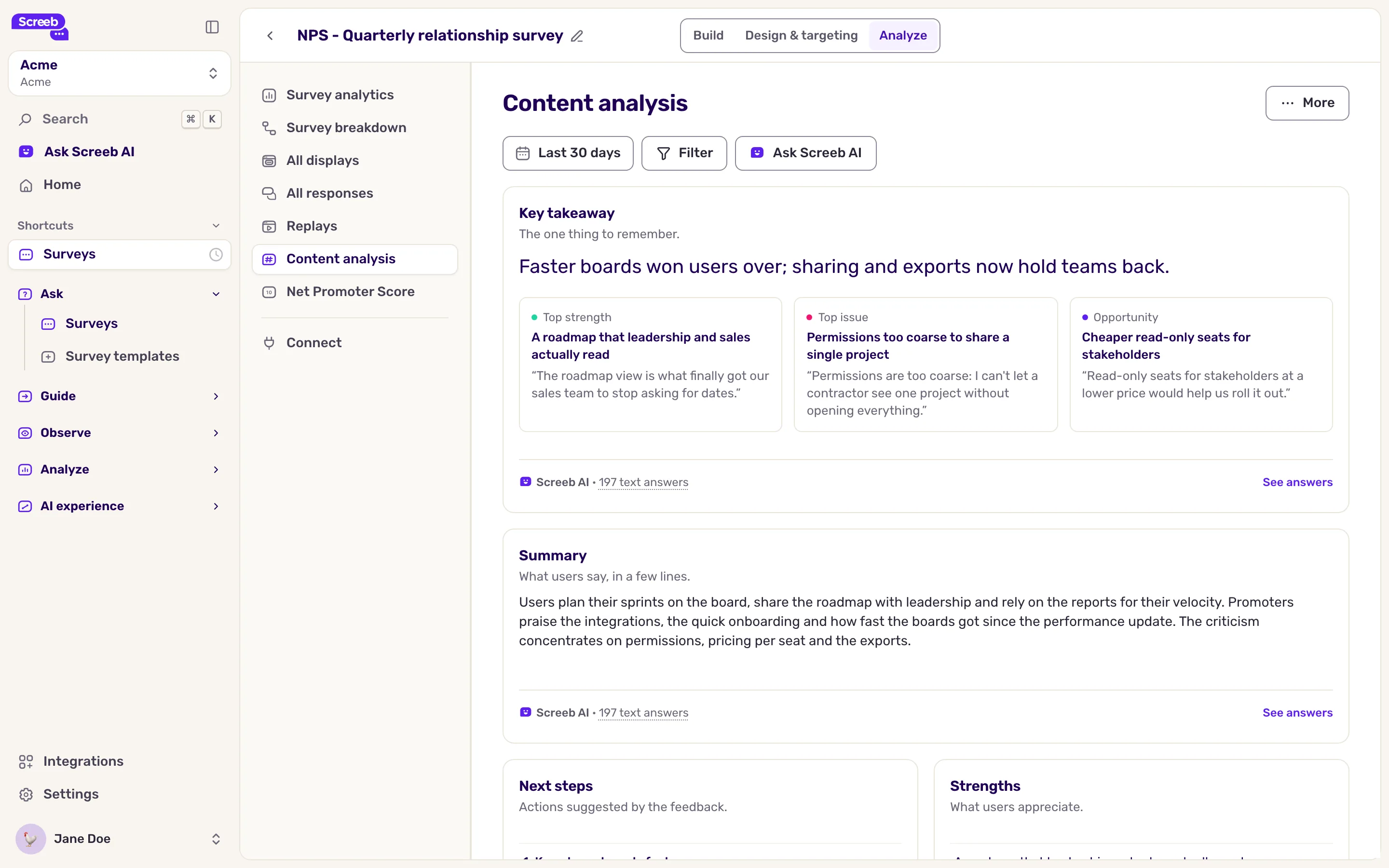
Content analysis reads the written answers of a survey for you. Screeb AI sums them up, lists what users like and dislike, suggests next steps, and shows the keywords and quotes behind them. The page is a report made of widgets: your team can rearrange it like any other report.
Before you start
Section titled “Before you start”- Content analysis must be part of your plan. Without it, Content analysis shows an upgrade icon and the page asks you to upgrade (Upgrade your plan to unlock this report).
- AI features must be available for your workspace: without them, the entry is not in the side menu.
- It works on surveys only, not on messages, and needs open-ended answers, such as a text question or the follow-up of an NPS.
Open the content analysis
Section titled “Open the content analysis”- Open the survey and click Analyze.
- In the side menu, click Content analysis.
- Pick the period at the top of the page, and add filters on responses or users if needed. Every widget follows them. The AI widgets can take a few seconds to write.
Read the analysis
Section titled “Read the analysis”Screeb AI writes:
| Widget | What it holds |
|---|---|
| Summary | A short summary of what users say. |
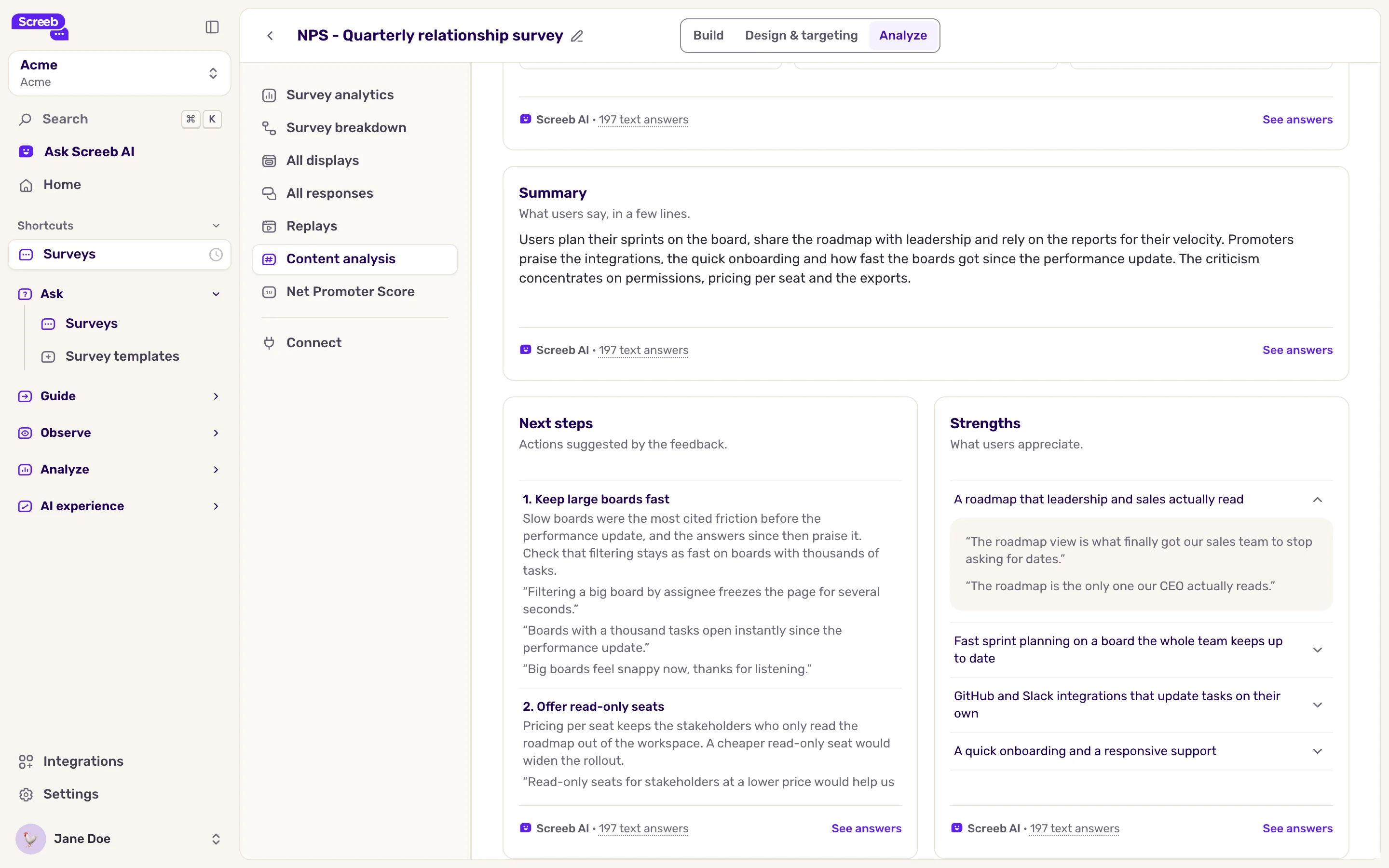
| Next steps | Suggested actions based on the feedback, each with its reason and the real answers it comes from. |
| Strengths and Weaknesses | A short list of what users appreciate, and of what they are not happy with. |
| Opportunities | A short list of improvements or features that come from user requests. |
| Keywords | The words and phrases mentioned most. The bigger the tile, the more relevant the word. |
| Verbatims | Answers that illustrate the keywords. |
| Questions and answers | The main questions users ask, each with the answer you could give. |
| Trends | Subjects that come up again and again. |
Each strength, weakness, opportunity and next step comes with up to three real answers, quoted as users wrote them, in their own language: the answers closest in meaning to that point. Click a strength, a weakness or an opportunity to read them; a next step shows them under its reason. A point without quotes was written from an older analysis: click Regenerate to get them.
Below the AI findings, three widgets cover the answers of the period: their number with the change from the previous period, the split of positive, neutral and negative answers, and the emotions detected.
Every widget written by Screeb AI carries the Screeb AI mark in its footer, followed by the number of text answers it read; hover it to see when. This count only covers the answers with text, so it is often lower than the number of responses of the period. Click See answers to open them. To get a fresh reading, hover the widget and click Regenerate: Screeb AI reads the answers again, at most once a minute. The figures computed from the answers, such as the number of responses or the sentiment split, carry no mark.
At the bottom, two charts show how the emotions and the sentiment of the answers move over the period. Above each chart, the headline says what it measures: Positive answers is the share of answers with a positive sentiment, Average joy the average level of joy detected, each with its change from the previous period.
Run the analysis on a narrow slice, such as the detractors of an NPS survey or one segment, to get findings that are specific enough to act on.
Customize the report
Section titled “Customize the report”The report is shared by every survey of the workspace: a change shows on the content analysis of all of them, for the whole team.
- Open the More menu at the top right and click Customize report.
- Move, resize, duplicate or remove widgets, or add one, such as an AI analysis with your own prompt or the themes of the answers.
- Save the changes. Restore default layout brings back the default layout.
See Customize a report layout for every action of the edit mode.
Add a key takeaway
Section titled “Add a key takeaway”The Key takeaway widget puts what matters most in one sentence, above three tiles: Top strength, Top issue and Opportunity, each with a real answer that backs it up. A tile is left out when Screeb AI found nothing for it. It comes from the same reading as the strengths, weaknesses and opportunities, so it never contradicts them.
To add it, add an AI analysis widget in the edit mode and pick Key takeaway as its Analysis output. It works in any report, not only on this page. Give it a full row so the three tiles sit side by side.
What you get
Section titled “What you get”A written summary of the answers, with the quotes to back it up, ready to share with your product team.
Troubleshooting
Section titled “Troubleshooting”A widget says No written answer over this period No answer of the period, with these filters, has text to analyze: the survey may only ask closed questions, such as a score. Widen the period, or add an open-ended question to the survey.
A widget says Nothing stands out in these answers Screeb AI read the answers and found nothing to list there, for instance no weakness in very positive feedback. It is a result, not an error: the line under the widget says how many text answers it read.
A widget shows an error Click Retry. If the error persists, contact support.