

Translate responses automatically
Have Screeb translate the open-ended answers of your surveys into your team's language, pick your own reading language, and still read the original.
When your users answer in several languages, Screeb can translate their open-ended answers for your team. You choose a translation language for the workspace, each teammate can pick their own, and the original answer stays one click away.
Before you start
Section titled “Before you start”- Response translation is included in the Plus plan, the Pro plan and the Enterprise plan. On other plans, it is an add-on, see Plans, quotas and billing.
- Turning it on for the workspace needs a role that can change the workspace settings.
This feature translates the answers you receive. To show your questions to users in their own language, see Translate your surveys and choose the display language.
Turn translation on for the workspace
Section titled “Turn translation on for the workspace”- Open Language & translation, in the Survey group of the settings menu.
- Under Response translation, click Turn on automatic response translation.
- In Translation language, pick the language your team reads.
- Click Save.

Total translations then lists every language responses are translated into: the workspace language, plus the personal languages your teammates picked. Each answer is translated once per language.
Pick your own reading language
Section titled “Pick your own reading language”If you read another language than the rest of your team, set your own. It applies to every workspace of your account, and adds a translation language to each of them.
- Click your name at the bottom of the sidebar, then Account. The Account page opens.
- Under Response translation, click Turn on automatic response translation and pick your language.
- Click Save at the top of the page.

Your language only applies while translation is on for the workspace. Turn the switch off to read the workspace language again.
Read the translated answers
Section titled “Read the translated answers”- Open a survey, click Analyze, then All responses.
- Check that Translate responses automatically, at the top of the page, is on. It is on by default for every survey.
- Expand an open-ended question. Translated answers carry the Automatic translation tag.
- Click Read original feedback under an answer to see what the user wrote.
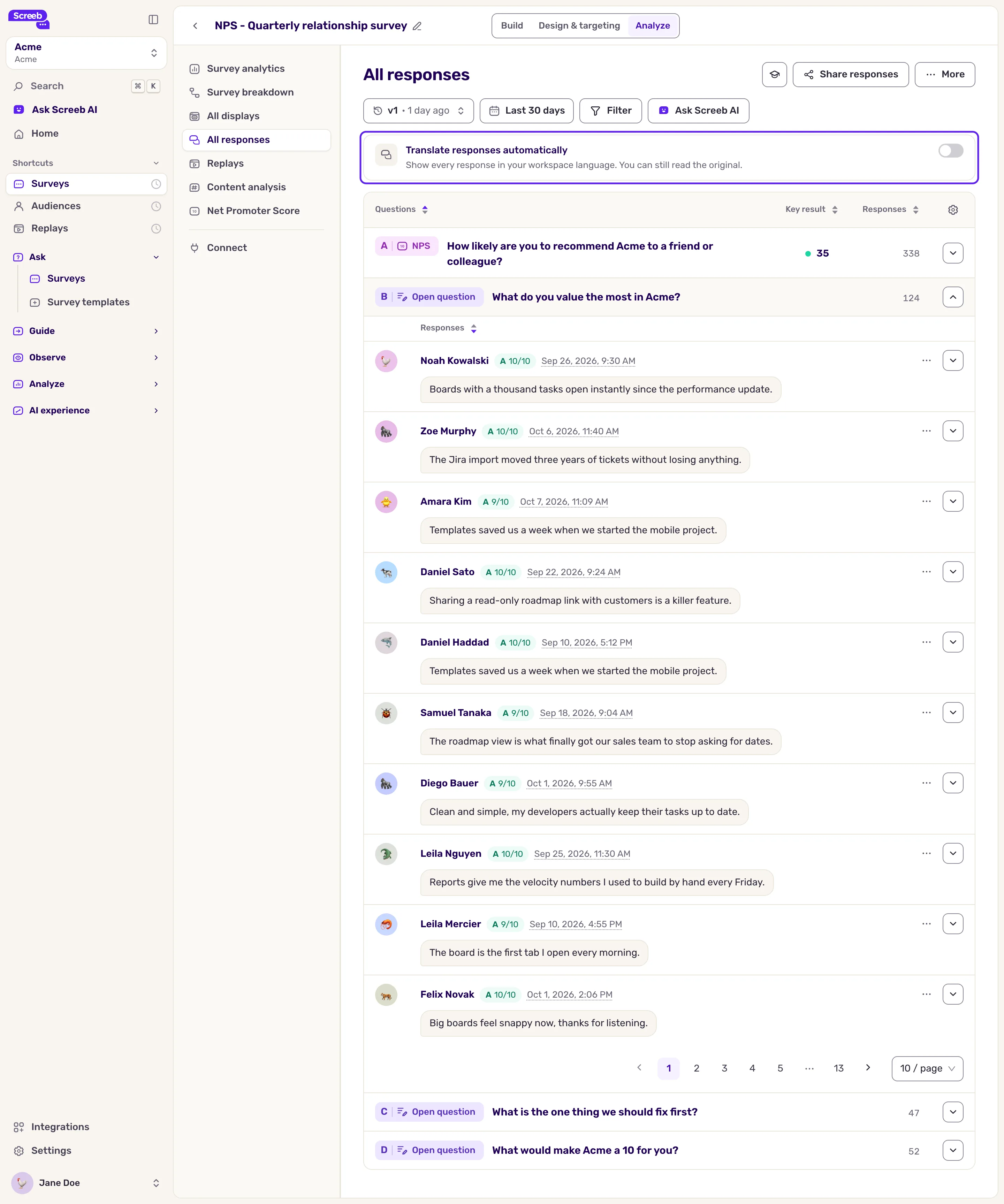
The switch applies to the survey for the whole team. While it is off, new answers to the survey are not translated, and turning it on again does not catch up: answers received in between stay Missing translation.
What you get
Section titled “What you get”- The answers to open-ended questions are translated as they arrive. The language of each answer is detected, and answers already written in your language stay as they are. Choices, scores and other closed answers are not translated.
- When the set of translation languages changes (translation turned on for the workspace, another workspace language, a teammate’s personal language), Screeb also translates the answers you already collected, in the background.
- The original answer is always kept. When you export responses, you can pick the language of the translated answers, see Export survey responses.
Troubleshooting
Section titled “Troubleshooting”The switch on All responses is greyed out. Hover it. This option is only available with the translation add-on. means your plan does not include it. This option is disabled for this workspace. means translation is off for the workspace: turn it on as above. Your role can view these settings but not change them. Ask an admin of this workspace. means your role cannot edit the survey.
An answer shows Missing translation. It is not translated yet: past answers are translated in the background when the set of translation languages changes. An answer received while the survey switch was off stays untranslated. A very short answer, or one whose language cannot be detected, is not translated.
The translation section is missing from the settings. Your plan does not include response translation.