

Import surveys and responses
Bring the surveys and responses of your previous survey tool into Screeb, from a CSV file or from GetFeedback, as new surveys or into an existing one.
Moving to Screeb from another survey tool? Export your responses as a CSV file and import them: Screeb creates the survey, its questions and one response per row, so your history sits next to the answers you collect from now on. From GetFeedback, Screeb imports your surveys directly, see Import from GetFeedback.
Before you start
Section titled “Before you start”- Your role lets you create surveys.
- Export your responses from your previous tool as a CSV file, with the column names on the first line and one response per row.
- The file has at least one column with answers to a question. A column that identifies the respondent (user ID or email) is recommended.
For example:
| user_id | How likely are you to recommend us? | What could we improve? | plan |
|---|---|---|---|
jane@example.com |
9 | Faster exports | Pro |
john@example.com |
6 | More integrations | Free |
Load your file and map the columns
Section titled “Load your file and map the columns”- Open the survey list, click More at the top right, then Import surveys. You can also open the CSV import page directly.
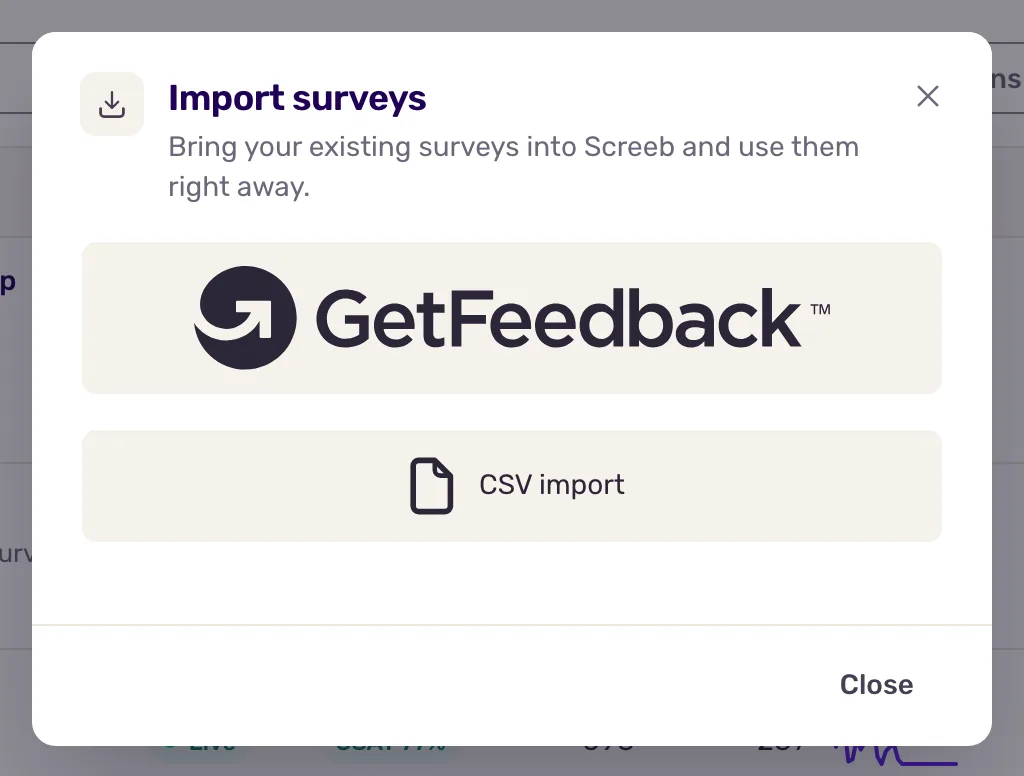
- In the window, click CSV import.
- In Step 1 - Import your CSV file, drop your file or click to choose it. Screeb reads the column names and the number of rows.
- In Step 2 - Map your CSV columns, check the Column type of each column (described below). Screeb guesses it from the first rows; change it when the guess is wrong.
- Turn off Import for the columns you do not need, such as a timestamp or an internal ID.
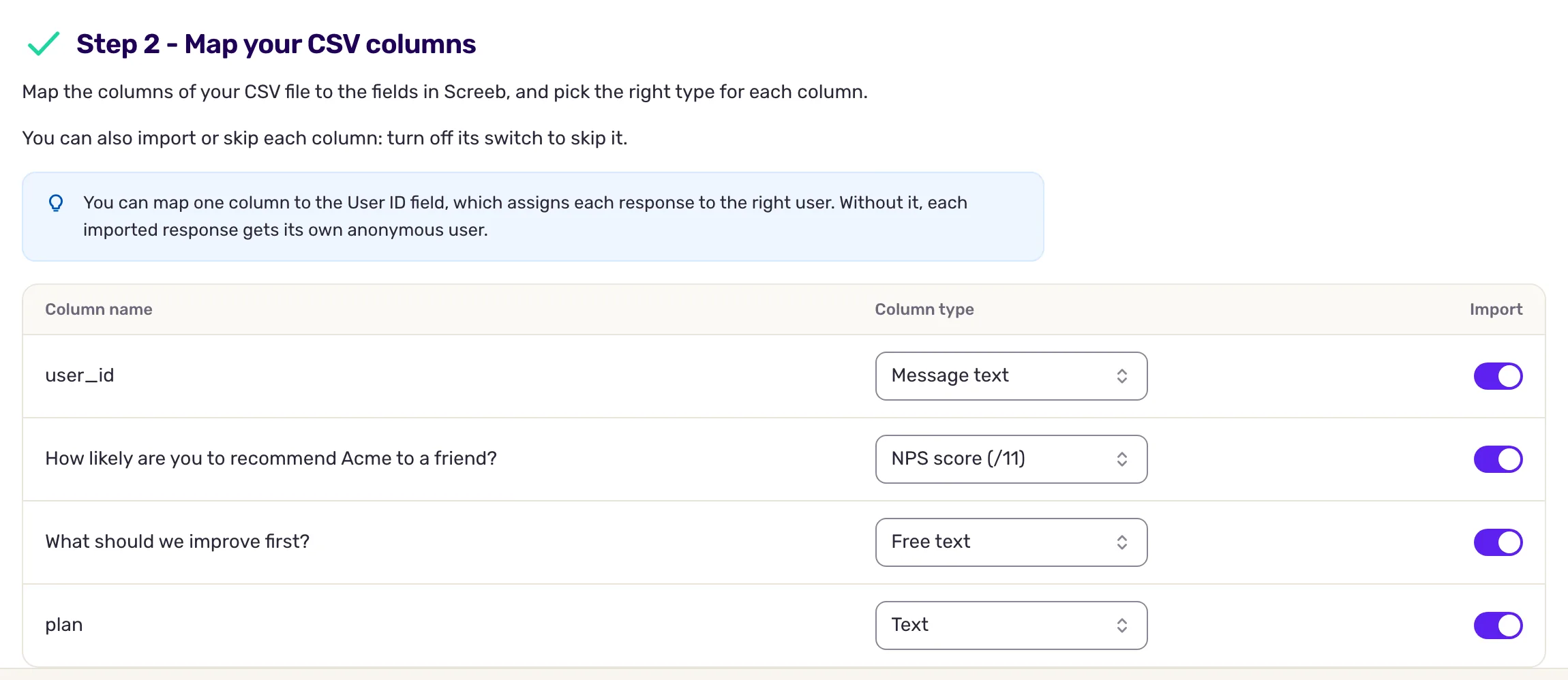
The column types:
| Group | Type | Use it for |
|---|---|---|
| Identity | User ID | The respondent: user ID, email. One column at most. |
| Response type | Free text | Free-text answers. |
| Single choice | One choice per answer. Each distinct value becomes a choice. | |
| Multiple choice | Several choices in one cell, split by the separator you set (a comma by default). | |
| Range (0 - 100) | A value from 0 to 100. | |
| NPS score (/11), CES score (/7), CSAT score (/5), NES score (/5), Custom scoring (/5) | Scores, as numbers. | |
| Message text | A step that only shows a text, with no answer. | |
| User property type | Text, Number, Boolean, Date | Context saved with each response, such as the plan or the country, so you can filter on it. |
Each response column becomes a question, whose text is the column name.
Choose the survey and map the questions
Section titled “Choose the survey and map the questions”- In Step 3 - Select or create a survey, keep or change the Survey name, prefilled from the file name, to create a new survey. To add the responses to an existing survey instead, pick it in the list.
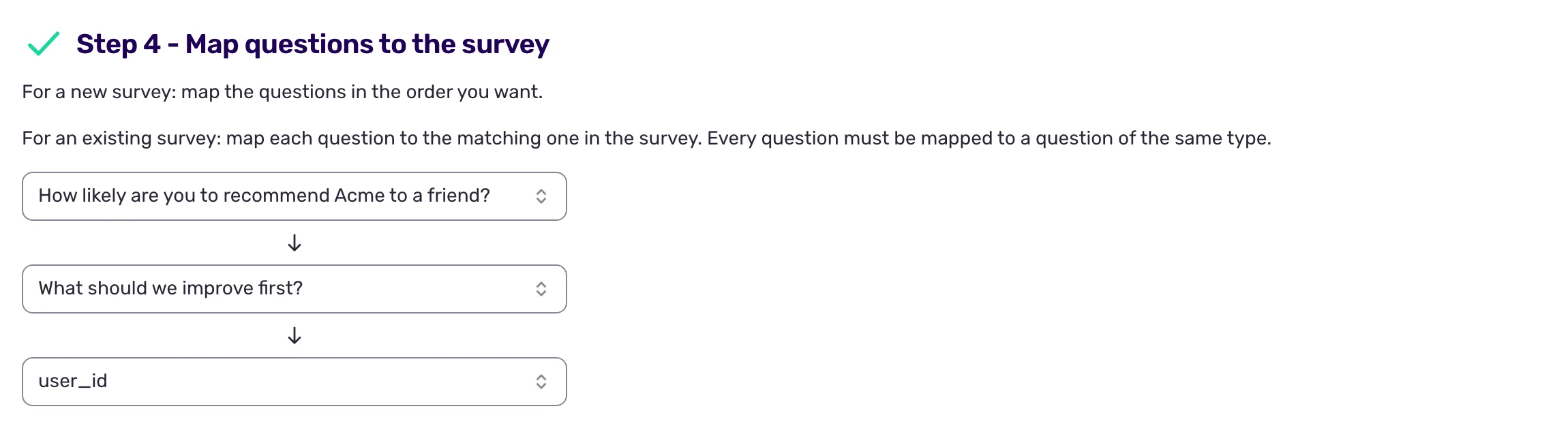
- In Step 4 - Map questions to the survey, for a new survey, put the questions in the order respondents saw them. For an existing survey, pick for each of its questions the column that answers it: only columns of the same type are offered, and every column must be mapped.
- In Step 5 - Import, for a new survey, turn off Import responses to create the survey and its questions only.
- Click Import survey & responses.
Follow the import
Section titled “Follow the import”A window shows the progress while the rows of your file are sent to Screeb. Keep the page open until they are all sent: closing it earlier stops the import.
Screeb then imports the responses in the background, and the window says “You can close this window: the import goes on, and the survey list shows its progress.” On the survey list, Importing... shows while an import runs; click it to see how many rows are processed.
Import from GetFeedback
Section titled “Import from GetFeedback”GetFeedback Corporate and some GetFeedback for Salesforce plans let you generate the API token Screeb needs. GetFeedback Digital, formerly Usabilla, gives an access key and a secret key instead: see GetFeedback Digital.
- In GetFeedback, generate an API token under GetFeedback > Account Settings > API.
- In Screeb, open the survey list, click More, then Import surveys, and click the GetFeedback logo. The Import surveys from GetFeedback page opens. The Import surveys button of the survey templates page opens the same window.
- Keep GetFeedback selected, paste the token in API token and click Load surveys. Your GetFeedback surveys show with their number of questions and responses; search them by name to narrow the list.
- Tick the surveys to bring over. Searching again keeps only the ticked surveys that still show.
- Under Responses to import, pick a Created between range or a Status (Completed only or Started but not completed only) to import only some responses. Leave them empty to import every response.
- Click Import, or Import without responses to copy the surveys only.
Keep the page open while the window shows the progress: Screeb creates the surveys and sends their responses. When GetFeedback asks to slow down, the window waits and goes on by itself. A survey that cannot be imported is listed in the window, and the others are still imported. Once everything is sent, Screeb imports the responses in the background: close the window or click See surveys to follow the progress from the survey list.
Each GetFeedback survey becomes a Screeb survey with the same structure and questions; some details may differ. A response that answers none of the imported questions is skipped.
GetFeedback responses keep their original dates, and your workspace keeps responses for a limited time, set in your data retention settings. The page says how long and skips older responses: they would be deleted the night after the import. A date range that ends before that day can only import the surveys, without their responses.
GetFeedback Digital
Section titled “GetFeedback Digital”- In GetFeedback Digital (app.usabilla.com), copy the access key and the secret key under Account Settings > Public API.
- Open the Import surveys from GetFeedback page as above and select GetFeedback Digital.
- Paste the keys in Access key and Secret key, and click Load surveys. Your feedback buttons, campaigns, in-page and email widgets and apps show, with their Type.
- Tick the sources to bring over, pick a Created between range if needed, and click Import or Import without responses.
Each source becomes a Screeb survey tagged “Imported from GetFeedback Digital”. GetFeedback Digital does not share its question wording, so Screeb builds the questions from the fields your responses answer, named after those fields: rename them after the import. Answer dates are kept. Each response gets its own anonymous user, and its email, page URL and custom data become response properties.
Screeb reads the fields from the first 1,000 responses of each source. A field that only appears in later responses is not imported. A source whose responses have no field Screeb can turn into a question is listed as not imported.
What you get
Section titled “What you get”- From a CSV file, a survey tagged “Imported from CSV”, with one question per response column, in English. Edit it like any survey, see Create a survey from a template or with AI.
- With responses, one response per row, closed and marked as imported. A response with empty answers is partially completed.
- Each response is tied to the user of its User ID, created if needed. Without that column, each row gets its own anonymous user.
Responses imported from a CSV file are dated on the day of the import: the original answer dates are not kept. Importing the same file twice creates every response twice.
Troubleshooting
Section titled “Troubleshooting”The file is refused with “This is not a CSV file. Choose a .csv file.” Export the file as CSV, with the .csv extension.
The import button is disabled. Hover it for the reason, such as “Choose a type for every imported column”. Give each imported column a type, or turn its import off.
Choices or scores are missing. Check the column type: a score imported as an open question keeps its text only. For multiple choices, check that the separator matches your file.
Imported responses are missing from the results. They are older than your workspace keeps responses and were deleted by the retention policy. Importing them again does not help: they are deleted again the next night.
GetFeedback answers “Invalid GetFeedback token”. If your GetFeedback account gave you an access key and a secret key, it is a GetFeedback Digital account: click Switch to GetFeedback Digital and paste both keys.
The survey list shows “Waiting to start...” for a long time. The page was closed before the file was fully sent. Run the import again, and keep the page open until the window says it is done.