

Embed a survey in your page
Show a survey inside an element of your website, such as below a help article, and pick that element with a CSS selector or by clicking it on your site.
An embedded survey shows inside a page of your website, in the element you choose, instead of over the page. Use it to collect feedback next to content: at the end of a help article, below a pricing table, in an empty state.
Before you start
Section titled “Before you start”- The Screeb tag is installed on your website, see Install Screeb on your website or web app. Embedded surveys show on websites only, not in mobile apps.
- The survey exists, see Create a survey from a template or with AI, and your role lets you edit it.
- You know where the survey goes: an element of your page, such as
#feedbackor.article-footer. You can also click it on your site, see below.
Choose where the survey goes
Section titled “Choose where the survey goes”- Open the survey and click Design & targeting at the top.
- On the Type of interaction page, click Embedded survey. If another channel opens instead, click Audience targeting under Embedded survey in the side menu.
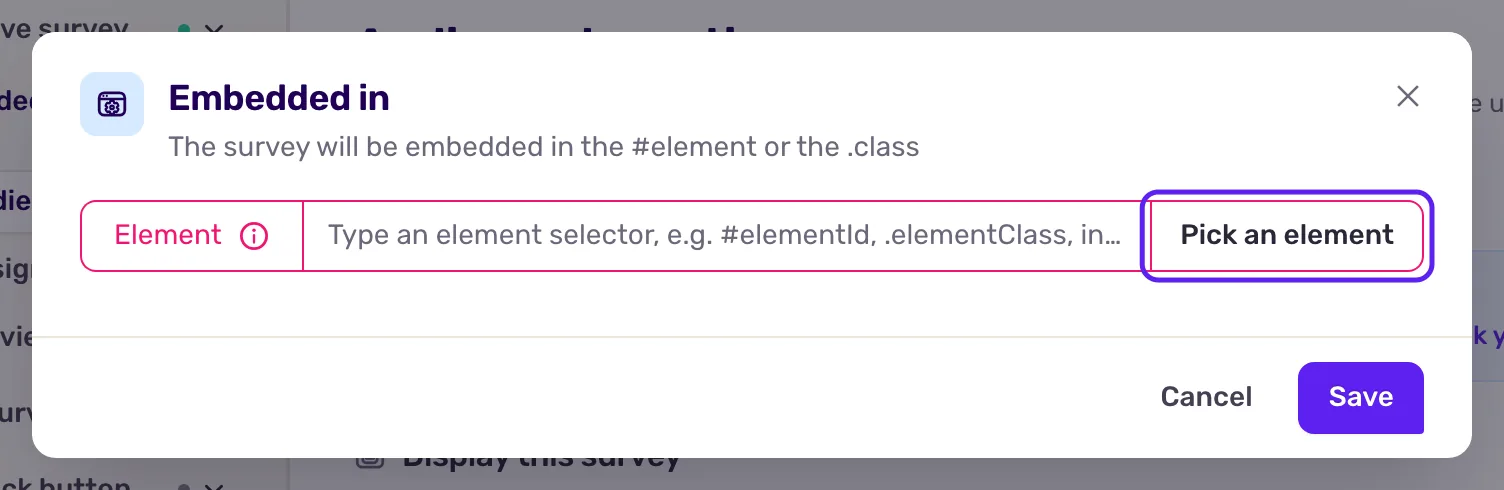
- Under Embedded in, click the selector field. A window opens.
- In Element, type the CSS selector of the element, or pick it on your site (next section).
- Click Save to close the window.
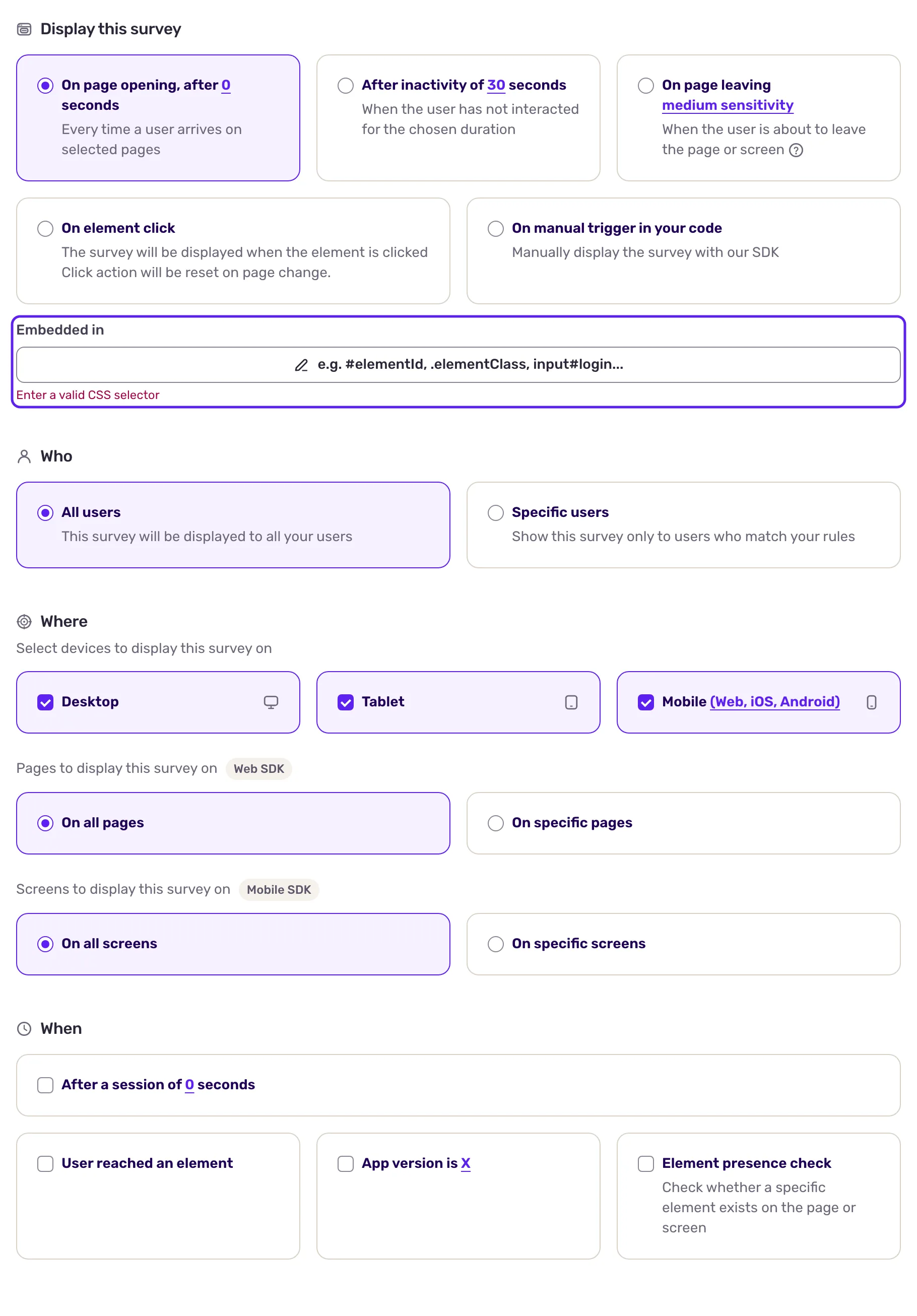
The survey is added at the end of the first element that matches the selector, once that element is visible. Some examples:
| Selector | Matches |
|---|---|
#feedback |
The element with the id feedback. |
.article-footer |
Elements with the class article-footer. |
main .article-footer |
Elements with that class, inside main. |
.pricing, .plans |
Elements with either class. |
Pick the element on your site
Section titled “Pick the element on your site”When you do not know the selector, let Screeb find it:
- In the window, click Pick an element. The button needs a role that lets you edit surveys. The Choose a URL window opens.
- Under Page URL, enter the address of a page of your website where the Screeb tag is installed, or click one of your recently used pages. Click Choose.
- Your page opens in a new tab. Hover the page and click the element where the survey goes.
- Back in Screeb, the Element field is filled. Click Save.
Prefer a stable selector, such as an id your developers add for Screeb. Generated class names change with each release of your site, and the survey then finds no element.
Set who sees it and when
Section titled “Set who sees it and when”Below Embedded in, set the trigger, the users, the pages and the devices as for any survey, see Choose who sees your survey. On top of these rules, the survey shows only when its element is on the page: on a page without it, nothing happens.
Then click Save at the top right, and the button that reads Set live followed by the channel name.
Change its design
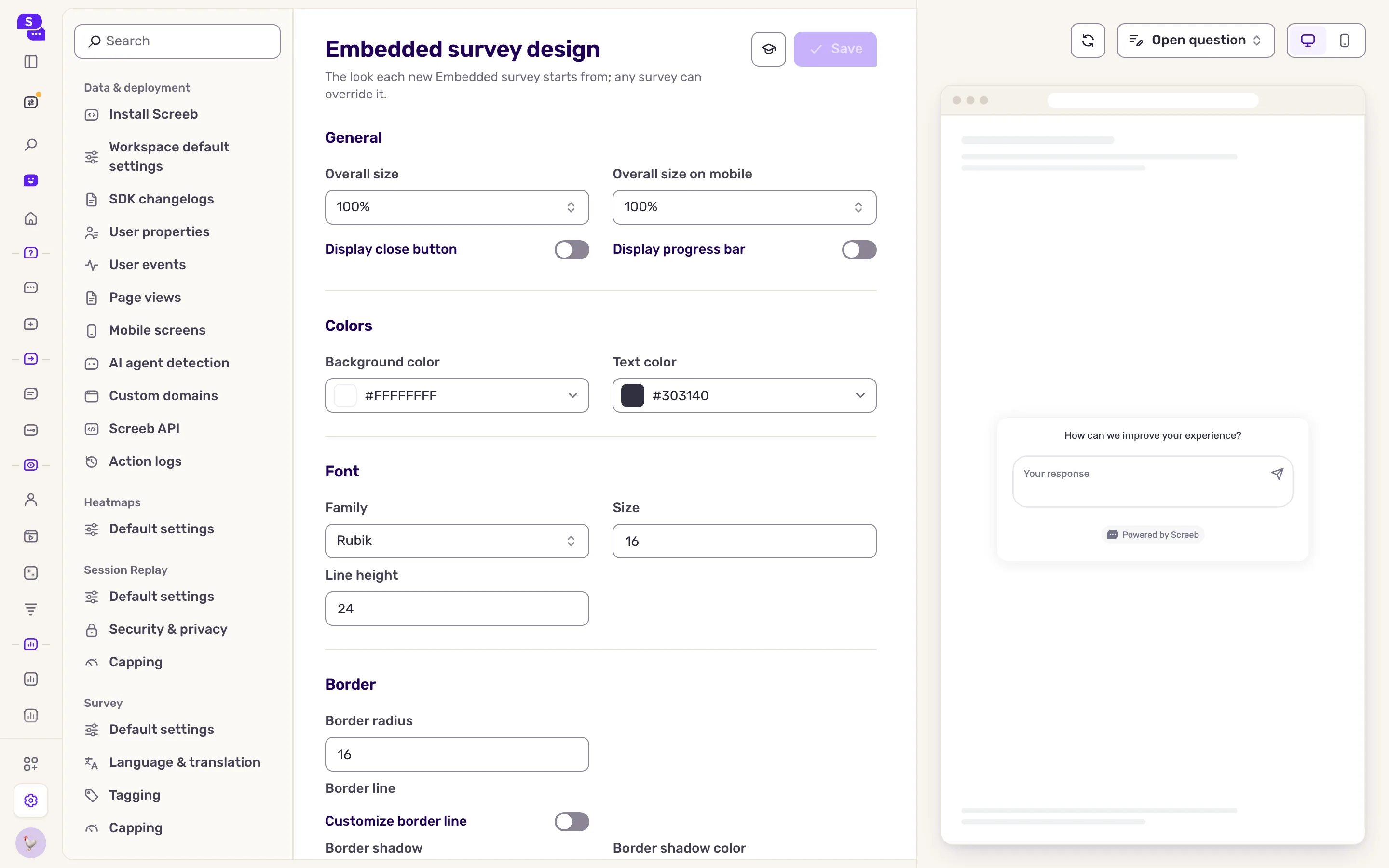
Section titled “Change its design”Embedded surveys have their own default design, in the Survey design settings group of the settings: Embedded survey. There, you set the Overall size, the colors, the font, the borders, and whether to Display close button. The size, the close button and the border settings need advanced customization in your plan. There is no position to set: the element decides where the survey sits.
To change the design of this survey only, click Design under Embedded survey and switch to Specific design. See Customize the design of your surveys.
What you get
Section titled “What you get”The survey appears in your page, as part of its content, for the users who match its targeting. If the element leaves the page, the survey goes with it, and it comes back when the element does. Several embedded surveys can show on the same page, and next to a proactive survey.
Troubleshooting
Section titled “Troubleshooting”Save is disabled with “A CSS selector is required for the "In page" interaction.” The Embedded in field is empty. Enter a selector before you save or set the survey live.
The field shows “Enter a valid CSS selector” The selector has a typo, such as a space after # or an unclosed bracket. Fix it, or pick the element on your site.
The survey does not show. Check that the element is on the page and visible: open your browser’s developer tools and run document.querySelector("your-selector"). Then check the targeting with Screeb Inspector. With the On manual trigger in your code trigger, the field is locked and your code starts the survey.
Pick an element opens the page but nothing comes back. The page has no Screeb tag, or the tag belongs to another workspace. Use a page where the tag of this workspace is installed.